You Tube Connect Smartphone to Google Maps in Toyota
Recipe Developer & Kitchen Guide Writer at Choose Vacuum · Certified Home Economist, ServSafe Food Handler · 8+ years developing home recipes and testing everyday kitchen techniques
Learn how to connect your smartphone to Google Maps and YouTube in your Toyota using wireless mirroring, Bluetooth, and USB connections for seamless navigation and entertainment on the road.
Have you ever wanted to watch a YouTube video or follow Google Maps directions on a big screen while driving your Toyota? It sounds simple, but many people feel confused about how to make it work. The good news is that connecting your smartphone to your Toyota’s system is easier than you think. Whether you drive a Toyota Camry, RAV4, or Highlander, the process is very similar. Let us walk you through everything you need to know about YouTube connect smartphone to Google Maps in Toyota.
Modern Toyota vehicles come packed with technology. The Toyota Infotainment system lets you do more than just play radio. You can mirror your phone screen, use navigation apps, and even stream music from YouTube. All of this becomes possible once you know the right steps. This guide covers every method, tip, and trick to get you connected fast.
Key Takeaways
- Wireless and wired options exist: You can connect your phone to Toyota using Bluetooth, USB, or smartphone mirroring for Google Maps and YouTube.
- Toyota Infotainment makes it simple: Most Toyota models support Apple CarPlay and Android Auto for easy navigation and streaming.
- Safety comes first: Always set up your connection before driving and use hands-free controls to stay focused on the road.
- YouTube works in multiple ways: You can use YouTube Music, screen mirror YouTube, or rely on Toyota’s built-in apps for entertainment.
- Phone mounts help stability: A good mount keeps your device secure while using GPS navigation and streaming apps.
📑 Table of Contents
Understanding Toyota’s Infotainment System
Before you start connecting anything, it helps to understand what your Toyota’s system can do. Toyota uses different names for its tech across model years. Some older models use a basic audio system, while newer ones have full Toyota multimedia touchscreens. Knowing your system helps you pick the best connection method.
Toyota Touchscreen Models
Most Toyotas made after 2017 come with a touchscreen display. These screens support smartphone integration through Apple CarPlay and Android Auto. With these features, you can access Google Maps and YouTube directly from the car’s screen. The touchscreen makes navigation feel smooth and natural. You can tap, swipe, and zoom just like you would on your phone.
Non-Touchscreen Models
Older Toyota models may not have a touchscreen. But you can still connect your phone using Bluetooth or an auxiliary cable. While you will not get the full mirroring experience, you can still use voice commands for GPS navigation. The audio from Google Maps and YouTube Music will play through your car speakers either way.
Step-by-Step: Connect Your Smartphone to Google Maps
Getting Google Maps working in your Toyota is the first big step. Google Maps is one of the most popular navigation apps in the world. It gives you live traffic updates, alternate routes, and voice-guided directions. Here is how to set it up in your Toyota.
Method 1: Using Apple CarPlay or Android Auto
This is the best and easiest way to use Google Maps in your Toyota. Both Apple and Android phones support this feature. Here is what to do:
- Make sure your Toyota’s infotainment system is on.
- Plug your phone into the USB port using a good cable.
- Wait for the CarPlay or Android Auto icon to appear on screen.
- Tap the icon and follow the on-screen setup steps.
- Open Google Maps from the car’s app menu.
- Allow location access when prompted.
- Start typing your destination or say it aloud using voice commands.
Once connected, Google Maps will display on the Toyota screen. You will get turn-by-turn directions, speed limit alerts, and estimated arrival times. The driving directions feel just like using your phone, but bigger and safer.
Method 2: Bluetooth Connection
If you prefer a wireless setup, Bluetooth works well for audio-based navigation. You cannot see the full Google Maps screen on your Toyota display, but you will hear all directions through your car speakers.
- Go to your Toyota’s settings menu.
- Select Bluetooth and turn it on.
- On your phone, go to Bluetooth settings and search for devices.
- Select your Toyota from the list.
- Accept the pairing request on both devices.
- Open Google Maps on your phone and start navigation.
The audio will route through your car’s speakers automatically. This method is great for people who want a wireless connection without dealing with cables.
Connecting YouTube to Your Toyota
YouTube is not just for video anymore. Many people use YouTube Music or listen to podcasts while driving. Connecting YouTube to your Toyota opens up a world of entertainment. Here are the best ways to do it.
Using YouTube Music Through CarPlay or Android Auto
YouTube Music works beautifully with Apple CarPlay and Android Auto. Once your phone is connected, simply open the YouTube Music app on your car’s screen. You can browse playlists, search for songs, and control playback with ease. The audio streams through your car speakers just like a radio station.
Screen Mirroring YouTube
If you want to watch YouTube videos on the big Toyota screen, screen mirroring is the way to go. This feature sends your phone’s display to the car’s infotainment system. Keep in mind that watching videos while driving is unsafe and often illegal. However, you can mirror YouTube when your car is parked.
To mirror YouTube:
- Open the YouTube app on your phone.
- Look for the cast or mirror icon in the app.
- Select your Toyota’s infotainment system from the list.
- Your phone screen will now appear on the Toyota display.
Some Toyota models support wireless screen mirroring through apps like Screen Mirroring or Smart View. Check your owner’s manual for the exact feature name for your model.
Using the Toyota Multimedia App Store
Newer Toyota models have their own app store built into the infotainment system. You can download apps like YouTube directly onto the car’s screen. This means you do not always need your phone connected. The Toyota multimedia system handles everything on its own, giving you a clean and simple experience.
Best Phone Mounts and Accessories
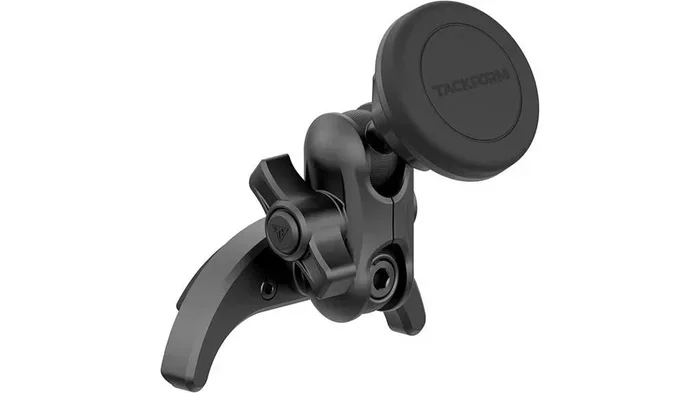
When you use Google Maps or YouTube in your Toyota, having your phone in the right spot matters a lot. A phone mount keeps your device secure and within your line of sight. This setup helps you follow driving directions without taking your eyes off the road for too long.
You also want to make sure your phone does not slip or shift while driving. A loose phone can be distracting and dangerous. Consider a mount that clips onto your air vent or holds your phone firmly on the dashboard. Some mounts even charge your phone wirelessly, which is a nice bonus for long trips.
Think about how you sit while driving too. Proper seating position helps you see the screen clearly without straining. Just like learning how to sit in a chair the right way, your driving posture affects comfort and safety during long trips.
Common Problems and How to Fix Them
Even with the best setup, you might run into issues. Here are common problems people face when connecting their phone to Toyota and how to solve them.
Connection Keeps Dropping
If your Bluetooth or USB connection drops often, try these fixes. First, make sure your phone’s software is up to date. Old software can cause compatibility issues. Next, delete the Toyota from your phone’s Bluetooth memory and pair it again. Finally, restart both your phone and the car’s infotainment system. This simple reset fixes most connection problems.
Google Maps Shows Wrong Location
Sometimes Google Maps takes a while to find your location. Make sure location services are turned on in your phone settings. Also check that Google Maps has permission to access your location. If the problem continues, try clearing the app cache or reinstalling Google Maps. A strong GPS signal works best when your phone has a clear view of the sky.
YouTube Audio Cuts Out
If the audio from YouTube stutters or stops, check your connection type. USB connections tend to be more stable than Bluetooth for streaming. If you use Bluetooth, make sure nothing else is connected to the same car audio system. Also lower the audio quality setting in YouTube Music to reduce buffering.
Phone Slips in the Mount
A phone that keeps sliding out of its mount is frustrating and unsafe. Make sure the mount grips your phone tightly. Clean the mount and phone case regularly to remove dust and grease. A stable setup prevents slipping and keeps your device secure while driving.
Safety Tips for Using Your Phone in Toyota
Technology makes driving more fun, but safety must always come first. Here are some important tips to keep in mind when using Google Maps or YouTube in your Toyota.
- Set up before you drive: Enter your destination and start navigation while parked. Do not type addresses or tap screens while the car is moving.
- Use voice commands: Both Google Maps and YouTube support voice control. Say “Hey Google” or use Siri to keep your hands on the wheel.
- Keep your eyes on the road: Glance at the screen briefly when needed, but do not stare at it for long periods.
- Pull over for videos: Watching YouTube videos while driving is dangerous and illegal in most places. Only watch when your car is safely parked.
- Clean your screen regularly: A smudgy or dirty screen is hard to see and use. Keep your Toyota’s touchscreen clean for the best experience.
Taking a few extra minutes to set things up properly saves you from distractions later. A clean and organized setup makes your Toyota smart features work at their best every time you drive.
Comparison: Wired vs Wireless Connection
Choosing between a wired and wireless connection depends on your needs. Here is a quick comparison to help you decide.
| Feature | Wired (USB) | Wireless (Bluetooth) |
|---|---|---|
| Connection Stability | Very stable | Good but can drop |
| Setup Speed | Fast | Fast |
| Charging | Yes | No (unless wireless charging) |
| Video Mirroring | Yes | Limited |
| Cable Needed | Yes | No |
| Best For | Navigation and video | Audio and calls |
For the best experience with Google Maps and YouTube, a wired USB connection gives you the most reliability. But if you hate cables, Bluetooth works well for audio-based tasks like following directions and listening to music.
Final Thoughts
Connecting your smartphone to Google Maps and YouTube in your Toyota opens up a whole new level of convenience and entertainment. Whether you prefer the simplicity of CarPlay, the flexibility of Bluetooth, or the power of screen mirroring, Toyota gives you multiple options to choose from. Start with the basics, get comfortable, and then explore more advanced features as you go.
Remember to keep your setup clean and organized. A well-maintained Toyota touchscreen and a secure phone mount make everything smoother. Keep your cables in good shape and your software updated for the best performance. With the right setup, your Toyota becomes more than just a car. It becomes your personal navigation and entertainment hub on wheels.
Take some time today to try these steps. Once you see how easy it is to use Google Maps navigation and stream YouTube in your Toyota, you will wonder how you ever drove without it. Safe travels and enjoy the ride.
Frequently Asked Questions
Can I watch YouTube videos while driving my Toyota?
Watching YouTube videos while driving is unsafe and illegal in most places. You can use YouTube Music for audio streaming while driving, but save video watching for when your car is parked. Always prioritize safety over entertainment on the road.
Does every Toyota model support Apple CarPlay and Android Auto?
Most Toyota models made after 2018 support Apple CarPlay and Android Auto. However, some older or base models may not include these features. Check your Toyota’s owner manual or visit the Toyota website to confirm compatibility for your specific model and year.
Do I need an internet connection to use Google Maps in my Toyota?
Yes, Google Maps needs an internet connection to load maps, traffic data, and search results. You can use your phone’s mobile data or connect through your Toyota’s built-in Wi-Fi if available. Download offline maps in the Google Maps app before your trip as a backup option.
Can I use YouTube Music instead of YouTube in my Toyota?
Yes, YouTube Music works great through Apple CarPlay and Android Auto. You get access to millions of songs, playlists, and podcasts without needing video playback. It is a safer and more practical option for listening to music while driving your Toyota.
What should I do if my Toyota’s screen freezes after connecting my phone?
Screen freezes can happen when the infotainment system is overloaded. Try restarting the system by holding the power button on your Toyota’s display for about 10 seconds. Also make sure your phone software and Toyota firmware are both up to date. A simple restart usually fixes the issue quickly.
Is it safe to use a phone mount in my Toyota while driving?
Yes, a phone mount is safe as long as it holds your phone securely and does not block your view of the road. Choose a mount that attaches firmly to your dashboard or air vent. Make sure your phone does not wobble or slip. A stable mount keeps your device in place and helps you follow directions safely.
=== CONCLUSION ===
Connecting your smartphone to Google Maps and YouTube in your Toyota is a game changer for daily commutes and long road trips. You now know how to use Apple CarPlay, Android Auto, Bluetooth, and screen mirroring to get the most out of your Toyota’s infotainment system. From setting up GPS navigation to streaming your favorite YouTube content, the process is straightforward and rewarding. Keep your phone mounted securely, use voice commands, and always prioritize safety. With the right setup, your Toyota becomes a smarter, more connected vehicle that makes every drive more enjoyable.

Similar Posts