On a Tesla Why How Do You Remove an Address from the Work Label
Recipe Developer & Kitchen Guide Writer at Choose Vacuum · Certified Home Economist, ServSafe Food Handler · 8+ years developing home recipes and testing everyday kitchen techniques
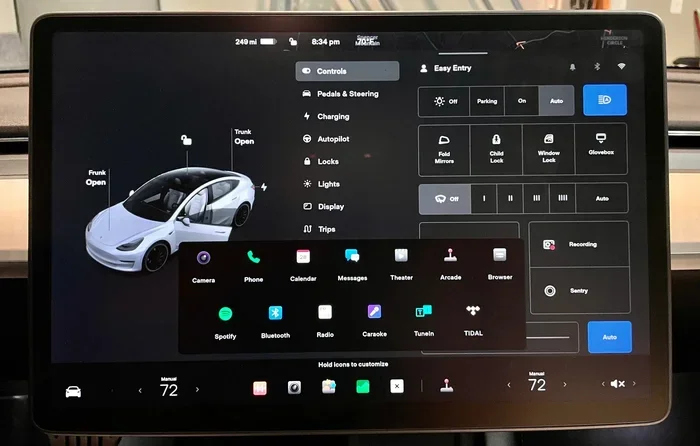
Removing a work address from your Tesla is a quick process that takes just a few taps on the touchscreen. Whether you have moved jobs or simply want to clear your saved locations, this guide walks you through every step. You will also learn how to manage your Tesla navigation settings, update saved addresses, and avoid common mistakes that cause issues with your Tesla work label.
Have you ever looked at your Tesla screen and wondered why your old work address is still sitting there? Maybe you changed jobs. Maybe you just do not need that location anymore. Whatever the reason, removing an address from the work label on your Tesla is simpler than you think.
This guide will show you exactly how to do it. We will cover every step, from opening the right menu to confirming the deletion. You will also learn tips to keep your Tesla navigation clean and organized. Think of it like maintaining your setup, just like you might reupholster a chair cushion to keep it looking fresh.
The Tesla navigation system stores your home and work addresses for quick access. Over time, these saved locations can become outdated. Clearing them out ensures your Tesla GPS always points you in the right direction. Let us dive in.
Key Takeaways
- Easy Access: You can remove your work address directly from the Tesla navigation menu in under a minute.
- No Technical Skills Needed: The process is simple and does not require any special tools or software updates.
- Multiple Methods: There are more than one way to delete or change your work label address on a Tesla.
- Common Mistakes Exist: Avoiding certain errors saves time and prevents navigation glitches.
- Related Settings Matter: Managing your home and work addresses together keeps your Tesla navigation running smoothly.
- Like Removing Wheels From an Office Chair: Just as you might remove the wheels from an office chair for a cleaner setup, removing an address keeps your Tesla navigation tidy.
📑 Table of Contents
- Why You Might Want to Remove a Work Address from Your Tesla
- How to Remove an Address from the Work Label on a Tesla
- Alternative Methods to Clear Your Tesla Work Address
- How to Add a New Work Address After Removing the Old One
- Common Mistakes When Removing a Work Address from a Tesla
- Tips for Keeping Your Tesla Navigation Clean and Organized
- How Tesla Navigation Saves and Uses Your Addresses
- Frequently Asked Questions
- Conclusion
Why You Might Want to Remove a Work Address from Your Tesla
There are several reasons why drivers choose to delete their work address from the Tesla navigation system. Understanding these reasons helps you decide if it is the right move for you.
You Changed Jobs or Offices
The most common reason is a simple change in your daily routine. If you switched employers or moved to a new office, your old Tesla work label no longer serves you. Keeping it saved just creates clutter on your navigation screen.
You No Longer Commute
Maybe you started working from home full time. Or perhaps you took a new role that does not require daily travel. In either case, removing the work address keeps your Tesla map clean and focused on the places you actually go.
Privacy and Personal Preference
Some Tesla owners prefer not to have their work location stored in the vehicle. Removing the address gives you more control over your Tesla location data. It is a small step toward keeping your driving profile private.
You Are Selling or Sharing the Vehicle
If you plan to sell your Tesla or let someone else drive it, clearing personal addresses is a smart move. This protects your privacy and gives the next user a fresh start with the navigation system.
How to Remove an Address from the Work Label on a Tesla
Now let us get into the actual steps. The process is straightforward and works on most Tesla models. Follow along carefully to make sure you do not miss anything.
Step 1: Tap the Navigation Icon
Start by tapping the navigation icon on your Tesla touchscreen. It usually looks like a map symbol at the bottom of the screen. This opens your Tesla map view and brings up your saved locations.
Step 2: Go to the Search Bar
Next, tap the search bar at the top of the navigation screen. This is where you type in destinations. But it also gives you access to your saved addresses, including the work label.
Step 3: Select the Work Address
You should see your saved work address appear in the suggestions or in your recent locations. Tap on it to open the full details. This brings up the address options menu.
Step 4: Choose the Delete Option
Once the work address is open, look for a delete or remove option. On some Tesla models, this appears as a trash can icon. On others, you may need to tap a three-dot menu. Select the option to remove the address.
Step 5: Confirm the Deletion
Tesla will ask you to confirm that you want to delete the work address. Tap confirm or delete to finalize the process. The address will no longer appear in your saved locations or navigation suggestions.
Step 6: Check the Work Label
Go back to the navigation home screen and check the work label. It should now be empty or show a default placeholder. If the old address still appears, try restarting the Tesla touchscreen by holding down the two scroll buttons on the steering wheel.
Think of this process like stopping a chair from squeaking — a small fix that makes a big difference in your daily experience.
Alternative Methods to Clear Your Tesla Work Address
Not all Tesla models or software versions work exactly the same way. Here are a few alternative methods you can try if the main steps above do not work for your vehicle.
Method 1: Use the Tesla App
You can also manage your saved addresses through the Tesla mobile app. Open the app, go to settings, and look for navigation or location preferences. From there, you can edit or remove your work address remotely.
Method 2: Reset Navigation Settings
If you are having trouble deleting just the work address, you can reset your navigation settings entirely. Go to Controls, then Settings, then Navigation. Look for an option to clear saved locations or reset navigation data.
Method 3: Contact Tesla Support
When nothing else works, Tesla support can help. They can walk you through the process or remotely clear your saved addresses. This is especially helpful if your Tesla software is outdated or glitching.
How to Add a New Work Address After Removing the Old One
Once you have removed the old work address, you might want to add a new one. This is just as easy as the removal process.
First, open the Tesla navigation screen and tap the search bar. Type in your new work address and select it from the suggestions. Then, tap the option to save it as your work location. The Tesla work label will update immediately, and your new address will appear in your saved locations.
Pro tip: Always double-check the address before saving. Make sure the street number, city, and zip code are correct. A wrong work address can lead to confusing directions during your daily commute.
Common Mistakes When Removing a Work Address from a Tesla
Even simple tasks can go wrong if you are not careful. Here are the most common mistakes Tesla owners make when trying to remove a work address.
Not Restarting the Screen After Deletion
Sometimes the old address lingers on the screen even after you delete it. This happens because the Tesla touchscreen needs a refresh. Restarting the display clears the cache and shows the updated navigation settings.
Confusing the Work Label with the Home Label
It is easy to accidentally delete your home address instead of the work address. Always check the label carefully before confirming any deletion. The Tesla navigation screen clearly marks each address with either a home or work icon.
Skipping the Confirmation Step
Some drivers tap too quickly and skip the confirmation prompt. If you do not confirm the deletion, the address stays saved. Always wait for the confirmation dialog and tap delete before moving on.
Not Updating Tesla Software
Older Tesla software versions may have different menu layouts. If you cannot find the delete option, check for a software update first. Go to Controls, then Software, and install any available updates. Fresh software often fixes navigation bugs and adds new features.
Tips for Keeping Your Tesla Navigation Clean and Organized
A clean navigation system makes your daily driving experience better. Here are some simple tips to keep your Tesla map organized.
- Review saved addresses monthly: Go through your home and work labels every few weeks. Remove any addresses you no longer need.
- Use nicknames for common locations: Tesla lets you save locations with custom names. Use clear names like “New Office” or “Home” to avoid confusion.
- Clear recent destinations regularly: The recent destinations list can pile up over time. Clearing it keeps your navigation screen fast and clutter-free.
- Keep your Tesla software updated: Updates often improve the navigation system and add new ways to manage saved locations.
Just as you might place a throw on a chair to keep it looking neat, keeping your Tesla navigation tidy makes the whole experience more pleasant.
How Tesla Navigation Saves and Uses Your Addresses
Understanding how the Tesla navigation system works helps you manage your addresses better. The system uses GPS and map data to guide you to your destinations. When you save a work address, it stores the location locally on the vehicle and syncs it with your Tesla account.
This means your saved addresses are available even when you are offline. The Tesla map downloads relevant map data for your frequent destinations. It also learns your habits over time and suggests your work address during your typical commute hours.
Removing a work address stops this suggestion feature from triggering. Your Tesla will no longer assume you want directions to that location. This is useful when your routine changes or when you want a fresh start with your navigation settings.
Frequently Asked Questions
Can I remove the work label entirely without deleting the address?
Yes, you can clear the work label so it shows no address. Simply delete the saved work address from your navigation settings. The label will remain but will appear empty until you add a new work location.
Will removing my work address affect my Tesla navigation history?
No, removing the work address only deletes the saved location. Your navigation history and trip data remain separate and are not affected by this change.
Can I remove a work address from a Tesla using voice commands?
Currently, Tesla does not support voice commands specifically for deleting saved addresses. You will need to use the touchscreen to remove a work address from the navigation system.
How often should I clean up my Tesla saved addresses?
It is a good idea to review your saved addresses every one to two months. This keeps your navigation system fast and ensures your directions are always accurate.
Does removing a work address sync across all my Tesla vehicles?
If you use the same Tesla account on multiple vehicles, the change may sync across them. However, this depends on your Tesla software version and settings. Check your app to confirm the change applied everywhere.
What should I do if the work address keeps coming back after I delete it?
This can happen if your Tesla syncs with the mobile app or cloud account. Try removing the address from both the vehicle and the app. Restarting the touchscreen and checking for software updates can also resolve this issue.
Conclusion
Removing an address from the work label on your Tesla is a simple but important task. Whether you changed jobs, started working from home, or just want a cleaner navigation screen, the steps are easy to follow. You now know the main method, the alternative approaches, and the common mistakes to avoid.
Keep your Tesla work label updated and your saved addresses organized. A clean navigation system means better directions, faster suggestions, and a more enjoyable driving experience every day. Take a few minutes today to review your Tesla map settings and make sure everything is current.
Your Tesla is a smart vehicle that works best when you keep it maintained. Small tasks like removing old addresses go a long way toward keeping your driving experience smooth and stress-free.

Similar Posts