No Tesla App
Recipe Developer & Kitchen Guide Writer at Choose Vacuum · Certified Home Economist, ServSafe Food Handler · 8+ years developing home recipes and testing everyday kitchen techniques
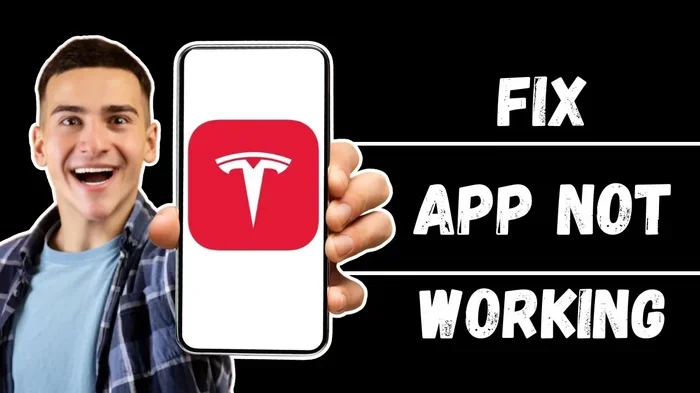
Having trouble with no Tesla app access? You are not alone. Many Tesla owners face issues with the Tesla mobile app not working, not responding, or not downloading. This guide covers the most common reasons your Tesla app is unavailable and shows you how to still control your vehicle using alternative tools and methods.
Key Takeaways
- Multiple reasons exist why the Tesla app may not be working, from server outages to login problems.
- Tesla offers built-in alternatives like the key card, phone key, and web portal to access your vehicle.
- Common fixes include clearing cache, updating the app, checking your internet connection, and restarting your device.
- Third-party apps and tools can sometimes fill the gap when the official Tesla app is unavailable.
- Staying proactive with app maintenance helps prevent future access issues.
📑 Table of Contents
What Happens When There Is No Tesla App?
Tesla owners rely heavily on the mobile app. It lets you lock doors, check battery levels, preheat the cabin, and locate your car. But what happens when the Tesla app simply is not there? Maybe it will not download. Maybe it keeps crashing. Or maybe Tesla servers are down and the app will not connect.
Dealing with no Tesla app access can feel frustrating. You suddenly lose the convenience of controlling your vehicle from your phone. But here is the good news. There are several ways to stay connected to your Tesla even when the app is not an option.
In this guide, we will walk through the most common reasons the Tesla app fails, the best alternatives you can use right now, and simple fixes to get things working again. Whether you are a new Tesla owner or a long-time fan, this article has you covered.
Why the Tesla App Might Not Be Available
Several factors can cause the Tesla app to disappear or stop working. Understanding the root cause helps you find the right solution faster.
Server outages are one of the most common culprits. Tesla servers occasionally go down for maintenance or due to high traffic. During these times, the app may show errors or refuse to load. You can check Tesla’s official status page or community forums to see if others are experiencing the same problem.
App store restrictions can also play a role. In some regions, the Tesla app may not be available for download. This could be due to local regulations or app store policies. If you are traveling abroad, you might run into this issue.
Outdated software on your phone can cause compatibility problems. Tesla regularly updates its app to work with the latest operating systems. If your phone is running an old version, the app may not install or function properly.
Account issues like forgotten passwords or suspended accounts can block access too. Make sure your Tesla account is in good standing and that your login credentials are correct.
How to Access Your Tesla Without the App
Even when the Tesla app is not working, you still have options. Tesla builds several backup tools into the ownership experience. Here are the best ways to stay in control of your vehicle without relying on the mobile app.
Use the Tesla Key Card
Every Tesla comes with a key card. This small card uses RFID technology to unlock and start your car. You can place it on the center console to drive. It is a simple, reliable backup that never needs a battery or Wi-Fi connection.
The key card also works for basic functions like opening the trunk and frunk. Keep it in your wallet or bag at all times. It is your best friend when the Tesla app is down.
Try the Phone Key Feature
Tesla offers a phone key feature that uses Bluetooth. Once set up, you can unlock and drive your Tesla just by having your phone nearby. This works independently of the mobile app and does not require an internet connection.
To set up the phone key, go to the Controls menu in your car, select Keys, and follow the prompts. Make sure Bluetooth is turned on and your phone is charged. This is one of the most seamless alternatives to the Tesla app.
Log In Through the Tesla Web Portal
The Tesla web portal at tesla.com gives you access to many of the same features as the mobile app. You can check your vehicle status, locate your car, and send navigation destinations. It works from any web browser on your phone, tablet, or computer.
The web portal is especially useful when your phone does not support the Tesla app or when you need to access your account on a larger screen. It is a solid workaround for no Tesla app situations.
Common Tesla App Problems and How to Fix Them
Before giving up on the Tesla app entirely, try these proven fixes. Many issues have simple solutions that take just a few minutes.
Check Your Internet Connection
The Tesla app needs a stable internet connection to work. If your Wi-Fi is weak or your cellular data is off, the app will not load properly. Try switching between Wi-Fi and mobile data to see if that resolves the issue.
Restart your router if you are on Wi-Fi. Move closer to the router if the signal is weak. A quick speed test can tell you if your connection is fast enough for the app to function.
Update the Tesla App
Running an outdated version of the Tesla app is a common cause of problems. Visit the App Store or Google Play Store and check for updates. Install the latest version and restart your phone.
Tesla releases updates frequently to fix bugs and improve performance. Keeping the app updated ensures you have the latest features and security patches.
Clear the App Cache
Over time, cached data can build up and cause the app to malfunction. Clearing the cache removes temporary files that might be causing conflicts. On Android, go to Settings, then Apps, find Tesla, and select Clear Cache.
On iPhone, you may need to uninstall and reinstall the app to clear the cache. This is a quick fix that often solves stubborn app problems.
Reinstall the Tesla App
If nothing else works, uninstall the Tesla app and install it fresh. This gives you a clean slate and removes any corrupted files. Make sure you remember your Tesla account login details before deleting the app.
After reinstalling, log in and check if the app connects properly. This fix resolves most app-related issues and is worth trying early in the troubleshooting process.
Third-Party Tools and Alternatives to the Tesla App
While the official Tesla app is the most comprehensive tool, some third-party options exist. These can help fill the gap when the Tesla app is not available or not working for your situation.
Some owners use TeslaFi or Tesla App alternative platforms that offer vehicle monitoring and data tracking. These tools connect to Tesla’s API and provide insights into battery health, charging history, and driving patterns.
However, be cautious with third-party tools. Always use reputable services and never share your Tesla login credentials with unverified apps. Your vehicle security should always come first.
If you are exploring other app-based tools for your smart home or vehicle setup, you might also check out which chair yoga app is the best for wellness apps, or look at what is the best chair workout app if you are comparing fitness and utility apps. These resources can help you find reliable alternatives in the app ecosystem while you sort out your Tesla access.
Preventing Future Tesla App Issues
The best way to deal with no Tesla app problems is to prevent them from happening in the first place. A few simple habits can keep your app running smoothly.
Enable automatic updates on your phone so the Tesla app always stays current. This ensures you get bug fixes and new features as soon as they are available.
Keep your phone’s operating system updated too. Tesla optimizes its app for the latest OS versions, and older systems can cause compatibility problems.
Regularly clear the app cache every few weeks. This prevents data buildup that can slow down or crash the app.
Store your key card in a safe place at all times. Even when the app works perfectly, having a physical backup gives you peace of mind.
Monitor Tesla’s official channels for server status updates. Following Tesla forums or the Tesla app’s own status notifications helps you stay informed about outages before they affect you.
When to Contact Tesla Support
Sometimes the problem is bigger than a simple fix. If you have tried all the troubleshooting steps and the Tesla app still will not work, it is time to reach out to Tesla support.
You can contact Tesla through the help section of their website, the Tesla app (if it is partially working), or by calling their support line. Describe the issue clearly and mention any error messages you are seeing.
Tesla support teams are generally responsive and helpful. They can check your account status, reset your app connection, and provide specific guidance for your situation. Do not hesitate to contact them if you are stuck.
Also, if you are dealing with a broader issue where apps are not functioning on your device, you might explore resources like is chair yoga app free to understand common app availability questions, or check how much is chair yoga app for pricing context on app subscriptions. These can give you a broader perspective on app ecosystems while you resolve your Tesla access issues.
Final Thoughts
Dealing with no Tesla app access does not mean you lose control of your vehicle. Tesla provides multiple built-in tools like the key card, phone key, and web portal that keep you connected. With a few simple troubleshooting steps, you can often get the Tesla app working again quickly.
Stay proactive with updates, keep your key card handy, and know when to reach out to Tesla support. These habits ensure you are never left stranded, even when the app is not available.
Remember, the Tesla app is a convenience, not a necessity. Your Tesla will still drive, lock, and perform beautifully with or without it. Use the alternatives, apply the fixes, and get back to enjoying your electric vehicle with confidence.
Frequently Asked Questions
Why is my Tesla app not working?
The Tesla app may not be working due to server outages, outdated software, login issues, or internet connection problems. Try updating the app, clearing the cache, or checking your Wi-Fi and cellular data connection. Restarting your phone can also resolve many common issues.
Can I still use my Tesla without the mobile app?
Yes, absolutely. Tesla vehicles come with a key card, phone key via Bluetooth, and a web portal that provide all the essential functions. You can lock, unlock, and drive your Tesla without ever opening the mobile app.
How do I download the Tesla app if it is not available in my region?
If the Tesla app is not available in your region, try using the Tesla web portal instead. You can also check for regional updates or contact Tesla support for guidance. A VPN may sometimes help, but always use official channels first.
What should I do if the Tesla app keeps crashing?
Clear the app cache, update to the latest version, and uninstall then reinstall the app if needed. Make sure your phone’s operating system is also up to date. If the problem persists, contact Tesla support for further assistance.
Is there a free alternative to the Tesla app?
The Tesla mobile app itself is free to download and use. The Tesla web portal is also free and accessible through any browser. Third-party tools like TeslaFi offer additional features, but always verify the legitimacy of any third-party service before sharing your account details.
How can I prevent Tesla app issues in the future?
Keep the app updated, clear the cache regularly, maintain a stable internet connection, and always carry your key card as a backup. Monitoring Tesla’s official status page helps you stay informed about any ongoing outages or maintenance periods.
=== CONCLUSION ===
No Tesla app access can be a hassle, but it is never a dead end. You have the key card, the phone key, and the web portal to keep your Tesla running smoothly. Try the troubleshooting tips in this article, and you will likely get the app back up and running in no time.
Stay prepared, stay informed, and remember that your Tesla is more than just an app. It is a vehicle built to perform, with or without your phone. Take control today and enjoy the full Tesla experience with confidence.

Similar Posts