How to Connect Google Maps to Toyota
Recipe Developer & Kitchen Guide Writer at Choose Vacuum · Certified Home Economist, ServSafe Food Handler · 8+ years developing home recipes and testing everyday kitchen techniques
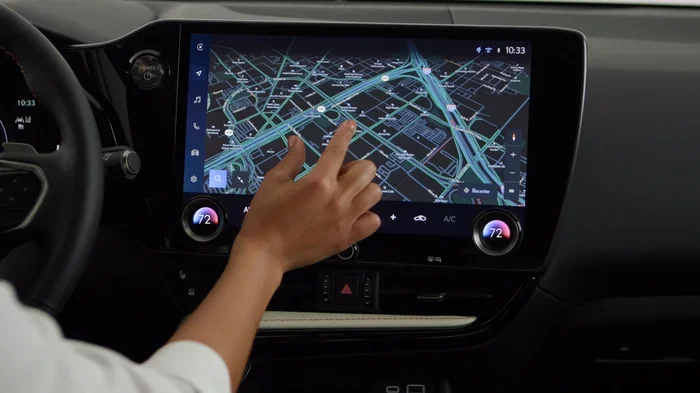
Connecting Google Maps to your Toyota is easier than you think. Whether you use Apple CarPlay, Android Auto, or your Toyota’s built-in system, this guide walks you through every step. You will learn how to set up GPS navigation, troubleshoot common issues, and get the most out of your Toyota’s infotainment features for safer and smarter driving.
There is something truly satisfying about pulling up Google Maps on your Toyota’s screen and letting the voice guide you to your destination. Whether you are commuting to work or embarking on a cross-country road trip, having Google Maps right at your fingertips makes every drive smoother and more enjoyable. Many Toyota owners wonder how to get this up and running, and the good news is that the process is straightforward once you know the steps.
This guide covers everything you need to know about how to connect Google Maps to Toyota vehicles. From understanding your infotainment system to troubleshooting common issues, we have you covered. You will also find practical tips to make your navigation experience better every time you turn the key. Let us dive in and get you set up.
Google Maps has become one of the most popular navigation tools in the world. It offers real-time traffic updates, voice-guided directions, and a familiar interface that most people already know. When you pair it with your Toyota, you get a powerful navigation system that fits right into your dashboard. The integration is seamless, and the benefits are immediate. You will wonder how you ever drove without it.
Key Takeaways
- Multiple Connection Methods: You can connect Google Maps via Apple CarPlay, Android Auto, or your Toyota’s built-in browser.
- Simple Setup Process: Most modern Toyotas support wireless or wired connections in just a few easy steps.
- Hands-Free Navigation: Google Maps works with voice commands for safer, distraction-free driving.
- Troubleshooting Tips Included: Fix common connection issues quickly and get back on the road.
- Compatible with Most Models: Toyota models from 2016 onward generally support smart connectivity features.
- Offline Maps Available: Download maps ahead of time for areas with poor cell service.
📑 Table of Contents
Understanding Your Toyota’s Infotainment System
Before you connect Google Maps, it helps to understand what your Toyota’s system can do. Toyota has been evolving its infotainment technology over the years. Newer models come with smart features that make phone integration seamless. Older models may need a bit more setup, but they can still work with Google Maps effectively.
Toyota Entune and Its Features
Toyota Entune is the brand’s infotainment platform. It comes in different versions depending on your model year. The latest versions support Apple CarPlay and Android Auto. These features let you mirror your phone’s screen on your Toyota’s display. You get access to all your favorite apps, including Google Maps, right from the dashboard.
Entune also offers built-in navigation in some models. However, many drivers prefer Google Maps because of its real-time traffic updates and familiar interface. If your Toyota supports Entune 3.0 or later, you are in great shape for connecting Google Maps. The platform is designed to work hand in hand with your smartphone, making the transition from phone to car screen smooth and intuitive.
Which Toyota Models Support Google Maps?
Most Toyota models from 2016 onward support smart connectivity. This includes popular models like the Camry, RAV4, Highlander, Tacoma, and Corolla. Even some older models can connect through a compatible aftermarket head unit. The key is to check whether your specific model supports Apple CarPlay or Android Auto.
If you are unsure about your model’s capabilities, you can check your owner’s manual or visit your local Toyota dealer. They can confirm what your Toyota supports in just a few minutes. It is always better to know before you start setting things up, so you do not run into surprises later.
How to Connect Google Maps to Your Toyota
Now for the part you have been waiting for. Connecting Google Maps to your Toyota depends on the method you choose. There are three main ways to do this. Each method works well, and your choice depends on your preference and your Toyota’s features. Let us walk through each one.
Method 1: Using Apple CarPlay
Apple CarPlay is a fantastic option if you drive an iPhone. It projects your phone’s interface onto your Toyota’s screen. You get full access to Google Maps with a larger, clearer display. Here is how to set it up:
- Make sure your iPhone is updated to the latest iOS version.
- Plug your iPhone into your Toyota’s USB port using a compatible cable.
- On your Toyota’s screen, select the Apple CarPlay icon.
- Open Google Maps from the CarPlay home screen.
- Allow the necessary permissions when prompted.
That is it. You should now see Google Maps on your Toyota’s display. You can search for destinations, get traffic updates, and use voice commands all while keeping your eyes on the road. Just like you would when you sit in your office chair and adjust everything for comfort, take a moment to position your seat so the screen is at a comfortable viewing angle. Proper positioning reduces eye strain and keeps you focused on driving safely.
Method 2: Using Android Auto
Android Auto works the same way for Android phone users. It connects your phone to your Toyota’s infotainment system and gives you access to Google Maps with a clean, simplified interface. Here is the setup process:
- Ensure your Android phone is running Android 10 or later.
- Download the Android Auto app from the Google Play Store.
- Connect your phone to your Toyota via USB cable.
- Select Android Auto on your Toyota’s display.
- Open Google Maps from the Android Auto interface.
Android Auto also supports wireless connection on some Toyota models. Check your owner’s manual to see if your Toyota supports wireless Android Auto. This eliminates the need for a cable and makes the connection even more convenient. You simply get in, and everything is ready to go.
Method 3: Using the Built-in Browser
If your Toyota does not support Apple CarPlay or Android Auto, you can still use Google Maps through the built-in web browser. This method is not as smooth as CarPlay or Android Auto, but it works in a pinch. Open the browser on your Toyota’s screen and navigate to maps.google.com. You can search for locations and get directions just like you would on a phone.
The built-in browser method has some limitations. The screen may not be as responsive, and you will not get the full app experience. However, it is a solid backup option for older Toyota models that do not support smart connectivity features. It is better than having no navigation at all.
Method 4: Using a Phone Mount and Bluetooth
Another popular option is to use a phone mount and Bluetooth connection. This method works with any phone and any Toyota model. You place your phone in a mount on the dashboard or windshield, and you get Google Maps right in your line of sight. It is a simple and effective solution that does not rely on your Toyota’s infotainment system.
Before you buy a mount, measure the available space on your dashboard to ensure a proper fit. A well-placed mount keeps your phone secure and your view unobstructed. It also keeps your phone charged through the mount’s built-in charging cable. Look for mounts that are easy to install and adjust, so you can find the perfect angle for your driving position.
Step-by-Step Setup Guide
Let us walk through the complete setup process step by step. This guide assumes you are using Apple CarPlay or Android Auto, which are the most common methods. Follow these steps and you will be navigating in no time.
Step 1: Prepare Your Phone
Start by updating your phone’s software. For iPhone users, go to Settings and check for iOS updates. For Android users, go to Settings and check for system updates. Make sure Google Maps is also updated to the latest version from the App Store or Google Play Store. An outdated app can cause connection problems and missing features.
Next, ensure your phone has enough battery. A long drive with Google Maps running can drain your battery quickly. Plug your phone into a car charger before you start the setup process. A fully charged phone ensures a stable connection and uninterrupted navigation throughout your trip.
Step 2: Connect Your Phone to the Toyota
Locate the USB port in your Toyota. Most models have at least one USB port in the center console. Plug in your phone using a compatible cable. If your Toyota supports wireless connection, you can skip the cable and pair your phone through Bluetooth settings on both your phone and your Toyota’s screen.
On your Toyota’s display, select the CarPlay or Android Auto icon. The system will detect your phone and display the interface. Follow any on-screen prompts to complete the connection. You may need to unlock your phone and tap “Trust” or “Allow” to grant permission for the connection.
Step 3: Set Up Google Maps
Once connected, open Google Maps from the CarPlay or Android Auto home screen. Sign in to your Google account if you have not already done so. This gives you access to your saved locations, recent searches, and personalized recommendations. It makes your navigation experience much more tailored to your needs.
Go to Settings within Google Maps and enable voice navigation. This allows you to get turn-by-turn directions without touching your phone. You can also set your preferred route type, such as fastest route, shortest route, or avoiding highways and tolls. These small adjustments make a big difference in your daily commute.
Step 4: Test the Connection
Before you hit the road, test your setup thoroughly. Search for a nearby destination and start navigation. Make sure the audio is clear and the directions are easy to follow. Adjust the screen brightness if needed for better visibility in different lighting conditions. A quick test drive around the block can save you from frustration later.
Tips for Better Navigation with Google Maps on Your Toyota
Once you have Google Maps connected, a few simple tips can make your experience even better. These small adjustments can save you time and frustration on the road. Here are some proven strategies that regular drivers swear by.
- Use Voice Commands: Say “Hey Google” to search for destinations hands-free. This keeps your eyes on the road and your hands on the wheel at all times.
- Download Offline Maps: If you are heading to an area with poor cell service, download the map for offline use. Google Maps lets you do this within the app settings under “Offline Maps.”
- Set Your Home and Work Addresses: Google Maps remembers these locations and gives you quick access to directions every day with just one tap.
- Check Traffic Before You Leave: Open Google Maps a few minutes before your trip to see real-time traffic conditions. This helps you choose the best route and avoid delays.
- Keep Your Phone Charged: Navigation uses a lot of battery power. A quality car charger keeps your phone powered throughout the drive.
- Adjust Screen Brightness: Set the brightness to match your driving conditions. Too bright at night can be distracting, while too dim during the day can be hard to read.
For those long road trips where you are using Google Maps for hours on end, comfort matters just as much as navigation. Much like you would make any desk chair more comfortable for a long work session, take a few minutes to adjust your Toyota seat, mirrors, and climate controls before you start driving. A comfortable driving position helps you stay focused and reduces fatigue on long journeys. Your navigation is only as good as your ability to stay alert and relaxed behind the wheel.
Troubleshooting Common Connection Issues
Sometimes things do not go as smoothly as we hope. If Google Maps is not connecting properly to your Toyota, here are some common fixes that solve the problem quickly.
Google Maps Will Not Open Through CarPlay or Android Auto
This is a common issue and usually easy to fix. Try disconnecting and reconnecting your phone. Restart both your phone and your Toyota’s infotainment system. Make sure Google Maps has the necessary permissions enabled on your phone. Go to Settings, then Apps, then Google Maps, and check that all permissions are allowed. Sometimes a simple restart of both devices is all it takes to get things working again.
Slow or Unresponsive Screen
If the screen is lagging, your phone might be the bottleneck. Close other apps running in the background. Restart your phone before connecting it to your Toyota. If the problem persists, try using a different USB cable. A faulty cable can cause slow data transfer and connection issues. Also, make sure your phone has enough storage space, as a full phone can slow down performance.
No Sound for Navigation Directions
Check your Toyota’s audio settings. Make sure the volume is turned up and that the audio source is set to the correct input. Also check Google Maps settings to ensure voice navigation is enabled. Sometimes a simple restart of the app fixes this issue. You can also try toggling the Bluetooth connection off and back on to reset the audio output.
Connection Drops Frequently
If your connection keeps dropping, the USB port might be loose or dirty. Clean the port with compressed air. Try a different USB port if your Toyota has multiple options. For wireless connections, make sure your phone is within range of the Toyota’s Bluetooth system. Restarting both devices and re-pairing them can also resolve frequent disconnection problems.
Is Google Maps the Best Choice for Toyota Navigation?
Google Maps is a great choice for most drivers. It offers real-time traffic updates, voice-guided directions, and a user-friendly interface that is hard to beat. However, it is not the only option available. Toyota’s built-in navigation system has its own strengths, and other apps like Waze also work with CarPlay and Android Auto.
Google Maps excels in areas with strong cell service. It provides accurate ETAs and suggests alternative routes based on live traffic data. Waze is another popular choice for its community-driven traffic alerts and hazard reports. Some drivers prefer to use both apps depending on their needs. The beauty of connecting Google Maps to your Toyota is that you have options. You can switch between apps or use them together for the best possible navigation experience.
Conclusion
Connecting Google Maps to your Toyota opens up a world of convenience and safety on the road. Whether you use Apple CarPlay, Android Auto, or the built-in browser, the process is simple and well worth the effort. You get access to real-time traffic, voice-guided directions, and a familiar interface every time you turn the key.
Take the time to set up your connection properly. Follow the steps in this guide, and you will be navigating with confidence in no time. If you run into any issues, refer back to the troubleshooting section for quick fixes. How to connect Google Maps to Toyota is a skill that pays off every time you drive. Happy navigating, and enjoy the ride!

Similar Posts