How Do I Connect Google Maps to My Toyota Yaris
Recipe Developer & Kitchen Guide Writer at Choose Vacuum · Certified Home Economist, ServSafe Food Handler · 8+ years developing home recipes and testing everyday kitchen techniques
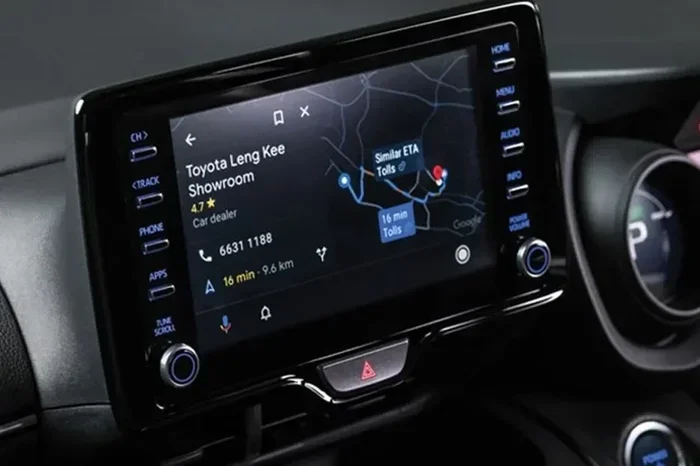
Connecting Google Maps to your Toyota Yaris is easier than you think. Whether you use Android Auto, Apple CarPlay, or Bluetooth, this guide walks you through every step. You will learn how to pair your phone, set up navigation, and troubleshoot common issues so you can hit the road with confidence.
Navigating in your Toyota Yaris just got a whole lot easier when you connect Google Maps to your car. Whether you are commuting to work, heading out on a road trip, or simply exploring a new neighborhood, having Google Maps on your dashboard gives you turn-by-turn directions right at your fingertips. Many Toyota Yaris owners wonder how to get their phone talking to their car’s infotainment system, and the good news is that it is a straightforward process. In this guide, we will walk you through every step so you can start using Google Maps for navigation in no time.
The Toyota Yaris comes with a decent infotainment system that supports smartphone integration. This means you can mirror your phone’s screen, use voice commands, and access all your favorite apps without taking your eyes off the road. Google Maps is one of the most popular navigation apps out there, and connecting it to your Yaris opens up a world of convenience. From real-time traffic updates to finding the nearest gas station, the possibilities are endless once your phone and car are linked.
Key Takeaways
- Multiple connection methods: You can connect Google Maps via Android Auto, Apple CarPlay, or Bluetooth pairing.
- Quick setup process: Most connections take less than five minutes once you know the steps.
- Hands-free navigation: Voice commands keep your eyes on the road and hands on the wheel.
- Real-time traffic updates: Google Maps provides live traffic data to help you avoid delays.
- Troubleshooting is simple: Most connection issues have easy fixes you can do at home.
- Safety first: Proper phone mounting and app settings make your drives safer and smoother.
📑 Table of Contents
- Understanding Google Maps and the Toyota Yaris
- Connecting Your Phone via Bluetooth
- Setting Up Google Maps on Your Toyota Yaris
- Navigating with Google Maps
- Troubleshooting Common Connection Issues
- Tips for Using Google Maps Safely While Driving
- Keeping Your Car Seats Clean While Using Technology
- Conclusion
Understanding Google Maps and the Toyota Yaris
Before you dive into the setup process, it helps to understand what you are working with. The Toyota Yaris offers different ways to connect your smartphone, depending on the model year and trim level you own. Newer models come with touchscreen infotainment systems that support both Android Auto and Apple CarPlay. Older models may rely on Bluetooth connectivity or a USB cable for basic functions.
What You Need Before You Start
Here is a quick checklist of things you will need before connecting Google Maps to your Toyota Yaris:
- A smartphone with Google Maps installed and updated to the latest version
- A compatible USB cable or a working Bluetooth connection
- A Toyota Yaris model that supports smartphone integration (most models from 2012 onward do)
- A stable Wi-Fi or mobile data connection for map downloads and live traffic updates
- A compatible phone mount if you plan to use your phone directly on the dashboard
Having these items ready saves you time and frustration during the setup process. Also, make sure your phone’s software is up to date. An outdated operating system can cause connection problems that are easy to avoid with a simple update.
Connecting Your Phone via Bluetooth
Bluetooth is the most common way to connect your phone to the Toyota Yaris. It allows you to make calls, stream music, and use Google Maps for navigation without plugging in a cable. The first time you pair your phone, you will need to go through a quick setup process on both your car and your phone.
Pairing Your Smartphone
Start by turning on your Toyota Yaris and navigating to the Bluetooth settings on your infotainment screen. On most models, you can find this under the “Settings” or “Phone” menu. Select “Add Device” or “Pair New Device” and make your car’s Bluetooth name visible. Then, on your phone, go to Bluetooth settings, turn it on, and look for your Yaris in the list of available devices. Tap on it, and you will see a pairing code. Confirm the code on both devices, and your phone is connected.
Once paired, your Toyota Yaris will remember your phone automatically. Every time you get in the car, Bluetooth connects within seconds. This seamless connection makes it easy to jump into Google Maps the moment you start driving.
Enabling Location Services
For Google Maps to work properly, your phone needs access to your location. Go to your phone’s settings and make sure Location Services are turned on. You should also allow Google Maps to access your location at all times, not just while using the app. This setting ensures that the app can provide accurate directions and real-time traffic updates even when it is running in the background.
Think of it like finding the right proper seating position — you need everything aligned correctly for the best experience. Similarly, having your location settings dialed in makes your navigation smooth and reliable.
Setting Up Google Maps on Your Toyota Yaris
Now that your phone is connected, it is time to set up Google Maps specifically for use in your Toyota Yaris. There are two main ways to do this: through Android Auto or Apple CarPlay. Both options project your phone’s screen onto your car’s display, giving you a driver-friendly interface with large buttons and voice control.
Using Android Auto
If you have an Android phone, Android Auto is the best way to use Google Maps in your Yaris. Start by downloading the Android Auto app from the Google Play Store. Plug your phone into the USB port in your car, and the Android Auto interface should appear on your infotainment screen. Follow the on-screen prompts to set it up, and make sure Google Maps is set as your default navigation app.
Android Auto gives you a simplified, driver-friendly version of Google Maps with large buttons, voice search, and easy access to traffic updates. You can also use voice commands to search for destinations without touching your phone, which keeps your hands on the wheel and your eyes on the road.
Using Apple CarPlay
If you have an iPhone, Apple CarPlay works similarly. Plug your iPhone into the USB port, and the CarPlay interface will launch on your Yaris’s screen. Tap the Google Maps icon to open it. CarPlay supports voice commands through Siri, so you can say “Hey Siri, navigate to [destination]” and Google Maps will start guiding you right away.
Both Android Auto and Apple CarPlay make it incredibly easy to use Google Maps while driving. The interfaces are designed specifically for the road, with big buttons, minimal distractions, and smooth voice integration.
Navigating with Google Maps
Once Google Maps is up and running on your Toyota Yaris, you can start using it for all your navigation needs. The app offers a ton of features that make driving smarter and safer. Let us look at some of the best ways to get the most out of Google Maps while behind the wheel.
Voice Commands and Hands-Free Control
One of the biggest advantages of connecting Google Maps to your Toyota Yaris is hands-free control. You can use voice commands to search for destinations, adjust volume, and even reply to messages. On Android, say “Hey Google” to activate the assistant. On iPhone, use “Hey Siri.” Both work seamlessly with Google Maps and keep your hands where they belong — on the steering wheel.
Voice commands are a game-changer for long drives. Instead of fumbling with your phone or touchscreen, you simply speak your destination and let the app handle the rest. This is especially helpful when you are driving in unfamiliar areas or dealing with heavy traffic.
Real-Time Traffic and Route Options
Google Maps excels at providing real-time traffic updates. It uses data from millions of other users to show you traffic jams, road closures, and construction zones. When you enter a destination, Google Maps automatically suggests the fastest route based on current conditions. You can also compare multiple routes and choose the one that works best for you.
Keeping comfortable during long drives matters, just as much as seat comfort matters during a long workday. Google Maps helps you avoid stressful traffic situations, making your drive more relaxed and enjoyable. The app also estimates your arrival time, so you always know when you will get where you are going.
Troubleshooting Common Connection Issues
Even with the simplest setups, things can go wrong sometimes. If Google Maps is not connecting to your Toyota Yaris the way it should, do not worry. Most issues have quick and easy fixes. Here are the most common problems and how to solve them.
Google Maps Not Showing Up on the Screen
If Google Maps does not appear on your infotainment screen, the first thing to check is your connection. Make sure your phone is properly paired via Bluetooth or plugged in via USB. If you are using Android Auto or Apple CarPlay, try unplugging and replugging your cable. Sometimes a simple restart of both your phone and your car’s infotainment system does the trick.
Bluetooth Keeps Disconnecting
Bluetooth disconnections are frustrating but common. If your phone keeps losing connection with your Toyota Yaris, try forgetting the device on both your phone and your car, then pairing them again from scratch. Also, make sure your phone’s software and your car’s firmware are up to date. Outdated software is one of the top reasons for Bluetooth issues.
Just like you would clean your chair regularly to keep it in good shape, keeping your phone and car systems updated ensures smooth performance. A clean, updated setup means fewer hiccups when you need navigation the most.
Tips for Using Google Maps Safely While Driving
Using Google Maps in your Toyota Yaris is convenient, but safety should always come first. Here are some practical tips to help you use navigation safely and effectively.
Mounting Your Phone
A phone mount is one of the best investments you can make for safe navigation. A dashboard or windshield mount holds your phone at eye level, so you can glance at directions without taking your eyes off the road for long periods. Make sure the mount does not block your view of the road or your mirrors. Many mounts clip onto your air vent or attach to the dashboard with adhesive pads, making them easy to install and remove.
Keeping Your App Updated
Google Maps gets regular updates that improve navigation accuracy, add new features, and fix bugs. Make sure you have automatic updates turned on in your app store. Also, download offline maps for areas where you frequently drive or where you expect poor cell service. Offline maps work even without an internet connection, so you never get lost, even in dead zones.
Another great tip is to set your destination before you start driving. Enter your address while you are still parked so you can focus entirely on the road once you are moving. This small habit makes a big difference in keeping your drives safe and stress-free.
Keeping Your Car Seats Clean While Using Technology
When you use Google Maps and other tech features in your Toyota Yaris, you probably spend more time in your car. With extra time on the road, keeping your interior clean becomes more important. Your car seats take a beating from daily use, spills, and wear and tear. Just as you would take the time to clean your chair at home, giving your car seats regular attention keeps your cabin looking and smelling great.
Consider using seat covers or protectors, especially if you eat or drink in the car while using navigation. A quick wipe-down after long trips keeps your Toyota Yaris interior in top shape. Clean seats also contribute to a more comfortable driving experience, which pairs perfectly with the convenience of having Google Maps guiding your way.
Conclusion
Connecting Google Maps to your Toyota Yaris is a simple process that transforms your daily drives. Whether you use Bluetooth, Android Auto, or Apple CarPlay, you get access to powerful navigation right on your dashboard. The steps are easy to follow, and once everything is set up, you will wonder how you ever drove without it. From real-time traffic updates to hands-free voice commands, Google Maps makes every trip safer and more efficient. Follow the tips in this guide, keep your app updated, and enjoy the ride. Your Toyota Yaris is ready to be your smartest co-pilot.
Frequently Asked Questions
Can I use Google Maps offline on my Toyota Yaris?
Yes, you can. Google Maps allows you to download offline maps for specific areas. Simply search for the area you want while connected to Wi-Fi, tap “Download,” and the map will be available even without an internet connection. This is perfect for road trips through areas with poor cell service.
Which Toyota Yaris models support Android Auto and Apple CarPlay?
Most Toyota Yaris models from 2012 onward support either Android Auto or Apple CarPlay, depending on the trim level and infotainment system. Check your owner’s manual or contact your dealer to confirm compatibility for your specific model year.
Why does Google Maps keep disconnecting from my Toyota Yaris?
Disconnections usually happen due to Bluetooth interference, outdated software, or a loose USB connection. Try forgetting the Bluetooth device and pairing again, update your phone and car software, or switch to a different USB cable. A quick restart of both devices often solves the problem too.
Can I use Google Maps voice commands while driving my Toyota Yaris?
Absolutely. Both Android Auto and Apple CarPlay support voice commands through Google Assistant and Siri respectively. You can say “Hey Google, navigate to [destination]” or “Hey Siri, open Google Maps” to keep your hands on the wheel and eyes on the road.
Is it safe to use Google Maps while driving my Toyota Yaris?
Yes, as long as you use the hands-free features. Both Android Auto and Apple CarPlay are designed to minimize distractions. Use voice commands for searches and directions, mount your phone at eye level, and set your destination before you start driving for the safest experience.
How do I update Google Maps on my phone?
Open the Google Play Store or Apple App Store, search for Google Maps, and tap “Update” if available. You can also enable automatic updates in your app store settings so Google Maps always stays current with the latest features and map data.

Similar Posts