Is your Shark robot vacuum not connecting to WiFi? This is a common but frustrating issue that disrupts scheduling, app control, and smart home integration. The problem usually stems from network incompatibility, app glitches, or firmware errors. Our guide provides a structured, step-by-step troubleshooting process from basic checks to advanced resets. We explain why it happens and how to prevent it, ensuring your vacuum stays reliably connected for seamless cleaning.
Key Takeaways
- Network Compatibility is Key: Your Shark vacuum typically only connects to 2.4GHz networks. A 5GHz-only router is the most common culprit for connection failures.
- The App is the Bridge: The SharkClean app is essential for setup and control. App glitches, outdated versions, or phone settings (like location/Battery Saver) often block the connection.
- Power Cycle Everything: A simple restart of your vacuum, router, and phone resolves many temporary software bugs and network cache issues.
- Firmware Matters: Outdated vacuum firmware can cause compatibility problems with your router and the app. Updates are often delivered via the app over WiFi.
- Reset as a Last Resort: Performing a factory reset on the vacuum clears all network settings but requires a full re-setup. Only do this after other fixes fail.
- Signal Strength is Critical: The vacuum needs a strong, stable WiFi signal in its charging base location. Thick walls or distance can weaken the connection.
- Router Settings Can Block: Features like AP Isolation, MAC filtering, or firewalls on your router can prevent the vacuum from joining your network.
📑 Table of Contents
- Introduction: When Your Smart Vacuum Goes Dark
- Section 1: The Foundation – Your Home Network
- Section 2: The Command Center – The SharkClean App
- Section 3: The Brain – Vacuum Firmware and Hardware
- Section 4: The Nuclear Option – Resets and Re-Setups
- Section 5: Advanced Troubleshooting and When to Call for Help
- Conclusion: Staying Connected
Introduction: When Your Smart Vacuum Goes Dark
You unboxed your new Shark robot vacuum, set up the charging base, downloaded the SharkClean app, and were ready to schedule cleanings from your phone. But then it happens: your Shark robot vacuum not connecting to WiFi. That promising smart home device is now just a dumb, wandering disc. This disconnect isn’t just an inconvenience; it locks you out of the very features you paid for—scheduling, room-specific cleaning, and real-time status updates.
The frustration is real, but take heart. This is one of the most frequently reported issues with Shark’s lineup, including the popular Shark IQ, Shark ION, and Shark Matrix series. The good news is that the solution is almost always within your control. It’s rarely a defective vacuum and almost always a network configuration, app, or software hiccup. This guide will walk you through every possible cause and fix, from the simplest 30-second restart to more advanced router tweaks. We’ll speak in plain language, no tech degree required. Let’s get your Shark vacuum back online.
Section 1: The Foundation – Your Home Network
Before blaming the vacuum, we must inspect the stage it’s performing on: your WiFi network. Shark robot vacuums are designed with specific network requirements, and modern home setups often unintentionally violate them.
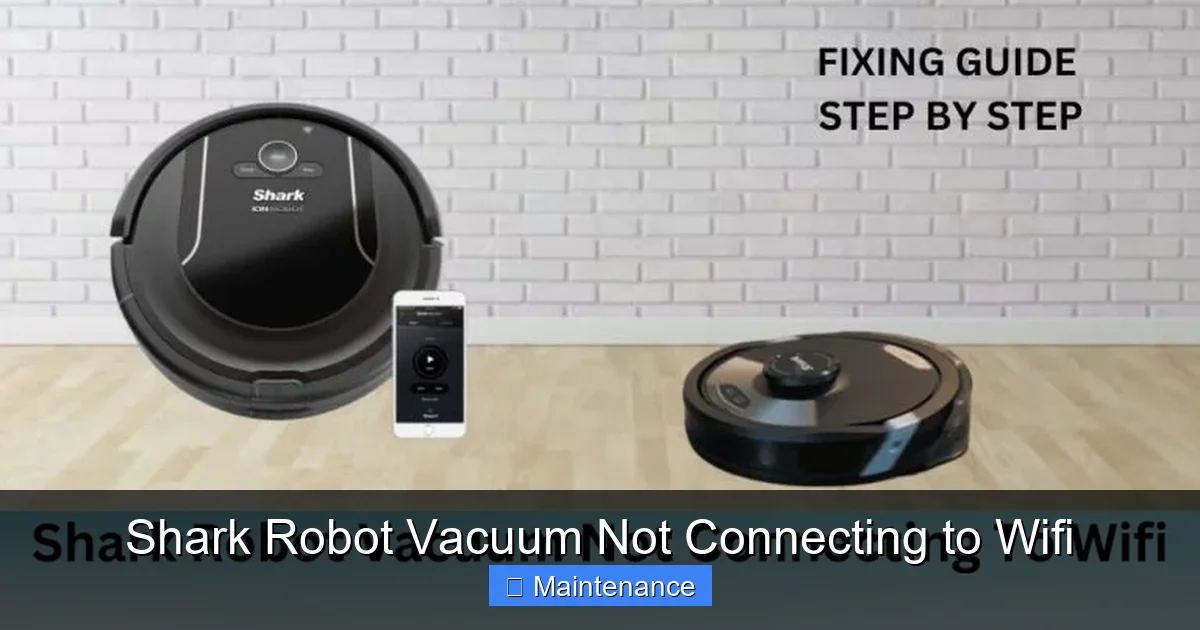
Visual guide about Shark Robot Vacuum Not Connecting to Wifi
Image source: sharkvacuum.blog
The 2.4GHz vs. 5GHz Divide
This is the #1 reason for a Shark robot vacuum not connecting to WiFi. Almost all Shark robot vacuums (with very few newer exceptions) are built to connect only to 2.4GHz WiFi networks. Why? The 2.4GHz band has a longer range and better wall-penetration, which is crucial for a device that moves around your home and may be far from the router. The 5GHz band is faster but has a much shorter range.
How to Check & Fix:
- Check your router: Log into your router’s admin panel (usually via a web browser at 192.168.1.1 or similar). Look for wireless settings. You likely have both a “YourNetwork” (2.4GHz) and “YourNetwork_5G” or similar. Your Shark needs to connect to the one without “5G” in the name.
- Check your phone: When you go to your phone’s WiFi settings during setup, ensure you are selecting the 2.4GHz network. If you only see one network name, your router might be using a “Smart Connect” or “Band Steering” feature that automatically merges the two bands. You must disable this feature in your router settings to create separate network names for 2.4GHz and 5GHz.
- Create a dedicated 2.4GHz network: If your router allows it, give the 2.4GHz network a simple, distinct name (e.g., “MyHome-2.4G”) and connect your Shark to that. This eliminates all confusion.
Signal Strength and Dead Zones
Even on the correct band, the vacuum needs a usable signal where its charging base sits. If the base is in a basement, behind a large metal appliance, or in a far corner with multiple concrete walls, the signal may be too weak.
Practical Test: Take your phone, connect to the same 2.4GHz network the vacuum will use, and stand by the charging base. Check your phone’s WiFi signal strength. If it’s showing 1-2 bars, the vacuum will struggle. Consider moving the charging base to a more central location or using a WiFi extender/mesh system to boost the signal in that area.
Router Security and Settings That Block
Your router’s security is great, but some settings are too strict for a simple IoT device like a vacuum.
- WPA3 Security: Some older Shark models may have issues with the newest WPA3 encryption. Try temporarily switching your router’s security to WPA2-Personal (AES) for the 2.4GHz network. Remember to switch it back for overall security after testing.
- AP Isolation / Client Isolation: This feature (often found in “Advanced” or “Guest” settings) prevents devices on the same network from communicating with each other. It’s designed for guest networks. If enabled on your main network, your phone (on the app) cannot talk to the vacuum. Ensure this is DISABLED.
- MAC Filtering: If you use MAC address filtering to allow only specific devices, you must add your vacuum’s MAC address (found on a sticker on the vacuum or in the app if it briefly connected) to the allowed list.
- Firewall: Overly aggressive firewall rules on the router can block the vacuum’s communication. Temporarily disabling the firewall (or creating an exception) can test this.
Section 2: The Command Center – The SharkClean App
Your phone and the SharkClean app are the remote control for your vacuum. Any problem here creates a perceived “WiFi issue” because the app fails to establish the initial handshake or send commands.
Visual guide about Shark Robot Vacuum Not Connecting to Wifi
Image source: sharkvacuum.blog
App Version and Permissions
An outdated app is a buggy app. The first step is always to check for updates.
- Go to your phone’s app store (Google Play or Apple App Store).
- Search for “SharkClean” and see if an update is available. Install it.
Next, verify app permissions. The app needs Location permission (for WiFi network scanning on Android) and Local Network permission (to discover devices on your home network). Go to your phone’s Settings > Apps > SharkClean > Permissions and ensure these are allowed. On iOS, Local Network permission pops up during first setup—don’t deny it!
Phone Settings That Kill Connections
Your phone’s power-saving features are often too aggressive for IoT setup.
- Battery Saver / Low Power Mode: This can restrict background data and network access for apps. Turn it OFF during Shark setup and connection.
- Data Saver Mode: Similar to above, it can block the app from communicating. Disable it temporarily.
- VPN (Virtual Private Network): A VPN routes your traffic through a remote server, which can interfere with the local network discovery process. Disconnect any VPN during setup.
- Private WiFi Address (iOS):strong> This feature randomizes your phone’s MAC address for privacy. Some routers and IoT devices don’t play well with it. For the Shark setup, go to Settings > WiFi > tap the “i” next to your network > toggle Private WiFi Address to OFF. You can turn it back on after setup.
The “I’m on WiFi But It Won’t Add” Dance
This is a classic symptom. Your phone is on the correct 2.4GHz network, the app is updated, but the “Add Device” process times out or fails.
Procedural Fixes:
- Forget and Re-join the Network: On your phone, “Forget” the 2.4GHz WiFi network. Reconnect to it. This refreshes the DHCP lease and clears any cached authentication issues.
- Restart the App: Force-close the SharkClean app completely and reopen it.
- Restart Your Phone: A full reboot clears temporary software glitches that might be affecting the network stack.
- Check for Network Congestion: If you have dozens of smart devices, your router’s DHCP table might be full. Reboot your router to clear it.
Section 3: The Brain – Vacuum Firmware and Hardware
If the network and app are solid, the issue may lie within the vacuum itself.
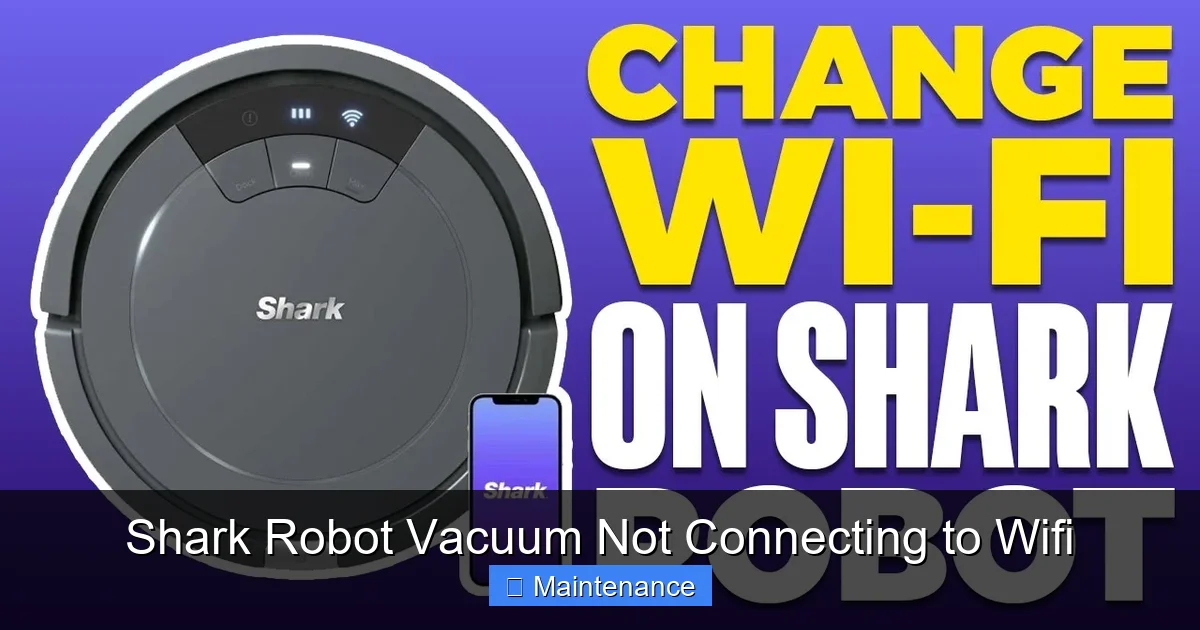
Visual guide about Shark Robot Vacuum Not Connecting to Wifi
Image source: i.ytimg.com
Firmware: The Vacuum’s Operating System
Shark vacuums receive over-the-air (OTA) firmware updates via WiFi. A bug in an old firmware version can cause connectivity drops. If your vacuum was connected and then stopped, a firmware update might have failed or introduced a bug.
How to Update: The vacuum must be connected to WiFi and charging to receive updates. The app will notify you of an available update. If you can’t connect, you’re in a catch-22. Sometimes, a successful manual reset (see below) can trigger a fresh update attempt once you reconnect.
WiFi Module and Antenna Issues
This is rare but possible. The vacuum has a small WiFi module with an antenna. Physical damage, a loose connection from a bump, or a manufacturing defect can render it unable to connect.
Diagnostic Signs:
- The vacuum connects to some networks but not yours (points to your network, not the vacuum).
- The vacuum’s WiFi indicator light (if it has one) never blinks during setup mode (usually a slow pulsing blue or white light).
- The vacuum connects momentarily but drops instantly and repeatedly.
If you’ve exhausted all network and app troubleshooting on multiple phones and networks, a hardware fault is possible. This would require contacting Shark Support for warranty service.
Section 4: The Nuclear Option – Resets and Re-Setups
When all else fails, you must erase the current state and start fresh. There are two types of resets.
The Soft Reset (Restart)
This is simply turning the vacuum off and on. Locate the power button (often a small button on the side or bottom) and hold it for 10 seconds until it powers down. Wait 30 seconds, then press again to turn it on. This clears temporary memory. Do this with the vacuum on its charging base. Then try re-connecting through the app.
The Factory Reset (Hard Reset)
This erases all network settings, schedules, and maps (if applicable) from the vacuum’s memory, returning it to factory default. The process varies slightly by model:
- For most Shark ION/Robot models: With the vacuum powered ON and OFF the charging base, press and hold the “Clean” button (or the Dock/Home button) for 10-15 seconds. You will hear a tone, and all lights will turn off. Release the button. The vacuum will reboot.
- For Shark IQ/AV models with a display: Go to Settings > Reset > Factory Reset on the vacuum’s screen.
- For Shark Matrix models: Press and hold the button on the side of the vacuum for 10 seconds until you hear a chime.
After a Factory Reset:
- Place the vacuum on its charging base and ensure it’s powered on (lights on).
- Delete the vacuum from your SharkClean app account. (Go to app settings > My Robots > Select Vacuum > Delete/Remove).
- Open the app and go through the full “Add Device” setup process from scratch, as if it were new.
- This time, be meticulous about selecting the correct 2.4GHz network during setup.
Section 5: Advanced Troubleshooting and When to Call for Help
You’ve tried everything above? Let’s dig deeper or know when to surrender.
Static IP and DHCP Reservations
Sometimes, the vacuum and your router have a miscommunication during the DHCP (automatic IP address assignment) handshake. You can assign a static IP to the vacuum to bypass this.
- Find your vacuum’s MAC address (from a sticker on the bot or from your router’s connected device list if it ever showed up).
- Log into your router. Find “DHCP Reservations” or “Static Leases.”
- Create a new reservation: assign an IP address (e.g., 192.168.1.150) to the vacuum’s MAC address.
- Save and reboot the router.
- Now, during Shark app setup, you may need to select “Manual IP” or “Static IP” and enter that reserved address. (Not all Shark models offer this option in the app).
Router Reboot and Firmware
Your router itself might be the problem. An old router with outdated firmware can have buggy IoT handling.
- Power Cycle Properly: Unplug your router and modem (if separate) from power for 60 seconds. Plug the modem back in first, wait for all lights stable, then plug in the router. This is more effective than a simple reboot.
- Update Router Firmware: Check your router manufacturer’s website or admin panel for firmware updates. Install them.
- Temporarily Use a Different Router: If possible, set up a simple, old router as a temporary access point with just a 2.4GHz WPA2 network. Try connecting the Shark to that. If it works, your main router is the culprit.
Contacting Shark Support: Your Last Line of Defense
If you have:
- Performed a factory reset on the vacuum.
- Tested on a completely different, known-good 2.4GHz network (like a friend’s house or a mobile hotspot from another phone).
- Confirmed all router settings (AP Isolation off, 2.4GHz on, correct security).
- Tried multiple phones for setup.
…and the vacuum still refuses to connect to any network, the WiFi module may be faulty. This is a warranty issue. Before calling, have your vacuum’s serial number (on the underside) and a detailed list of all troubleshooting steps you’ve already taken. Be prepared to describe your router model and settings. A good support agent will walk you through final checks, but if they confirm hardware failure, they will initiate a repair or replacement under warranty.
Conclusion: Staying Connected
A Shark robot vacuum not connecting to WiFi is almost always a solvable puzzle. The path to a solution is systematic: start with the most common culprit—the 2.4GHz network—and work your way through the app, router settings, and finally, resets. Remember, your vacuum is a simple IoT device trying to communicate with a complex modern network. Its limitations are clear: it speaks 2.4GHz, it needs a strong signal, and it relies on a cooperative app and router.
To prevent future disconnects, once you get it working:
- Lock in the 2.4GHz network name in your router settings and never change it.
- Keep the SharkClean app updated on your phone.
- Place the charging base in a location with good signal strength.
- Reboot your router every few months to clear its cache.
By understanding the “why” behind the connection failure, you empower yourself to fix it quickly and enjoy the full, convenient potential of your Shark robot vacuum. Now, go get that bot back online and let it do the dirty work.
Frequently Asked Questions
Why is my Shark vacuum connecting to my phone’s hotspot but not my home WiFi?
This strongly indicates an issue with your home router’s configuration. The hotspot provides a simple, direct 2.4GHz connection. Check your router for enabled AP Isolation, MAC filtering, or overly strict firewall rules. Also, ensure your home router’s 2.4GHz network is broadcasting with a simple name and WPA2 security.
How do I force my Shark vacuum to forget my WiFi network?
You must perform a factory reset on the vacuum itself. The app only removes the vacuum from your account; it does not clear the network credentials stored on the vacuum’s internal memory. Locate the reset button (often a pinhole or the “Clean” button) and follow the hard reset procedure for your specific model in the user manual.
Can a Shark robot vacuum connect to a 5GHz WiFi network?
Almost all Shark robot vacuums are designed to connect exclusively to 2.4GHz networks. They do not support 5GHz. If your router only broadcasts a 5GHz signal (or uses “Smart Connect” to merge bands), the vacuum will never see or connect to the network. You must create a separate, dedicated 2.4GHz SSID for it to join.
My Shark vacuum was connected, then randomly stopped. What happened?
Random disconnects are often due to router issues. Your router may have changed its DHCP lease, updated its firmware, or experienced a temporary glitch. Start by power cycling both the router and the vacuum. If it happens frequently, check for signal strength issues at the base location or consider updating your router’s firmware. A vacuum firmware bug could also be the cause.
What does the WiFi/connect light on my Shark vacuum mean?
This varies by model. Generally, a slowly pulsing blue or white light means the vacuum is in WiFi setup mode, ready to be added. A rapidly blinking light indicates it’s trying to connect. A solid light usually means it’s connected. A red or orange light often indicates an error. Consult your specific model’s manual for exact light patterns, as they are the first diagnostic clue.
Is there a way to connect my Shark vacuum without using the app?
No. The SharkClean app is mandatory for the initial WiFi setup and for controlling smart features like scheduling and maps. You can use the physical buttons on the vacuum for basic start/stop/dock functions without WiFi, but all app-based control and scheduling require a successful connection through the app.