Shark Robot Error codes aren’t just random beeps—they’re your vacuum’s way of asking for help. This guide translates those cryptic messages into clear, actionable steps. You’ll learn to diagnose issues from a full dustbin to a stuck wheel, perform essential maintenance, and know exactly when a problem is a simple fix versus a time to call support. Keep your robotic helper cleaning efficiently with our comprehensive troubleshooting and care strategies.
You’re relaxing on the couch when you hear it: that distinct, repetitive beeping from your Shark robot vacuum. It’s not the happy little tune it plays when it finishes a job. This is different. It’s urgent. It’s a Shark Robot Error signal, and your cleaning sidekick is basically waving a white flag. Your heart sinks, imagining expensive repairs or a paperweight gathering dust in a closet. But what if I told you that most of these error signals are less about catastrophic failure and more about a simple cry for a little attention? This article is your decoder ring. We’re going to demystify every common Shark Robot Error, walk you through precise, step-by-step fixes you can do with household items, and establish a maintenance habit so simple, you’ll forget you ever dreaded that beep. Let’s turn that error into “all clear.”
Key Takeaways
- Error Codes Are Your Guide: Each beep pattern or code (like E1, E2) points to a specific issue, usually related to sensors, wheels, bins, or brushes. Learning the language is the first step to fixing it.
- Start with Simple, Common Fixes: Over 70% of “Shark Robot Error” alerts are resolved by emptying the dustbin, cleaning the filter, removing tangled hair from brushes, or wiping sensors—tasks that take under two minutes.
- Preventive Maintenance is Non-Negotiable: A weekly 5-minute routine of clearing brushes, wiping sensors, and checking wheels prevents 90% of errors and dramatically extends your robot’s lifespan and cleaning performance.
- Environment Matters: Cluttered floors, dark surfaces, and thick rugs are prime triggers for navigation and cliff sensor errors. Preparing your home is as important as maintaining the robot.
- Know When to Reset or Seek Help: A soft reset (power cycle) fixes many glitches. If errors persist after thorough cleaning and resetting, it may indicate a failed component needing Shark customer support or a professional.
📑 Table of Contents
- The Language of Beeps: Decoding Common Shark Robot Error Codes
- The Systematic Troubleshooting Protocol: Your 10-Minute Diagnostic Routine
- The Essential Maintenance Routine: Making Errors a Thing of the Past
- Environmental Factors: Is Your Home Against Your Robot?
- When the Fix Isn’t Enough: Advanced Issues and Support Pathways
- Conclusion: From Error Alerts to Effortless Cleaning
The Language of Beeps: Decoding Common Shark Robot Error Codes
Before we grab a screwdriver, we need to listen. Shark robots communicate problems through auditory beeps and, on some models, a small LED display. The pattern is everything. Is it one long beep? Two short ones? A frantic sequence? This isn’t random noise; it’s a diagnostic Morse code. While codes can vary slightly between series (like the ION, AI Ultra, or older models), the core messages are consistent. Understanding this Shark Robot Error language transforms you from a confused user into an empowered troubleshooter.
E1, E2, E9: The “Something’s Blocking Me” Trio
These are among the most frequent errors. An E1 or E2 typically screams about the main brush roll or the side brush. The motor is straining against resistance—usually hair, string, or carpet fibers wound tightly around the bristles or axles. An E9 often points to the main brush roll not spinning freely or being obstructed. The fix is always physical: removal and cleaning.
- Practical Example: You have a pet that sheds. After a few cleaning cycles, a thick “hairy donut” forms around the brush roll’s core, stopping it dead. The robot senses the motor can’t spin it, triggers an Shark Robot Error E2, and parks itself. Your job is to snip the hair circumference with scissors, pull it off, and use a cleaning tool to clear the axles.
E3, E4: The Cliff and Bumper Sensor SOS
These errors relate to the robot’s safety eyes. An E3 is a cliff sensor fault—the infrared sensors under the robot that prevent it from driving off stairs or ledges think they’re seeing a drop when there isn’t one. An E4 is a bumper sensor fault—the rubber bumper ring isn’t registering presses correctly. Both are almost always due to dirt, dust, or smudges blocking the sensor lenses.
- Tip: Use a dry, lint-free microfiber cloth. Gently wipe the small, clear plastic windows on the underside (cliff sensors) and around the bumper ring. A little dust on these lenses is a prime cause of Shark Robot Error messages.
No Beep, Just Stuck or Spinning in Circles: Navigation Glitches
Sometimes the error isn’t a beep code but behavior. Your robot might bump repeatedly into the same wall, circle a furniture leg endlessly, or simply stop moving mid-room. This is a navigation error, often stemming from dirty or obstructed navigation sensors (the camera lens on AI models or the top-mounted sensor on Lidar models) or a lack of clear reference points in a very cluttered or dark room.
- Real-World Scenario: A dark, tall table leg against a black wall provides almost no visual contrast for the robot’s navigation system. It may “see” it as open floor, bump, get confused, and trigger a Shark Robot Error or just halt. The solution is to add temporary visual markers (like a piece of bright tape) or ensure the room has some distinct floor objects.
The Systematic Troubleshooting Protocol: Your 10-Minute Diagnostic Routine
Don’t panic. Don’t immediately call support. When you hear that error beep, follow this calm, methodical sequence. This protocol solves the vast majority of issues and should become your automatic response. Think of it as a doctor’s check-up for your robot.
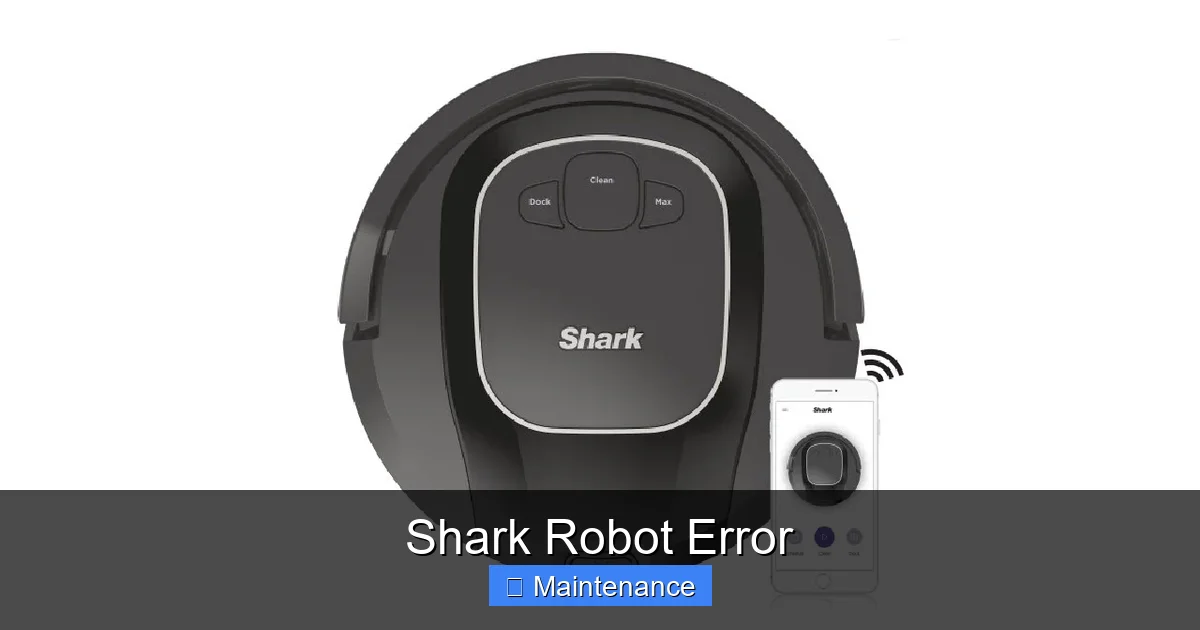
Visual guide about Shark Robot Error
Image source: candid.technology
Step 1: The Visual Inspection & Physical Reset
First, physically pick up the robot. Look underneath. Is the main brush tangled? Is the side brush bent or blocked? Is the dustbin full? Is there a sock or cord caught in a wheel? This is the #1 culprit. Next, perform a soft reset: power off the robot using the button (not the app), unplug the charging dock for 10 seconds, plug it back in, and power the robot on. This clears temporary software glitches that can mimic hardware faults.
Step 2: The Three “Clear” Check: Bin, Filter, Brushes
This is the holy trinity of Shark Robot Error prevention.
- Clear the Bin: Open it and tap out all debris. Even if it looks half-full, fine dust can pack in and block the internal passageways, triggering an airflow error.
- Clean the Filter: Remove the filter (usually a rectangular foam or pleated paper filter). Tap it firmly over a trash can to dislodge dust. For foam filters, you can rinse with cool water, let dry COMPLETELY for 24 hours before reinserting. A clogged filter causes suction loss and can trigger errors.
- Clean the Brushes: Remove the main brush roll. Use the provided cleaning tool or a comb to pull out every strand of hair from the bristles and, crucially, from the rubber seals and axle ends on both sides. The side brush should spin freely; clear any debris from its base.
Step 3: Sensor and Wheel Deep Clean
Grab your microfiber cloth. Dampen it *slightly* with water or a 50/50 water-rubbing alcohol mix, then wring it out until nearly dry. Wipe:
- Cliff Sensors: The small windows on the underside front and rear.
- Bumper Ring: The entire rubber circumference, ensuring the seam where it meets the body is clean.
- Navigation Lens/Camera: The glass or plastic dome on top. Any smudge here impairs mapping.
- Wheels: Pick up the robot and spin each drive wheel. Remove any gunk wrapped around the axles or in the wheel treads. Check that they move up and down (suspension) freely.
The Essential Maintenance Routine: Making Errors a Thing of the Past
Treating symptoms is one thing; preventing the disease is another. A consistent, simple maintenance routine is the ultimate cure for chronic Shark Robot Error anxiety. It takes less time than making a cup of coffee and saves you from endless frustration.
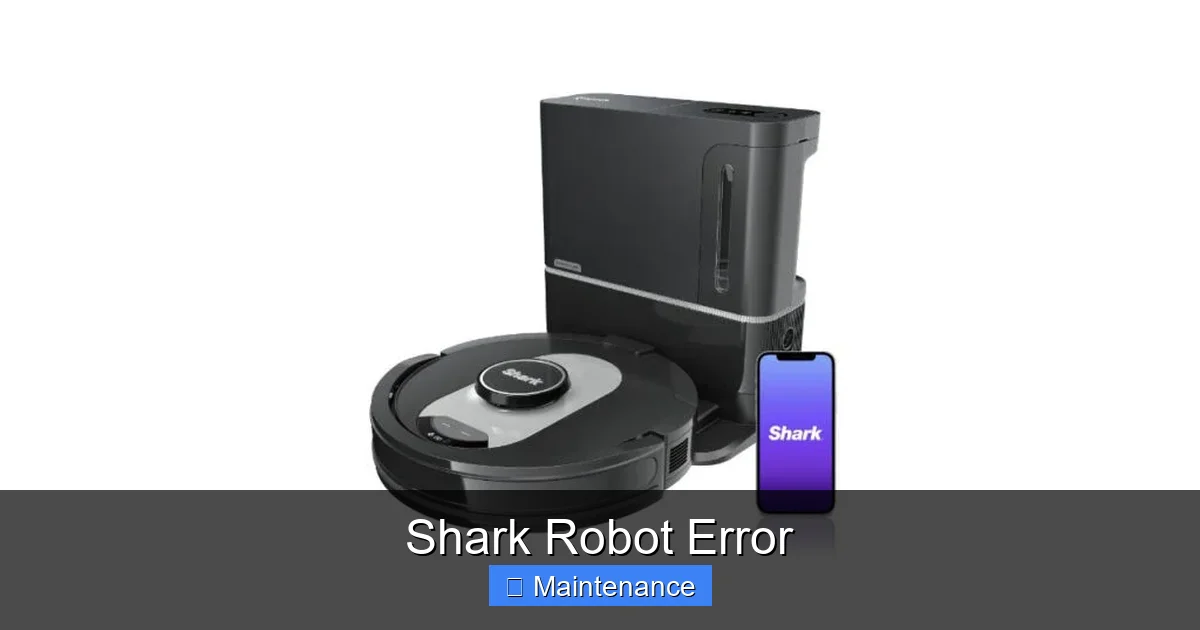
Visual guide about Shark Robot Error
Image source: candid.technology
Your Weekly 5-Minute Checklist
Set a recurring reminder on your phone. Every week, do this:
- Empty the Dustbin: After every run, but give it a proper tap-out weekly.
- Brush Triage: Use the cleaning tool to de-hair the main brush roll and side brush. Don’t just look—feel for resistance.
- Wipe the Sensors: A quick pass with the dry microfiber cloth on all sensor points (cliff, bumper, top).
- Check the Wheels: Spin them. Look for debris.
- Inspect the Charging Pins: Look at the metal charging contacts on the robot’s underside and on the dock. Wipe with a dry cloth if tarnished.
The Monthly Deep Dive
Once a month, go deeper. Remove the main brush roll completely and wash it with mild soap, rinsing thoroughly. Check the rubber seals for cracks. Inspect the filter more closely; if it’s a foam filter, this is the day for a proper rinse and 24-hour dry. Use a can of compressed air (held upright) to gently blow out dust from the wheel wells and around the main brush motor housing. This level of care keeps parts moving freely and sensors sharp.
Environmental Factors: Is Your Home Against Your Robot?
Sometimes, the problem isn’t the robot—it’s the environment. A perfectly maintained Shark can still throw a Shark Robot Error if your home presents certain challenges. Understanding these environmental pitfalls is key.
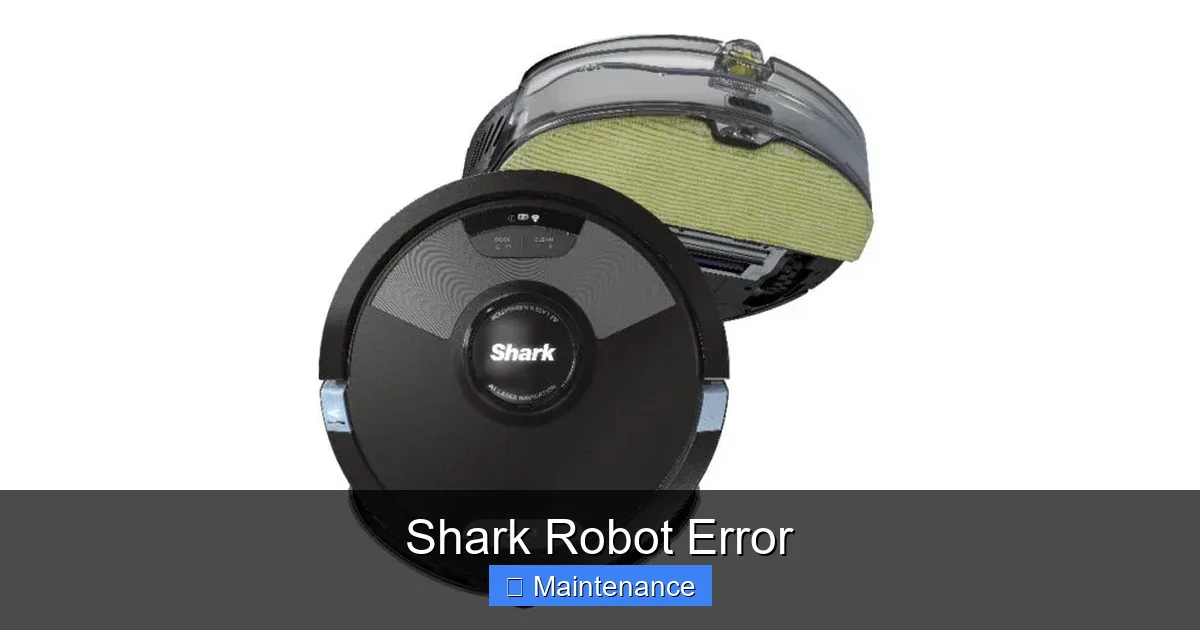
Visual guide about Shark Robot Error
Image source: candid.technology
The Dark Floor & High-Pile Rug Dilemma
Shark’s cliff sensors can struggle with very dark, non-reflective floors (like black Berber carpet) or surfaces that absorb IR light. They may interpret it as a cliff, causing E3 errors and refusal to move. Similarly, thick, high-pile rugs (over 1 inch) can be mistaken for obstacles or cause wheel slippage. The robot might spin its wheels, detect no movement, and throw a drive error. The solution? For dark floors, place a piece of white tape or a light-colored rug section temporarily in problem areas. For thick rugs, use “no-go zones” in the app to exclude them, or consider a boundary tape strip.
Clutter, Cords, and the “Tangle Factor”
Robot vacuums are not toddlers. They will get tangled in lamp cords, phone chargers, and stray socks. This is a leading cause of stalled robots and subsequent Shark Robot Error codes. The best defense is a proactive “robot prep” before every cleaning cycle: pick up small objects, lift cords off the floor, and secure area rug edges. It’s a 2-minute habit that prevents 30 minutes of untangling frustration.
When the Fix Isn’t Enough: Advanced Issues and Support Pathways
You’ve followed every step. You’ve cleaned, reset, and prepped. The Shark Robot Error persists. Now what? It’s time to escalate logically.
Interpreting Persistent Errors
If an error code returns immediately after a full clean and reset, it points to a failed component. An E2 that returns after a brush cleaning might mean the brush motor itself is burned out. An E3 that persists after lens cleaning could mean the sensor is dead. A robot that constantly gets stuck in the same spot despite a clear path might have a faulty wheel suspension or drive motor.
Your Action Plan: Warranty, Support, and Repair
First, locate your model number (on the underside label) and your purchase date. Shark typically offers a 1-year limited warranty. Contact Shark Customer Support directly. Have your model number, serial number, and a clear description of the error code and what troubleshooting you’ve already done. They may offer to ship a replacement part (like a new brush roll assembly or sensor) if the robot is out of warranty, or initiate an RMA if it’s within the warranty period. For older models, third-party repair shops specializing in vacuums might be a cost-effective alternative if the part is available.
Conclusion: From Error Alerts to Effortless Cleaning
That dreaded Shark Robot Error beep no longer has to be a source of dread. It’s simply a message—a request for a little basic care. By understanding the meaning behind the codes, adopting our systematic 10-minute diagnostic routine, and committing to a minimal weekly maintenance habit, you reclaim control. Your Shark robot is an investment in a cleaner home with less effort. Treating it with this level of attentive, simple care ensures it repays that investment for years, quietly and efficiently keeping your floors spotless. The next time you hear that beep, you won’t flinch. You’ll smile, grab your cloth, and know exactly what to do. Here’s to many more error-free cleaning cycles.
Frequently Asked Questions
What does a continuously beeping Shark robot mean?
A continuous, non-stop beep usually indicates a critical fault like a jammed main brush, a full dustbin that isn’t registering as closed, or a severe wheel obstruction. Immediately power it off, flip it over, and check for physical blockages in the brushes and wheels.
How do I reset my Shark robot vacuum?
For most models, perform a soft reset by pressing the power button to turn it off. Unplug the charging dock from the wall for 10 seconds, plug it back in, and then press the robot’s power button to turn it back on. This clears temporary software errors without deleting your cleaning schedule.
My Shark robot shows an error code but I cleaned everything. Now what?
If you’ve thoroughly cleaned the brushes, bin, filter, and all sensors (following the steps above) and the error persists, it likely indicates a failed component like a brush motor, wheel motor, or sensor. Contact Shark Customer Support with your model number and a list of completed troubleshooting steps.
Can I use water to clean the sensors on my Shark robot?
Yes, but with extreme caution. Dampen a microfiber cloth *slightly* with water or a 50/50 water-alcohol mix, then wring it out until it is nearly dry. Gently wipe the sensor lenses. Never spray liquid directly onto the robot and never use harsh chemicals or abrasive materials that could scratch the lenses.
How often should I replace the main brush roll on my Shark robot?
The main brush roll should be inspected weekly and thoroughly cleaned. With regular maintenance, it typically lasts 6-12 months. Replace it sooner if the bristles are frayed, bent, or cracked, or if the rubber seals are worn, as a damaged brush roll is a common cause of Shark Robot Error codes and poor cleaning performance.
My Shark robot keeps getting the same error on my dark carpet. Is it broken?
Probably not. Dark, non-reflective carpets can confuse the cliff sensors, causing false E3 errors. Try placing a small piece of light-colored tape or a light rug sample on the carpet in the area where it fails. If it works, you’ve identified the issue. You can then use “no-go” zones in the app to exclude that dark area from cleaning cycles.