Is your Shark IQ robot app refusing to connect, crashing, or showing your vacuum as “offline”? This is almost always a communication breakdown between your phone, your home Wi-Fi network, and the robot itself. The solution typically involves systematic troubleshooting: restarting your devices, verifying Wi-Fi credentials, updating software, and checking router settings. Most issues are resolved by ensuring a stable 2.4GHz network connection and performing a simple robot reboot. If these steps fail, deeper network configuration or a factory reset may be necessary before contacting Shark support.
You’re finally ready to let your Shark IQ robot handle the vacuuming. You open the app, tap the big clean button, and… nothing. Or worse, the app crashes, says your robot is offline, or simply won’t log you in. That moment of frustration is all too familiar for many Shark IQ owners. The convenience of scheduling cleanings from your phone vanishes, replaced by the sinking feeling that your expensive smart vacuum is now a very dumb, very heavy paperweight.
Take a deep breath. The Shark IQ robot app not working is rarely a sign of a dead robot or a broken phone. In over 90% of cases, it’s a communication hiccup—a lost conversation between your phone, your home’s Wi-Fi network, and the robot’s own brain. The good news? You are the most qualified person to fix it. You don’t need to be a network engineer. You just need a systematic, patient approach. This guide will walk you through every layer of that conversation, from the simplest restart to the more nuanced router settings, to get your Shark IQ and its app chatting happily again.
Key Takeaways
- Wi-Fi is the Foundation: The Shark IQ app relies entirely on a stable 2.4GHz Wi-Fi connection. Dual-band routers that default to 5GHz are a primary cause of “app not working” issues.
- Restart Everything First: Power cycling your router, phone, and the Shark IQ robot resolves a surprising number of temporary glitches and connection timeouts.
- App and OS Updates Matter: Running an outdated Shark IQ app or smartphone operating system is a common source of crashes, login failures, and compatibility problems.
- Credentials Must Match Exactly: When re-connecting the robot, you must enter the EXACT Wi-Fi network name (SSID) and password your router uses, paying close attention to case sensitivity.
- Robot Reconnection is a Two-Button Process: Putting the Shark IQ into Wi-Fi setup mode correctly requires holding both the ‘Clean’ and ‘Home’ buttons simultaneously until you hear a specific tone.
- Network Security Can Block Devices: Router settings like MAC address filtering, firewalls, or “client isolation” can prevent your robot from communicating with the cloud and your app.
- Factory Reset is a Last Resort: Resetting the robot’s internal Wi-Fi module clears all network data and should only be done after other troubleshooting steps have failed.
📑 Table of Contents
- Understanding the Shark IQ Robot Ecosystem
- Wi-Fi and Connectivity Issues: The Most Common Culprit
- App-Specific Problems: Crashes, Freezes, and Login Failures
- Robot-Vacuum Communication Breakdowns
- Account and Cloud Service Disruptions
- Advanced Troubleshooting and When to Contact Support
- Prevention: Keeping Your Shark IQ App Connected for the Long Haul
- Conclusion: Patience and Process Win
Understanding the Shark IQ Robot Ecosystem
Before we start pressing buttons, it helps to understand who is supposed to be talking to whom. Your Shark IQ robot isn’t directly connected to your phone like a Bluetooth speaker. Instead, it creates a three-way link:
- The Robot: Has its own Wi-Fi radio. Its job is to connect to your home router and stay in constant, low-bandwidth contact with Shark’s cloud servers.
- The Cloud (Shark’s Servers): Acts as the middleman. It receives commands from your app (like “start cleaning”) and relays them to your specific robot. It also receives status updates from the robot (like “dustbin full”) and sends them to your app.
- Your Phone & The Shark IQ App: Your phone connects to the internet via your Wi-Fi (or cellular data). The app talks to Shark’s cloud. If any link in this chain is broken—robot to router, router to internet, internet to cloud, cloud to app—the app will show as “not working.”
This ecosystem is why your phone’s internet can be perfect for browsing, yet the Shark app says the robot is offline. The problem is isolated to the robot’s connection to your router, or the router’s connection to the wider internet/cloud.
The Critical Role of 2.4GHz Wi-Fi
This is the single most important technical fact for Shark IQ owners. The robot’s Wi-Fi hardware is designed for the 2.4GHz frequency band. It does not connect to 5GHz networks. Modern routers are “dual-band,” meaning they broadcast both 2.4GHz and 5GHz signals, often with the same network name (SSID). If your router is set to “smart connect” or “band steering,” it might be trying to push your robot onto the 5GHz band, where it will fail silently. The robot will appear to go through a connection process but will never fully register online. We will fix this.
Wi-Fi and Connectivity Issues: The Most Common Culprit
When the app says “Offline” or the robot won’t connect during setup, the problem lives here. Let’s diagnose the wireless link step-by-step.
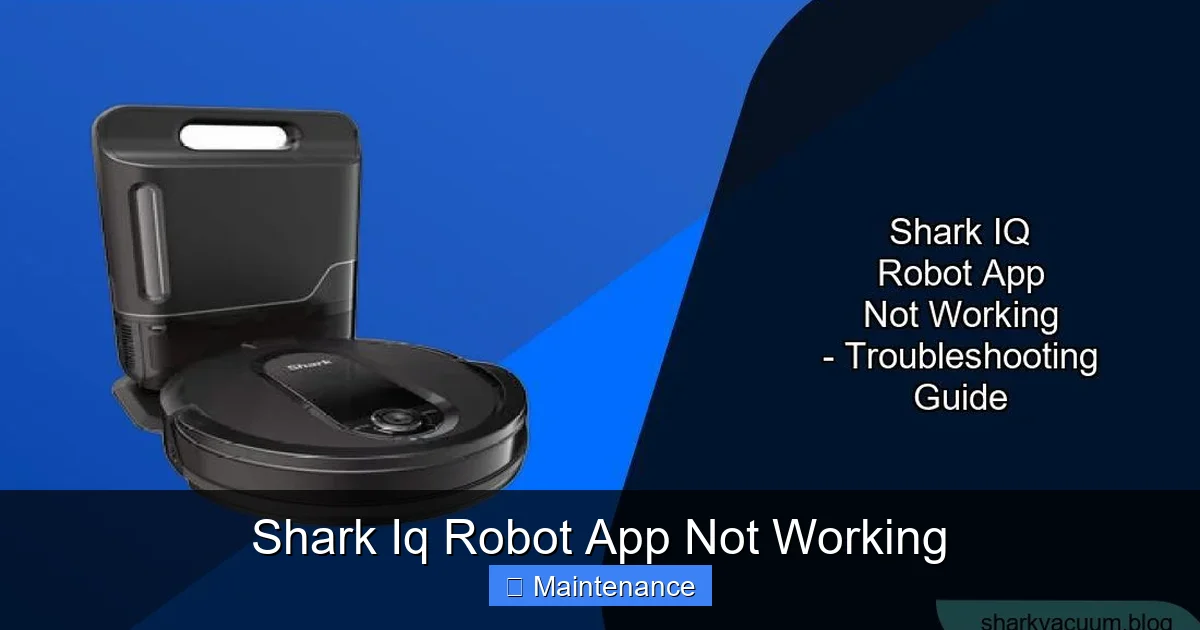
Visual guide about Shark Iq Robot App Not Working
Image source: sharkvacuum.blog
Step 1: The Universal Reboot (Your First and Best Move)
Before changing any settings, perform a full power cycle of the entire system. This clears temporary memory glitches and forces devices to renegotiate connections.
- Unplug your router and modem (if they are separate). Wait 60 seconds. Plug them back in. Wait 2-3 minutes for all lights to stabilize.
- Restart your smartphone. Don’t just close the app; do a full power off/on.
- Restart your Shark IQ robot. Press and hold the ‘Power’ button on top of the robot for 3 seconds until it powers off. Wait 10 seconds, then press again to turn it on. Wait for the startup chime and the blue light ring to appear.
After everything is back on, open the Shark IQ app. Does it see the robot? If yes, problem solved. If not, move to Step 2.
Step 2: Is Your Robot Even on the Right Network?
Log into your router’s admin panel (usually via a web browser like 192.168.1.1). Look for a list of “connected devices” or “DHCP clients.” Do you see a device with a name like “Shark_XXXXXX” or “Shark-IQ-XXXX”? If you don’t see it, the robot is not connected to your Wi-Fi at all. This points to:
- Incorrect Password: The most common human error. When you entered the Wi-Fi password during robot setup, did you get the case right? Did you accidentally include a trailing space? You must re-enter it with 100% accuracy.
- Hidden SSID: If your Wi-Fi network is set to “hidden” or “non-broadcast,” the Shark IQ will not see it during its scan. You must temporarily unhide the SSID in your router settings for initial setup, or use the “Add Network Manually” option in the app if available.
- WPA3 Security: Some older smart devices, including certain Shark IQ models, have compatibility issues with the newest WPA3 security protocol. Check your router’s security setting. If it’s on WPA3/WPA2 mixed mode or pure WPA3, try switching to WPA2-Personal (AES) only. This is a known fix for many “device won’t connect” problems across smart home brands.
Step 3: Forcing the 2.4GHz Connection
If your router uses the same SSID for both bands, you need to force-separate them.
- Log into your router admin panel.
- Find the wireless settings for the 2.4GHz network. Change its name (SSID) to something clearly different, like “MyWiFi-2.4G”.
- Save the setting. Your 2.4GHz network will disappear and reappear with the new name.
- Now, you must reconnect your Shark IQ robot to this new, explicitly 2.4GHz network. You will need to put the robot back into Wi-Fi setup mode (see the “Robot Reconnection” section below) and go through the app setup process again, selecting “MyWiFi-2.4G” and entering the password.
- For clarity, you can also rename your 5GHz network to “MyWiFi-5G” to avoid future confusion.
Once the robot is connected to the dedicated 2.4GHz network, the app should maintain a stable connection.
App-Specific Problems: Crashes, Freezes, and Login Failures
Sometimes the problem isn’t the robot’s connection, but the app itself on your phone. If the app crashes immediately, won’t open, or you can’t log into your Shark account, try these steps.
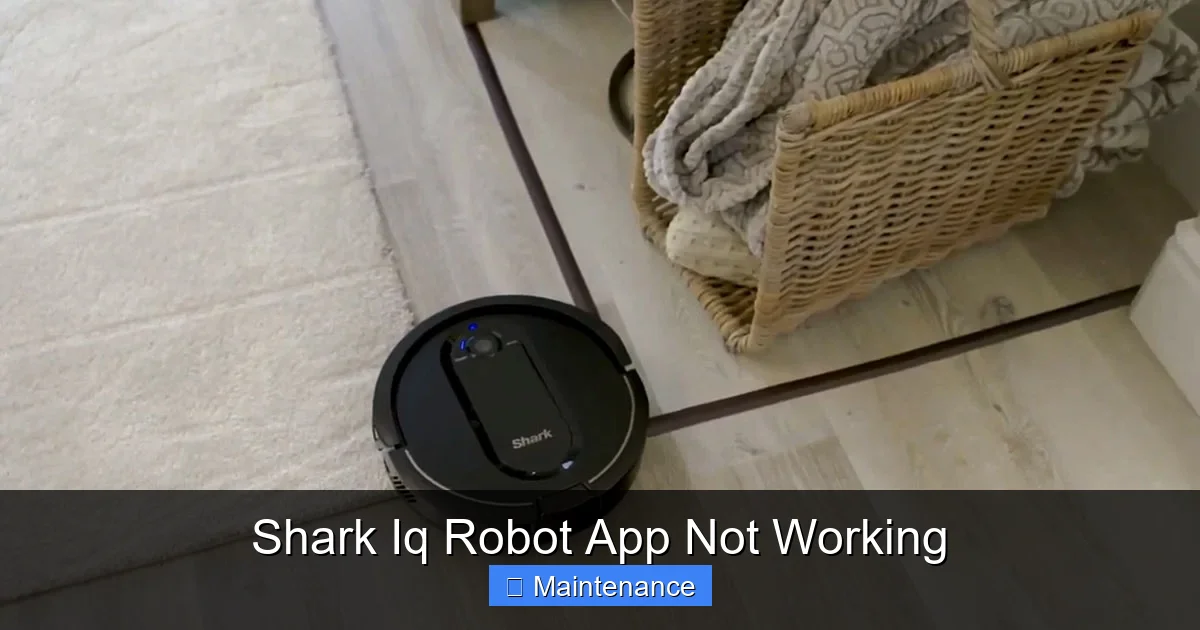
Visual guide about Shark Iq Robot App Not Working
Image source: cdn.cleanup.expert
Clear the App Cache and Data
App data can become corrupted. Clearing it gives you a fresh start (you will need to log in again).
- On Android: Go to Settings > Apps > Shark IQ > Storage. Tap “Clear Cache,” then “Clear Data.”
- On iOS: There’s no direct “clear cache” button. The equivalent is to delete and reinstall the app. First, ensure you know your Shark account email/password. Then delete the app, restart your phone, and reinstall from the App Store.
Update, Update, Update
An outdated app on a modern phone OS, or an outdated phone OS on a modern app, is a recipe for failure.
- Visit the Google Play Store or Apple App Store. Search “Shark IQ.” If an “Update” button is visible, tap it.
- Check your phone’s system update settings. Install any pending iOS or Android updates.
- Pro Tip: After updating the app or OS, repeat the universal reboot (router, phone, robot) from the first section.
Check for Account or Service Outages
Visit Shark’s official social media pages (Twitter/X, Facebook) or service status page if they have one. Sometimes their cloud servers experience downtime, which makes the app appear broken for everyone. A quick search for “Shark IQ status” or “Shark cloud outage” can confirm this. If it’s a widespread outage, all you can do is wait.
Robot-Vacuum Communication Breakdowns
This is the scenario: the app is open, you see your robot listed, but when you tap “Clean,” nothing happens. The robot sits there, and the app shows a generic error or just spins. The robot and the cloud are connected, but the command isn’t getting through.
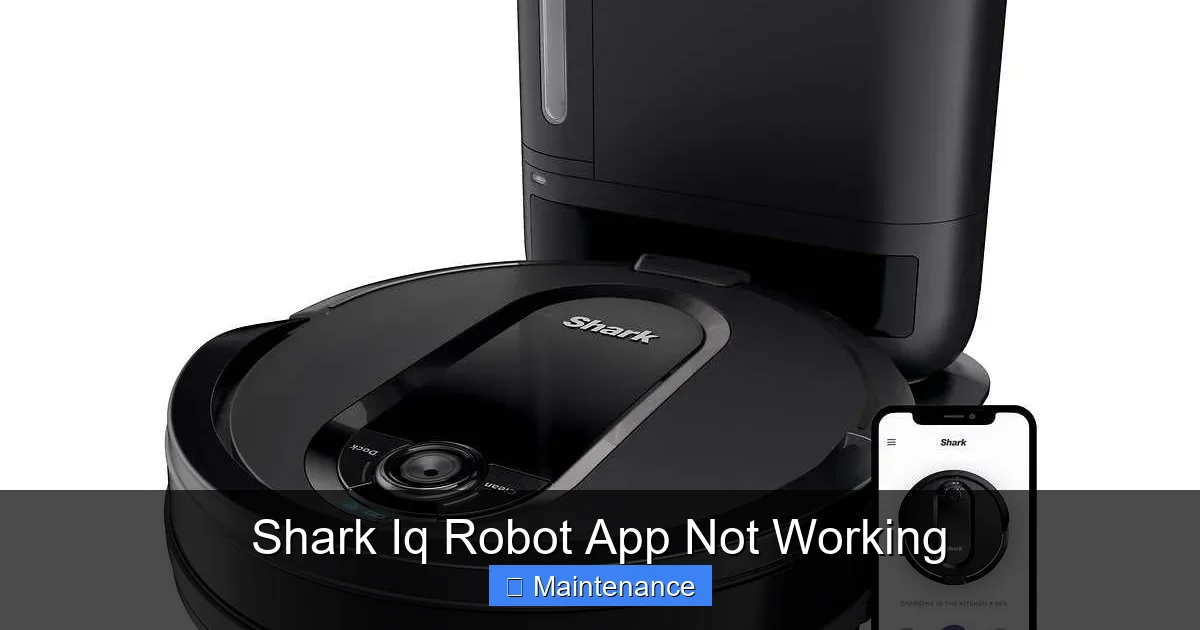
Visual guide about Shark Iq Robot App Not Working
Image source: m.media-amazon.com
Signal Strength and Physical Obstacles
The robot’s Wi-Fi antenna is small. Its connection is vulnerable to distance and obstacles.
- Proximity: Is your robot’s home base located in a basement, a far corner of the house, or behind a large metal appliance? This weakens the signal. Try moving the home base to a more central, open location temporarily to see if connectivity improves.
- Interference: Other wireless devices—cordless phones, microwave ovens, baby monitors, thick concrete walls—can disrupt the 2.4GHz signal. Try cleaning at a different time of day if you suspect interference from a specific device.
- Firmware on the Robot: The robot itself has firmware that needs updates. These are pushed automatically when it’s on and connected. If the robot hasn’t been powered on and connected to Wi-Fi for a long time, it may be running old firmware that has a bug. Ensure it is on its home base, powered, and connected for several hours to allow any pending updates to download and install.
The “Clean” and “Home” Button: Your Direct Line to the Robot
Remember, the app is a remote control. The robot has physical buttons for a reason. If the app is unresponsive, use the buttons on the robot itself to verify it’s functional.
- Press the large ‘Clean’ button on top. The robot should start a cleaning cycle immediately. If it does, the robot’s hardware is fine. The problem is strictly the app-to-cloud-to-robot communication.
- Press the ‘Home’ button. The robot should stop and navigate back to its base. If it does, its navigation and Wi-Fi are at least partially functional.
If the physical buttons don’t work, and the robot shows no lights or response, you have a power or hardware issue unrelated to the app. Check the battery, power adapter, and home base connections.
Account and Cloud Service Disruptions
Your Shark IQ is registered to your Shark account. If there’s a problem with that account link, the app will malfunction.
Re-Login to Your Shark Account
This re-establishes your personal connection to the cloud.
- Open the Shark IQ app.
- Go to the menu (usually three lines in the top corner).
- Tap “Account” or “Profile.”
- Tap “Log Out” or “Sign Out.”
- Close the app completely (swipe it away from recent apps).
- Reopen the app and log back in with your email and password.
After logging back in, check if your robot appears in the device list. If it’s missing, you may need to re-add it, which involves the Wi-Fi setup process.
Check for Multiple Accounts or Email Confusion
Did you set up the robot with a different email address than the one you’re currently using? Check old emails from Shark for a “welcome” or “device added” message. You may need to log in with that original email. Also, if you share the robot with family members, ensure they are all using the same Shark account, not separate ones.
Advanced Troubleshooting and When to Contact Support
You’ve tried everything above. The app still doesn’t work. Time for deeper investigation.
Performing a Factory Reset on the Shark IQ Robot
This wipes the robot’s internal memory of all network settings, maps, and schedules. It’s the nuclear option, but often the final cure for persistent Wi-Fi pairing issues.
- Locate the Reset Button: On most Shark IQ models, there is a small, recessed pinhole button on the underside of the robot, near the main brush or wheels. You will need a paperclip.
- With the robot powered ON and on its home base, press and hold the reset button with the paperclip.
- You will hear a series of tones. Keep holding until you hear a confirmation tone (often a double beep) and see the light ring on top flash in a specific pattern (usually all lights turning on/off together). This can take 10-15 seconds.
- Release the button. The robot will restart. All lights will turn off, then the power button will start pulsing blue slowly, indicating it is in setup mode, waiting to be paired.
Important: A factory reset does NOT delete your map from the Shark cloud servers (if it had previously uploaded). However, you will need to go through the entire initial setup process again in the app: creating a home, naming the robot, and connecting it to your Wi-Fi network from scratch.
Router Settings to Investigate
If the robot still won’t connect after a reset, the block is likely in your router’s configuration.
- MAC Address Filtering: If enabled, your router only allows pre-approved devices. The Shark IQ’s MAC address must be added to the “allow” list. Find the MAC address on a sticker on the underside of the robot or in the Shark IQ app under robot settings (if you can access it).
- AP Isolation / Client Isolation: This security feature prevents devices on your Wi-Fi network from talking to each other. It will block your phone from communicating with the robot, even if both are connected to the same router. This must be DISABLED for the Shark IQ app to work. Look for this setting in your router’s “Wireless” or “Security” tab.
- Firewall Settings: An overly aggressive firewall on your router can block the robot’s outbound communications to Shark’s servers. As a test, you can temporarily disable the router firewall (if the option exists) to see if connection is restored. If it is, you’ll need to create a firewall rule allowing traffic from the robot’s IP address to the internet.
- Static IP / DHCP Reservation: Give your Shark IQ a permanent IP address on your network. This prevents the router from assigning it a new address, which can sometimes confuse the cloud connection. In your router’s DHCP settings, find the robot’s current IP and “reserve” it for its MAC address.
When to Contact Shark Support
You have now:
- Rebooted all devices.
- Verified a stable 2.4GHz connection.
- Updated the app and phone OS.
- Re-entered Wi-Fi credentials perfectly.
- Performed a factory reset on the robot.
- Checked and disabled AP Isolation/MAC filtering.
If the robot’s physical buttons work but the app still shows it as offline or unresponsive, and you’ve confirmed the robot’s Wi-Fi MAC address is connected to your router, the fault likely lies with the robot’s internal Wi-Fi module hardware. At this point, gather your proof:
- Robot serial number (on the underside).
- Router model and settings screenshots (especially the connected devices list showing the Shark IQ).
- Phone model and OS version.
- A clear timeline: “It worked on [date], then after [event like router change/software update], it stopped.”
Contact Shark Customer Support via phone or chat. A hardware failure under warranty will result in a replacement. Be polite, be prepared, and present your troubleshooting log. They have additional diagnostic tools and replacement processes.
Prevention: Keeping Your Shark IQ App Connected for the Long Haul
Once you’ve restored functionality, you want to keep it. Adopt these habits:
- Never Ignore App Updates: When the Shark IQ app prompts for an update, install it immediately. These often contain critical stability and connectivity fixes.
- Maintain a Dedicated 2.4GHz SSID: Keep your 2.4GHz and 5GHz networks named differently. This prevents future confusion for the robot and any other smart home devices.
- Place the Home Base Wisely: Keep it in an open area, away from large metal objects, fish tanks, and thick exterior walls. Central location is best for both charging and Wi-Fi signal.
- Reboot Your Router Monthly: A simple monthly power cycle of your router clears its own cache and DHCP tables, preventing many subtle connectivity issues that accumulate over time.
- Keep the Robot Powered: Avoid letting the robot’s battery drain to 0%. Always return it to the home base after cleaning. A deeply discharged battery can cause power management issues that affect the Wi-Fi module.
Conclusion: Patience and Process Win
A non-working Shark IQ app is intensely frustrating because it turns a luxury into a liability. But it’s a software and network problem, not a permanent death sentence for your robot. The key is methodical, layered troubleshooting. Start with the universal reboot—it’s shockingly effective. Then, methodically verify the foundational element: a solid, unblocked 2.4GHz Wi-Fi connection. Move through app health, account status, and finally, router configuration.
Remember, you are not alone. Thousands of Shark IQ owners have faced this exact moment. By following this guide, you join the countless others who have successfully restored the connection, regained their schedules, and returned to the simple joy of a clean floor at the tap of a button. The app will work again. Now, go restart your router.
Frequently Asked Questions
Why does my Shark IQ app say “No Internet Connection” when my phone has full bars?
This almost always means your Shark IQ robot is not connected to your Wi-Fi router, or your router has lost its connection to the wider internet. First, check if other devices in your home can browse the web. If not, reboot your modem and router. If other devices are fine, the issue is specific to the robot’s connection. Ensure it’s on a 2.4GHz network and re-enter your Wi-Fi password exactly.
How do I put my Shark IQ robot into Wi-Fi setup mode?
With the robot powered ON, press and hold both the ‘Clean’ (middle) and ‘Home’ (house icon) buttons on top simultaneously. Continue holding until you hear a tone and see the light ring start pulsing blue rapidly (this usually takes about 5 seconds). The app will then detect the robot in setup mode. Make sure the robot is on its home base during this process.
My router has a single network name for both 2.4GHz and 5GHz. Will this work with Shark IQ?
It might work temporarily, but it’s unreliable. The Shark IQ is designed for 2.4GHz only. With a single SSID, the router may steer the robot to the 5GHz band, causing it to drop the connection. The permanent fix is to log into your router and give the 2.4GHz and 5GHz bands unique names (e.g., “MyWiFi-2.4G” and “MyWiFi-5G”), then reconnect the robot to the new 2.4GHz name.
The Shark IQ app keeps crashing on my iPhone/Android phone. What should I do?
First, ensure your phone’s operating system and the Shark IQ app are both updated to the latest versions. If crashes persist, delete the app completely, restart your phone, and reinstall the app from the App Store or Google Play. This clears corrupted data. If the problem continues, check if your phone’s battery saver or background app restrictions are killing the app; disable those for the Shark IQ app.
I changed my Wi-Fi password. How do I update it on my Shark IQ robot?
You cannot edit the saved password on the robot directly. You must put the robot back into Wi-Fi setup mode (hold ‘Clean’ + ‘Home’ buttons) and go through the “Add a Device” process in the Shark IQ app again. During this process, you will be prompted to select your Wi-Fi network and enter the new password. The robot will overwrite the old credentials with the new ones.
What does a solid blue light on my Shark IQ robot mean?
A solid, non-pulsing blue light on the power button typically indicates the robot is powered on and is connected to your Wi-Fi network. A slowly pulsing blue light usually means the robot is on but not connected to Wi-Fi (it’s in setup mode or has lost connection). A rapidly flashing blue light means it’s actively trying to connect. Use this light as your first diagnostic clue before even opening the app.