Is your Shark Ion app failing to connect or control your Shark 700w vacuum? This is a common but frustrating issue, often caused by Wi-Fi glitches, app bugs, or simple pairing missteps. Don’t worry—the vacuum itself remains fully functional for manual cleaning. This guide provides a complete, easy-to-follow troubleshooting roadmap, from basic restart steps to advanced network checks, to get your smart features working again.
So you’ve unboxed your shiny new Shark Ion 700w robot vacuum. You’ve charged it, placed it on its dock, and downloaded the Shark Ion app with dreams of scheduling cleanings from your couch. Then, the moment of truth: you try to connect, and… nothing. The app says “connecting,” throws an error, or simply refuses to find your vacuum. You’re staring at a screen that says “Shark Ion app not working with 700w,” and you feel a mix of annoyance and confusion. Trust me, you are not alone. This is one of the most frequently reported issues with this model, and while it’s incredibly frustrating, it’s almost always fixable.
The critical thing to remember, which will save you a lot of stress, is that your Shark 700w is not a brick. All its core cleaning functions—spot cleaning, auto mode, dock return—work perfectly using the physical buttons on the top of the unit. The app is a convenience layer for scheduling, notifications, and remote start. So take a deep breath. Your vacuum cleaner still works. We are now just troubleshooting the “smart” part of your “smart vacuum.” This guide will walk you through every possible reason and solution, from the fastest 2-minute fix to more in-depth network diagnostics. We’ll speak plainly, avoid jargon, and get you back to scheduling cleanings from your phone.
Key Takeaways
- App issues don’t disable your vacuum: The Shark 700w operates perfectly with its manual controls; the app is only for scheduling and remote features.
- Wi-Fi is the #1 culprit: Most “Shark Ion app not working with 700w” problems stem from your home network, not the vacuum or app itself.
- Simple fixes often work: Power cycling the vacuum, router, and phone; reinstalling the app; and ensuring correct pairing mode resolve 80% of cases.
- Check your network type: The 700w requires a 2.4GHz Wi-Fi network; it will not connect to 5GHz-only networks, a frequent hidden cause.
- Device compatibility matters: Ensure your smartphone’s OS is updated; very old iOS/Android versions can conflict with the latest Shark Ion app.
- A factory reset is a last resort: Resetting the vacuum’s Wi-Fi module clears saved networks but requires full re-pairing; only do this after other steps fail.
- Contact Shark Support with specifics: If all else fails, have your vacuum’s serial number, app version, and exact error message ready for efficient help.
📑 Table of Contents
Why the App Matters (And Why It Fails)
Before we dive into fixes, let’s understand what’s happening under the hood. The Shark Ion 700w connects to your home Wi-Fi network. The Shark Ion app on your phone then communicates with Shark’s cloud servers, which in turn send commands to your specific vacuum over the internet. It’s a three-link chain: Your Phone → Shark Cloud → Your Vacuum. If any link is weak, the chain breaks, and you see the “not working” message. The problem is rarely a defective vacuum out of the box. It’s almost always a communication breakdown.
The Usual Suspects: A Breakdown
We can categorize the causes of “Shark Ion app not working with 700w” into a few key buckets:
- Network Issues (Most Common): Your router’s settings, signal strength, or the type of Wi-Fi band (2.4GHz vs. 5GHz) are incompatible.
- App & Phone Glitches: An outdated app, corrupted cache, or phone software bug prevents proper communication.
- Vacuum Pairing State: The vacuum isn’t in the correct “pairing mode” or has saved incorrect network information.
- Cloud/Server Problems: Rarely, Shark’s servers are down for maintenance, disrupting all app functionality.
Our troubleshooting will methodically check each bucket, starting with the simplest, highest-impact solutions first.
The Foundational Fixes: Restart Everything
I know it sounds cliché, but “turning it off and on again” is the undisputed champion of tech troubleshooting for a reason. It clears temporary memory glitches, resets network handshakes, and refreshes connections. For the “Shark Ion app not working with 700w” issue, we need to restart three key components in a specific order.
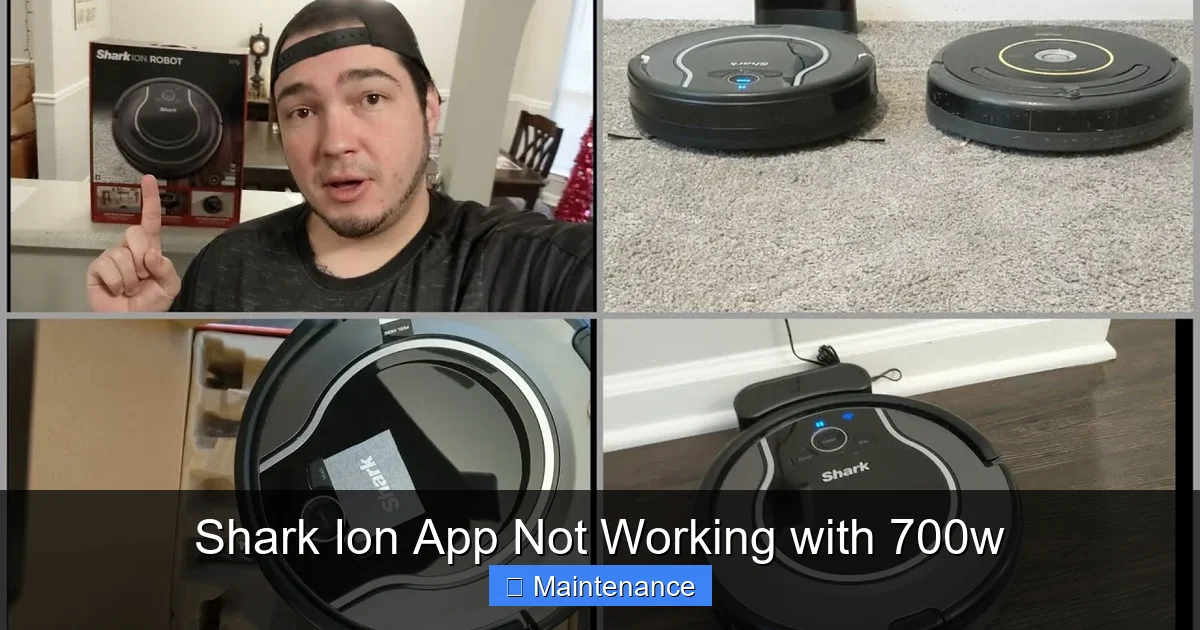
Visual guide about Shark Ion App Not Working with 700w
Image source: i.ytimg.com
Step 1: Power Cycle Your Router
Your router is the gateway. Unplug its power cable. Wait a full 60 seconds. This isn’t arbitrary; it ensures all capacitors fully discharge and any temporary IP address or DHCP lease issues are cleared. Plug it back in and wait until all the lights are steady (usually 2-3 minutes). This gives your network a fresh start.
Step 2: Power Cycle Your Shark 700w
Locate the power button on your vacuum. Turn it off. Wait 15 seconds. Turn it back on. Let it boot up completely—you’ll hear the startup chime and see the lights cycle. This resets the vacuum’s internal Wi-Fi module. Do not just put it on the dock; a full power cycle is essential.
Step 3: Restart Your Smartphone
Close the Shark Ion app completely (swipe it away from your recent apps screen). Then restart your phone. This clears the app’s temporary memory and ensures your phone’s own Wi-Fi connection is fresh. Once your phone reconnects to your Wi-Fi, open the Shark Ion app again and try to add or connect to your device.
Pro Tip: After doing this trio of restarts, try the connection process again from the very beginning within the app (e.g., “Add a New Device”). Don’t try to “reconnect” to an existing, failed pairing.
Wi-Fi Network: The Hidden Compatibility Barrier
This is the most common technical reason for the “Shark Ion app not working with 700w” error. The Shark 700w, like many IoT devices, has a specific requirement: it must connect to a 2.4GHz Wi-Fi network. It cannot connect to a 5GHz network. Many modern routers are “dual-band,” meaning they broadcast both 2.4GHz and 5GHz signals, sometimes under the same network name (SSID). This “band steering” can confuse devices like the 700w.
Visual guide about Shark Ion App Not Working with 700w
Image source: robotbox.net
How to Check and Fix Your Wi-Fi Band
1. Log into your router’s admin panel. You can usually do this by typing your router’s IP address (often 192.168.1.1 or 192.168.0.1) into a web browser. The login details are on a sticker on your router.
2. Look for Wireless Settings. Find the section for your 2.4GHz network. Confirm it is enabled and broadcasting. Check the SSID (network name). If your 2.4GHz and 5GHz networks have different names (e.g., “MyWiFi-2.4” and “MyWiFi-5”), that’s ideal. If they have the same name, you should temporarily disable the 5GHz band during the vacuum’s setup to force it to find the 2.4GHz signal.
3. Check your phone’s connection. When you go to pair the vacuum, make sure your smartphone is connected to the 2.4GHz network. On an iPhone, you can’t easily tell, but on Android, you can often see “2.4” or “5” next to the Wi-Fi icon in your settings. If unsure, temporarily rename your 2.4GHz network to something simple like “SharkSetup,” connect your phone to it, pair the vacuum, and then rename it back.
Other Critical Network Settings
Even on 2.4GHz, other router settings can block the vacuum:
- Wi-Fi Security Type: The Shark 700w supports WPA2-Personal (AES). It may have issues with older WEP or, in rare cases, with WPA3. Set your 2.4GHz network security to WPA2-Personal (AES) for guaranteed compatibility.
- MAC Address Filtering: If your router has this security feature enabled, you must add the Shark 700w’s MAC address (found on a sticker on the vacuum or its documentation) to the allowed list. Otherwise, the vacuum will be blocked from joining.
- Guest Networks: Avoid using a guest network. These often have “client isolation” or “AP isolation” enabled, which prevents devices on the network from talking to each other—exactly what the app and vacuum need to do.
The App & Phone Deep Dive
Assuming your network is correctly configured for 2.4GHz, the next place to look is the app and your phone itself.
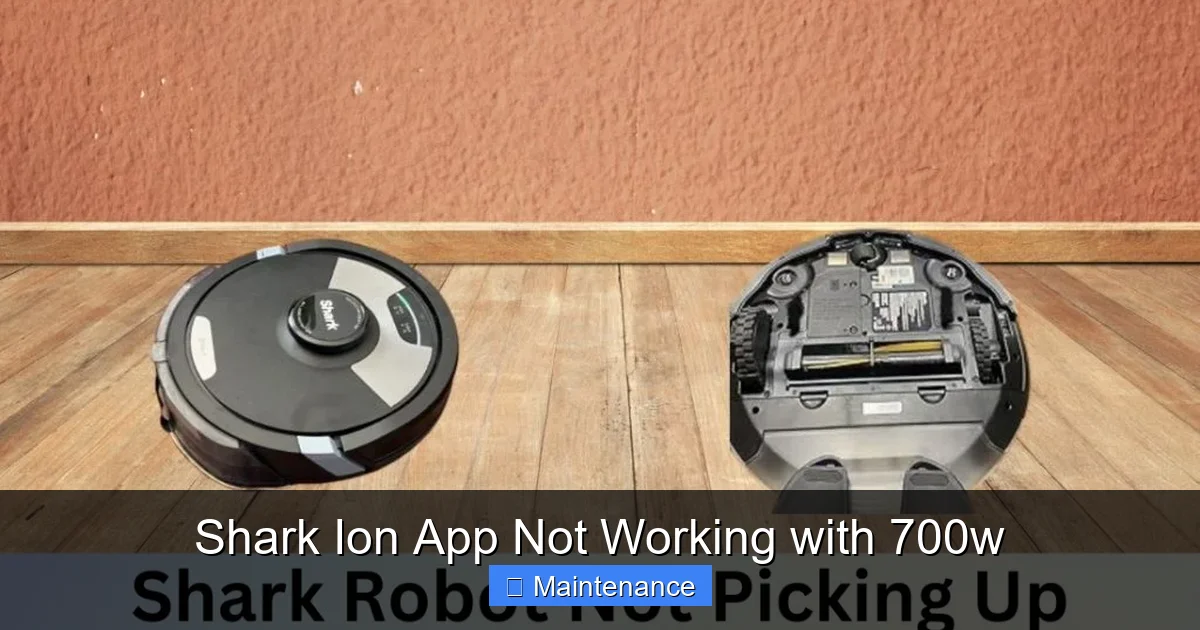
Visual guide about Shark Ion App Not Working with 700w
Image source: sharkvacuum.blog
Update, Update, Update
Go to your phone’s app store (Google Play Store or Apple App Store). Search for “Shark Ion” and check if an update is available. Install any available update. Shark frequently releases patches that improve connectivity and fix bugs specific to models like the 700w. An outdated app is a prime suspect in any “app not working” scenario.
Clear App Cache and Data (Android) / Reinstall (iOS)
Corrupted temporary files in the app can cause connection failures.
- On Android: Go to Settings > Apps > Shark Ion > Storage. Tap “Clear Cache,” then “Clear Data.” (Note: Clearing data will log you out and remove any schedules you’ve set). Reopen the app and log in fresh.
- On iPhone: iOS doesn’t allow granular cache clearing. The most effective method is to delete the Shark Ion app entirely and reinstall it from the App Store. This is a clean slate.
Check Phone OS and Permissions
Ensure your smartphone’s operating system (iOS or Android) is updated to a recent version. Very old OS versions can have compatibility issues. Also, double-check that the Shark Ion app has the necessary permissions: it needs access to Location (for network discovery in some Android versions) and obviously Wi-Fi. Go to your phone’s Settings > Apps > Shark Ion > Permissions and ensure they are allowed.
Preparing Your Shark 700w for Pairing
The vacuum itself must be in the right state to be discovered. The process is simple but must be done correctly.
The Correct Pairing Sequence
1. Place the Vacuum on Its Dock. Ensure it’s powered on and the dock is plugged into a working outlet. The vacuum’s lights should indicate it’s charging.
2. Press and Hold the Wi-Fi Button. On the top of the 700w, near the power button, there is a small button with a Wi-Fi symbol. You need to press and hold it for 3-5 seconds until you hear a tone and see the Wi-Fi indicator light start to blink rapidly (or pulse). This blinking means the vacuum is in “pairing mode” and broadcasting its own temporary network.
3. Follow the App Instructions IMMEDIATELY. Once the light is blinking, quickly open the Shark Ion app and start the “Add a New Device” process. The app will guide you. The entire window of opportunity while the vacuum is in active pairing mode is usually about 2 minutes. If you take too long, the light will stop blinking, and you’ll need to press the Wi-Fi button again.
What the Lights Mean
- Solid Blue Light: Vacuum is powered on and connected to Wi-Fi (success!).
- Slow Blinking Blue: Vacuum is in setup/pairing mode (this is what you want to see when starting).
- Rapid Blinking Blue: Vacuum is trying to connect but failing (network issue or wrong password).
- Solid Red or Flashing Red: An error or fault with the vacuum itself (not typically an app issue).
If you see rapid blinking blue after entering your Wi-Fi password in the app, it means the vacuum heard the password but couldn’t authenticate with the router. This points back to a network issue—wrong password, router security type, or 5GHz problem.
Advanced Troubleshooting & Last Resorts
If the steps above haven’t resolved the “Shark Ion app not working with 700w” problem, it’s time for deeper investigation.
Check Shark’s Server Status
It’s rare, but Shark’s cloud servers can go down for maintenance. Visit Shark’s official status page (if available) or check their social media accounts (Twitter/X, Facebook) for any announcements about service outages. If the servers are down, no app will work with any Shark device until it’s resolved.
Factory Reset the Vacuum’s Wi-Fi
This erases all saved Wi-Fi networks from the vacuum’s memory and forces a completely fresh start. Use this only after trying everything else.
- Place the vacuum on the dock and ensure it’s powered on.
- Press and hold the Wi-Fi button for 10-15 seconds until you hear a series of beeps and all the lights turn off and back on. This indicates a reset.
- The vacuum will restart. You must now go through the entire pairing process from scratch as if it were a new device.
Isolate the Problem: Another Device Test
Try pairing the 700w using a different smartphone or tablet. If the second device can connect successfully, the problem is isolated to your original phone (its OS, app install, or settings). If the second device also fails, the problem is with the vacuum, the router, or the network environment.
When to Contact Shark Support
If you have exhausted all the steps—network confirmed 2.4GHz, app updated, phone restarted, vacuum reset, server status good—and the app still cannot connect or control the 700w, it may be a hardware fault with the vacuum’s Wi-Fi module. Before calling, gather this information to make the call efficient:
- Your Shark 700w Serial Number: Found on a sticker on the bottom or back of the vacuum.
- Your Shark Ion App Version: Found in the app’s Settings menu.
- Your Phone Model and OS Version: (e.g., iPhone 15, iOS 17.4.1).
- Your Router Model: (e.g., Netgear Nighthawk AX2400).
- The Exact Error Message: Take a screenshot of the error in the app.
- A Summary of Steps Taken: “I’ve reset the router, vacuum, and phone. Confirmed 2.4GHz connection. Reinstalled app. Performed a Wi-Fi factory reset on the vacuum.”
Shark Support may offer a replacement if the vacuum is under warranty and the Wi-Fi module is confirmed defective. Remember, until it’s replaced, your vacuum still cleans perfectly with its onboard buttons.
Conclusion: Patience and Precision
The journey to fix “Shark Ion app not working with 700w” is a lesson in modern tech frustration. It’s rarely a sign of a broken product and almost always a communication hiccup between three systems: your phone, your router, and your vacuum. The key is systematic, patient troubleshooting. Start with the universal restart, then become a temporary network detective to ensure you’re on the right 2.4GHz band with the correct security. Update and refresh your app and phone. Master the precise timing of the vacuum’s pairing button. In most cases, these steps will restore that magical ability to schedule a cleaning from your bed. And throughout it all, remember your Shark 700w is still a powerful, effective robot vacuum cleaner, app or no app. That core function never fails. Now, go press that Wi-Fi button and get connected!
Frequently Asked Questions
Why does my Shark Ion app keep saying “Connecting” but never connects?
This usually means the vacuum is in pairing mode but can’t authenticate with your router. Double-check you are entering your exact 2.4GHz Wi-Fi password (case-sensitive) and that your router is using WPA2-Personal (AES) security. Also, ensure your phone is on the same 2.4GHz network during setup.
Can I use the Shark 700w without the app?
Absolutely. All primary cleaning functions—Auto, Spot, Edge, and Dock—are controlled by the physical buttons on top of the vacuum. The app only adds scheduling, notifications, and remote start. Your vacuum will clean manually without any Wi-Fi connection.
Do I need a special router or internet speed for the Shark 700w?
No special router is needed, but it must broadcast a 2.4GHz Wi-Fi network with WPA2 security. Any standard home internet speed is sufficient, as the vacuum only sends small status and command packets, not streaming data.
What does a rapidly blinking blue light on my Shark 700w mean during setup?
A rapidly blinking blue light after you’ve entered your Wi-Fi password means the vacuum is trying to connect but failing. This is a network authentication error. Re-check your password, confirm you are using a 2.4GHz network, and verify your router isn’t blocking the device via MAC filtering.
Is there a way to force my phone to use 2.4GHz Wi-Fi for setup?
Yes. The simplest method is to temporarily rename your router’s 2.4GHz network (SSID) to something unique (e.g., “SharkSetup”) in your router’s admin settings. Connect your phone to that network, pair the vacuum, and then rename the network back to its original name.
I’ve tried everything. My vacuum still won’t add in the app. What now?
Perform a full Wi-Fi factory reset on the vacuum (hold the Wi-Fi button for 10-15 seconds until lights reset), then try the pairing process again from scratch. If it still fails, contact Shark Support with your serial number and a list of all troubleshooting steps you’ve completed.