Is your Shark Ion app broken after a recent update? This frustrating issue is common and usually stems from software glitches, corrupted cache, or device compatibility problems. The good news is that most problems can be resolved with systematic troubleshooting, starting with simple fixes like restarting your phone and router, and progressing to cache clearing and app reinstallation. Understanding the specific symptom—whether it’s login failure, connection drops, or map errors—is key to applying the right solution and getting your smart vacuum back under control.
Key Takeaways
- App updates can cause temporary glitches: A new version may have bugs or conflict with your phone’s OS, causing the app to crash or fail to connect.
- Start with the simplest fixes first: Power cycling your phone, router, and Shark Ion base often resolves minor connectivity hiccups instantly.
- Clearing the app cache is a primary solution: Corrupted temporary data from the old app version is a frequent culprit and is fixed by clearing the cache in your phone’s settings.
- Compatibility matters: Ensure your phone’s operating system (iOS/Android) is updated and officially supported by the new Shark Ion app version.
- A full reinstall is a powerful reset: Uninstalling and reinstalling the app removes all corrupted data and forces a fresh download of the correct software.
- Check your vacuum’s firmware: The vacuum itself must run compatible firmware to communicate with the updated app; manual updates via the base may be needed.
- When in doubt, contact Shark Support: If all troubleshooting fails, the issue may be a known bug requiring a patch from Shark or a hardware fault.
📑 Table of Contents
- Introduction: The “Update Blues” – Why Your Shark Ion App Suddenly Misbehaves
- Symptom Diagnosis: What Exactly Is “Not Working”?
- First-Aid Protocol: The Essential 15-Minute Troubleshooting Routine
- Deep Dive Fixes: Clearing Cache and Reinstalling the App
- Advanced Troubleshooting: Firmware and Compatibility Checks
- Prevention and Maintenance: Keeping Your Smart Cleaning Smooth
- When All Else Fails: Contacting Support and Final Options
- Conclusion: Patience, Persistence, and Problem-Solving
Introduction: The “Update Blues” – Why Your Shark Ion App Suddenly Misbehaves
You tap the Shark Ion app icon, ready to schedule a cleaning or check your vacuum’s status, and… nothing. Or maybe it opens but won’t log in, keeps disconnecting, or shows a blank map. You just updated the app, and now it feels like you’ve been transported back to the Stone Age of manual vacuuming. Frustrating? Absolutely. Unfixable? Almost never. Welcome to the all-too-common world of post-update app failures.
The “Shark Ion app not working after update” syndrome is a frequent visitor in smart home forums and support queues. It happens because an update, while meant to improve things, introduces new code that must interact perfectly with your specific phone’s operating system, your home’s Wi-Fi network, and your vacuum’s own firmware. A hiccup in any of these handshakes can break the chain. This guide is your definitive troubleshooting companion. We’ll walk through every possible cause, from the simplest restart to more advanced steps, in clear, plain language. Our goal is to get you back to seamless, app-controlled cleaning without the headache.
Symptom Diagnosis: What Exactly Is “Not Working”?
Before we start fixing, we must accurately describe the problem. “Not working” is vague. Pinpointing the exact symptom drastically narrows down the solution. Pay close attention to what happens the moment you open the app or try to interact with your Shark Ion.
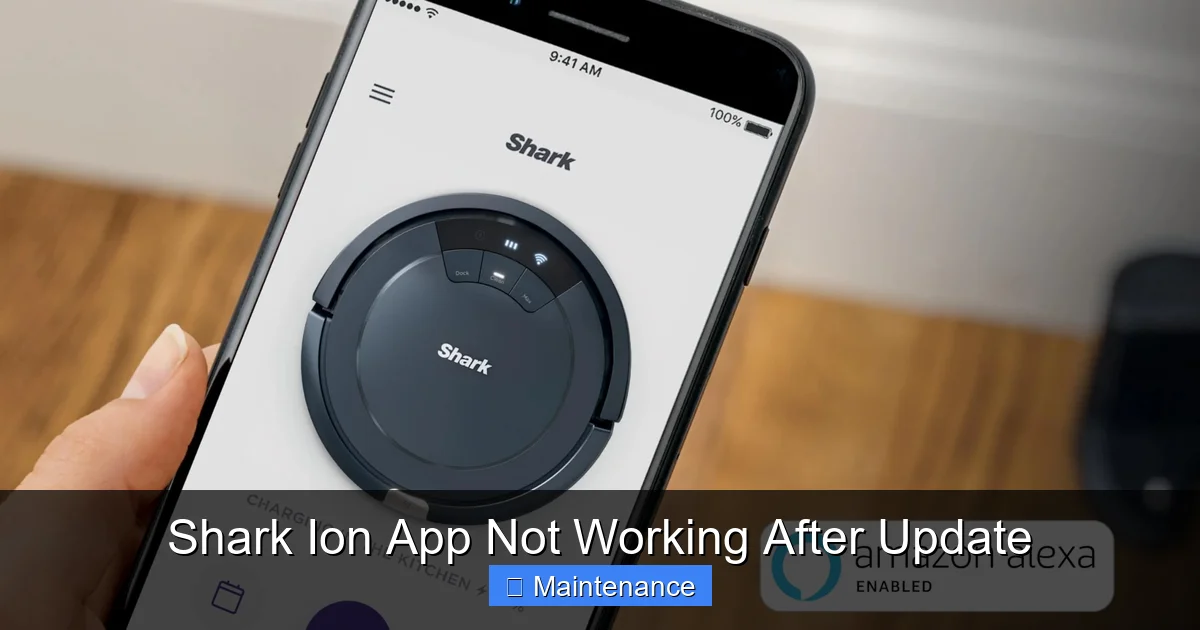
Visual guide about Shark Ion App Not Working After Update
Image source: m.media-amazon.com
The App Won’t Open or Crashes Instantly
This is a classic sign of a corrupted installation or a major compatibility clash with your phone’s OS. The app icon might flash or you’ll see it load briefly before returning to your home screen. This often points to issues with the new app code itself or leftover data from the previous version.
You Can’t Log In (Incorrect Password/Email Loop)
You enter your Shark login credentials, hit sign-in, and get an error—or it just spins forever and kicks you back to the login screen. Your password is correct. This usually means the new app version is having trouble communicating with Shark’s authentication servers, or there’s a conflict in the stored login tokens on your device.
The App Opens but Won’t Connect to the Vacuum
This is the most common scenario. The app loads, you see your vacuum listed, but it shows “Offline,” “Disconnected,” or a red “X.” You might be able to see it briefly before it drops. This is almost always a network communication problem between your phone, your Wi-Fi router, and the Shark Ion’s base station.
Features Are Missing or Broken (Maps, Schedules, Zones)
The app connects, but the cleaning map is blank, scheduled cleanings won’t save, or virtual walls/zones are unresponsive. This suggests the new app version is not correctly syncing or interpreting the map data and settings stored on your vacuum’s internal memory.
The App is Extremely Slow or Unresponsive
Every tap has a multi-second delay, menus freeze, or loading icons spin endlessly. This points to performance issues, often caused by a bloated or corrupted cache, or the new app version being too demanding for your older phone’s hardware.
First-Aid Protocol: The Essential 15-Minute Troubleshooting Routine
Before diving into settings menus, perform this universal reset sequence. It solves a staggering percentage of “app not working” issues across all smart devices because it clears transient network and software states.
Visual guide about Shark Ion App Not Working After Update
Image source: r2.community.samsung.com
Step 1: Power Cycle Everything (The Classic “Turn It Off and On Again”)
This isn’t just tech support cliché; it’s fundamental. We need to fully reset the network handshake.
- Unplug your Shark Ion base station from the wall outlet. Wait 30 seconds.
- Unplug your Wi-Fi router (the one your phone and base connect to). Wait 60 seconds. This is crucial—it clears the router’s ARP and DHCP tables.
- Restart your smartphone or tablet. A full reboot, not just putting it to sleep.
- Plug your router back in and wait 2-3 minutes for it to fully boot and reconnect to the internet.
- Plug your Shark Ion base station back in. Wait for it to power on fully (lights will stabilize).
- Open the Shark Ion app and try to connect.
If this works, great! If not, proceed.
Step 2: Check Your Wi-Fi Network – The Silent Culprit
The Shark Ion base connects only to 2.4GHz Wi-Fi networks. Many modern routers are “dual-band” and may have your phone on 5GHz while the base is on 2.4GHz, or the router may be isolating devices.
- Ensure your phone is on the same 2.4GHz network as the base. You may need to temporarily “forget” the 5GHz network on your phone and connect to the 2.4GHz SSID (it often has “_2G” or similar in the name).
- Disable Wi-Fi Isolation/AP Isolation on your router. This security feature prevents devices on the same network from talking to each other, which would block your phone from seeing the vacuum.
- Move closer to the router/base. Rule out simple signal weakness during the critical update/connection phase.
Deep Dive Fixes: Clearing Cache and Reinstalling the App
If the first-aid failed, the problem is likely corrupted data on your phone from the old app version or a flawed new installation. Time for a data cleanse.
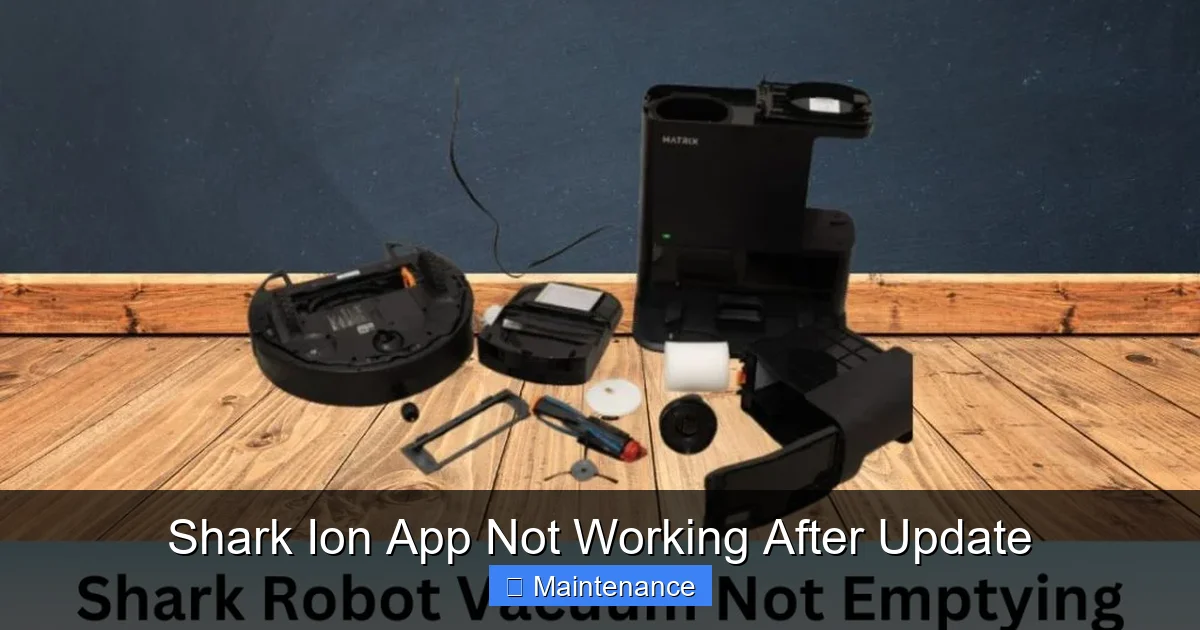
Visual guide about Shark Ion App Not Working After Update
Image source: sharkvacuum.blog
Method 1: Clearing the App Cache (The First Line of Defense)
Every app stores temporary data (cache) to load faster. An update can leave this cache in a format the new version can’t read, causing crashes and connection failures.
On Android: Go to Settings > Apps > Shark Ion (or similar). Tap Storage & cache. Press Clear Cache. Do not press “Clear Storage” or “Clear Data” yet, as this will log you out and delete local schedules. Try the app again.
On iOS: iOS manages cache differently. The most effective way is to offload the app. Go to Settings > General > iPhone Storage > Shark Ion. Tap Offload App. This removes the app but keeps its documents and data (like login). Then Reinstall it from the App Store. Alternatively, a full reinstall (next method) is often simpler and equally effective on iOS.
Method 2: The Nuclear Option – Full Uninstall and Reinstall
This guarantees a fresh start, wiping all app-specific data and downloading the latest version cleanly.
- Uninstall the Shark Ion app from your phone (press and hold icon > Remove App/Uninstall).
- Restart your phone. This ensures no background processes linger.
- Reinstall the app directly from the official Google Play Store or Apple App Store. Do not use an old APK or backup.
- Log in with your Shark credentials (email/password, not social login if possible during setup, as this can sometimes cause issues).
- Re-add your Shark Ion vacuum by following the setup process as if it’s new. You will likely need to press the Wi-Fi button on the base station.
Important: Your cleaning history and map data are stored on the vacuum itself, not in the app cloud (for most models). Re-adding the vacuum should restore your map and schedules automatically once connection is re-established.
Advanced Troubleshooting: Firmware and Compatibility Checks
If cache clearing and reinstalling didn’t work, the disconnect may be between your vacuum’s onboard software (firmware) and the new mobile app. They must speak the same language.
Is Your Vacuum’s Firmware Up to Date?
The app update might require a newer firmware version on your Shark Ion base to function. The app itself usually prompts for a firmware update when connected, but if you can’t connect, you’re stuck.
- Check for manual firmware updates: Some Shark models allow a firmware update via a USB connection to a computer. Check Shark’s official support site for your exact model number (on the underside of the base).
- Try a “soft” firmware trigger: With the base powered and your phone on the same 2.4GHz network, sometimes opening the app repeatedly for 10-15 minutes can prompt it to push a pending firmware update in the background. Be patient.
Verify Phone and App Compatibility
Your phone’s operating system might be too old for the new app version.
- Check the app store listing: Go to the Shark Ion app page on the Play Store or App Store. Scroll down to the “Requires” section. Does your phone’s iOS or Android version meet the minimum requirement? If not, you may need to update your phone’s OS or, in a pinch, find an older compatible app version (though this is not recommended for security).
- Check Shark’s official support page: They often list known compatibility issues with specific phone models or OS versions after a major app update.
Reset Your Shark Ion’s Network Settings
If the vacuum’s internal Wi-Fi module is in a bad state, you can force it to re-pair.
- Locate the Wi-Fi button on your Shark Ion base station (usually a small recessed button).
- Press and hold it for 10-15 seconds until you hear a tone or see the Wi-Fi indicator light blink rapidly. This puts the base into pairing/discovery mode.
- Open the freshly reinstalled Shark Ion app and go through the “Add Device” process. It should now find the base easily.
Prevention and Maintenance: Keeping Your Smart Cleaning Smooth
Once you’ve solved the crisis, let’s prevent it from happening again. A little proactive care goes a long way with smart appliances.
Don’t Rush Into Updates
When your phone notifies you of an app update, especially for a critical utility like a vacuum, wait 48-72 hours. Check the app store reviews for the new version. Early adopters often report major bugs (“app crashes on launch,” “can’t connect”) that the developer will patch in a subsequent sub-update (e.g., from v5.2 to v5.2.1). Being a slightly delayed updater can save you hours of frustration.
Maintain a Healthy Phone Environment
Your phone’s health directly impacts app performance.
- Keep your phone’s OS updated. App developers optimize for the latest iOS/Android versions.
- Regularly clear cache for high-usage apps like Shark Ion every few months.
- Ensure you have sufficient storage space. Apps can malfunction if your phone is nearly full.
- Close background apps occasionally to free up RAM.
Network Hygiene for Smart Homes
A stable, well-configured Wi-Fi network is the backbone of all smart devices.
- Use a dedicated 2.4GHz SSID. If your router combines bands, consider splitting them into separate names (e.g., “MyWiFi-2G” and “MyWiFi-5G”) and connect all smart home devices (Shark, lights, plugs) to the 2.4GHz one.
- Place your router centrally and avoid thick walls or large metal appliances between it and the Shark base.
- Update your router’s firmware periodically from the manufacturer’s website.
When All Else Fails: Contacting Support and Final Options
You’ve power cycled, cleared cache, reinstalled, checked firmware, and verified compatibility. The Shark Ion app is still not working after the update. Now what?
Gather Your Information Before Contacting Support
Efficient support calls require data. Before you call Shark or use their chat, have this ready:
- Your Shark Ion model number (on the base or in the old app, if accessible).
- Your phone model (e.g., iPhone 13, Samsung Galaxy S22).
- Your phone’s exact operating system version (e.g., iOS 16.5, Android 13).
- The new app version number (from the app store page).
- A clear description of the symptom and all troubleshooting steps you’ve already taken.
Understand Warranty and Known Issues
Sometimes, the problem is a genuine bug in the new app release that only Shark’s development team can fix. They may be working on a hotfix. Ask the support agent if there is a known issue with the latest update for your device model. If your vacuum is under warranty and the issue is proven to be software-related and persistent, they may offer a replacement base station if a firmware update cannot resolve it.
The Last Resort: Alternative Control Methods
While you wait for a fix from Shark, remember your vacuum isn’t completely bricked.
- Physical buttons: All Shark Ion models have Clean/Pause and Home buttons directly on the robot and base. Use these for basic start/stop and docking.
- Voice assistants: If the app was working before and you had linked it to Amazon Alexa or Google Assistant, try voice commands (e.g., “Alexa, ask Shark to start cleaning”). Sometimes the voice cloud connection remains even if the app UI fails.
- Schedule from the base: Some higher-end Shark models have a scheduling function using buttons and a small LED screen on the base station. Consult your manual.
Conclusion: Patience, Persistence, and Problem-Solving
The “Shark Ion app not working after update” problem is a modern tech annoyance, but it is almost always solvable. The key is a methodical approach: diagnose the exact symptom, execute the fundamental power cycle, cleanse the app’s cache, and perform a clean reinstall. Most users find success within these steps. For the stubborn few, the battle moves to firmware compatibility and network configuration. Remember, the update was intended to improve your experience—sometimes the path to that improvement is a little bumpy. By understanding the ecosystem—your phone, your router, the app, and the vacuum’s firmware—you become the master of your smart home, not its victim. Bookmark this guide, work through the steps calmly, and you’ll have your Shark Ion back under app control soon. And when you do, consider waiting a week on the next update to let the early bugs get ironed out.
Frequently Asked Questions
Why does my Shark Ion app keep crashing right after an update?
This is typically caused by a corrupted download or a conflict between the new app version and your phone’s operating system. A full uninstall and reinstall of the app from the official store usually resolves this by ensuring a clean installation.
Do I need to clear the cache every time the app updates?
No, it’s not necessary every time. However, if you experience issues like slow performance, login loops, or connection drops after an update, clearing the app cache is one of the first and most effective fixes. It removes temporary files from the old version that may be incompatible.
Will resetting my Shark Ion base station delete my cleaning maps and schedules?
No. Your cleaning maps, schedules, and no-go zones are stored in the memory of the vacuum robot itself, not on the base station or solely in the cloud. Resetting the base’s network settings (holding the Wi-Fi button) only erases its Wi-Fi credentials. When you reconnect the app, it should re-sync and download the map and schedules from the robot.
My phone is up-to-date, but the app says my device is incompatible. What now?
This means the new app version has raised its minimum OS requirement. Check your phone’s available software update (Settings > General > Software Update on iOS; Settings > System > Software Update on Android). If your phone model is too old and no longer supported by new OS versions, you may be unable to use the latest app and might need to contact Shark Support to inquire about legacy app versions.
Can I control my Shark Ion without the app if it’s not working?
Yes, for basic functions. You can use the physical Clean/Pause button on the robot itself to start and stop a cleaning. The Home button on the robot or base will send it back to charge. Some models also have scheduling buttons on the base station. However, advanced features like room-specific cleaning, no-go zones, and detailed scheduling require the app.
How do I force a firmware update on my Shark Ion if the app won’t connect?
Firmware updates are typically pushed through the app. If you cannot connect, first ensure your base is on a stable 2.4GHz Wi-Fi network. Sometimes leaving the base powered on and the app open (even if disconnected) for an extended period can trigger a background update. For a manual approach, check Shark’s official website for your specific model number; they may provide a USB firmware update file and instructions for a direct computer connection.