Struggling with your Shark Av752 robot vacuum refusing to connect to WiFi? This is a common but frustrating issue, usually stemming from network incompatibility (the Av752 only uses 2.4GHz bands), signal strength problems, or outdated software. The solution involves a systematic approach: first, verify your router is broadcasting a 2.4GHz network with a simple password; next, power cycle both the robot and your router; then, perform a network reset on the Av752 and reinstall the SharkNinja app. If these steps fail, investigate router-specific settings like DHCP or MAC filtering. With patience and the right steps, you can restore your robot’s smart cleaning connectivity.
Key Takeaways
- The Av752 is 2.4GHz-only: It will not connect to a 5GHz-only network. You must have a 2.4GHz network available, often by enabling “dual-band” on your router or creating a separate 2.4GHz SSID.
- Signal strength is critical: The robot needs a strong, stable WiFi signal in its cleaning areas. Thick walls, distance, and interference from other devices can cripple connectivity.
- Power cycling is the first fix: Turning off and unplugging your router and modem for 60 seconds, then restarting them, resolves many temporary network glitches and IP conflicts.
- Reset the robot’s network memory: Use the physical reset button on the Av752 to clear saved network credentials, forcing it to start the connection process fresh.
- App and firmware must be current: An outdated SharkNinja app or robot firmware is a frequent cause of connection failures. Always update both before troubleshooting.
- Router settings can block devices: Check for MAC address filtering, strict firewall rules, or an exhausted DHCP IP address pool that might prevent the robot from getting an IP address.
- A dedicated 2.4GHz network is the ultimate fix: For persistent issues, setting up a simple, separate 2.4GHz network just for IoT devices like your robot vacuum eliminates most band-switching and compatibility headaches.
📑 Table of Contents
- Introduction: The Silent, Unconnected Cleaner
- Why Is My Shark Av752 Not Connecting to WiFi? Understanding the Common Culprits
- Step-by-Step Fixes for Shark Av752 WiFi Connection Issues
- Your Router Could Be the Problem: Router-Specific Checks
- Advanced Troubleshooting for Persistent Shark Av752 WiFi Problems
- How to Prevent Future Shark Av752 Connectivity Issues
- Conclusion: Patience and Precision Win the Day
Introduction: The Silent, Unconnected Cleaner
You’ve unboxed your shiny new Shark Av752 robot vacuum. You’ve charged it, placed it on its charging dock, and downloaded the SharkNinja app with excitement. You’re ready to schedule cleanings, set no-go zones, and enjoy the magic of a hands-free clean. Then, it happens. The app says, “No Robot Found.” You try again. And again. The Shark Av752 is not connecting to WiFi, and your smart cleaning dreams are on hold. Frustration sets in.
First, take a breath. This is one of the most common issues reported by Shark owners, and it’s almost always solvable. The problem is rarely a defective robot; it’s almost always a communication mismatch between your robot and your home network. The Av752, like many IoT devices, has specific network requirements that your modern, fast, dual-band router might not be providing by default. This guide will walk you through every possible reason, from the simple to the complex, and give you the exact steps to get your Shark Av752 connected and working as intended. We’ll talk about 2.4GHz vs. 5GHz, signal strength, router settings, and software updates. By the end, you’ll be a home networking troubleshoot
Why Is My Shark Av752 Not Connecting to WiFi? Understanding the Common Culprits
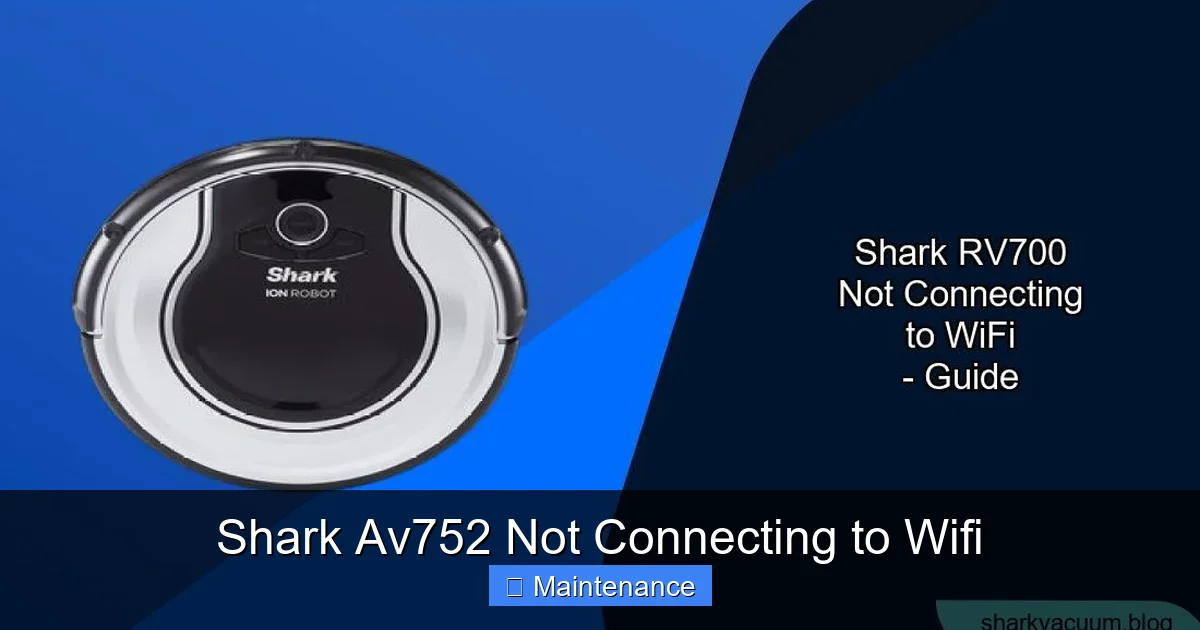
Before we start pressing buttons, it’s crucial to understand why this happens. Diagnosing the root cause saves hours of random resetting. The Shark Av752, like its sibling models (Av750, Av751), is a 2.4GHz-only device. This is the single most important fact. Your router likely broadcasts two networks: a 2.4GHz band (slower, better range) and a 5GHz band (faster, less range). The Av752’s WiFi chip simply cannot “see” or communicate on the 5GHz frequency. If your router is set to “Smart Connect” or “Band Steering” (a feature that automatically decides which band a device uses), it might be trying to push your robot to the 5GHz band, where it will fail silently. The robot will appear to search but never connect.
Visual guide about Shark Av752 Not Connecting to Wifi
Image source: sharkvacuum.blog
Network Incompatibility: The 2.4GHz Imperative
Your first task is to confirm a 2.4GHz network is available and visible. Go to your phone’s WiFi settings. Do you see a network name (SSID) that is different from your main 5GHz network? Many modern routers, like those from Netgear, ASUS, TP-Link, and Xfinity, broadcast the same name for both bands by default. The Av752 might connect to the 2.4GHz signal, but if the router’s band steering is aggressive, it can disconnect the robot and try to move it to 5GHz, causing a failure loop. The fix is to log into your router’s admin panel (usually via a web browser at 192.168.1.1 or 192.168.0.1) and disable band steering or create two separate network names: one for 2.4GHz (e.g., “MyWiFi-2.4”) and one for 5GHz (e.g., “MyWiFi-5”). Then, connect the Av752 only to the 2.4GHz network.
Weak Signal Strength: The Invisible Barrier
Even if you have a perfect 2.4GHz network, signal strength matters immensely. The Av752’s antenna is small. If your router is in a basement and the vacuum is on a second floor, or if there are multiple concrete walls, brick, or large metal appliances (refrigerators, filing cabinets) between them, the signal can be too weak to establish a stable connection. The robot might “see” the network but fail the handshake. Use a smartphone app like “WiFi Analyzer” (Android) or “AirPort Utility” (iOS) to check the signal strength (measured in dBm) in the room where the robot’s charging dock is placed. Anything below -70 dBm is considered weak and unreliable for IoT devices. The solution here is physical: move your router closer, add a WiFi extender/mesh node, or relocate the charging dock to a more central, open location with fewer obstructions.
Incorrect Password or Security Settings
It seems obvious, but it’s a frequent pitfall. Did you recently change your WiFi password? The Shark Av752 stores the credentials you first entered. If the password changes, it will keep trying to authenticate with the old one and fail. Furthermore, some older or enterprise-level security protocols (like WPA3-only, or certain types of WPA2-Enterprise) are not compatible with simpler IoT chips. The Av752 requires WPA2-Personal (AES) or WPA/WPA2-Personal (AES/TKIP). If your router is using WPA3-only, you must change it to WPA2/WPA3 mixed mode or WPA2-Personal for the robot to connect. Also, ensure the password is simple—avoid special characters like !, @, # that sometimes cause parsing errors in device firmware. Use only letters, numbers, and common symbols like hyphens or underscores.
Outdated SharkNinja App or Firmware
The app on your phone is the bridge between you and the robot. An outdated app can have bugs that prevent proper network discovery or pairing sequences. Similarly, the robot’s own internal firmware (its software) might have known WiFi bugs that were fixed in a later update. However, here’s the catch-22: you often need a WiFi connection to update the robot’s firmware! This creates a stalemate. The solution is to ensure your phone’s app is updated from the App Store or Google Play first. Then, if you *can* get a temporary, wired Ethernet connection (some models support it via a USB adapter, but the Av752 does not), use that to update the robot. More commonly, you’ll need to get the robot connected via WiFi first, and the moment it connects, it will likely prompt you (in the app) to install a critical firmware update. Do not skip this.
Step-by-Step Fixes for Shark Av752 WiFi Connection Issues
Now that we know the suspects, let’s be systematic. Follow these steps in order. Do not skip to step 5 without doing 1-4. This methodical approach solves over 80% of connection problems.
Visual guide about Shark Av752 Not Connecting to Wifi
Image source: m.media-amazon.com
Step 1: The Classic “Turn It Off and On Again” (Power Cycle Everything)
This isn’t just IT cliché; it clears temporary caches and forces new DHCP lease requests. Here’s the proper way: Unplug your modem and router from power. If they are separate devices, unplug both. Wait a full 60 seconds. This ensures capacitors fully discharge and any lingering IP address leases from your ISP are cleared. Plug the modem back in first. Wait until all its lights are stable (usually 2-3 minutes). Then plug your router back in. Wait for it to fully boot and broadcast its WiFi networks (another 2 minutes). Now, place your Shark Av752 on its charging dock and ensure it’s powered on (the button should be lit). Open the SharkNinja app and try adding the robot again. This simple act resolves many “ghost” connection issues caused by IP conflicts or router hiccups.
Step 2: Verifying Your WiFi Network Details
Double-check your network name and password with 100% accuracy. Pay attention to case sensitivity. Is your network name hidden? If so, you’ll need to manually enter it during setup. Ensure your phone is connected to the *same* 2.4GHz network you intend the robot to use. If your phone is on 5GHz, the app might still see the robot, but the pairing process can fail. Temporarily, on your phone, forget your 5GHz network and connect only to the 2.4GHz network. Then, go through the “Add Robot” process in the app. Also, check your router’s admin panel. Is the 2.4GHz network enabled? Is its SSID (name) broadcast? Is the security type set to WPA2-Personal (AES)? Change it if necessary. Save settings and reboot the router.
Step 3: Resetting the Shark Av752’s Network Settings
The robot has a physical reset button, usually a small pinhole on the underside or side, labeled “Reset.” You need a paperclip. With the robot powered on and on its dock, press and hold the reset button for 10-15 seconds. You’ll hear a series of beeps or see the indicator light flash in a pattern (consult your manual for exact signal). This performs a factory reset of the robot’s network and app pairing, not a full factory reset of all cleaning settings. It clears the saved WiFi credentials. After the reset, the robot will be in “pairing mode,” often indicated by a blinking WiFi or pairing light. Now, immediately open the SharkNinja app and start the “Add Robot” process. Follow the on-screen instructions precisely, selecting your correct 2.4GHz network and entering the password.
Step 4: Reinstalling the SharkNinja App
Corrupted app data can cause connection failures. On your smartphone, fully uninstall the SharkNinja app. Don’t just delete it from the home screen; go to Settings > Apps > SharkNinja > Uninstall. Then, restart your phone. After it reboots, go to the official App Store or Google Play Store and download the latest version of the SharkNinja app. Log in or create your account anew. This ensures you have a clean app environment. Now, place the Av752 in pairing mode (you may need to press the reset button again after the reinstall) and try the setup process from scratch.
Your Router Could Be the Problem: Router-Specific Checks
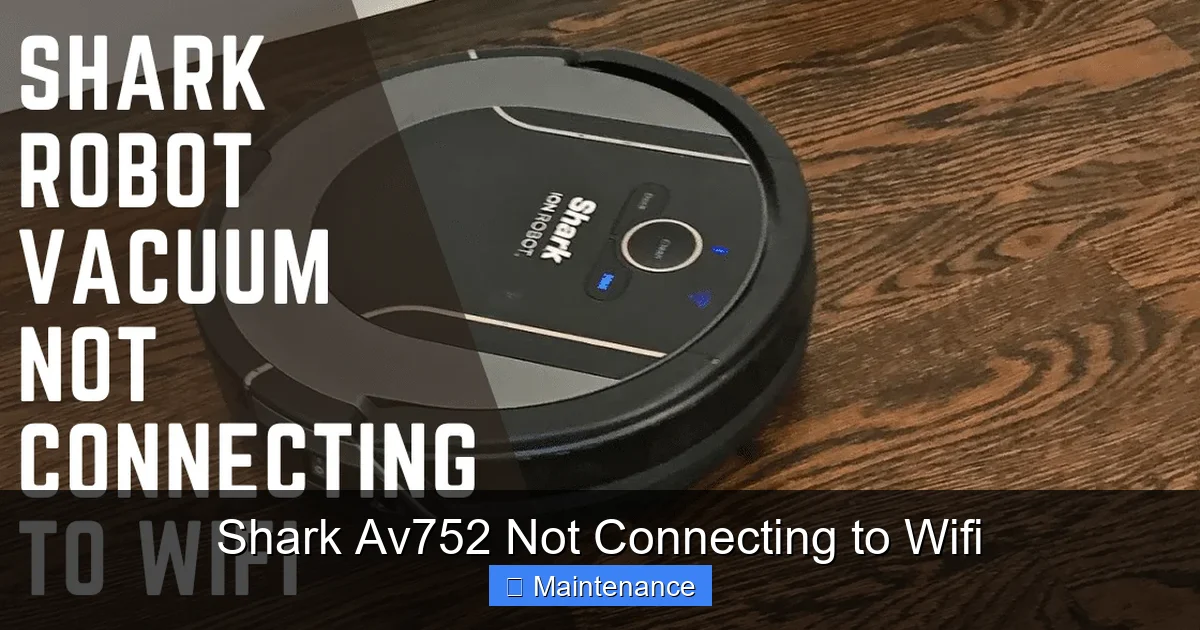
If the robot still won’t connect after the basic steps, the issue is almost certainly your router’s configuration. Modern routers are complex computers with many security and management features that can inadvertently block simple IoT devices.
Visual guide about Shark Av752 Not Connecting to Wifi
Image source: cleanersadvisor.com
Is Your Router Too Old or Overloaded?
Routers have a limit to the number of devices they can manage simultaneously. If you have dozens of smart home devices, phones, laptops, and tablets, your router’s DHCP table might be full, or its processor might be maxed out, causing it to ignore new connection requests. Try disconnecting 5-10 other devices temporarily and attempt to pair the Av752. Also, consider the age of your router. If it’s more than 4-5 years old, its WiFi radio and firmware may be inefficient or incompatible with newer device standards, even if it’s a 2.4GHz device. A firmware update for the router itself (downloaded from the manufacturer’s website) can sometimes help. If problems persist, an inexpensive, modern dual-band router dedicated to IoT devices can be a worthwhile investment.
DHCP and IP Address Conflicts
Your router uses DHCP (Dynamic Host Configuration Protocol) to automatically assign IP addresses to devices. Sometimes, this process fails or conflicts. The Av752 might request an IP address, but the router’s DHCP pool is exhausted, or a lease conflict occurs. The easiest fix is to reboot your router (as in Step 1), which clears the DHCP table. For a more permanent fix, log into your router’s admin panel and increase the range of the DHCP pool. For example, if it’s set to .100 to .150, change it to .50 to .200, giving you more available addresses. Also, set the DHCP lease time to a longer duration (e.g., 24 hours or 1 week) to reduce churn.
MAC Filtering and Access Controls
Some routers have a security feature called MAC Address Filtering. This is a whitelist or blacklist based on the unique hardware address of each device. If this feature is enabled (often for “parental controls” or “network access control”), your Shark Av752’s MAC address must be added to the allowed list. Find the robot’s MAC address—it’s usually on a sticker on the underside or in the packaging. Log into your router, find the MAC filtering section (often under Security or Wireless Settings), and add the Av752’s MAC address to the “Allow” list. Similarly, check for any “Access Control” or “Device Blocking” lists that might have inadvertently blocked a new device. Disable these features temporarily for testing.
Advanced Troubleshooting for Persistent Shark Av752 WiFi Problems
When all else fails, it’s time for more advanced tactics. These require a bit more technical comfort but are highly effective.
Using a WiFi Analyzer App
Download a WiFi analyzer app on your phone. These apps show you all nearby WiFi networks, their signal strength, and, most importantly, the channel they are using. The 2.4GHz band only has 11 non-overlapping channels (1, 6, 11 are best). If your router is on channel 1, but your neighbors are on 1, 2, and 3, you have severe interference. Log into your router’s admin panel and manually set the 2.4GHz channel to 1, 6, or 11—whichever is least congested according to the analyzer. This reduces “noise” and can dramatically improve the Av752’s ability to latch onto a clean signal. Also, check for interference from non-WiFi sources like cordless phones (DECT 6.0), baby monitors, microwave ovens, and wireless security cameras. These operate in the 2.4GHz spectrum and can drown out your robot’s signal.
Creating a Dedicated 2.4GHz Network
This is the nuclear option that solves 99% of compatibility headaches for IoT devices. Log into your router. Find the wireless settings. Disable “Smart Connect” or “Band Steering” completely. Create two distinct network names (SSIDs): one for 2.4GHz (e.g., “Home-IoT”) and one for 5GHz (e.g., “Home-Main”). Set both to use WPA2-Personal (AES) security with the same password for simplicity. Now, connect all your smart home devices—Shark Av752, smart bulbs, plugs, thermostats—to the “Home-IoT” network. Connect your phones, laptops, and streaming devices to the “Home-Main” 5GHz network. This separates the traffic, prevents band-stealing, and gives your low-bandwidth robot a clean, dedicated lane. It’s the professional solution for a smart home.
Contacting SharkNinja Support
If you have exhausted all of the above—verified 2.4GHz availability, power cycled, reset the robot, checked router settings, created a dedicated network—and the Shark Av752 still will not connect, it may be a hardware fault with the robot’s WiFi module. Before concluding this, contact SharkNinja customer support. Have your robot’s serial number (on the underside) and your router’s make/model ready. They can run remote diagnostics and, if the robot is under warranty, initiate a replacement. Be prepared to detail every troubleshooting step you’ve already taken; this shows you’re knowledgeable and can speed up the support process.
How to Prevent Future Shark Av752 Connectivity Issues
Once you’ve successfully connected your Av752, you want it to stay connected. A few proactive habits will prevent future headaches.
Regular Firmware Maintenance
Make it a habit to check for updates. Open the SharkNinja app monthly. Go to Settings (gear icon) > About > Check for Updates. If an update is available, ensure your robot is on its charging dock with a good WiFi signal and initiate it. Firmware updates often include critical connectivity bug fixes and security patches. Enable automatic updates if the app offers that option. Similarly, check your router manufacturer’s website for firmware updates once or twice a year. Updating your router’s firmware can improve stability, security, and compatibility with all connected devices.
Strategic Router Placement
Do not hide your router in a cabinet or basement. For optimal IoT device connectivity, place your router in a central, elevated location in your home, away from large metal objects, thick walls, and other major appliances. If your home is large or has dead zones, invest in a good WiFi mesh system (like Eero, Google Nest WiFi, or Orbi). A mesh system uses multiple nodes to create a single, seamless network with excellent coverage. Place one node near your robot’s charging dock to guarantee a strong, reliable signal. This is the single best hardware investment for a smooth smart home experience.
Managing Smart Home Device Load
Be mindful of how many devices you connect to your 2.4GHz network. While the band has more range, it has less bandwidth than 5GHz. Hundreds of constantly communicating IoT devices can congest the network. Group devices logically. If you have a separate 2.4GHz IoT network (as recommended above), keep it for low-bandwidth, always-on devices like your Shark vacuum, smart plugs, and sensors. Use your primary 5GHz network for high-bandwidth activities like video streaming, video calls, and gaming. This network segmentation prevents your vacuum’s occasional map upload from slowing down your Netflix stream.
Conclusion: Patience and Precision Win the Day
Your Shark Av752 not connecting to WiFi is a solvable puzzle. The key is understanding that your robot is a simple device with simple network needs: a stable, 2.4GHz, WPA2-AES network with a strong signal. The complexity comes from our modern, feature-packed routers that default to 5GHz, aggressive band steering, and advanced security settings that can block simple IoT devices. By methodically working through this guide—starting with power cycles, confirming 2.4GHz availability, resetting the robot, and then diving into router settings—you will isolate the issue. Remember, creating a dedicated 2.4GHz network for your smart home gadgets is the gold-standard solution. Once connected, maintain that connection with regular updates and strategic hardware placement. Don’t let a WiFi hiccup keep your floors dirty. With these tools and knowledge, you can reclaim the convenience of a truly smart, self-emptying, self-navigating clean.
Frequently Asked Questions
Can the Shark Av752 connect to a 5GHz WiFi network?
No. The Shark Av752 is only equipped with a 2.4GHz WiFi radio. It is physically incapable of connecting to a 5GHz network. You must have a 2.4GHz network available for it to function.
How do I perform a proper network reset on my Shark Av752?
Locate the small reset pinhole on the robot’s underside. With the robot powered on and on its charging dock, use a paperclip to press and hold the button for 10-15 seconds until you hear beeps or see the WiFi light flash rapidly. This clears all saved network credentials and puts the robot into pairing mode.
The SharkNinja app can’t find my robot during setup. What now?
Ensure your phone is connected to the same 2.4GHz network you want the robot to use. Power cycle your router and modem. Perform a network reset on the robot. Then, reinstall the SharkNinja app for a clean start. Make sure Bluetooth is enabled on your phone during the initial pairing process.
Is my router compatible with the Shark Av752?
Almost any modern router is compatible if it broadcasts a 2.4GHz network using WPA2-Personal (AES) security. Avoid WPA3-only or WPA2-Enterprise modes. Disable “Smart Connect” or “Band Steering” to prevent the router from trying to send the robot to the 5GHz band.
My Av752 connects but then drops the connection intermittently. Why?
This is almost always a signal strength issue. The robot is likely on the edge of your WiFi coverage. Use a WiFi analyzer app to check signal strength where the charging dock is located. Consider moving the router, adding a WiFi extender, or investing in a mesh system to provide consistent coverage throughout your home.
Can I use the WPS button on my router to connect the Shark Av752?
No. The Shark Av752 does not support WPS (WiFi Protected Setup) for network connection. You must manually enter your WiFi network name (SSID) and password within the SharkNinja app during the setup process.