Yes, you can absolutely use your Shark robot vacuum without a WiFi connection. Core cleaning functions are designed to work via the robot’s physical buttons and included remote control. You can manually start cleanings, schedule basic run times directly on the robot, and navigate it around your home. While the smartphone app and advanced mapping features require WiFi, the fundamental vacuuming and navigation systems operate independently, ensuring you always have a clean floor, internet or not.
So your internet went down. Or you’re moving into a new place without a router set up yet. Or maybe you just don’t want your robot vacuum chatting with the cloud for privacy reasons. Whatever the reason, you’re staring at your Shark robot vacuum and wondering: “Will this thing even work without WiFi?” It’s a totally valid question in our hyper-connected world. The great news is that your investment in a Shark robot is safe. The core cleaning power and fundamental operation of these machines are engineered to work completely independently of your home network. Let’s dive deep into exactly how to use your Shark robot without WiFi, turning potential frustration into seamless, offline cleaning power.
First, let’s set the expectation. Using your Shark robot without WiFi is like using a classic TV with a built-in VCR instead of a smart streaming box. You lose the fancy remote-access features and personalized recommendations, but the core function—watching a movie or, in this case, cleaning your floor—works perfectly. The robot’s “brain” for navigation, its motor for suction, and its sensors for avoiding cliffs and bumps are all housed locally on the device itself. WiFi is primarily a conduit for the smartphone app, which is a convenience layer on top of the core hardware. This guide will walk you through reclaiming that core functionality, step-by-step.
Key Takeaways
- Offline Mode is Native: Shark robots are built with full functionality via onboard controls and a physical remote, making WiFi optional, not mandatory, for operation.
- Manual Control is Primary: Without WiFi, you will rely on the robot’s “Clean” button and the infrared remote control to start, pause, dock, and spot-clean.
- Basic Scheduling is Onboard: You can set a daily or weekly cleaning schedule directly through the robot’s interface, independent of any app or cloud connection.
- Navigation is Autonomous: Shark’s navigation logic (like random bounce or sensor-based row-by-row) works perfectly without WiFi, though it won’t save or display a precise map.
- Maintenance & Alerts are Local: Error codes, maintenance reminders (like brush roll cleaning), and battery status are displayed on the robot’s LED screen or via indicator lights.
- App Features are Lost: You lose remote start/stop from your phone, custom room naming, virtual no-go zones (like “Keep Out Zones”), and detailed cleaning history.
- Troubleshooting is the Same: Most common issues (jammed brush, full dustbin, stuck on obstacle) are resolved with the same physical checks and button presses, regardless of WiFi status.
📑 Table of Contents
- Understanding What “Offline” Really Means for Your Shark
- Mastering Physical Controls: The Buttons and The Remote
- Scheduling Without the App: Programming Your Robot’s Internal Clock
- Navigating Your Home: Strategies for Effective Offline Cleaning
- Maintenance and Troubleshooting: The Offline Mindset
- Limitations and Workarounds: What You Can’t Do Offline
- Conclusion: Embracing the Simple, Reliable Clean
Understanding What “Offline” Really Means for Your Shark
Before we get to the buttons, it’s crucial to understand the architecture of a Shark robot vacuum. There are two main systems at play: the robot’s onboard computer and its connectivity module. The onboard computer handles everything from interpreting sensor data to controlling the wheels and brush roll. This system is always active and does not need an internet connection. The connectivity module (WiFi/Bluetooth) is a separate component that simply provides a communication bridge between that onboard computer and your smartphone or the Shark cloud servers.
The Two-Tier System: Hardware vs. App
Think of it like a car. The engine, steering, and brakes are the hardware—they work on their own. The GPS navigation app on your phone is a convenience feature that requires a signal. If your phone dies, you can still drive the car. Similarly, if your Shark’s WiFi is off, its “engine” (suction motor, navigation logic) still runs. The “GPS app” (the SharkClean app’s map view and remote control) is what becomes unavailable. This distinction is key because it means all the safety features—the cliff sensors, the bumper, the anti-drop sensors—are 100% functional offline. Your robot won’t suddenly drive off a table because it lost WiFi.
Which Shark Models are Best for Offline Use?
Virtually all modern Shark robot vacuums (I-series, AI series, Velvet series) are designed this way. However, some models are more “app-centric” than others. Models that heavily advertise “Ultra-Linear Navigation” or “Matrix Clean” (like the Shark AI Ultra) rely on the app to create and display their visual mapping. Without WiFi, they will still clean, but they will default to a more random, efficient navigation pattern instead of methodically row-by-row based on a saved map. Simpler models, like the Shark ION Robot or earlier Shark ION AV750, have always relied more on their physical buttons and remote, making the transition to offline use completely seamless. Regardless of your model, the fundamental “press Clean and it goes” functionality is universal.
Mastering Physical Controls: The Buttons and The Remote
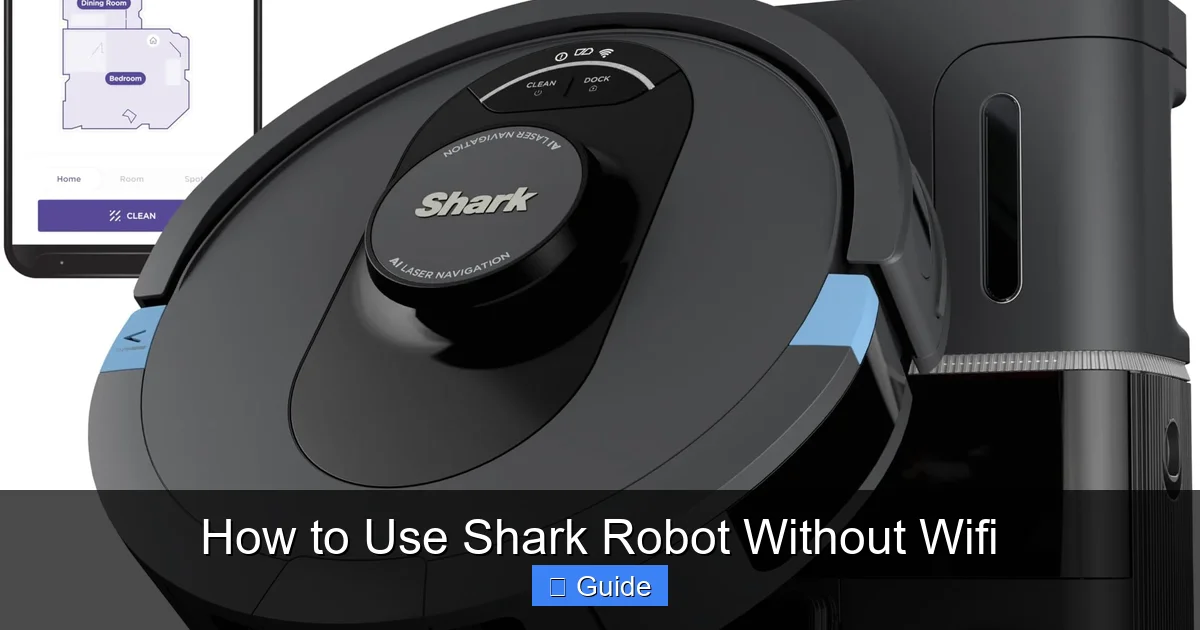
This is your new command center when offline. Ditch the phone; we’re going old school with tactile buttons. Locate these controls on your Shark unit:
Visual guide about How to Use Shark Robot Without Wifi
Image source: m.media-amazon.com
The Onboard “Clean” Button
This is your primary power and start button, usually prominently located on the top of the robot. A single press while the robot is on its dock will send it out to clean. A single press while it’s cleaning will pause it. Press it again to resume. Press and hold it for about 3 seconds while the robot is on the floor to force it to return to the dock (this is different from the “Dock” command, which is a direct command to go home now). This button is your lifeline. Get familiar with its location and feel.
The Power & Home Buttons
Many Shark models have separate “Power” (to turn the robot on/off) and “Home/Dock” buttons. The “Home/Dock” button (often shaped like a house) is a direct command: “Stop what you’re doing and navigate back to the charging base immediately.” This works flawlessly without WiFi. Use this if you need to recall the robot mid-clean for any reason—a pet accident you just spotted, a spilled drink, or if it’s gotten stuck.
The Infrared Remote Control: Your Wireless Wand
This little plastic remote is the unsung hero of the Shark ecosystem and your best friend offline. It operates via infrared (IR), just like your old TV remote, so it needs a direct line of sight to the robot’s IR receiver (usually on the top front). Here’s what every button does:
- Clean/Pause: Same function as the top button. Start or pause the cleaning cycle.
- Home/Dock: Sends the robot directly back to its base.
- Spot: Tells the robot to perform a focused, spiral-pattern deep clean in a 3-4 foot diameter area directly in front of it. Perfect for a spilled patch of cereal or a pet hair pile. You manually place the robot near the mess, point the remote at it, and press Spot.
- Max: On some models, this boosts suction power for a more intense clean (and shorter battery life).
Pro Tip: The remote has a limited range, typically 10-15 feet with a clear line of sight. Don’t expect to control it from another room. You’ll need to be in the same space as the robot. Practice using it from different angles to find the sweet spot for the IR signal.
Scheduling Without the App: Programming Your Robot’s Internal Clock
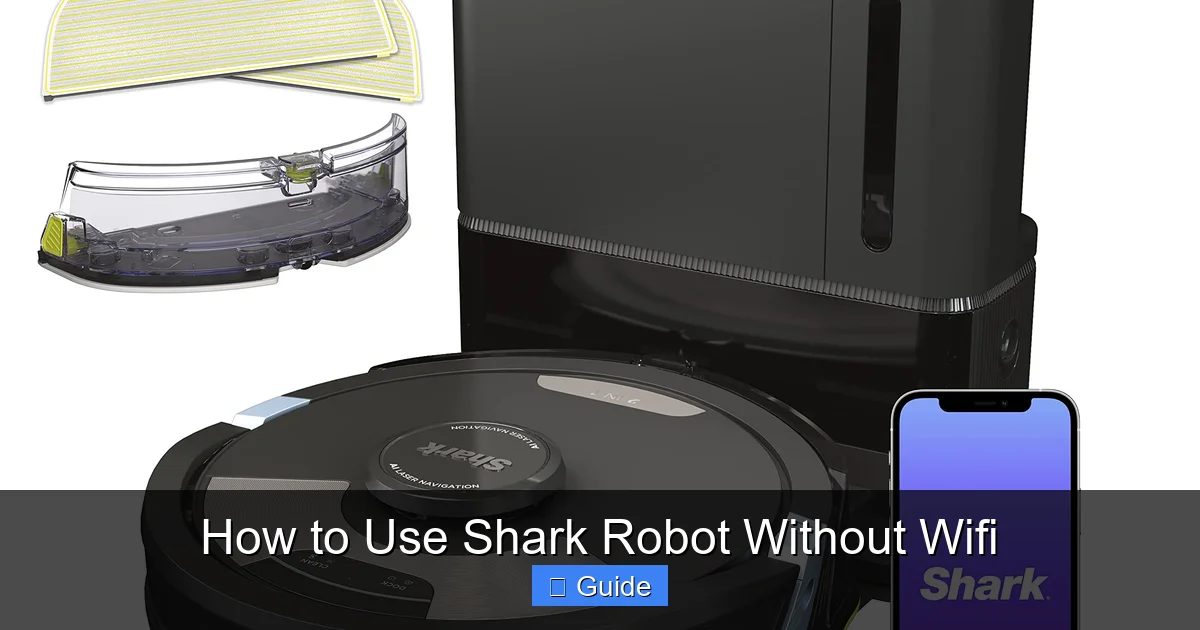
One of the biggest conveniences of a robot vacuum is coming home to a clean house. You don’t need WiFi for this. Your Shark has a built-in scheduler that you program directly on the robot itself.
Visual guide about How to Use Shark Robot Without Wifi
Image source: m.media-amazon.com
Accessing the Schedule Menu
The process varies slightly by model, but the general pattern is this: Ensure the robot is powered on and on its charging base. Press the “Menu” or “Schedule” button (it might be a dedicated button or accessed by pressing the “Clean” button multiple times). Use the navigation buttons (often part of a directional pad or separate “+” and “-” buttons) to scroll through days of the week (Mon, Tue, Wed, etc.). Select a day, then use the same buttons to set the hour and minute for that day’s cleaning to start. Confirm the setting. You’ll usually see a confirmation on the robot’s small LED screen or a series of blinking lights. Repeat for each day you want it to run.
Important Scheduling Limitations & Rules
This onboard scheduler is basic but effective. It will typically start a full-home clean at the set time, every week on that day. There are some critical rules to follow:
- The Robot MUST Be on the Dock: The scheduled clean will only trigger if the robot is sitting on its charging base at the scheduled time. If you’ve taken it out to manually clean a spill and leave it in the living room, the schedule will be skipped. Always return it to the dock.
- It’s a Single Daily Event: You usually set one time per day. If you want it to clean at 10 AM and again at 4 PM, you cannot do this with the onboard scheduler. You would need to manually trigger the second cleaning with the remote or button.
- No Room-Specific Scheduling: Without the app and its saved maps, you cannot tell the robot “only clean the kitchen at 2 PM.” The schedule will always command a full-home cleaning cycle based on its current navigation pattern.
- Time Format: Be mindful of whether your robot uses 12-hour (AM/PM) or 24-hour (military) time format when setting it.
Navigating Your Home: Strategies for Effective Offline Cleaning
Without a visual map to reference, how does the robot know where to go? It uses its suite of sensors—bumpers, cliff sensors, wall-following sensors, and sometimes a top-mounted 360° laser or camera (on higher-end models). The navigation algorithm is still active and sophisticated, but it adapts to the lack of a pre-mapped plan.
Visual guide about How to Use Shark Robot Without Wifi
Image source: sharkvacuum.blog
Expect a “Systematic Random” Pattern
Don’t expect the neat, parallel rows you might see in an app-generated map video. Without a saved map to reference, robots with LiDAR or camera-based navigation will still create a logical, efficient pattern by combining sensor data with an internal “clean as it goes” algorithm. It will often clean in a row-by-row pattern within a single session but won’t remember the layout for the next session. Robots with simpler “random bounce” navigation will still bounce off walls and obstacles but use algorithms to reduce repetition and increase coverage over time. In both cases, the robot will cover the entire accessible floor area given enough time and a clear path.
Your Role: Setting the Stage for Success
Offline cleaning success depends heavily on you preparing the environment. Since you can’t draw virtual no-go zones in an app, you must create physical ones.
- Clear Cords and Clutter: Pick up charging cables, curtain ties, and small objects. The robot’s brush roll can easily get tangled.
- Use Physical Barriers: For areas you never want the robot to enter (like a pet’s food bowl area or a room with delicate items), use baby gates, sturdy boxes, or tall furniture as blockades. The bumper sensor will stop it from hitting hard barriers.
- Employ Boundary Strips: This is Shark’s proprietary solution. These are magnetic strips you lay on the floor. The robot’s built-in magnetic sensor will detect them and treat them as an impenetrable wall. This is the most effective way to create a “no-go zone” without WiFi. You can cut them to length and place them around problem areas.
- Secure Area Rugs: Lightweight, flimsy rugs can be pushed around or bunched up by the robot. Use rug gripper pads or double-sided tape to secure edges, especially on hard floors.
Maintenance and Troubleshooting: The Offline Mindset
When your robot is offline, all communication becomes local and visual. You must become a keen observer of its status lights and sounds.
Decoding the LED Display and Lights
Your Shark’s small screen or array of LEDs is its voice. A solid green light usually means it’s charged and ready. A flashing red light means an error. A spinning blue light means it’s connected to WiFi (which will be off). Consult your physical user manual (keep it handy!) for the specific error code meanings for your model. Common codes indicate: a full dustbin (empty it!), a jammed brush roll (flip it over and clean it), a wheel that’s stuck (free it), or a sensor that’s dirty (wipe the cliff sensors on the bottom with a dry microfiber cloth). The robot will often speak a voice prompt as well, like “Please empty the dustbin.” Listen for these cues.
The Manual Reset and Re-docking
If your robot gets stuck on a couch leg or a tangled cord, it will eventually call for help with a specific error tone. Without the app to see its location, you’ll need to find it. Once you do:
- Power it off using the onboard button.
- Fix the problem (untangle, pick up obstacle).
- Place it within 3-5 feet of the charging base, facing it.
- Press the “Home/Dock” button on the robot or remote. It should navigate the short distance and dock.
- If it fails, you may need to manually place it on the dock. Ensure the metal charging contacts on both the robot and base are clean (wipe with a dry cloth).
Routine Maintenance is Non-Negotiable
Without app reminders, you must create your own schedule. Every 1-2 cleaning cycles:
- Empty the dustbin.
- Check and clean the brush roll (remove hair and debris from the bristles and bearings).
- Wipe the sensors (cliff sensors on the underside, bumper sensors on the sides).
- Check the main filter (tap it out over a trash can; wash it every 2-3 months if washable).
- Inspect the wheels for gunk buildup.
Neglecting this will cause poor cleaning performance, error codes, and reduced battery life, with or without WiFi.
Limitations and Workarounds: What You Can’t Do Offline
To be fully prepared, you must accept what you lose without the WiFi/app ecosystem. Knowing these limitations helps you set up effective workarounds.
No Real-Time Tracking or Map View
You cannot open an app and see a little dot moving across a map of your home. You have no idea where it is or where it has been until you find it. This is the biggest psychological adjustment. The workaround is to run the robot when you are home and can listen for its sounds. The distinct hum of the motor and the bumping into obstacles will give you clues about its location and progress.
No Custom Cleaning Zones or “No-Go” Lines
As mentioned, you cannot digitally draw a box around a child’s play area or a pet’s water bowl. You must use physical boundary strips or barriers. Plan your home layout accordingly. For temporary restrictions, you can place a lightweight box or chair leg in the robot’s path during a clean.
No Voice Assistant Integration
Goodbye to shouting “Alexa, tell Shark to start cleaning.” All commands must be physical. This is actually a pro for some who dislike voice assistants always listening.
No Firmware Updates or New Features
Your robot’s software will remain as it is on the day you disconnect it. You will not receive bug fixes, performance improvements, or new cleaning modes that Shark may release in the future. This is a long-term consideration. For most users, the core cleaning algorithm is already excellent and doesn’t require constant updates.
Conclusion: Embracing the Simple, Reliable Clean
Using your Shark robot without WiFi is not a compromise of its essential function; it is a return to its fundamental design. The robot was built to be an autonomous, sensor-driven cleaning machine first and a connected smart device second. By mastering the physical buttons, the infrared remote, the onboard scheduler, and proactive home preparation with boundary strips, you can achieve a consistently clean home with zero reliance on your internet connection. The experience becomes more intentional—you might manually spot-clean a spill with the “Spot” mode or listen for the robot’s completion chime instead of getting a phone notification. It strips away the app-based complexity and leaves you with a reliable, hardworking appliance. So unplug that ethernet cable, put the phone down, and press the big “Clean” button. Your Shark is ready to work, with or without the cloud.
Frequently Asked Questions
Will my Shark robot automatically return to its base if the battery gets low without WiFi?
Yes. The low-battery return-to-dock function is a core hardware feature. The robot monitors its battery level onboard and will navigate back to its charging base when it reaches a predetermined threshold, typically around 20% remaining. This works completely independently of any WiFi connection.
Can I still use the schedule feature if I take the robot off the base for a manual clean and don’t return it?
No. The onboard scheduler is designed to trigger only when the robot is in a “ready” state on its charging base. If the robot is away from the dock at the scheduled time, that cleaning session will be skipped. The schedule will then wait for the next programmed time. You must manually return the robot to the base for the schedule to activate.
Does the robot create a map without WiFi that I can see later?
No. Models that use LiDAR or camera-based navigation create a map in real-time during a cleaning session to navigate efficiently, but they do not save or store that map locally on the robot if not connected to the app/cloud. The map data is ephemeral and is discarded after the clean. You will not have a saved floor plan to view or edit without a WiFi connection to sync with the SharkClean app.
What does a blinking red light on my Shark robot mean when WiFi is off?
A blinking red light (or a specific error code on the LED display) indicates a fault that needs your attention. Common causes are: a full dustbin, a jammed brush roll, a stuck side wheel, or dirty sensors. Consult your physical user manual for the exact meaning of the blink pattern or code. The solution is always a physical intervention: empty the bin, clean the brush, wipe the sensors, or free the wheel.
Can I use my Shark robot on multiple floors without WiFi?
Yes, but with a caveat. You can physically carry the robot and its charging base to different floors. However, without a saved multi-floor map from the app, the robot will treat each new floor as a completely unknown environment and will use its standard navigation pattern (random bounce or systematic) to clean it. It will not remember the layout of your first floor when you move it to the second floor.
If I reconnect my Shark to WiFi later, will it remember my offline cleaning history?
No. The robot does not store a cleaning log locally. Once you reconnect to WiFi and open the SharkClean app, the app will sync the robot’s current status (battery level, error state) and any maps created *during connected sessions*. Any cleaning cycles performed while completely offline will not appear in the app’s history. The app’s history only shows cleanings that occurred while the robot was connected to WiFi and the app.