Disconnecting your Shark Ion vacuum from your WiFi network is a straightforward process that can be done through the SharkClean app, your vacuum’s onboard controls, or your home router. The most reliable method is using the official app, which ensures the vacuum fully forgets the network credentials. If you’re selling or gifting the vacuum, a complete factory reset is the final step to erase all personal data and network settings.
So, you need to disconnect your Shark Ion robotic vacuum from your WiFi network. Maybe you’re moving houses, switching internet service providers, or just having endless connectivity headaches. Whatever the reason, knowing how to properly sever that wireless link is a key piece of smart home management. It’s more than just turning the vacuum off; it’s about telling the device to permanently forget the network it once trusted. This guide will walk you through every viable method, from the simple tap of an app button to the more involved router-level changes. We’ll cover exactly what happens during a disconnection, why you might choose one method over another, and the crucial final steps to ensure your Shark Ion is ready for its next chapter, whether that’s a new network or a new home.
Think of your Shark Ion’s WiFi connection like a saved password on your laptop. You can “forget” that network, and the laptop won’t automatically try to join it anymore. The same principle applies here. Our goal is to make your vacuum “forget” your current WiFi. We’ll start with the official, recommended method and move to alternatives. By the end, you’ll be a confident Shark Ion network manager.
Key Takeaways
- Primary Method: The SharkClean mobile app is the simplest and most effective way to disconnect and forget a WiFi network.
- Manual Alternative: You can use the vacuum’s physical buttons to access network settings and remove a saved network.
- Router-Level Cutoff: Changing your router’s WiFi password or SSID effectively disconnects the vacuum but doesn’t make it “forget” the old credentials.
- Factory Reset is Final: A full factory reset on the vacuum erases all network data, returning it to original out-of-box state.
- Why Disconnect?:strong> Common reasons include moving, changing internet providers, troubleshooting connectivity issues, or preparing the device for a new owner.
- Reconnection is Separate: Disconnecting does not automatically pair the vacuum with a new network; you must set up a new connection afterward.
- Check Firmware First: Before disconnecting, ensure your vacuum’s firmware is updated to avoid post-disconnection quirks.
📑 Table of Contents
- Method 1: The Official Route – Disconnecting via the SharkClean App
- Method 2: The Manual Way – Using Your Vacuum’s Onboard Controls
- Method 3: The Nuclear Option – Router-Level Disconnection
- Method 4: The Final Solution – Performing a Factory Reset on Your Shark Ion
- Troubleshooting: What to Do When Disconnection Seems Impossible
- Best Practices and Preventative Tips for Future Network Changes
- Conclusion: A Clean Break for a Smarter Home
Method 1: The Official Route – Disconnecting via the SharkClean App
This is the gold standard. The SharkClean app (available for iOS and Android) is the direct line of communication between you and your vacuum. It was designed to handle network changes seamlessly. Using it to disconnect ensures the vacuum’s internal network profile is wiped clean.
Step-by-Step App Disconnection
First, make sure your Shark Ion is powered on and connected to your current WiFi (even if it’s being problematic). Open the SharkClean app on your phone and ensure you’re logged into the correct account associated with the vacuum.
- Navigate to Your Device: On the app’s main dashboard, tap the icon or name of your specific Shark Ion model.
- Find Settings: Look for a gear icon (⚙️) or a “Settings” menu, usually in the top right corner or under a “More” tab.
- Locate Network/WiFi Settings: Within Settings, scroll to find options like “WiFi Settings,” “Network,” or “Connection.” Tap it.
- Initiate Disconnection: You should see your currently connected network name (SSID) listed, often with a “Connected” badge. Next to it, there might be a “Disconnect” button or a “Forget Network” option. Tap this.
- Confirm: The app will likely ask you to confirm, as this is a significant change. Confirm the action.
- Success Indicator: The app should now show the vacuum as “Disconnected” or “Not Connected” to any network. The status light on the vacuum itself will typically blink in a pattern indicating it’s in setup mode (often a slow, alternating blue and white blink), waiting for a new network. This blinking pattern is your visual confirmation that the old network is gone.
Pro Tip: After disconnecting via the app, it’s a great practice to immediately go through the “Add New Device” or “Set Up WiFi” flow in the app to connect to a new network if you have one ready. This prevents the vacuum from sitting in a confused, unpaired state.
What If the App Won’t Connect?
This is a common catch-22. If your vacuum’s WiFi is already flaky, the app might struggle to communicate with it to execute the disconnect. In this case:
- Ensure your phone is connected to the same 2.4GHz WiFi network the vacuum uses (Shark Ion vacuums do not support 5GHz).
- Move your phone and vacuum closer to your router temporarily to establish a stronger, more stable link.
- Power cycle the vacuum (turn it off, wait 10 seconds, on) and restart the SharkClean app.
- If the app still can’t reach the vacuum, you must fall back to Method 2: Manual Disconnection using the vacuum’s buttons.
Method 2: The Manual Way – Using Your Vacuum’s Onboard Controls
Your Shark Ion isn’t a dumb appliance; it has a small but capable brain and a few physical buttons. You can navigate its internal menus to manage network settings without a phone. The process varies slightly by model series (I, F, or newer), but the core logic is the same.
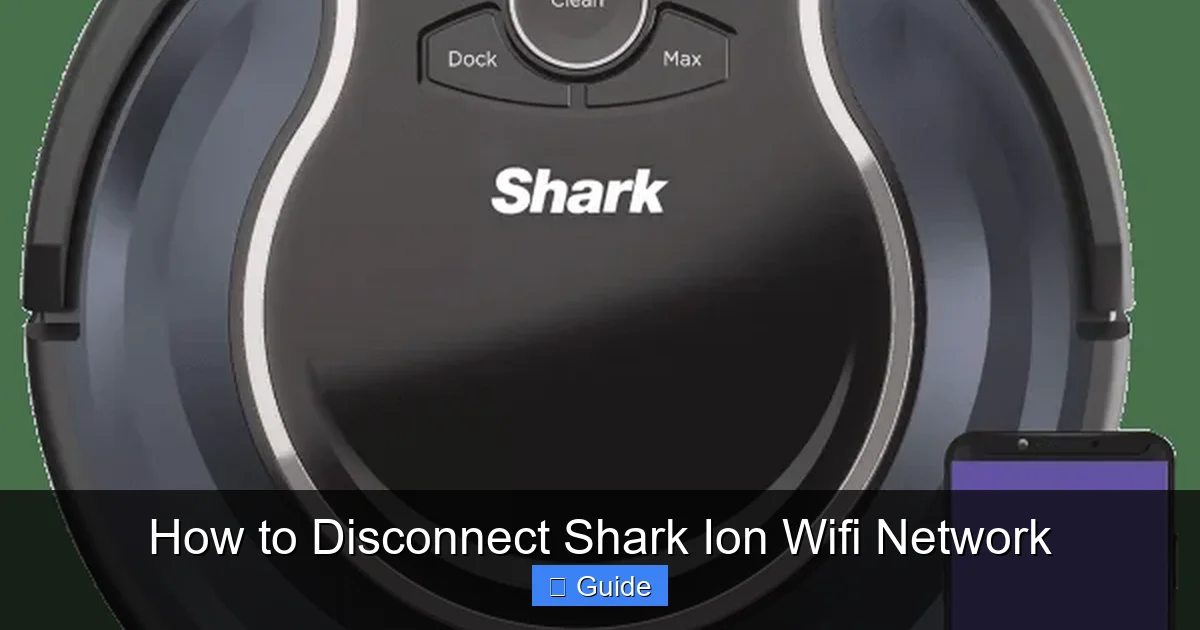
Visual guide about How to Disconnect Shark Ion Wifi Network
Image source: d2b8wt72ktn9a2.cloudfront.net
General Button Navigation for Network Settings
For most Shark Ion models (like the I系列 or F系列):
- Enter Setup Mode: Press and hold the Home or Power button on the vacuum for about 5-7 seconds. You should hear a tone and see the WiFi indicator light start to blink rapidly (usually blue). This puts the vacuum into its network configuration mode.
- Access the Menu: Once the light is blinking, press the Clean/Pause button. This should trigger a voice prompt or a series of beeps indicating you’re in the settings menu.
- Navigate to WiFi: Use the Home button (or sometimes a dedicated Spot button) to cycle through menu options. Listen for or look up (in your manual) the sequence for “WiFi Settings,” “Network,” or “Wireless Setup.”
- Forget/Disconnect: Once in the WiFi menu, you should see a list of saved networks. Navigate to your current network and select it. The option will be “Forget,” “Remove,” or “Disconnect.” Select it.
- Exit and Reboot: After confirming, exit the menu. The vacuum will typically reboot itself or return to a blinking setup light, indicating it has no saved network.
Critical Note: The button combos and menu structures are not always intuitive. Your user manual is your best friend here. If you don’t have the physical copy, search online for “Shark Ion [Your Exact Model Number] manual PDF.” The network setup section will have the precise, model-specific button sequence.
When Manual Disconnect Fails
If you can’t find the right menu sequence or the vacuum doesn’t seem to respond:
- Ensure the vacuum is powered on and not actively cleaning.
- A drained battery can cause unresponsiveness. Place it on the dock to charge briefly.
- The onboard menu system is limited. If you cannot locate a “Forget” option, it may mean the vacuum only allows disconnection via the app. In this scenario, your only path forward is a Method 3: Router-Level Disconnection or proceeding directly to a Factory Reset.
Method 3: The Nuclear Option – Router-Level Disconnection
This method doesn’t make the Shark Ion “forget” your old WiFi password. Instead, it makes your old WiFi network disappear from the vacuum’s perspective, forcing it to fail to connect. It’s a blunt instrument, but it works.
Visual guide about How to Disconnect Shark Ion Wifi Network
Image source: m.media-amazon.com
Changing Your WiFi Password or SSID
Log into your home router’s admin panel (usually via a web browser at 192.168.1.1 or 192.168.0.1). Find your WiFi settings and change either:
- The Network Password (Key): Simply set a new, complex password for your existing WiFi network name (SSID).
- The Network Name (SSID): Create a completely new WiFi network name. You can even set up a new “guest” network for this purpose.
Save these changes. Your router will reboot, and all devices—including your Shark Ion—will be disconnected because they no longer have the correct credentials for that network. The vacuum will show as offline in the app.
The Pros and Cons of This Method
Pros: It’s instant and affects all devices on your network, which can be useful if you’re doing a major network overhaul. It requires zero interaction with the vacuum itself.
Cons: This is the least clean method. The Shark Ion still has your old WiFi password saved in its memory. It will constantly try and fail to reconnect to the old, now-invalid network, which can cause it to show as “offline” and be unresponsive to app commands until you set up a new network. It does not free the vacuum’s internal network slot for a new connection; you will likely need to perform a factory reset on the vacuum later to clear this saved profile if you want it to connect to a new network cleanly. Use this as a temporary disconnect or if you plan to factory reset the vacuum anyway.
Method 4: The Final Solution – Performing a Factory Reset on Your Shark Ion
If you want to completely scrub your Shark Ion clean of all personal data, network settings, and account links—especially if you’re giving it away or selling it—a factory reset is mandatory. This returns the vacuum to the state it was in when you first unboxed it.
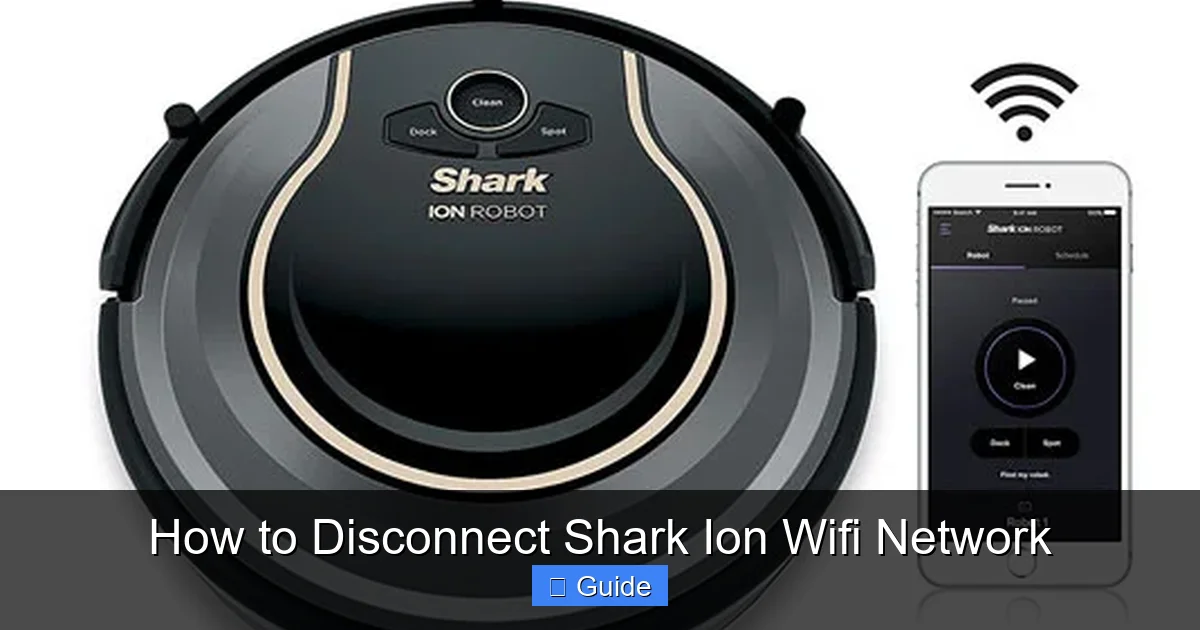
Visual guide about How to Disconnect Shark Ion Wifi Network
Image source: smartreview.com
How to Execute a Factory Reset
Again, the exact method varies. There are two common ways:
- Via the SharkClean App: In the vacuum’s settings menu within the app, look for “Factory Reset,” “Reset Device,” or “Unpair Device.” This will erase all data from Shark’s cloud and the vacuum itself.
- Via the Physical Reset Button: Many Shark Ion models have a small, recessed reset button on the underside or side. You’ll need a paperclip. With the vacuum powered ON, press and hold this button for 8-10 seconds until you hear a series of beeps or see the lights flash in a specific pattern (often all lights turning on/off). The vacuum will reboot.
Warning: A factory reset is permanent. You will lose all cleaning schedules, no-go zones, and map data. The vacuum will need to be set up from scratch with a new WiFi network and your SharkClean account.
Post-Reset: What to Expect
After a factory reset, your Shark Ion will behave like a new product. Its WiFi indicator will blink rapidly in a setup pattern (often blue and white). It will not appear in your SharkClean app. To use it again, you must go through the entire initial setup process: create an account (or use an existing one), put the vacuum in pairing mode, and connect it to your desired WiFi network. This is the only way to guarantee the old network is completely purged from its memory.
Troubleshooting: What to Do When Disconnection Seems Impossible
You’ve tried the app, you’ve fiddled with buttons, but your Shark Ion remains stubbornly listed as “connected” to your old network. Don’t panic. Here’s your diagnostic flowchart.
Scenario A: The App Shows “Offline,” But the Vacuum Still “Knows” the Old Network
This is common after a router password change. The vacuum can’t *reach* the network, but it hasn’t *forgotten* it. Your vacuum is in a limbo state.
Solution: You must perform a Factory Reset (Method 4). This is the only way to clear the stale network profile from the vacuum’s memory. Once reset, set it up on the new network.
Scenario B: The Vacuum Won’t Enter Setup/Network Mode
The lights aren’t blinking correctly, and buttons do nothing.
- Check Power: Is the battery completely dead? Place it on the charging dock for at least an hour.
- Hard Reboot: Turn the vacuum off using the power button. Unplug the dock from the wall. Wait 60 seconds. Plug the dock back in and place the vacuum on it. Power the vacuum on.
- Stuck Firmware: Rarely, a software bug can freeze the network module. A factory reset via the recessed button (if available) is often more forceful than an app reset and can break this cycle.
Scenario C: The New Network Setup Fails After Disconnecting
You’ve disconnected, but when you try to add the vacuum to a new WiFi, it fails.
- 2.4GHz is Non-Negotiable: Shark Ion vacuums only use 2.4GHz bands. Ensure your phone is on 2.4GHz during setup and that your router’s 2.4GHz network is enabled and broadcasting.
- Network Security: Use WPA2-Personal (AES) encryption. Avoid WPA3, WEP, or “Open” networks.
- Special Characters: Your WiFi password should avoid special characters like !, @, #, $, %, &, etc. Stick to letters and numbers for highest compatibility.
- Router Features: Temporarily disable “AP Isolation,” “Client Isolation,” “Smart Connect” (band-steering), or any advanced firewall features that might block device-to-device communication. Re-enable them after setup.
- Use a Hotspot: As a test, create a simple 2.4GHz hotspot on your phone (e.g., “SharkTest” with password “12345678”). If the vacuum connects to this, the problem is your router’s configuration.
Best Practices and Preventative Tips for Future Network Changes
Disconnecting is often a reactive task. Here’s how to make future network transitions smooth.
Always Update Firmware Before a Big Change
Before you move or switch ISPs, open the SharkClean app and check for firmware updates for your vacuum. Install them while your current network is stable. An updated vacuum has better network handling and fewer bugs that could complicate a disconnection/reconnection process.
Document Your Network Details
Keep a simple note in your phone: “Shark Ion WiFi: [SSID], [Password].” When you set up a new network, have its details ready. The setup process requires you to select the network and enter the password quickly, as the vacuum’s pairing mode timeout is short (often 2-3 minutes).
Consider a Dedicated IoT Network
If you have a smart home, consider setting up a separate 2.4GHz “Guest” or “IoT” network on your router just for devices like vacuums, plugs, and bulbs. This isolates them from your main computers and phones. When you change your primary internet, you only need to update the IoT network’s password, and all your smart devices reconnect at once. You can then disconnect the Shark Ion from that IoT network using the simple app method without affecting your main home network.
Conclusion: A Clean Break for a Smarter Home
Disconnecting your Shark Ion WiFi network is a fundamental maintenance task for any connected device owner. While the urge might be to simply unplug the vacuum, a proper disconnection—ideally through the SharkClean app—clears the way for a fresh start. It prevents connection errors, frees up the vacuum’s internal network memory, and ensures it doesn’t try to connect to a defunct network. Remember the hierarchy of methods: App first, manual button second, router change as a temporary block, and factory reset as the final, total wipe. By understanding these pathways, you regain control over your smart vacuum’s connectivity. Whether you’re troubleshooting a nagging “offline” error or preparing for a move, you now have the knowledge to execute a clean, confident break. Your Shark Ion isn’t just a cleaning tool; it’s a networked member of your home, and managing its connections is part of the modern homeowner’s toolkit.
Frequently Asked Questions
Will disconnecting my Shark Ion from WiFi stop it from working?
No. Disconnecting WiFi only disables smart features like app control, scheduling, and map-based navigation. The vacuum will still function as a basic robot vacuum using its random or pattern-based cleaning modes via the physical buttons on the unit.
I disconnected via the app, but it still shows as a device in my SharkClean account. Is that normal?
Yes, that’s normal. Disconnecting the network does not remove the vacuum from your SharkClean account. It will appear as “Offline.” To completely remove it from your account (e.g., for a new owner), you must go into the app’s device settings and select “Unpair Device” or “Remove Device,” which is a separate action from disconnecting WiFi.
Can I disconnect my Shark Ion by simply turning off my router?
Turning off the router will temporarily disconnect the vacuum, but it does not make the vacuum “forget” the network. When you turn the router back on, the vacuum will automatically attempt to reconnect using its saved credentials. To permanently disconnect, you must use one of the methods described above.
My Shark Ion is stuck in a loop trying to connect to my old WiFi. What do I do?
This typically happens if you changed your WiFi password but didn’t disconnect the vacuum first. The vacuum is repeatedly failing to authenticate. The solution is to perform a factory reset on the vacuum using the recessed reset button. This will clear the old, invalid credentials from its memory, after which you can set it up on the new network.
After disconnecting, how do I connect my Shark Ion to a new WiFi network?
The process is identical to the original setup. Put the vacuum into WiFi pairing mode (usually by pressing and holding the Home button until the WiFi light blinks rapidly). Open the SharkClean app, select “Add New Device,” and follow the on-screen instructions to select your new 2.4GHz network and enter its password.
Is there any risk to my Shark Ion’s hardware from disconnecting and reconnecting WiFi frequently?
No. The process of disconnecting and reconnecting is a standard software operation. There is no physical wear and tear on the vacuum’s WiFi module from this. You can safely change networks as often as needed. The only “risk” is potential user error during setup, like entering the wrong password, which is easily corrected.