Seamlessly connect your Shark robot vacuum to Google Home for effortless, voice-controlled cleaning. This guide walks you through the entire process, from checking compatibility and preparing your devices to linking the Shark app and troubleshooting common connection issues. You’ll learn the exact steps, essential prerequisites, and pro-tips to ensure a stable setup, unlocking powerful features like scheduling, room-specific commands, and integration with your broader smart home ecosystem.
Key Takeaways
- Compatibility is Key: Your Shark robot must be a Wi-Fi enabled model (like Shark IQ, AI Ultra, or newer) and you must have the official Shark Clean app.
- Prerequisites Prevent Problems: Ensure your Shark is fully charged, connected to your 2.4GHz Wi-Fi network (most Sharks don’t support 5GHz), and your Google Home app is updated before starting.
- The Link is in the Shark App: The integration is initiated from the Shark Clean app’s “Smart Home” or “Voice Control” section, not from the Google Home app initially.
- Use Exact Device Names: When giving commands, use the precise name you gave your Shark in the Google Home app (e.g., “Hey Google, start cleaning the kitchen” if your device is named “Kitchen Vacuum”).
- Troubleshooting Often Involves Wi-Fi: Most connection failures stem from 5GHz Wi-Fi, weak signals, or incorrect Shark app login. Double-check these first.
- Functions are Limited by Shark’s API: Google Home can start/stop cleaning, send it home, and check status, but advanced map editing or zone cleaning must still be done in the Shark app.
[FEATURED_IMAGE_PLACEHOLDER]
📑 Table of Contents
- Introduction: Welcome to a Smarter, Cleaner Home
- Prerequisites: Laying the Groundwork for Success
- Step-by-Step: Connecting Your Shark to Google Home
- Troubleshooting: Why Your Shark Isn’t Showing Up or Responding
- Beyond Basics: Advanced Features and Smart Home Synergy
- Maintenance and Best Practices for a Stable Connection
- Conclusion: Enjoy the Hands-Free Clean
Introduction: Welcome to a Smarter, Cleaner Home
So, you’ve joined the smart home revolution with a Shark robot vacuum. Great choice! These little workhorses are fantastic at keeping floors tidy with minimal effort. But what if you could make them even smarter? What if you could simply call out from your couch, “Hey Google, clean the living room,” and watch your Shark whir into action? That’s the magic of integrating your Shark robot with Google Home. It transforms your vacuum from a scheduled appliance into a responsive, voice-controlled member of your household.
The process is straightforward, but it does require following a specific sequence of steps. Many people hit a snag because they try to add the device from the wrong app or overlook a key prerequisite. This guide is designed to walk you through every single step, from the initial checks to the final voice command. We’ll cover common pitfalls, explain why certain steps are necessary, and give you the confidence to get this integration working smoothly. Let’s get your Shark chatting with Google.
Prerequisites: Laying the Groundwork for Success
Before you dive into tapping buttons on your phone, you need to get a few things in order. Think of this as prepping your kitchen before cooking a meal—having all your ingredients and tools ready makes the whole process faster and prevents frustration. Skipping these steps is the number one cause of setup failures.
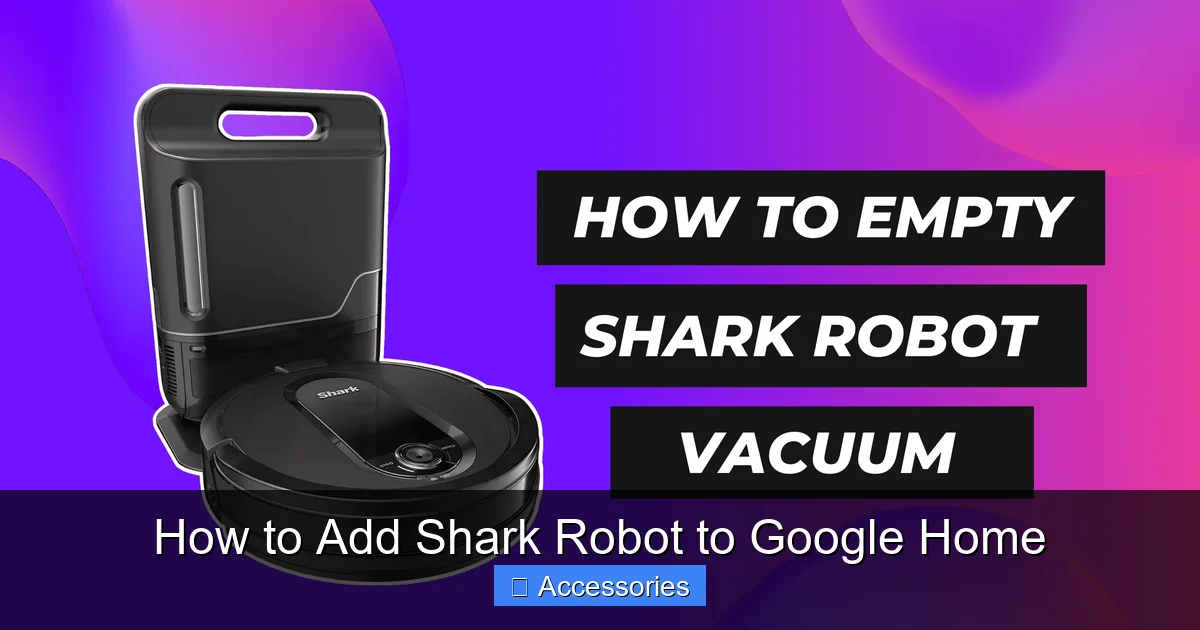
Visual guide about How to Add Shark Robot to Google Home
Image source: robotchores.com
1. Confirm Your Shark Model is Wi-Fi Enabled
Not all Shark robot vacuums are created equal. Only models with built-in Wi-Fi connectivity can be integrated with Google Home. This feature is typically found in Shark’s mid-to-high-end models released in the last few years. Look for terms like “Wi-Fi,” “Connected,” “Shark IQ,” “Shark AI Ultra,” “Shark Matrix,” or “Shark Voice” on your model or its original box. If your vacuum only uses a physical remote or a basic app without cloud linking, it cannot connect to Google Home. Your Shark’s model number is usually on a sticker on the underside or back. A quick online search of that model number will confirm its capabilities.
2. The Essential Shark Clean App
The official gateway to your Shark is the Shark Clean app (sometimes branded as “Shark IQ” or “Shark Robot” depending on the model). You must have this app downloaded, installed, and have created an account. This app is where you’ll complete the final linking step. Do not use any third-party or unofficial apps. Ensure the app is updated to the latest version from your device’s app store (Google Play Store or Apple App Store). An outdated app is a frequent culprit behind broken integrations.
3. Google Home App and Google Account Ready
You need the Google Home app installed and set up on the same mobile device you’ll use for the process. You must be logged into the Google account you want associated with the Shark vacuum. This account will control the device, so choose wisely—typically the primary household account. Make sure the Google Home app is also updated to the latest version.
4. Wi-Fi Network Specifics: The 2.4GHz Imperative
This is the most critical technical prerequisite. Virtually all Shark robot vacuums connect only to 2.4GHz Wi-Fi networks. They do not support 5GHz networks. This is a hardware limitation. If your router broadcasts both frequencies under the same network name (SSID), your Shark may have connected to the 5GHz band during its initial setup, rendering it invisible to Google Home. You must ensure your Shark is connected to a 2.4GHz network. You may need to temporarily rename your 2.4GHz and 5GHz networks (e.g., “MyWiFi-2.4” and “MyWiFi-5”) to force the Shark to connect to the correct one during setup. Check your Shark app’s device settings to see which network it’s using.
Additionally, ensure your Wi-Fi signal is strong where the Shark’s charging base is located. A weak signal will cause intermittent disconnections and failed commands.
5. Shark Robot Preparedness
Place your Shark robot on its charging base and ensure it is powered on and fully charged or at least has a significant charge. The robot needs to be powered and connected to Wi-Fi to complete the linking process. A good practice is to reboot your Shark robot by turning it off and on again (or pressing the reset button if it has one) before starting the integration.
Step-by-Step: Connecting Your Shark to Google Home
With all prerequisites checked off, we can begin the actual linking process. The key thing to remember is that the integration is started from the Shark Clean app, not the Google Home app. The Google Home app is where the device will eventually appear, but the “handshake” happens within Shark’s ecosystem first.
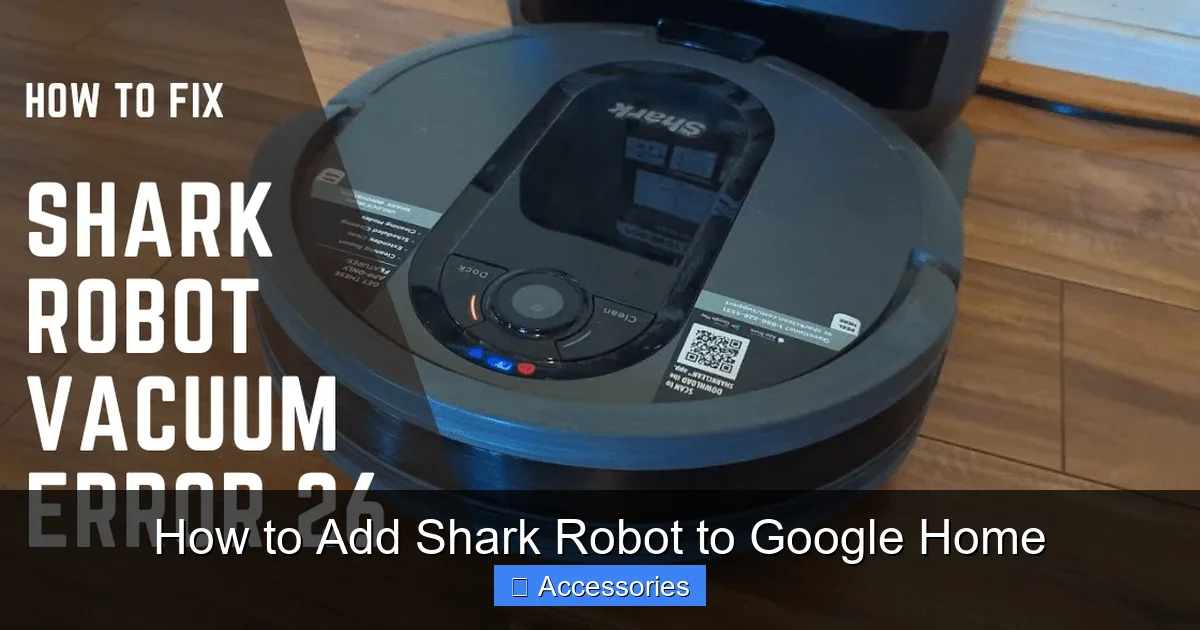
Visual guide about How to Add Shark Robot to Google Home
Image source: cleanersadvisor.com
Step 1: Ensure Your Shark is Online in the Shark App
Open the Shark Clean app. You should see your robot’s status as “Online” or “Ready.” If it shows “Offline” or has a warning, troubleshoot the Wi-Fi connection within the Shark app first. Do not proceed until the app can communicate with your robot. You can test this by tapping a basic command like “Clean” or “Return to Base” within the Shark app. If it works, you’re good to go.
Step 2: Navigate to the Smart Home Integration Section
Within the Shark Clean app, look for a tab or menu option labeled “Smart Home,” “Voice Control,” “Connect to Voice Assistant,” or something similar. This is often found in the main navigation bar at the bottom or within a settings/gear icon for your specific robot device. The exact location varies by Shark model and app version, but it’s a dedicated section for third-party integrations.
Step 3: Select Google Assistant/Google Home
Inside the Smart Home section, you will see icons or a list of supported platforms: Amazon Alexa, Google Assistant, IFTTT, etc. Tap on Google Assistant or Google Home. You may see a brief description of what the integration enables. Tap “Link,” “Connect,” or “Continue.”
Step 4: Authenticate with Your Google Account
This step will redirect you to a Google authentication page (either within the app or via your phone’s browser). You will be asked to sign in to the Google account you want to link. This is the account that will have control over the Shark in your Google Home ecosystem. Enter your credentials and grant the necessary permissions. Shark will request permission to “manage your devices” and “see your home’s name and room structure.” These permissions are necessary for it to function correctly. Click “Allow.”
Step 5: Device Discovery and Naming
After successful authentication, you should see a success message like “Your Shark has been linked to Google Home!” The process is now complete from the Shark app’s side. The device should automatically appear in your Google Home app within a few minutes, sometimes instantly.
Open your Google Home app. You should see a new device notification or find your Shark listed under “Devices.” This is the crucial moment to name your device. Google will suggest a default name (usually the model name or “Shark Robot”). Tap on the device to rename it. Choose a clear, descriptive name that is easy to say and unambiguous. “Living Room Vacuum” is better than “Shark 1.” Avoid names that sound like other commands or device names. Good names include: “Kitchen Vacuum,” “Downstairs Cleaner,” “RoboVac.” Confirm the name.
Step 6: Test Your First Voice Command
Once named, the integration is live. Say the wake phrase for your Google Assistant device (e.g., “Hey Google,” or “OK Google”) followed by a command using your Shark’s new name.
Example commands to try:
- “Hey Google, ask [Kitchen Vacuum] to start cleaning.”
- “Hey Google, tell [Downstairs Cleaner] to go home.”
- “Hey Google, is [RoboVac] charging?”
Your Shark should respond by beginning its cleaning cycle or returning to its base. If it works, congratulations! You’ve successfully added your Shark robot to Google Home.
Troubleshooting: Why Your Shark Isn’t Showing Up or Responding
If you’ve followed the steps and your Shark is a ghost in the Google Home app, don’t panic. This is the most common hurdle. Let’s systematically diagnose the problem.
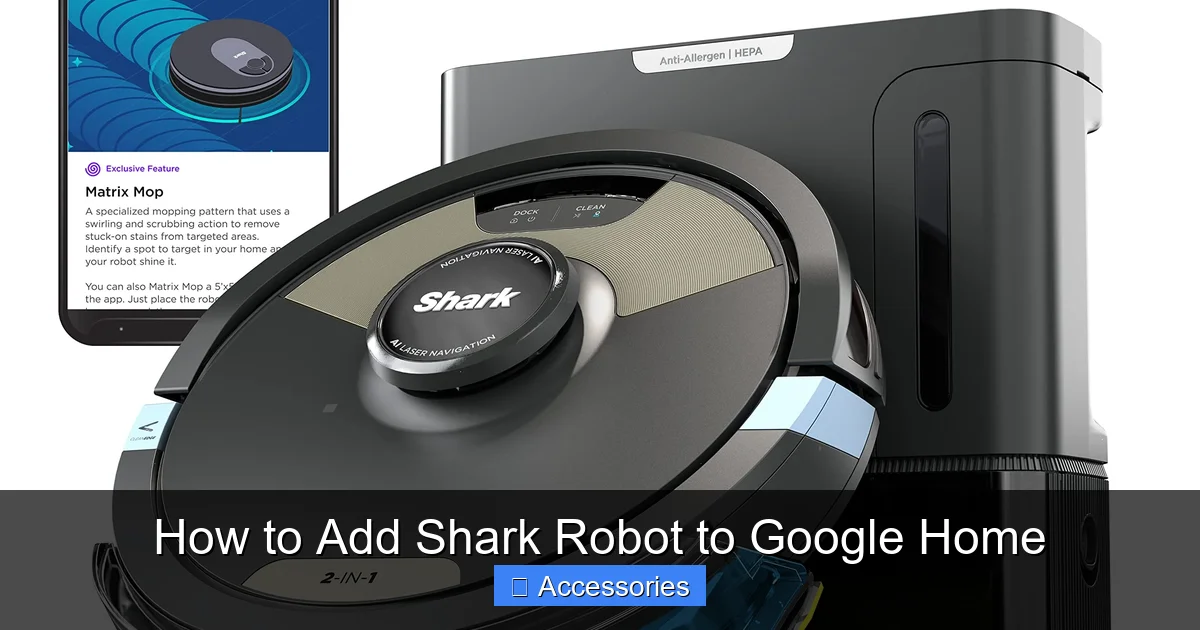
Visual guide about How to Add Shark Robot to Google Home
Image source: m.media-amazon.com
“The Device Isn’t Found” After Linking
If the Shark app said the link was successful but nothing appears in Google Home:
- Wait and Refresh: Sometimes there’s a delay. Wait 5-10 minutes. Then, in the Google Home app, pull down to refresh the device list. Also, check the “Home” and “Room” views; it might be added to a default room.
- Re-Link: Go back to the Shark Clean app’s Smart Home section, find the linked Google account, and select “Unlink” or “Disconnect.” Then, repeat the linking process from Step 2. This forces a fresh discovery.
- Check Shark App Login: Ensure you are logged into the same Shark Clean app account on your phone that was originally used to set up the robot. A different account will not have the robot associated with it.
“Shark is Offline” or Commands Don’t Work
If the device shows in Google Home but commands fail or say the robot is offline:
- Wi-Fi Band (Again!): This is 90% of the issue. Open the Shark Clean app, go to your robot’s settings, and find the Wi-Fi information. It must say 2.4GHz. If it’s on 5GHz, you must reconfigure the robot’s Wi-Fi connection. This often involves putting the robot in Wi-Fi setup mode (refer to your manual) and connecting to a 2.4GHz network during the process.
- Router & Firewall: Some advanced router settings or firewalls can block communication between the Shark cloud and Google. Temporarily disable any VPNs, advanced firewall rules, or “AP Isolation” settings on your router to test.
- Power Cycle Everything: Unplug your router and modem for 30 seconds. Restart your Shark robot. Restart your phone. Then try again.
Google Home Says “Device Not Supported”
This message indicates the Shark model you have is not on the approved list for the Google Assistant integration. Double-check your model’s compatibility as described in the prerequisites. If you have a very new model, it may take a few weeks for Shark to roll out the integration update to all regions. Check Shark’s official support site or community forums for your specific model number and “Google Home” compatibility announcements.
Beyond Basics: Advanced Features and Smart Home Synergy
Once your Shark is talking to Google, you can unlock more powerful automations. The basic start/stop commands are just the beginning.
Creating Routines in Google Home
This is where the real magic happens. In the Google Home app, you can create Routines—automated sequences triggered by a single command or schedule.
Example Routine: “Good Morning”
- Trigger: Voice command (“Hey Google, good morning”) or a scheduled time (7:00 AM weekdays).
- Action 1: “Tell [Kitchen Vacuum] to start cleaning.”
- Action 2: “Turn on kitchen lights.”
- Action 3: “Adjust thermostat to 70 degrees.”
- Action 4: “Play news on my living room speaker.”
Now, one command triggers a cascade of smart home actions, starting with your Shark tackling the kitchen mess from breakfast.
Using Room-Specific Cleaning
If you have a Shark model with mapping capabilities (AI Ultra, IQ, Matrix), you’ve likely set up rooms in the Shark app. For Google to use room names, you must ensure your room structure is synced. This usually happens automatically after linking. You can then try commands like:
- “Hey Google, ask [Kitchen Vacuum] to clean the kitchen.”
- “Hey Google, tell [Downstairs Cleaner] to stop cleaning the living room.”
Important: The room names Google recognizes are pulled from your Shark app’s map. If you rename a room in the Shark app, you may need to relink or wait for the Google Home app to sync the change. If room commands don’t work, the default is to clean the entire mapped area.
Integrating with Other Smart Devices
Combine your Shark with other devices for context-aware cleaning. While Google Home doesn’t have a native “if-then” for vacuums, you can use workarounds:
- With Smart Locks: Create a routine that starts the vacuum when you lock your front door (using a compatible smart lock). “Goodbye” routine = lock door + start vacuum.
- With Motion Sensors: Use a third-party platform like IFTTT or SmartThings as a bridge. For example, “If motion is detected in the hallway after 10 PM, then start the [Hallway Vacuum] for 10 minutes.” This requires more setup but is possible.
Maintenance and Best Practices for a Stable Connection
Getting connected is one thing; staying connected is another. A few habits will ensure your Shark-Google relationship remains strong.
Keep Your Apps and Firmware Updated
Shark periodically releases firmware updates for its robots that can improve connectivity, add features, and fix bugs. These updates are pushed automatically through the Shark Clean app when your robot is on its base and connected to Wi-Fi. Ensure your app notifications are on so you know when an update is available. Similarly, keep the Google Home and Shark Clean apps updated from the app store.
Optimize Your Home Wi-Fi Network
Robot vacuums are mobile clients that can struggle with Wi-Fi dead spots. Consider:
- Mesh Network: If you have a large home, a mesh Wi-Fi system (like Google Nest Wifi, Eero, or Orbi) provides seamless 2.4GHz coverage, eliminating dead zones where your vacuum might lose connection.
- Dedicated 2.4GHz SSID: As mentioned, having a separate, clearly named 2.4GHz network is the single best thing you can do. Name it something simple like “Home-IoT” and connect all your smart home devices (Shark, plugs, bulbs) to it, keeping your phones/laptops on the faster 5GHz network.
Name Your Devices Clearly and Consistently
In your Google Home app, take time to name every device logically. “Shark” is a bad name. “Living Room Vacuum” is good. If you have multiple Sharks, differentiate them: “Upstairs Shark” and “Basement Shark.” In your routines and commands, use these exact names. Consistency prevents Google from mishearing and triggering the wrong device.
Periodically Re-Link if You Change Networks or Passwords
If you change your Wi-Fi network name or password, your Shark robot will lose connection. You must first update the Wi-Fi credentials in the Shark Clean app for the robot. Once the robot is back online in the Shark app, you will likely need to unlink and re-link the Google Home integration. The Google Home app will lose its association with the robot when the underlying cloud connection changes.
Conclusion: Enjoy the Hands-Free Clean
Adding your Shark robot vacuum to Google Home is one of the most impactful smart home upgrades you can make. It bridges the gap between a scheduled cleaning tool and a truly interactive home assistant. The key to success lies in the preparation: confirming your model’s compatibility, securing a stable 2.4GHz Wi-Fi connection, and using the Shark Clean app as your launchpad for the integration.
Once set up, you’ll wonder how you ever lived without voice-activated cleaning. The convenience of starting a spot clean while your hands are full, or scheduling a routine that cleans right after you leave for work, is immense. Remember to use clear device names, explore the power of Google Routines, and keep your apps updated. If you ever hit a snag, revisit the troubleshooting section—the answer is almost always a Wi-Fi band issue or a simple re-linking. Now, go ahead and try it out. Say the magic words, and let your Shark get to work while you put your feet up. You’ve earned it.
Frequently Asked Questions
Why isn’t my Shark robot showing up in the Google Home app after I linked it in the Shark app?
First, wait 5-10 minutes and refresh the Google Home app. If it still doesn’t appear, ensure your Shark is connected to a 2.4GHz Wi-Fi network in the Shark app, as 5GHz connections prevent discovery. Then, unlink the integration in the Shark app and repeat the linking process. Also, verify you are logged into the same Google account in both apps.
Can I use Google Home to control specific rooms or zones with my Shark?
Yes, but with a caveat. If your Shark model has mapping and you have created and named rooms in the Shark Clean app, those room names should sync to Google Home. You can then use commands like “Hey Google, ask [Vacuum Name] to clean the kitchen.” However, creating custom no-go zones or editing maps must still be done within the Shark app itself.
What exact voice commands can I use with my Shark on Google Home?
Core commands include: “Hey Google, ask [Vacuum Name] to start cleaning,” “Hey Google, tell [Vacuum Name] to stop,” “Hey Google, ask [Vacuum Name] to go home,” and “Hey Google, is [Vacuum Name] charging?” You can also use room-specific commands if maps are synced, and include commands in Routines.
My Shark was working with Google Home, but now it says ‘offline’ or doesn’t respond. What happened?
The most common cause is a lost Wi-Fi connection. Check that your Shark is still online in the Shark Clean app. If it’s offline there, troubleshoot your home Wi-Fi (especially ensuring it’s on 2.4GHz). A router restart and a power cycle of the Shark often resolve temporary glitches. If the issue persists, try re-linking the Google integration.
Can multiple people in my household control the Shark with their Google accounts?
Yes, but the initial setup links the Shark to one primary Google account. For other household members to control it via their own Google devices (like their phone or Nest Mini), they must be added as “household members” in the Google Home app. Once added, they will have full control over all shared devices, including the Shark vacuum.
I changed my Wi-Fi password. Do I need to do anything with my Google Home connection?
Yes. First, you must update the new Wi-Fi credentials for your Shark robot directly in the Shark Clean app. Once the robot reconnects to Wi-Fi and shows as “Online” in the Shark app, the cloud connection changes. This will typically break the link with Google Home. You will need to go back to the Shark app’s Smart Home section, unlink Google, and then go through the linking process again to re-establish the connection.