Is your Shark Ion Robot Rv750 refusing to turn on? This is a common but frustrating issue, often caused by battery depletion, charging station problems, or a faulty power button. Before panicking or contacting support, perform a systematic troubleshooting process. Start with the simplest checks: ensure the robot is properly seated on the charging station, clean the charging contacts, and try a manual power cycle. Most power-up failures are resolved with these basic maintenance steps, saving you time and money.
Key Takeaways
- Battery Health is Primary: A completely depleted or failed lithium-ion battery is the #1 cause. The robot may appear dead if the battery voltage is too low to initiate startup.
- Charging Station Connection is Crucial: Dirty metal charging contacts on either the robot or the base, or a misaligned robot, will prevent power transfer and charging.
- The Power Button Can Be a Culprit: Physical debris, grime, or a mechanical failure can prevent the power button from registering presses.
- Software Glitches Require Resets: Sometimes the internal software freezes. A forced reset (holding the power button) or a full factory reset via the app can clear the error.
- Firmware Should Be Current: Outdated firmware can cause unexpected operational failures. Ensure your Shark app and robot firmware are up-to-date.
- Physical Damage Must Be Inspected: Check for any cracks, water damage, or impacts that may have compromised internal components or the battery.
- When to Seek Professional Help: If all troubleshooting fails, the issue may be a faulty charging circuit, internal mainboard failure, or a battery that needs professional replacement.
📑 Table of Contents
- Introduction: The Silence of a Dead Robot
- The Usual Suspects: Top Causes for a Shark Ion Rv750 That Won’t Turn On
- Step-by-Step Diagnostic & Fix Protocol
- Deep Dive: Battery-Specific Problems and Solutions
- Addressing the Power Button and Internal Glitches
- When to Conclude It’s a Hardware Failure and Contact Support
- Preventive Maintenance: Keeping Your Rv750 Alive
- Conclusion: From Silence to Sweet Whirring
Introduction: The Silence of a Dead Robot
You walk into your living room, ready to enjoy a clean floor courtesy of your trusty Shark Ion Robot Rv750. You press the “Clean” button on the robot or the app, and… nothing. No beeps, no lights, no whirring sounds. Just a silent, motionless disc of plastic and circuitry. The phrase “Shark Ion Robot Rv750 will not power up” is one of the most common—and frustrating—issues owners face. It feels like a sudden, total loss of function. But before you mourn your robotic helper or rush to buy a new one, take a deep breath. In the vast majority of cases, this problem is not a death sentence for your vacuum. It is almost always a symptom of a specific, identifiable, and often fixable issue within a clear maintenance and troubleshooting hierarchy.
This guide is your comprehensive roadmap from panic to solution. We will move logically from the most probable and simplest causes to the more complex. Think of it as a detective story where the clues are tiny lights, metal contacts, and battery chemistry. We will cover everything from a five-second button check to understanding when a component has truly reached the end of its life. Our goal is to empower you with the knowledge to diagnose and potentially fix the “no power” problem yourself, restoring your automated cleaning routine with minimal cost and effort.
The Usual Suspects: Top Causes for a Shark Ion Rv750 That Won’t Turn On
When your Rv750 is lifeless, the failure point is almost always within a small set of interconnected systems: power source (battery), power delivery (charging), or power initiation (button/software). Understanding this “power chain” is key. The battery must hold a charge. The charging station must deliver that charge to the battery. The robot must be physically and electrically connected to the station to receive it. Finally, the user interface (buttons/app) must successfully signal the robot’s brain (mainboard) to power up the motors and systems. A break anywhere in this chain results in silence.
Visual guide about Shark Ion Robot Rv750 Will Not Power Up
Image source: images-na.ssl-images-amazon.com
1. The Depleted or Failed Battery
The lithium-ion battery is the heart of your Rv750. Like all rechargeable batteries, it has a finite lifespan, typically 2-3 years with regular use. A battery that no longer holds a charge or has entered a deep discharge state is the leading cause of a “no power” situation. If the robot was stored unused for months, the battery can self-discharge to a critically low voltage where its internal protection circuit shuts down all functions to prevent damage. In this state, the robot may show no signs of life at all, not even a faint light when on the dock.
2. Charging Station & Contact Issues
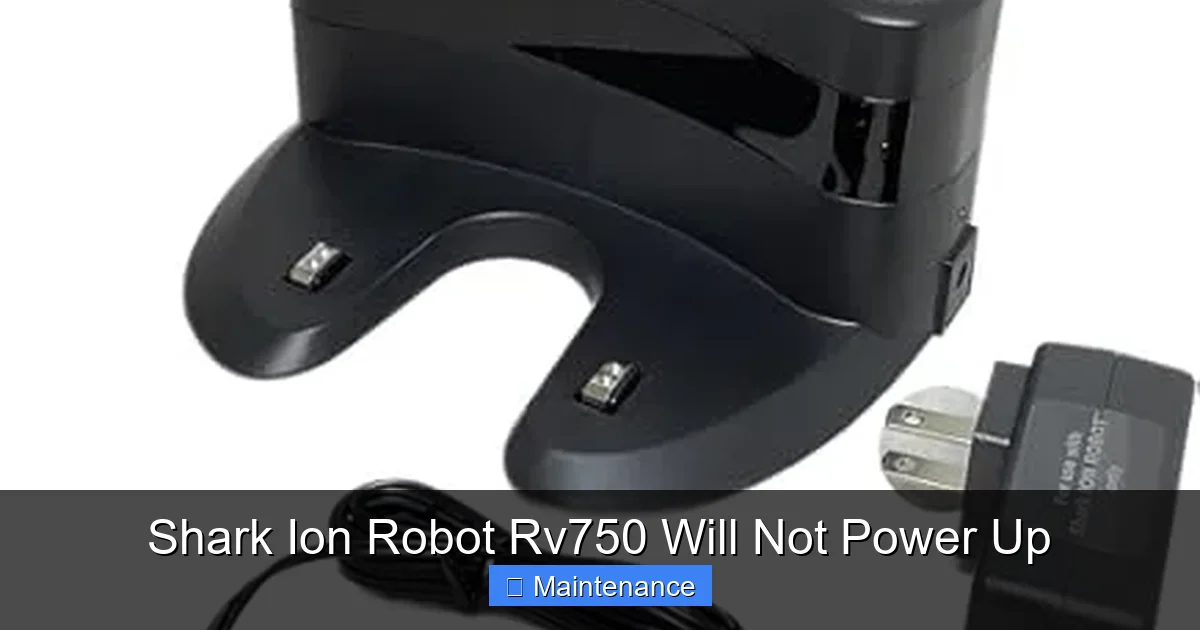
Your robot doesn’t plug in; it docks using spring-loaded metal pins on its underside that must make firm contact with metal strips on the charging station’s ramp. If this connection is compromised, the battery won’t charge, leading to a dead robot. Common problems include:
- Dirty Contacts: Dust, hair, and grime act as an insulator, preventing electrical flow.
- Misalignment: The robot isn’t sitting perfectly straight on the dock. A slightly bumped dock or a clogged robot wheel can cause this.
- Faulty Dock: The charging station itself may have failed, though this is less common than contact issues.
3. The Power Button Malfunction
The physical power button on top of the Rv750 is a simple mechanical switch. It can become clogged with dust, sticky residue from cleaning solutions, or suffer from wear and tear. If the button is physically stuck down or unable to be pressed, the robot will not respond to manual power commands, even if the battery is fully charged.
4. Software/Firmware Freeze
Like any computer, your robot’s internal software can crash or freeze. A corrupted update or a random glitch can put the mainboard into a state where it ignores all inputs and appears dead. This is often indicated if the robot was working fine one moment and then completely unresponsive the next, with no prior battery warnings.
Step-by-Step Diagnostic & Fix Protocol
Follow this sequence exactly. Do not skip steps. Each one builds on the last and is designed to eliminate the most likely causes first with minimal disassembly.
Visual guide about Shark Ion Robot Rv750 Will Not Power Up
Image source: householdme.com
Step 1: The Obvious (But Often Overlooked) Checks
First, eliminate the simplest possibilities. Is the charging station plugged into a working wall outlet? Check the outlet with another device. Is the station’s power switch (if equipped) turned on? Ensure the power adapter is firmly connected to both the wall and the station. Sometimes the adapter connection loosens.
Step 2: The Manual Power Cycle (The 30-Second Reset)
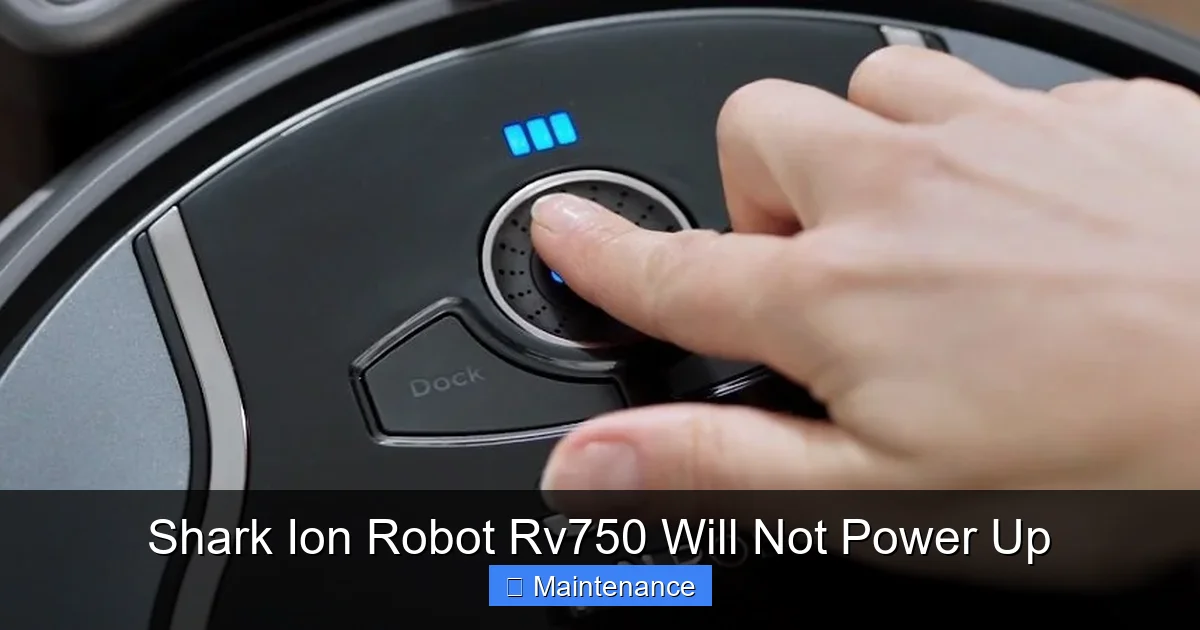
This is your first and most powerful tool. Locate the power button on your Rv750. Press and hold it down for 10-15 seconds, regardless of whether you see any lights. This forces a complete shutdown of the mainboard. After holding, release the button. Wait 30 seconds. Now, press the button normally once to try and power it on. Listen for any beeps or watch for any LED lights. This simple act clears temporary memory and can revive a frozen system.
Step 3: Inspect and Clean the Charging Interface
This is critical. You need a soft, dry microfiber cloth. Do not use liquids or sprays directly on the robot or dock.
- Turn the robot over. Locate the two metallic charging pins on its underside.
- Gently wipe each pin with the cloth to remove any oxidation, dust, or debris.
- Now, inspect the charging station. On the ramp where the robot docks, you’ll see two thin metal strips. Wipe these clean as well.
- Finally, check the area around the robot’s wheels. A clogged wheel can prevent the robot from tilting correctly to make contact with the dock’s strips.
After cleaning, manually place the robot on the dock. Ensure it is centered and sitting flush. You should feel a slight magnetic pull as it aligns. Look for a charging indicator light on the robot or dock (usually a white or blue light). If it appears, leave it to charge for at least 3-4 hours before trying to power on again.
Step 4: Bypass the Dock and Charge Directly (If Possible)
Some Shark Ion models, including certain Rv750 versions, have a charging port on the side or rear for direct adapter charging (often used for travel). If your model has this, locate the port and use the Shark charging adapter to plug it directly into the wall, not through the dock. This test isolates the problem: if the robot powers on/charges directly but not on the dock, the dock is faulty. If it still shows no sign of life, the problem is with the robot itself (battery or internal).
Step 5: Attempt a Factory Reset via the App (If It Powers On At All)
If, after cleaning and a reset, you get a single light or beep but the robot won’t fully start, try connecting it to the Shark app (if you haven’t already). Sometimes the app can communicate with a semi-functional robot. Go to the robot settings in the app and look for a “Factory Reset” or “Reset Wi-Fi” option. This will clear any corrupted settings. Note: This requires the robot to have at least minimal power to communicate via Wi-Fi.
Deep Dive: Battery-Specific Problems and Solutions
If the previous steps yielded no results, the battery is now the prime suspect. Lithium-ion batteries degrade chemically over time and with charge cycles.
Visual guide about Shark Ion Robot Rv750 Will Not Power Up
Image source: manua.ls
Recognizing Battery Failure Symptoms
Before complete death, a failing battery often shows warning signs: dramatically reduced run time (from 60+ minutes to 15), the robot returning to the dock prematurely and not recharging, or the app reporting a “Battery Error.” If you’ve ignored these signs, the final symptom is a total failure to power on.
The “Jump Start” Method for Deeply Depleted Batteries
Sometimes, a battery is not faulty but has been discharged so deeply (below 2.5V per cell) that its protection circuit cuts off all power. It appears dead. You can sometimes revive it:
- Ensure the robot is OFF.
- Place it on the clean, functioning charging dock.
- Leave it on the dock for a full 24-48 hours without interruption. The dock’s “trickle charge” may be able to slowly raise the battery voltage above the protection threshold. Do not try to power it on during this period.
- After 48 hours, check for a charging light. If present, let it charge for another 4-6 hours before trying to power on.
When Battery Replacement is Inevitable
If the 48-hour trickle charge yields nothing, the battery has likely failed. Shark offers official replacement batteries for the Rv750. Replacing it is a straightforward DIY task: you’ll need a Phillips-head screwdriver. Turn the robot over, remove the central brush cover and side brushes, then unscrew the bottom plate. Disconnect the old battery connector (note the orientation) and connect the new one. Reassemble. Always purchase genuine Shark parts or reputable third-party equivalents with good reviews to avoid safety issues.
Addressing the Power Button and Internal Glitches
If a new or known-good battery on a clean dock still results in a dead robot, the issue moves up the power chain.
Cleaning and Testing the Power Button
With the robot’s bottom plate removed (as for battery access), you can see the power button mechanism from the inside. Use a cotton swab lightly dipped in isopropyl alcohol (90%+) to clean around the button’s plastic housing and the metal contact pad on the circuit board. Press the button several times to work the cleaner in and ensure it moves freely. Let it dry completely before reassembling.
Performing a Hard Reset (Disconnect Power)
This is more thorough than the button hold. With the robot upside down and the bottom plate removed, locate the main battery connector (the one you’d unplug for battery replacement). Ensure the robot is not on the charger. Unplug this connector from the mainboard. Wait 60 seconds. Plug it back in firmly. This is equivalent to pulling the plug on a computer, clearing all residual power from the circuits. Reassemble the bottom plate and try to power on.
Checking for Firmware Updates
A corrupted firmware can brick a robot. If you can get the robot to power on even just to a blinking light and connect to Wi-Fi, open the Shark app immediately. Navigate to your robot’s settings and check for a firmware update. Install it. The update process can sometimes recover a frozen system. If the robot won’t power on at all to connect to Wi-Fi, this step is skipped, pointing to a hardware issue.
When to Conclude It’s a Hardware Failure and Contact Support
If you have methodically worked through every step above—verified a working outlet, cleaned all contacts thoroughly, performed multiple resets, attempted a direct charge, and even replaced the battery with a known-good unit—and the robot remains completely unresponsive with no lights or sounds, then a more serious internal failure has occurred.
Potential Internal Failures
- Faulty Charging Circuit: The component on the mainboard that regulates incoming power from the dock is damaged.
- Mainboard Failure: The central computer has failed due to a power surge, moisture ingress, or component defect.
- Severe Physical Damage: A significant drop or impact may have cracked the motherboard or damaged internal wiring.
Navigating Shark Customer Support and Warranty
Before calling, have your robot’s serial number (on the underside) and proof of purchase ready. Shark typically offers a 1-year limited warranty. If your Rv750 is within this period and the issue is a manufacturer defect, you may be entitled to a repair or replacement. Be prepared to detail all the troubleshooting steps you’ve already taken—this shows you’ve done your due diligence and can help expedite the support process. If out of warranty, ask for an estimate for out-of-warranty repair. Often, for an older model, the cost of repair may approach the price of a new, newer model, and a replacement might be the more economical choice.
Preventive Maintenance: Keeping Your Rv750 Alive
An ounce of prevention is worth a pound of cure. Incorporate these simple habits into your routine to avoid future power-up failures.
- Weekly Dock Cleaning: Make wiping the robot’s charging pins and the dock’s metal strips a part of your weekly filter cleaning routine.
- Never Store Fully Depleted: If you plan to store the robot for more than a month, charge it to about 50-70% first. A fully dead battery stored for long periods suffers irreversible damage.
- Keep firmware Updated: Enable automatic updates in the Shark app. Manufacturers often release patches that improve battery management and system stability.
- Inspect for Wear: Every few months, check the condition of the power button for debris and the bottom plate seal for cracks that could allow dust/moisture inside.
- Use the Correct Charger: Only use the official Shark adapter provided with the Rv750. Using a wrong-voltage/wattage third-party charger can damage the battery and charging circuit.
Conclusion: From Silence to Sweet Whirring
A Shark Ion Robot Rv750 that will not power up is a stark reminder that even our smartest home helpers are still electro-mechanical devices subject to the laws of physics and wear. The silence is jarring, but it is also a clear diagnostic signal. By approaching the problem systematically—starting with the power source, moving through the delivery system, and finally examining the control interface—you transform a moment of frustration into an exercise in practical problem-solving. In most cases, the solution is not a complex repair but a diligent clean, a patient reset, or a battery that has simply given its all. Armed with this guide, you are no longer a passive victim of a broken appliance; you are an empowered troubleshooter. You’ve learned to listen to the clues, respect the power chain, and perform basic maintenance that prolongs the life of your investment. So, roll up your sleeves, grab your microfiber cloth, and start with that first reset. The satisfying sound of your Rv750 humming back to life is well within your grasp.
Frequently Asked Questions
Could a software update really cause my Rv750 to not power on at all?
Yes, though rare. A corrupted firmware update can cause a boot failure, making the robot appear dead. This typically requires a hard reset (disconnecting the battery) to clear the corrupted data and allow a reattempt at the update.
My robot is under warranty. Will Shark charge me for support if I did my own troubleshooting?
No. Warranty support is provided for manufacturer defects. However, being able to detail the steps you’ve already taken (like cleaning contacts and resetting) is helpful for the support agent. They may guide you through additional steps before approving a repair/replacement.
Is it safe to use a third-party replacement battery for the Rv750?
It can be, but with caution. Look for batteries from reputable sellers with good reviews that explicitly state they meet or exceed Shark’s original specifications (voltage, capacity). Very cheap, no-name batteries can be unsafe, lacking proper protection circuits and posing fire or damage risks.
How long should I leave my Rv750 on the charger if it’s completely dead?
For a deeply depleted battery, give it a minimum of 24 hours on the dock without interruption. Some may require up to 48 hours for the dock’s trickle charge to revive the battery’s protection circuit. Do not expect it to power on quickly.
What’s the difference between the reset button hold and disconnecting the battery?
Holding the power button performs a “soft reset,” clearing the RAM and restarting the software. Disconnecting the battery (hard reset) cuts all power to the mainboard, clearing any residual charge and resetting all hardware states. The hard reset is more thorough for severe freezes.
How can I prevent this from happening again in the future?
Practice preventive maintenance: clean charging contacts weekly, avoid storing the robot with a dead battery, keep firmware updated, and ensure the robot docks properly after every cycle. Regularly inspect the robot for damage and the battery for swelling.