Is your Shark Ion robot vacuum failing to locate its charging dock? This is a common but frustrating issue, usually caused by dirty sensors, poor dock placement, or navigation system glitches. The good news is that most problems are easily solvable at home with simple cleaning, reset procedures, and environmental adjustments. This guide provides a comprehensive, step-by-step breakdown to diagnose and fix the “Shark Ion cant find dock” problem, getting your robot back to its autonomous routine quickly.
You’ve just finished a long day, and in a moment of quiet triumph, you realize your Shark Ion robot vacuum has completed its cleaning cycle. You wait for the familiar, satisfying sound of it clicking into its charging dock. But the minutes tick by. You look under the couch, behind the TV stand, and there it is—your little cleaning companion, sitting in the middle of the room, seemingly lost and unable to find its way home. The phrase “Shark Ion cant find dock” isn’t just a search query; it’s a modern homeowner’s sigh of exasperation. Before you resign yourself to manually placing it on the charger every time, take a deep breath. This problem is one of the most frequently reported with robotic vacuums, and for Shark Ion models, the solutions are often straightforward and within your control. This guide will walk you through everything, from the simplest wipe-down to more advanced diagnostics, to solve the mystery and restore your robot’s autonomy.
Key Takeaways
- Clean the Sensors and Charging Pins: The #1 cause is dirty navigation sensors on the robot and charging contacts on the dock. Regular cleaning with a dry microfiber cloth is non-negotiable for reliable docking.
- Perfect the Dock’s Environment: The dock must be placed on a hard, flat surface against a wall, with at least 1.5 feet of open space on either side and 3 feet in front. Avoid carpets, rugs, clutter, and direct sunlight.
- Perform a Full System Reset: Power cycling both the robot and the dock, and performing a factory reset on the robot via the app, can clear temporary software glitches that confuse the navigation system.
- Update Firmware and App: Outdated software can cause communication errors. Always ensure your Shark Ion is connected to Wi-Fi and that both the robot’s firmware and the SharkClean app are updated to the latest versions.
- Check for Navigational Obstacles: Chair legs, pet bowls, area rug edges, and dark, shiny, or patterned floors can disrupt the robot’s sensors. Create a clear, consistent path to the dock.
- Assess Battery Health: A failing or old battery may not hold enough charge for the robot to complete a full cleaning cycle and have enough power to navigate back. A significant drop in runtime indicates a battery issue.
- Know When to Contact Support: If all troubleshooting fails, the issue may be a faulty navigation sensor, charging circuit, or motherboard. Document your steps and contact Shark Support for warranty service.
📑 Table of Contents
- Understanding the “Dance”: How Your Shark Ion Finds Home
- First Responder Checklist: Immediate Actions to Try
- Deeper Troubleshooting: When the Basics Aren’t Enough
- Model-Specific Nuances and Advanced Fixes
- Building a Docking-Proof Maintenance Routine
- When to Wave the White Flag: Seeking Professional Help
- Conclusion: Reclaiming Your Autonomous Home
Understanding the “Dance”: How Your Shark Ion Finds Home
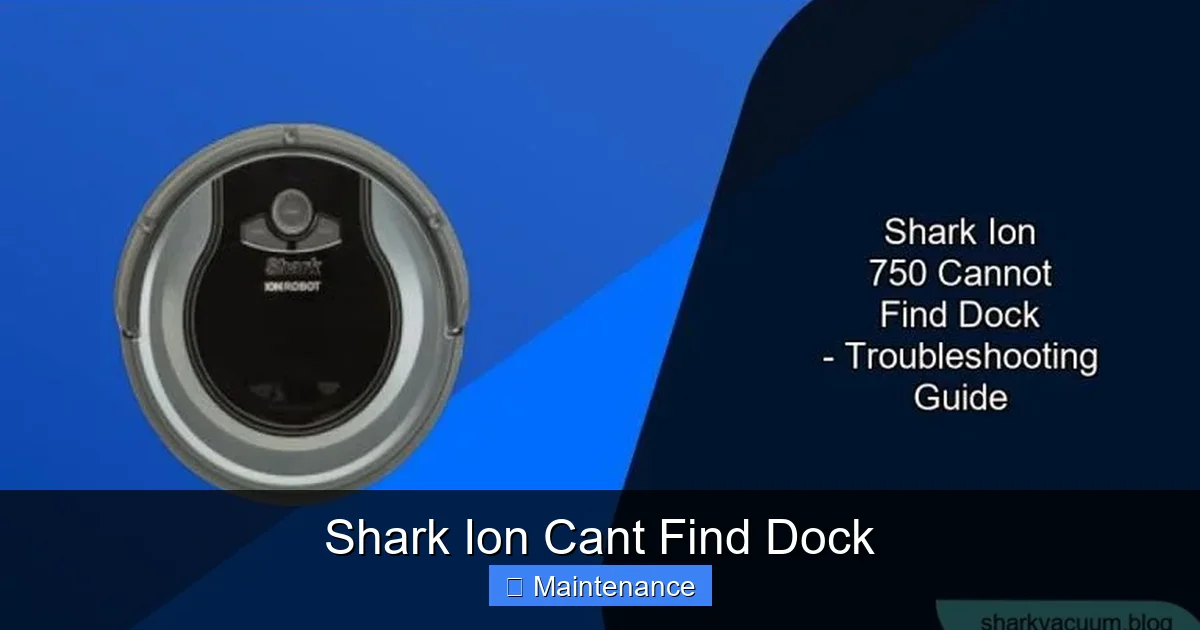
To fix the problem, you first need to understand what your Shark Ion is trying to do. Docking isn’t a random act; it’s a coordinated process involving sensors, software, and a little beacon. Your Shark Ion uses a combination of technologies, primarily its navigation system (which varies by model, from basic random bounce to more advanced IQ Navigation with mapping) and, crucially, infrared or magnetic signals emitted by the dock itself. Think of the dock as a lighthouse and the robot as a ship. The lighthouse (dock) sends out a constant signal. The ship (robot) has a receiver (sensors on its underside and front) that looks for that signal. When it detects it, it follows a programmed algorithm to approach and align itself perfectly for charging.
The Critical Role of Sensors
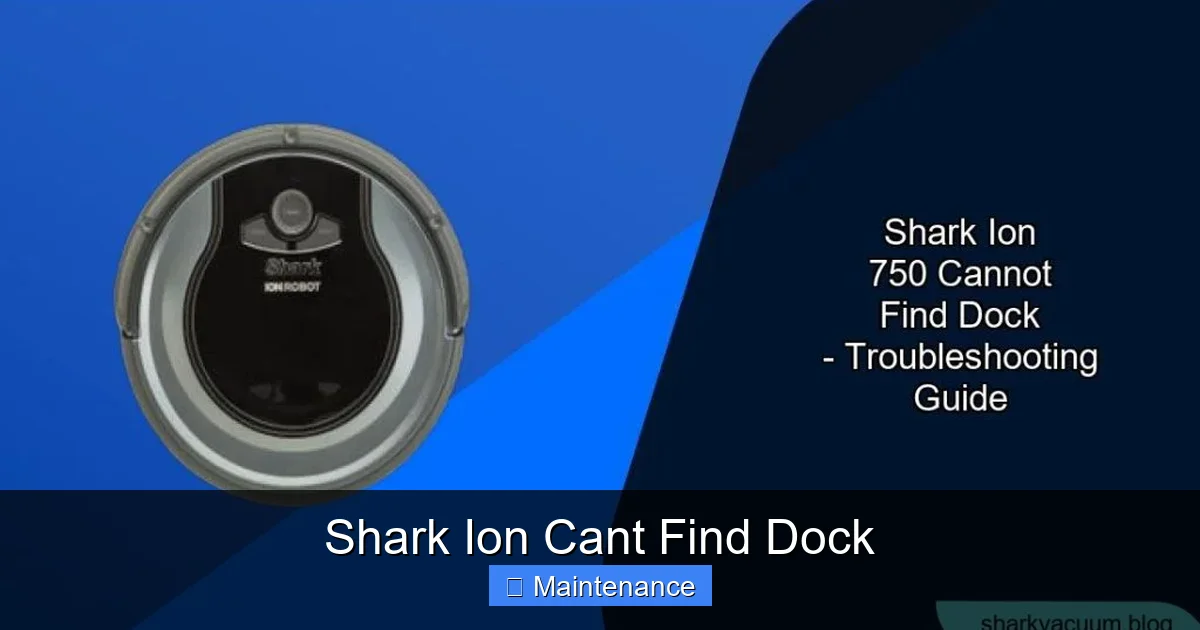
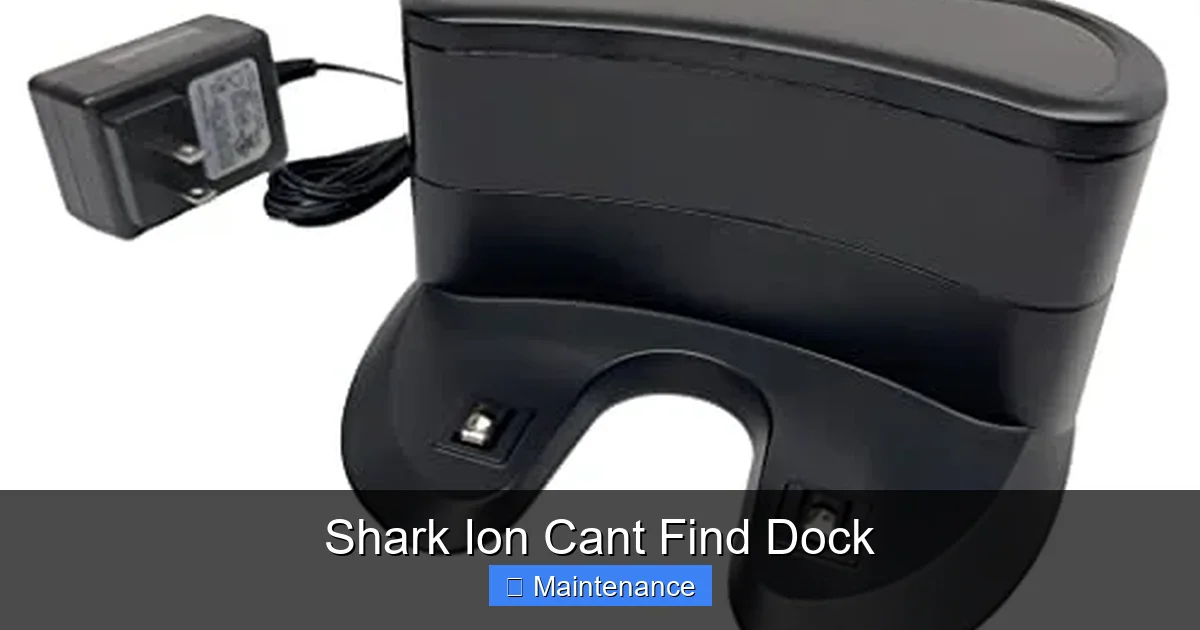
The most common culprit when your Shark Ion cant find dock is dirty sensors. On the robot, look for small, usually dark plastic windows on the front and bottom. These are the IR receivers. On the dock, there are corresponding metal charging contacts and often a small plastic “beacon” window that emits the homing signal. Dust, pet hair, and carpet fibers can form a thin, almost invisible layer over these components, completely blocking the signal. It’s like putting a piece of tape over a TV remote’s emitter—nothing gets through. This layer builds up insidiously; you might not see it, but it’s there, sabotaging your robot’s ability to see home.
The Importance of a “Clean” Path
Even with perfect sensors, the robot needs an unobstructed path. Shark Ion models, especially those without persistent mapping, navigate by bumping into things and turning. If there’s a chair leg, a stack of books, or a pet water bowl directly between the robot’s final location and the dock, it may get stuck or turned around in a loop. The robot’s logic is simple: “I’m looking for the signal. If I hit something, I turn and try a new path.” A cluttered area can create an impossible maze. Furthermore, certain floor types can interfere. Very dark, high-pile rugs, or floors with a strong reflective or checkerboard pattern can sometimes confuse cliff sensors or navigation cameras, causing the robot to behave erratically near the dock.
First Responder Checklist: Immediate Actions to Try
Before you dive into complex troubleshooting, execute this immediate action checklist. You’ll be amazed how often this resolves the “Shark Ion cant find dock” issue in under five minutes.
Visual guide about Shark Ion Cant Find Dock
Image source: sharkvacuum.blog
1. The Essential Sensor & Contact Cleaning
Grab a dry, lint-free microfiber cloth. For the robot, locate the IR sensor windows (typically a dark strip on the front bumper and small circles on the underside near the charging contacts). Gently wipe them until the cloth comes away clean. Do not use liquids or sprays directly on the robot. For the dock, unplug it first. Wipe the two large metal charging plates thoroughly. Then, find the small plastic beacon window (often on the front or top of the dock) and wipe that as well. Any film on these surfaces is your prime suspect.
2. The Power Cycle Protocol
Technology’s oldest trick in the book works wonders here. Start by removing the robot from the dock and turning it off using the physical power button (if it has one) or via the app. Unplug the dock from the wall outlet. Wait a full 60 seconds. This ensures all residual power drains from both devices, clearing any temporary memory glitches. Plug the dock back in first. You should see its indicator light illuminate (usually blue or green). Then, power your Shark Ion back on and place it manually on the dock to ensure it’s charging. After a minute, send it out to clean and watch if it successfully returns.
3. The Dock Placement Audit
Get on your hands and knees and look at your dock from a robot’s perspective. Is it sitting flush on the floor? A slight tilt from a warped board or a thick rug edge can prevent proper alignment. Is it against a solid wall? It needs to be. Is there at least 1.5 feet of clear space on both the left and right sides of the dock? This clearance zone is critical for the robot to approach and back into the dock without obstruction. Is there at least 3 feet of open space directly in front of the dock? The robot needs this runway to line up its approach. If any of these conditions aren’t met, move the dock to a new, compliant location.
Deeper Troubleshooting: When the Basics Aren’t Enough
If the quick fixes didn’t solve your “Shark Ion cant find dock” problem, it’s time for a more systematic investigation. We’ll move from software to hardware and environment.
Visual guide about Shark Ion Cant Find Dock
Image source: sharkvacuum.blog
Software & Firmware: The Brain of the Operation
An outdated app or robot firmware can cause communication breakdowns between your commands, the cloud, and the robot’s internal navigation map (if it has one). Open your SharkClean app. Go to Settings, then select your robot. Look for a “Firmware Update” or “Check for Updates” option. Install any available updates. While you’re there, check the app’s overall version in your phone’s app store and update the app itself if needed. After updating, perform a factory reset on the robot. This is often found under Settings > Robot Settings > Factory Reset. Warning: This will erase any saved maps or cleaning schedules. You’ll need to set up the robot and let it remap your home from scratch. This wipes any corrupted navigation data that might be causing confusion.
Environmental Interference: The Invisible Barriers
Your home’s layout can be a bigger obstacle than you think. Area Rugs: The transition from hard floor to a high-pile rug is a major hurdle. The robot’s wheels can struggle, and its sensors may misinterpret the change. Consider using rug grippers or temporarily removing small area rugs near the dock’s path. Lighting: Very dark rooms or areas with strong, direct sunlight hitting the dock can sometimes interfere with IR signals. Try relocating the dock to a spot with consistent, moderate lighting. Electromagnetic Interference: Keep the dock away from large appliances, power strips, or routers. The electrical noise can potentially disrupt the signal.
Battery Health: The Power to Return
A weak battery is a silent failure mode. The robot may complete a cleaning cycle but have just enough juice to wander aimlessly, not to power the sensors and motors needed for a precise dock maneuver. Check the runtime. Has it significantly decreased from when you first bought it? If your model has a removable battery (some older Ion models do), consider purchasing an official Shark replacement. If it’s sealed, this is a sign you may need to contact Shark Support for a warranty battery replacement or a paid service if out of warranty. A robot that dies mid-clean or returns to the dock with a very low battery percentage is a strong indicator.
Model-Specific Nuances and Advanced Fixes
Shark has several Ion series (e.g., RV, AV, AI). While the core principles are the same, some models have unique features. Models with “IQ Navigation” (like the AI series) build a map. If this map is corrupted or incomplete, the robot’s “mental map” of where the dock is can be wrong, even if the dock hasn’t moved. This is why the factory reset is so critical for these models—it forces a fresh map. For models without mapping, the issue is almost always sensor/contact cleanliness, dock placement, or simple software glitches. Also, inspect the physical charging contacts on both the robot and dock for any visible corrosion, bending, or damage. A bent contact pin on the robot or a scuffed plate on the dock can prevent a physical connection, even if the robot finds the right spot.
Visual guide about Shark Ion Cant Find Dock
Image source: m.media-amazon.com
Building a Docking-Proof Maintenance Routine
Prevention is infinitely better than cure. Incorporate these simple habits into your monthly routine to ensure the “Shark Ion cant find dock” problem never rears its head.
Weekly Sensor Wipe-Down
Make it a Sunday ritual. While your robot is out cleaning, take your dry microfiber cloth and quickly wipe the front bumper and underside sensors. It takes 10 seconds. Then, wipe the dock’s charging plates and beacon window. This single habit eliminates the #1 cause of docking failures.
Monthly Dock & Robot Inspection
Once a month, do a more thorough check. Ensure the dock is still on a hard, level surface. Vacuum around the dock’s base to remove any dust bunnies or debris that could interfere with the robot’s approach. Check the dock’s power cable for frays and ensure the plug is secure in the wall outlet. On the robot, check the wheels for tangled hair or carpet fibers, which can affect maneuverability and steering accuracy into the dock.
Software Vigilance
Enable automatic updates in the SharkClean app if available. Once a quarter, manually check for updates even if auto-update is on. It’s a small step that keeps your robot’s brain sharp and compatible with your home’s evolving layout.
When to Wave the White Flag: Seeking Professional Help
You have cleaned, reset, updated, and repositioned. Your Shark Ion still cant find dock. Now what? It’s time to consider a hardware failure. The most likely culprits at this stage are a failed IR receiver sensor on the robot, a faulty signal emitter in the dock, or a problem with the charging circuit on either device. Before you call, have your robot’s serial number (usually on the underside) and your proof of purchase ready. Contact Shark Customer Support. Be prepared to detail every troubleshooting step you’ve already taken—this shows you’re proactive and helps them escalate your case efficiently. If your robot is under the limited warranty, you may be eligible for a repair or replacement. If it’s out of warranty, they can provide a quote for a paid service, which may or may not be cost-effective depending on the model’s age and value.
Conclusion: Reclaiming Your Autonomous Home
The frustration of a robot vacuum that can’t find its way home is real, but it is almost always a solvable problem. The key is to move from frustration to methodical diagnosis. Start with the absolute basics: clean everything and check the dock’s location. These two steps solve well over 70% of “Shark Ion cant find dock” cases. Then, escalate to software resets and environmental audits. Remember, your robot is a simple machine following simple rules based on sensor input. If the input is bad (dirty sensors) or the environment is confusing (cluttered path), the output will be failure. By becoming the vigilant caretaker of its sensors and its space, you empower your Shark Ion to do what it does best: clean your floors, find its dock, and recharge, all without you lifting a finger. That small moment of seeing it glide home, docking with a satisfying click, is the quiet victory that makes a robotic vacuum truly worthwhile. Now, go give those sensors a wipe.
Frequently Asked Questions
How often should I clean my Shark Ion’s sensors and dock contacts?
For optimal performance, you should wipe the robot’s navigation sensors and the dock’s charging contacts with a dry microfiber cloth at least once a week. If you have pets that shed heavily, increase this to twice a week. This prevents the dust and hair buildup that most commonly causes docking failures.
Can the type of flooring affect my Shark Ion’s ability to dock?
Yes. Very dark, high-pile, or reflective rugs can confuse the robot’s cliff sensors and navigation system, especially during the precise docking maneuver. Ensure the path to the dock is on a consistent, hard-surface floor like tile, laminate, or low-pile carpet. If a rug is necessary, use a low-profile, light-colored one and ensure the dock is placed on the hard surface just before the rug transition.
My dock is on a hard floor, but the robot still misses it. What else should I check?
>First, confirm there is absolutely nothing—no furniture legs, no pet bowls, no shoe—within a 3-foot radius in front of the dock and 1.5 feet on either side. Second, ensure the dock is perfectly level and flush with the floor. Third, perform a full power cycle: unplug the dock, remove the robot’s battery for 30 seconds (if possible), and restart everything. Finally, update your app and robot firmware, then factory reset the robot to rebuild its navigation map.
Could a bad battery really prevent docking even if the robot finishes a clean?
Absolutely. A degraded battery may have just enough charge to complete a cleaning cycle but not enough reserve power to execute the precise series of movements required for docking—the final approach, sensor scanning, and backing into place. If your robot’s runtime has dropped by more than 30-40% from its original specification, a battery replacement is likely needed for reliable docking and cleaning.
What do the lights on my Shark Ion and dock mean when it fails to dock?
Consult your specific model’s manual, as light patterns vary. Generally, a solid blue light on the robot or dock indicates normal operation/charging. A flashing red or orange light on the robot often indicates a fault or error. A rapidly blinking dock light can signal a communication issue. Note the color and pattern and search for your model number + “error codes” online, or contact Shark Support with the details.
Is it worth repairing an out-of-warranty Shark Ion that can’t dock?
It depends on the model’s age and the repair cost. A sensor or charging contact repair is often inexpensive. However, if the issue is a faulty navigation module or motherboard, the cost may approach or exceed the value of an older model. Get a quote from Shark Support first. For newer models, repair is usually more cost-effective. For units over 3-4 years old, investing in a new, more advanced model might be a better long-term solution.