If your Shark robot vacuum keeps returning to its dock and won’t clean properly, you’re not alone—this is a very common issue. It’s usually caused by navigation errors, dirty sensors, or minor software glitches, not a broken machine. The good news is that most of these problems can be solved at home with simple cleaning, resetting, or adjusting your robot’s environment. Follow our step-by-step guide to diagnose and fix the “dock loop” for good.
So, your Shark robot vacuum has developed a frustrating habit. You send it out to clean, it zooms around for a minute or two, and then—beeline straight back to its charging dock. It docks, maybe rests for a second, and then tries to go out again, only to repeat the cycle. It’s like it’s on a leash you can’t see, trapped in a loop of its own making. Before you panic and assume the worst, take a deep breath. This behavior, while incredibly annoying, is one of the most frequently reported issues with Shark IQ and AI series robots. And more importantly, it’s almost always something you can diagnose and fix yourself. This guide will walk you through every possible reason your Shark robot keeps returning to the dock, from the simplest wipe-down to more advanced steps. Let’s get your little helper back to doing its job.
Key Takeaways
- The “dock loop” is a fixable navigation error, not always a hardware failure. Your Shark robot is likely confused by its environment or sensors.
- Cleaning is the first and most powerful solution. Focus on the cliff sensors, bumper, and dock’s metal charging contacts.
- Your home’s layout and the dock’s placement are critical. Ensure a clear, direct path and avoid reflective floors or excessive clutter.
- A simple power cycle or factory reset can clear temporary software bugs. This is a safe first step before deeper troubleshooting.
- Battery health matters. An old or failing battery may not hold enough charge for a full clean, prompting premature returns.
- Check for firmware updates via the Shark app. Updates often contain fixes for known navigation quirks and bugs.
- If all else fails, Shark Support can help with warranty options or advanced diagnostics. Have your model number and serial ready.
📑 Table of Contents
- Understanding the “Dock Loop”: What Your Shark is Trying to Tell You
- Common Cause #1: Dirty or Obstructed Sensors
- Common Cause #2: Dock Placement and Environmental Factors
- Common Cause #3: Battery Health and Charging Issues
- Step-by-Step Troubleshooting: From Simple to Advanced
- Advanced Fixes and When to Suspect Hardware
- Preventive Maintenance: Keeping the Dock Loop Away for Good
- Conclusion: Your Robot is a Tool, Not a Mystery
Understanding the “Dock Loop”: What Your Shark is Trying to Tell You
Your Shark robot isn’t being lazy or defective on purpose. It’s operating on a complex set of algorithms and sensor inputs. When it returns to the dock prematurely, it’s responding to a signal or a perceived problem. Think of it as your robot’s way of saying, “I’m confused,” or “I need help.” The most common internal triggers for this behavior are:
- A “Low Battery” Signal: The robot’s battery management system thinks it’s too low to continue, even if it just started.
- A Navigation Error: It has lost its sense of direction or mapping and is retreating to a known safe point (the dock).
- A Sensor Alert: One of its many sensors (cliff, bumper, wall) is triggering a false positive, making it think it’s in danger.
- A Completed “Spot” or “Zone” Clean: It may incorrectly think it has finished a specific cleaning task you set.
Our job is to figure out which of these “worries” is causing the retreat. We’ll start with the easiest, most likely solutions first.
The Role of Smart Mapping and Navigation
Modern Shark robots (like the Shark AI Ultra, Shark IQ, and Shark Matrix) use a combination of visual navigation (vSLAM) and sometimes infrared or lidar sensors. They build a map of your home as they clean. If this mapping process gets interrupted—by picking up the robot mid-clean, a sudden darkening of the room, or a highly reflective surface—it can lose its place. A lost robot is a cautious robot, and its default cautious behavior is to return to the dock. For non-mapping models (like some Shark ION series), they use a more random, bump-and-go pattern. Even these simpler bots can get confused by obstacles or sensor errors and head home.
Common Cause #1: Dirty or Obstructed Sensors
This is the numero uno culprit. Your Shark has sensors all over its body. If even one is dirty, it can send the wrong signal. The robot might think it’s about to fall down stairs (cliff sensor), that it’s stuck (bumper), or that it’s hit a wall it hasn’t actually touched. This perceived collision or danger often triggers an immediate return to the dock for “safety.”
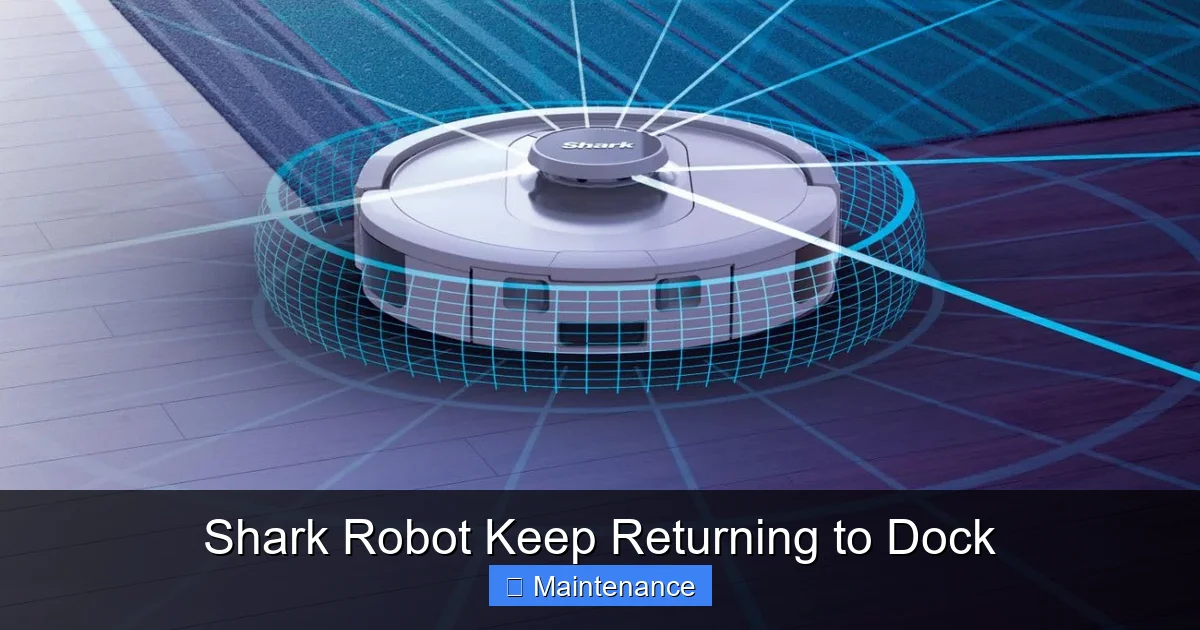
Visual guide about Shark Robot Keep Returning to Dock
Image source: m.media-amazon.com
Which Sensors to Clean and How
Grab a clean, dry microfiber cloth. You can slightly dampen it with water or a tiny bit of screen cleaner, but never spray liquid directly onto the robot. Here’s your sensor checklist:
- The Cliff Sensors: These are the small, dark rectangles on the underside, usually at the front and sometimes on the sides. Gently wipe them. Dust or pet hair caked on these will make the robot think every floor is a cliff edge, causing it to stop, turn, and often head for the dock.
- The Bumper: The rubber or plastic ring around the front. Press it in a few times to ensure it’s not stuck. Wipe the entire surface, especially the seam where it meets the body. A stuck bumper makes the robot think it’s constantly bumping into things.
- The Brush Roll and Wheels: While not “sensors” per se, tangled hair or debris in the main brush or caster wheel can cause excessive resistance. The robot’s motor sensors detect this strain and may interpret it as being stuck, prompting a dock return.
- The Dock’s Charging Contacts: Look at the two small metal plates on the dock and the corresponding metal pads on your Shark’s underside. Clean both with a dry cloth. Corrosion or grime here prevents a solid connection. The robot may dock, think it’s not charging properly, and try again repeatedly.
- The Navigation Camera/Lens: On mapping models, there’s a small circular lens on top or the front. A smudge here is like putting a blurry filter on a camera—it can’t see the room’s features to navigate.
Pro Tip: Do this sensor cleaning routine every 2-4 weeks if you have pets or a dusty home. It’s the single most effective maintenance habit you can build.
Common Cause #2: Dock Placement and Environmental Factors
Your robot’s charging station is its home base, its safe zone. Where you put it matters immensely. If the dock is in a poor location, it creates constant navigation challenges that can lead to the dock loop.
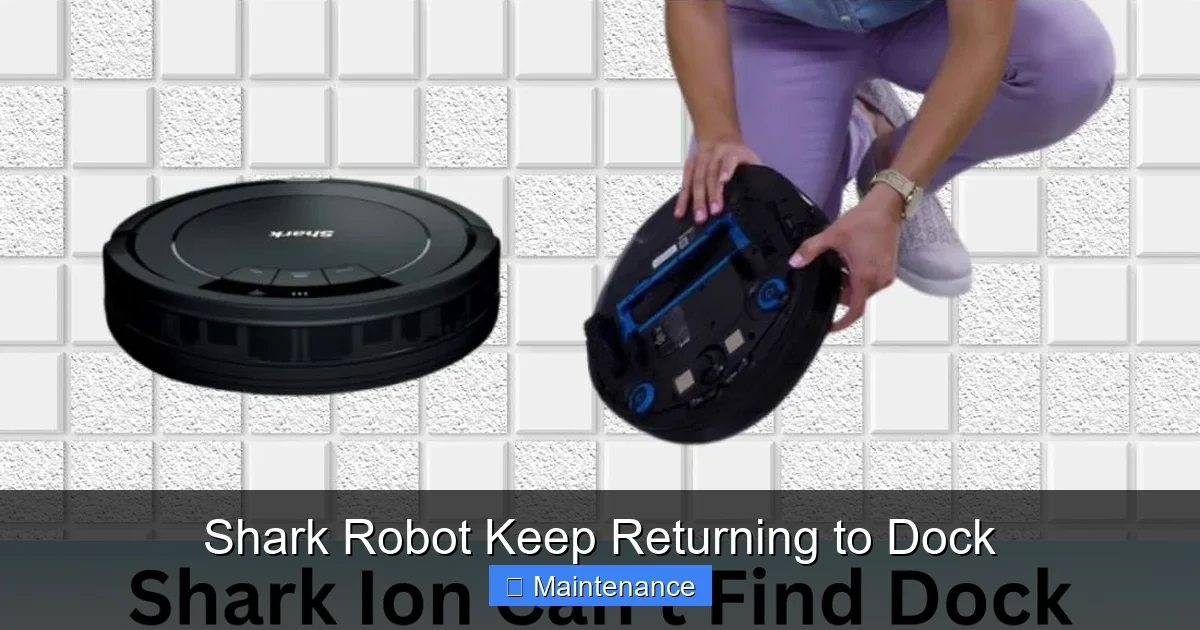
Visual guide about Shark Robot Keep Returning to Dock
Image source: sharkvacuum.blog
The “Goldilocks Zone” for Your Dock
Place your dock following these rules:
- Flat, Level Surface: Never on a rug or thick mat. The robot must be able to drive onto it smoothly.
- Against a Wall, Centered: Leave at least 3-4 feet of open space on either side of the dock. This gives the robot a clear, wide approach angle.
- Clear Approach Path: Have at least 5 feet of open floor directly in front of the dock. No furniture, shoe racks, or pet beds blocking the “runway.”
- Away from Direct Sunlight and Windows: Bright light can glare into the navigation sensors or cliff sensors, causing false triggers.
- On Non-Reflective Flooring: Highly polished hardwood, marble, or laminate can reflect the robot’s own sensors or the dock’s IR signals, creating confusion. A small rug or mat under the dock (but not under the robot’s path) can help break up reflections.
Example: If your dock is tucked into a corner behind a sofa with only a narrow gap to access it, the robot will struggle to dock reliably. After a failed attempt or a bump, its internal logic might default to “return to dock now” to avoid further trouble, cutting the clean short.
Common Cause #3: Battery Health and Charging Issues
A weak or failing battery is a classic cause of premature docking. The robot’s battery management system is conservative. If it senses the voltage dropping too fast or if the battery can’t hold a charge like it used to, it will abort the mission and head home to recharge, even if it’s only been running for 10 minutes.
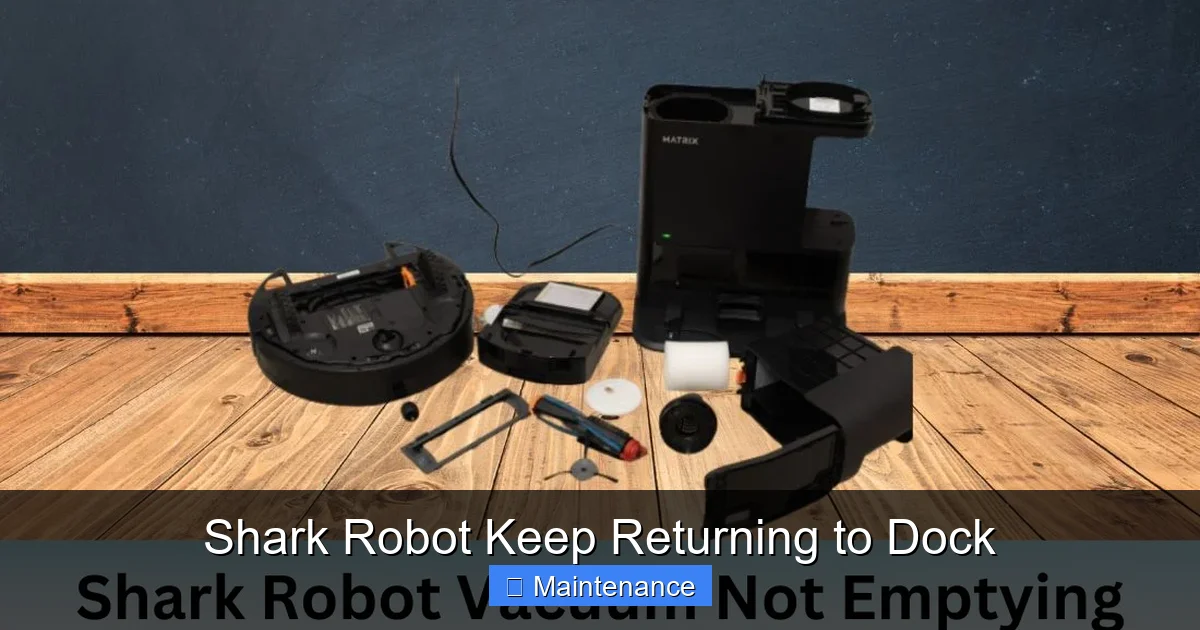
Visual guide about Shark Robot Keep Returning to Dock
Image source: sharkvacuum.blog
Diagnosing Battery Problems
First, check the obvious: Is the dock powered on and is the light on? Is the robot properly seated on the dock? You should see a charging indicator light on the robot itself (often a small LED). Let it charge fully (3-4 hours) before trying again.
- Check via the App: The Shark app usually shows battery percentage. If it drops from 100% to 50% in a very short time, that’s a sign of battery degradation.
- Age of the Robot: Lithium-ion batteries typically last 2-3 years with regular use. If your Shark is older, the battery is the most likely suspect.
- The Full-Charge Test: Fully charge the robot. Then, manually start a clean from the app and watch it. If it returns to the dock within 15-20 minutes on a medium-sized room, the battery is almost certainly weak. A healthy battery should run for 60-90 minutes on a full charge, depending on the model and floor type.
Solution: If the battery is the issue, Shark sells official replacement batteries for most models. This is a straightforward DIY repair that can add years to your robot’s life.
Step-by-Step Troubleshooting: From Simple to Advanced
Now, let’s put it all together in a logical order. Try these steps in sequence. After each step, run a test clean to see if the behavior is fixed.
Step 1: The Quick Reset and Clean
This is your 5-minute first responder.
- Power Cycle: Turn off the robot’s power switch (if it has one) or press and hold the “Clean” button on the robot for 10 seconds to force a shutdown. Unplug the dock for 30 seconds. Plug the dock back in, place the robot on it, and let it charge for 5 minutes. Then start a new clean.
- Thorough Sensor & Brush Clean: As detailed in Section 2, clean all cliff sensors, the bumper, the main brush, the side brush, the caster wheel, and the charging contacts on both robot and dock.
- Clear the Area: Pick up small objects, socks, cords, and pet toys from the floor. Ensure the robot’s path to and from the dock is completely open.
Step 2: Re-Evaluate the Dock and Map
If Step 1 fails, the environment needs adjusting.
- Relocate the Dock: Move it to a new spot following the “Goldilocks Zone” rules from Section 3. Even shifting it a few feet can make a huge difference.
- Delete and Re-Create the Map (Mapping Models Only): In the Shark app, go to your robot’s settings and delete the current map. Then, run a new “Explore” or “Map My Home” cycle. Let it complete without interruption. This gives it a fresh, accurate mental model of your space.
- Check Virtual Walls/No-Go Zones: If you use virtual no-go lines or zones, make sure you haven’t accidentally created a barrier that forces the robot to immediately turn back toward the dock after starting.
Step 3: Software and Firmware
- Update the App: Go to your phone’s app store and ensure the Shark app is updated to the latest version.
- Update Robot Firmware: In the Shark app, go to Settings > About > Check for Updates. Install any available updates. These often contain navigation logic improvements.
- Reinstall the App (Last Resort): Sometimes the app’s connection to the robot gets corrupted. Uninstall the Shark app, restart your phone, reinstall the app, and re-pair your robot.
Step 4: The Nuclear Option – Factory Reset
Warning: This will delete all maps, schedules, and preferences. You’ll need to set everything up again. But it clears any deep-seated software corruption.
- Locate the reset button (often a small pinhole on the underside or back). Use a paperclip to press and hold for 10-15 seconds until you hear a tone or see lights flash.
- Alternatively, some models reset via the app: Settings > Factory Reset.
- After resetting, set up the robot as new, create a fresh map, and test.
Advanced Fixes and When to Suspect Hardware
If you’ve worked through all the troubleshooting steps above and your Shark is still doing the dock loop, it’s time to consider a possible hardware fault.
Diagnosing a Faulty Battery
You’ve done the full-charge test. If the runtime is drastically shorter than it used to be (e.g., less than 45 minutes on a full charge for a large home), the battery is the prime suspect. Replacement is the only cure. Shark’s customer support can confirm compatibility for your specific model number.
Faulty Sensors or Navigation Camera
If cleaning doesn’t help and the robot still behaves erratically—spinning in circles, missing obvious obstacles, or constantly thinking it’s hitting walls—a sensor or the main navigation camera may have failed. This is less common but possible, especially after a hard bump or if liquid was spilled on the robot.
Dock Communication Failure
The robot and dock communicate via infrared (IR) signals. If the IR emitter on the dock or the receiver on the robot is damaged, the robot might not get a stable “I’m docked” signal. It may dock, think it failed, and try again. Ensure the dock’s IR area (usually a clear plastic window) is clean and undamaged.
Preventive Maintenance: Keeping the Dock Loop Away for Good
An ounce of prevention is worth a pound of frustration. Build these habits into your routine:
- Weekly Quick Wipe: Every week, spend 2 minutes wiping the cliff sensors, bumper, and charging contacts.
- Bi-Weekly Deep Clean: Every other week, remove the brush roll to cut away hair, clean the wheels, and check the caster wheel for hair wraps.
- Monthly Dock Check: Vacuum or wipe down the dock’s charging contacts and the area around it. Ensure the dock is stable and hasn’t been nudged out of alignment.
- Quarterly Map Review: Open your app and look at the saved map. Does it accurately reflect your home? If rooms are missing or walls are crooked, delete and re-map.
- Environment Management: Keep high-traffic areas to the dock clear. Use rug tape to secure area rug edges that might catch the robot. Be mindful of seasonal changes—holiday decorations or a new pet bed can create new obstacles.
Conclusion: Your Robot is a Tool, Not a Mystery
The “Shark robot keep returning to dock” problem feels like a betrayal of trust. You bought a smart machine to make your life easier, and now it’s seemingly refusing to work. But as we’ve seen, it’s almost never malice; it’s just a series of simple, understandable mechanical and electronic responses. Your robot is a tool, and like any tool, it needs proper care and the right conditions to function perfectly. By methodically checking sensors, optimizing the dock’s home, understanding battery life, and keeping software updated, you empower yourself to solve the vast majority of these issues. Start with the simple clean and reset—you’ll likely be amazed at how often that does the trick. If not, you now have a roadmap to deeper diagnosis. A well-maintained Shark robot is a fantastic, hardworking companion. Give it the attention it needs, and it will pay you back with countless hours of clean floors. Now, go troubleshoot and get back to enjoying your spotless home!
Frequently Asked Questions
Why does my Shark robot vacuum go back to the dock immediately after starting?
This is almost always due to dirty cliff sensors or a stuck bumper. The robot thinks it’s about to fall or is constantly hitting an obstacle, so it retreats to its safe zone (the dock). A full sensor and brush cleaning fixes this 70% of the time.
How do I force my Shark robot to leave the dock and clean?
First, ensure the dock is powered and the robot is fully charged. Press the physical “Clean” button on the robot itself, not just in the app. If it still docks immediately, perform a power cycle: turn off the robot’s power switch, unplug the dock for 30 seconds, then restart.
Can a low battery cause my Shark to keep docking?
Yes, absolutely. If the battery is old and can’t hold a charge, the voltage will drop quickly. The robot’s low-battery safety protocol kicks in, sending it home after just a few minutes of cleaning. A runtime of less than 45 minutes on a full charge indicates a battery replacement is needed.
Is my Shark robot stuck in a “spot clean” mode?
It’s possible. In the Shark app, check if you have a “Spot Clean” or “Zone” active. If you accidentally set a very small spot zone near the dock, the robot will clean that tiny area and return home. Cancel any active spot cleans in the app.
Could my floor type be causing the problem?
Definitely. Very dark, shiny, or reflective floors (like black marble or polished oak) can confuse the cliff sensors, making them think the floor has ended. Similarly, thick, high-pile rugs can cause excessive wheel slip or trigger the bumper. Try starting a clean on a different, more neutral floor surface to test.