Shark IQ robot vacuums failing to connect to WiFi is a common but frustrating issue, usually stemming from simple network incompatibilities, incorrect passwords, or app/software glitches. The solution involves a systematic approach: first, verify your router is broadcasting a 2.4GHz network (most Shark IQs don’t support 5GHz), double-check the WiFi password, and ensure the robot is within strong signal range. If basic steps fail, power cycling all devices, updating the Shark app and vacuum firmware, and performing a factory reset on the robot are highly effective next steps. Always confirm your router’s security settings (WPA2/WPA3) are compatible and that no VPN or firewall is blocking the connection.
You’ve unboxed your new Shark IQ robot vacuum, downloaded the app, and are excited to finally automate your cleaning. You follow the prompts, select your WiFi network, enter the password, and… nothing. The app spins, times out, or simply says “Connection Failed.” That initial spark of excitement quickly turns into a wave of frustration. Why won’t this smart device, which promises so much convenience, do the one basic thing it’s supposed to do—connect to your home network? You’re not alone. “Shark IQ not connecting to WiFi” is by far the most common troubleshooting query we see, and the good news is that in the vast majority of cases, the problem is solvable with some patient, methodical steps. This guide will walk you through every possible reason, from the blindingly simple to the more complex, to get your Shark IQ talking to your router and under your control.
Key Takeaways
- 2.4GHz is Mandatory: Your Shark IQ almost certainly requires a 2.4GHz WiFi network; it will not connect to a 5GHz-only network. Ensure your router is broadcasting both bands or set to 2.4GHz.
- Password Precision is Critical: A single typo in your WiFi password is a top cause of failure. Re-enter it carefully, watching for case sensitivity and special characters.
- Signal Strength Matters: The robot must be placed near the router during initial setup. Thick walls, large appliances, and other electronics can severely weaken the signal.
- App and Firmware Must Be Current: An outdated Shark mobile app or robot vacuum firmware is a frequent culprit. Always update both before attempting a connection.
- Power Cycle Everything: Turning off your router, modem, and Shark IQ for a full minute often clears temporary network glitches and resets IP address conflicts.
- Factory Reset as a Last Resort: If all else fails, performing a factory reset on the Shark IQ (via the physical button) will erase its network memory, allowing you to start the pairing process fresh.
- Router Settings Can Block Connection: Advanced router features like MAC address filtering, AP isolation, or overly strict firewalls can prevent the Shark IQ from authenticating on your network.
📑 Table of Contents
- Understanding the Shark IQ’s WiFi Connection
- Most Common Causes of Connection Failure
- Step-by-Step Troubleshooting Guide: From Simple to Advanced
- Advanced Troubleshooting: Digging Deeper
- When to Contact Shark Support and Warranty Considerations
- Preventative Maintenance for Future Connectivity
- Conclusion: Patience and Process Win
Understanding the Shark IQ’s WiFi Connection
Before we dive into fixes, it helps to understand what’s happening when your Shark IQ tries to join your network. The robot isn’t just “looking for WiFi.” It’s a small computer with a wireless chip that must perform a secure “handshake” with your router. It sends your network name (SSID), you provide the password, the router verifies it, and then assigns the robot an IP address so it can communicate with Shark’s cloud servers and your phone app. A failure can occur at any single point in that chain. The Shark IQ, like most older and many current robot vacuums, uses a 2.4GHz wireless radio. This is a critical, non-negotiable fact. The 2.4GHz band is slower but has a much longer range and better penetration through walls than 5GHz. Your smartphone and laptop likely connect seamlessly to 5GHz for speed, but your Shark IQ cannot see or connect to that band at all. If your router is set to “5GHz only” or if you have separate network names (SSIDs) for 2.4GHz and 5GHz and you accidentally selected the 5GHz one, connection is impossible. This is the first, most common hurdle.
The Role of the Shark App and Cloud Servers
It’s important to note that your Shark IQ doesn’t connect directly to your phone. Your phone talks to Shark’s cloud servers via the internet, and the cloud servers talk to your robot, which is connected to your home WiFi. This means the problem could be local (your home network) or with Shark’s online services. During widespread outages on Shark’s end, many robots will appear offline or fail to connect. A quick check of Shark’s social media or service status page can rule this out. Your smartphone also needs a stable internet connection to complete the setup process, so ensure your phone is on the same WiFi network you’re trying to give the robot.
Most Common Causes of Connection Failure
Let’s categorize the usual suspects. Pinpointing the category your issue falls into will save you time and prevent unnecessary steps.
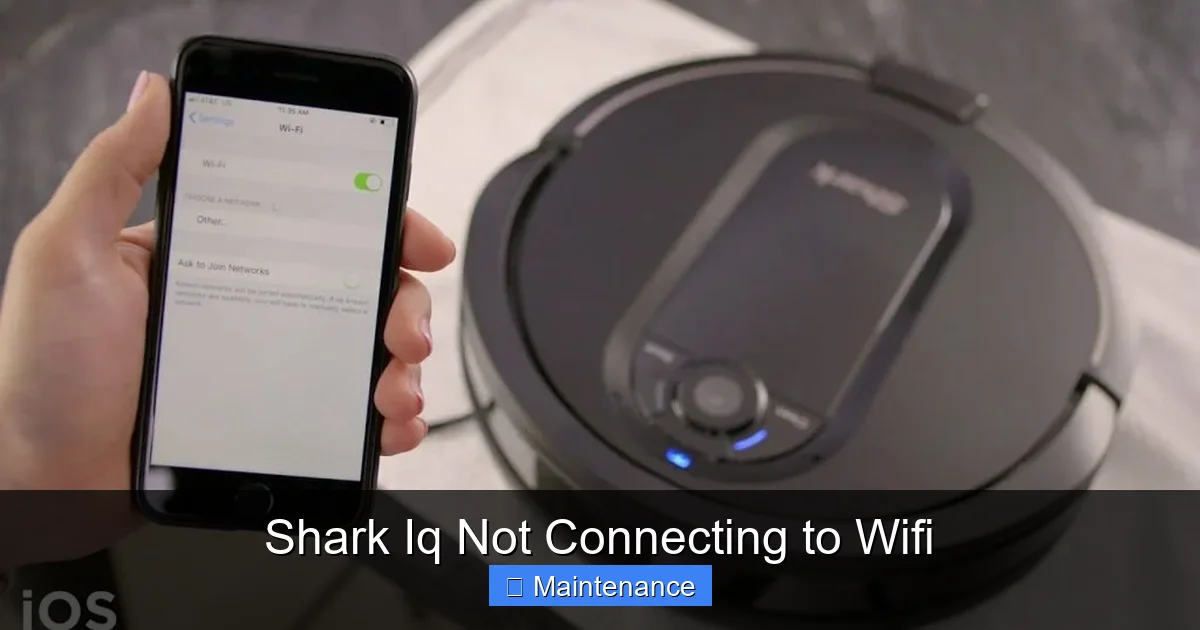
Visual guide about Shark Iq Not Connecting to Wifi
Image source: cleanersadvisor.com
Network Incompatibility (The 2.4GHz Issue)
As stated, this is the #1 cause. Modern routers, especially mesh systems, often default to a single SSID that intelligently switches between bands (“band steering”). This can confuse the Shark IQ. It may see the network name but fail to negotiate on the 5GHz channel. The solution is to log into your router’s admin panel (usually via a web browser at 192.168.1.1 or similar) and ensure the 2.4GHz network is enabled and broadcasting. For ease, you can temporarily rename your 2.4GHz network to something simple like “MyWiFi_2.4” and your 5GHz to “MyWiFi_5,” then connect the Shark IQ to the _2.4 name. Once connected, you can often rename it back, but some users keep them separate for IoT devices.
Incorrect Password or Security Protocol
This seems too simple to be true, but it’s rampant. You might be 100% sure of your password, but did you include the uppercase letter? The special character? Is your router using WPA3 security? Many older IoT devices, including some Shark IQ models, have compatibility issues with the newer WPA3 protocol. They require WPA2 or WPA2/WPA3 mixed mode. Check your router’s wireless security settings. If it’s set to “WPA3 Only,” change it to “WPA2/WPA3 Mixed” or “WPA2 Personal.” Also, be mindful of passwords that start or end with spaces—these are often invisible but count as characters.
Signal Strength and Interference
The Shark IQ needs a strong, clean signal during the initial pairing process. If you’re trying to set it up from a different room, behind several walls, it will likely fail. Place the robot’s charging base right next to your router during setup. Once connected, you can move it to its permanent location. Interference from other devices (microwaves, cordless phones, baby monitors, even some LED lights) on the 2.4GHz band can also disrupt the connection. Try turning off potential sources of interference temporarily during setup.
App and Firmware Glitches
An outdated Shark app is a frequent culprit. The app on your phone and the firmware (the robot’s internal software) must be compatible. Always download the latest Shark app version from the official App Store or Google Play. Within the app, before trying to connect, go to Settings > About > Check for Firmware Updates. If an update is available, install it. Sometimes, the robot’s firmware can become corrupted. A factory reset (more on this later) often forces it to accept a fresh firmware download upon reconnection.
Step-by-Step Troubleshooting Guide: From Simple to Advanced
Follow these steps in order. Do not skip to step 5 if you haven’t verified step 1.
Visual guide about Shark Iq Not Connecting to Wifi
Image source: diysmarthomehub.com
Step 1: The Pre-Setup Checklist
Before you even open the Shark app, do the following:
- Confirm 2.4GHz Network: On your phone, go to WiFi settings. Do you see a network name that ends in “_2.4” or can you confirm it’s the 2.4GHz band? If not, log into your router and enable it. Temporarily disable 5GHz broadcasting if you’re unsure.
- Know Your Exact Password: Have it written down on a piece of paper. No autofill; type it manually in the Shark app.
- Place Robot Near Router: Put the charging base with the robot on top, within 6 feet of your router, with no large metal objects in between.
- Charge the Robot: Ensure the Shark IQ has at least a 50% charge. A low battery can cause connection instability.
- Restart Your Phone: A fresh start for the phone’s WiFi radio can help.
Step 2: Power Cycle the Entire Network
This is the universal IT fix that works surprisingly often. It clears DHCP leases and resets network interfaces.
- Unplug your modem from power.
- Unplug your router from power.
- Unplug your Shark IQ charging base from power. Lift the robot off the base.
- Wait a full 60 seconds. This is longer than you think; it ensures capacitors fully discharge.
- Plug the modem back in. Wait for all lights to return to their normal “connected” state (2-3 minutes).
- Plug the router back in. Wait for it to fully boot and broadcast WiFi (1-2 minutes).
- Place the Shark IQ back on its base and plug it in. Wait for it to power on fully (the button will light up).
- Now, open the Shark app and try the connection process again from the beginning.
Step 3: Update Everything
In your Shark app:
- Go to the menu (three lines or your profile icon).
- Select “Settings” or “App Settings.”
- Look for “Check for Updates” for the app itself. Update if prompted via your phone’s app store.
- Go to your robot’s settings within the app. Look for “Firmware Update” or “Software Update.” Install any available update. The robot must be on its charging base and have internet access to do this, which is the catch-22. If it’s not connected, you may need to perform a factory reset first to get it online to then update.
Step 4: Forget and Re-Add the Network
Sometimes the robot stores a corrupted network profile. You need to make it “forget” the attempted connection.
- Place the Shark IQ on its charging base.
- Press and hold the Clean/Power button on the robot for 10-15 seconds until you hear a series of beeps and the WiFi light (if it has one) starts blinking rapidly. This is a network reset on the robot itself. The exact method can vary slightly by model (IQ RV1001, RV1101, etc.), so consult your manual. Often, it’s a 7-10 second hold of the home button.
- Once reset, the robot’s WiFi indicator will blink slowly, indicating it’s in pairing mode.
- Open the Shark app. Do not try to connect to an existing robot. Start the setup process as if it’s a brand new robot (“Add Device” or “+” button).
- Carefully select your 2.4GHz network from the list and enter the password meticulously.
Advanced Troubleshooting: Digging Deeper
If the steps above haven’t worked, we need to look at your router’s configuration and more obscure software issues.
Visual guide about Shark Iq Not Connecting to Wifi
Image source: m.media-amazon.com
Router Settings That Block IoT Devices
Log into your router’s admin panel (the address and login are on a sticker on the router). Look for these settings:
- AP Isolation / Client Isolation: This security feature prevents devices on your WiFi from talking to each other. It will block your phone from communicating with the Shark IQ. Disable this setting.
- MAC Address Filtering: If enabled, only listed devices can connect. You’d need to find the Shark IQ’s MAC address (often on a sticker under the robot or in the app if it briefly connected) and add it to the allowed list. The easier path is to temporarily disable MAC filtering.
- Firewall Level: Some routers have a “High” security firewall that blocks unknown devices. Set it to “Medium” or “Low” temporarily for setup.
- DHCP Reservation: While not usually a blocker, ensuring your router’s DHCP server is on (it almost always is) is necessary to assign the robot an IP address.
Dealing with Dual-Band and Mesh Networks
This is a major pain point. If you have a modern mesh system (Google Nest WiFi, Eero, Orbi, etc.) that uses a single SSID, you must force the Shark IQ onto the 2.4GHz band. The method varies:
- Some routers allow you to create a separate, explicit 2.4GHz SSID in their settings. Do this.
- Others have a “band steering” toggle. Disable band steering, which will cause the router to broadcast separate SSIDs.
- As a last resort, you can temporarily rename your main 5GHz network (e.g., add “_5” to the end), leaving only the 2.4GHz name active. Connect the Shark IQ, then rename the 5GHz back. The robot will stay connected to the 2.4GHz network even after you rename it.
The Nuclear Option: Factory Reset the Shark IQ
If the robot’s internal software is truly confused, a full factory reset is necessary. This erases all network settings, cleaning schedules, and maps (on models with mapping).
- Locate the small pinhole reset button on the underside or side of the robot.
- With the robot powered on and off its base, use a paperclip to press and hold the button for 10-15 seconds until you hear multiple beeps and see the status light blink in a pattern (often red/blue).
- The robot will reboot. It will now be in its original “out-of-box” state, with no networks saved.
- The WiFi light should now be blinking slowly, indicating it’s in pairing mode. Immediately open the Shark app and go through the entire setup process from scratch. Do not try to “reconnect” to an existing robot profile in the app; you must “Add New Device.”
When to Contact Shark Support and Warranty Considerations
You have exhausted the steps above: confirmed 2.4GHz, verified password, power cycled, updated app/firmware, reset the robot, and checked router settings. The Shark IQ still will not connect. At this point, the likelihood points to a hardware failure—a faulty WiFi module inside the robot. This is rare but possible. Before contacting support, gather this information:
- Your Shark IQ model number (on the underside).
- Your router’s make and model.
- A detailed log of every troubleshooting step you’ve already taken.
- The exact error message from the app (take a screenshot).
Contact Shark Customer Care via phone or their website support form. Be polite but firm. Explain you have performed a full factory reset and verified all network compatibility. Request warranty service if the robot is within its warranty period (typically 1-5 years depending on model and registration). They may offer to replace the WiFi module or the entire unit. If your robot is out of warranty, they may still offer a paid repair, but the cost may approach the price of a new, newer model with better connectivity.
Preventative Maintenance for Future Connectivity
Once you’ve successfully connected your Shark IQ, you want it to stay that way. A few habits can prevent future headaches:
- Keep Firmware Updated: Enable automatic updates in the Shark app if available. Shark occasionally releases updates that improve network stability.
- Secure, Simple Network Name: Avoid special characters or spaces in your WiFi SSID. Names like “MyHomeWiFi” are safer than “My_Home!WiFi#”.
- Static IP Reservation (Optional):strong> For advanced users, logging into your router and creating a DHCP reservation for your Shark IQ’s MAC address ensures it always gets the same local IP address, which can help with stability.
- Router Placement: If your robot’s charging base is in a basement or far corner of the house, consider adding a WiFi extender or, better yet, a dedicated IoT network via a secondary access point to ensure strong signal wherever it cleans.
- Periodic Reboots: Once a month, power cycle your router and modem. This clears accumulated cache and resets connections, benefiting all your smart devices.
Conclusion: Patience and Process Win
The “Shark IQ not connecting to WiFi” problem is a rite of passage for many owners, but it is almost always conquerable. The key is to resist the urge to randomly try things and instead follow a logical, ordered process. Start with the fundamentals: 2.4GHz band, correct password, strong signal. Then escalate to power cycling, updates, and robot resets. Finally, examine your router’s advanced settings. By understanding that your robot is a simple 2.4GHz device with specific security requirements, you demystify the problem. In the rare case of a hardware fault, your warranty is your friend. With a stable connection established, your Shark IQ will fulfill its promise, reliably returning to its base, downloading maps, and responding to your commands—turning that initial frustration into the seamless, automated cleaning experience you paid for.
Frequently Asked Questions
My Shark IQ won’t see my WiFi network at all. What’s wrong?
This almost always means your router is not broadcasting a 2.4GHz network, or the 2.4GHz radio is disabled. Check your router’s admin settings to ensure the 2.4GHz band is enabled and broadcasting with a unique SSID. If you have a dual-band router with a single SSID, temporarily split them into separate names to force a 2.4GHz connection.
I changed my WiFi password. How do I update it on my Shark IQ?
You cannot edit the saved password directly. You must make the robot forget the old network. Press and hold the Clean/Power button on the robot for 10-15 seconds until you hear a series of beeps (this resets the network settings). Then, open the Shark app and go through the “Add Device” setup process again, entering the new password when prompted.
My Shark IQ was connected for months and now says “Offline.” Why?
This is often a temporary router or Shark cloud issue. First, check if other smart devices are online. Power cycle your router and modem. Ensure your Shark app is updated. If the problem persists, check for a firmware update for the robot in the app. If it’s been working for a long time, your router may have assigned it a new IP address that conflicts with another device; a router reboot usually fixes this.
Is a factory reset the same as a network reset?
No. A network reset (holding the button for ~10 seconds) only erases the saved WiFi credentials, putting the robot into pairing mode. A full factory reset (using the pinhole button for 15+ seconds) erases all settings, including cleaning schedules, do-not-disturb settings, and maps on mapping models. Use the network reset first; only do a full factory reset if the network reset fails.
Do I need to update my Shark IQ’s firmware?
Yes, but only after it’s connected to WiFi. Firmware updates are downloaded over the internet and often contain critical bug fixes for connectivity, navigation, and cleaning performance. Once your robot is online, regularly check the app’s robot settings menu for available updates and install them promptly.
Could my VPN or firewall be blocking the Shark IQ?
Absolutely. A VPN running on your router or a very strict firewall can block the robot’s communication with Shark’s cloud servers. Temporarily disable any router-level VPN or set your firewall to a lower security setting to test. Also, ensure your router isn’t blocking “unknown” or “IoT” devices via a “Guest Network” isolation setting.