Is your Shark Ion 750 robot vacuum failing to locate and dock on its charging station? This frustrating issue is common and usually fixable. Our comprehensive guide dives deep into the root causes—from sensor problems and navigation errors to simple environmental oversights. We provide a structured, step-by-step troubleshooting process, advanced fixes, and proactive maintenance habits to restore your vacuum’s reliable “go-home” function. Don’t replace your robot; learn how to solve the “not find dock” problem yourself.
Key Takeaways
- Sensor cleanliness is #1: The most frequent cause of docking failures is dirty cliff, bumper, or dock IR sensors. Regular cleaning with a microfiber cloth is non-negotiable for reliable performance.
- Environment matters more than you think: Poor lighting, reflective floors, cluttered pathways, or an improperly positioned dock are simple environmental factors that completely disrupt the Shark’s navigation and docking sequence.
- Software glitches are common: Like any smart device, your Ion 750 can suffer from temporary software bugs. A full power cycle (robot and dock) and firmware updates via the app often resolve mysterious “not find dock” behaviors.
- Battery health is critical: A degraded or failing battery may not hold enough charge for a full cleaning cycle, leaving the robot with insufficient power to navigate back to the dock.
- Systematic troubleshooting wins: Never skip steps. Always begin with the simplest fixes (cleaning, positioning) before moving to resets and advanced diagnostics to save time and avoid unnecessary part replacements.
- The dock is a passive participant: The dock itself has no moving parts or logic; its only jobs are to emit an infrared signal and provide power. If the dock’s IR LED is dead or its power is interrupted, the robot has no “homing beacon” to find.
📑 Table of Contents
- Understanding the “Shark Ion 750 Not Find Dock” Dilemma
- Primary Causes: Why Your Robot Can’t Find Home
- Step-by-Step Troubleshooting: From Simple to Advanced
- Proactive Maintenance to Prevent Future Docking Disasters
- When to Consider Replacement Parts or Professional Help
- Conclusion: Regaining Your Robotic Harmony
Understanding the “Shark Ion 750 Not Find Dock” Dilemma
You’ve come to expect a certain level of autonomy from your Shark Ion 750. You schedule it, it cleans, and it should return to its charging dock like a loyal, dust-busting pet. But when that reliable routine breaks down and your robot simply parks itself in the middle of the room or bumps aimlessly into walls, the phrase “Shark Ion 750 not find dock” becomes a source of daily frustration. This isn’t just an inconvenience; it’s a system failure that renders your investment nearly useless until fixed. The good news is that this is one of the most common issues with robot vacuums, and it’s almost always solvable without professional help or a new machine. The problem stems from a breakdown in the communication and navigation chain between your vacuum and its charging station.
The Shark Ion 750 uses a combination of smart sensors and a mapped navigation system (often referred to as ” Shark IQ Navigation” in later models, though the Ion 750 uses a different, sensor-based approach). To find its dock, the robot relies on a clear line of sight to an infrared (IR) signal emitted by the dock. It also uses its own suite of sensors—cliff sensors, bump sensors, and drop sensors—to navigate the environment safely and efficiently. A failure in any part of this chain can result in the “not find dock” error. Our goal here is to walk you through every possible point of failure, from the incredibly simple to the more complex, so you can systematically diagnose and repair the issue.
Primary Causes: Why Your Robot Can’t Find Home
Before you start pulling the robot apart, it’s crucial to understand the core reasons this happens. Categorizing the problem helps you target your efforts. The causes generally fall into four buckets: environmental obstacles, sensor malfunctions, software/electronic glitches, and hardware failures.
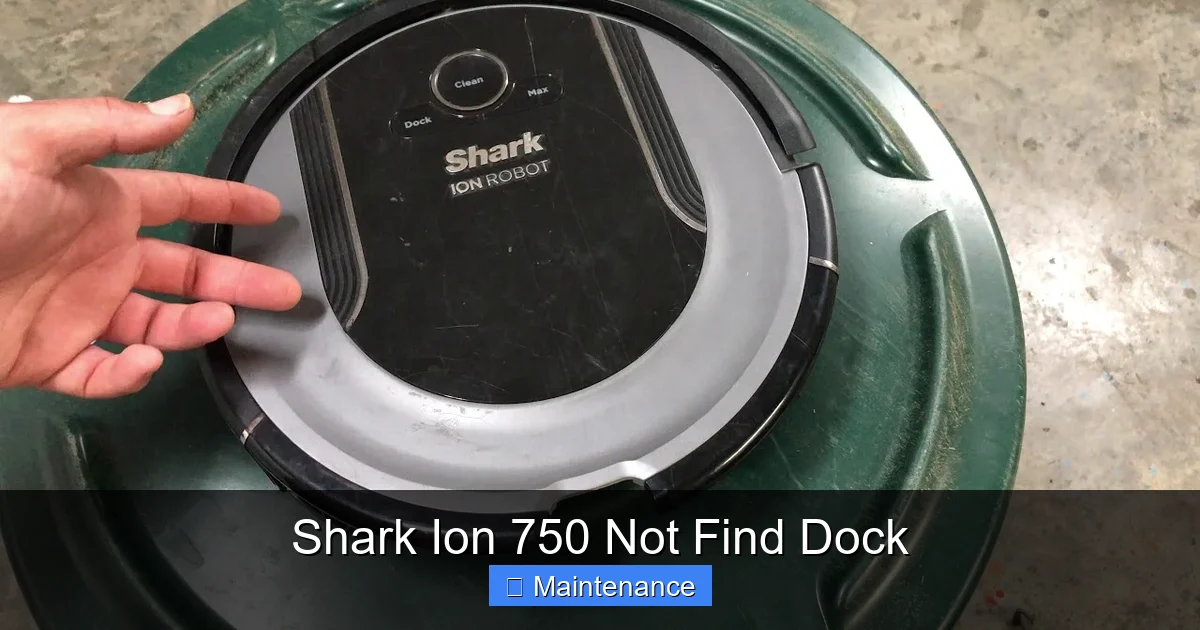
Visual guide about Shark Ion 750 Not Find Dock
Image source: i.ytimg.com
Environmental and Setup Issues
This is the low-hanging fruit and the cause of a huge percentage of docking failures. The Shark Ion 750’s navigation system, while smart, has physical and optical limitations.
- Poor Lighting: The vacuum’s navigation sensors often work best in consistent, moderate lighting. Very dark rooms or harsh, direct sunlight glares can confuse its optical systems, making it difficult to orient itself relative to the dock’s IR beacon.
- Reflective or Dark Floors: Highly polished hardwood, marble, or laminate can reflect the dock’s IR signal in unpredictable ways. Conversely, very dark carpets can absorb the signal. The robot may “see” multiple signal sources or none at all.
- Dock Placement Violations: Shark recommends specific placement rules: against a wall, on a hard surface (not carpet), with at least 1.5 feet of clear space on either side and 5 feet in front. Placing it near furniture, under a table, or in a corner violates this and creates a navigation dead zone.
- Physical Obstructions: A chair leg, a stray shoe, or a charging cable stretched across the path creates a barrier the robot either avoids and gets lost, or bumps and recalibrates incorrectly.
- Dock Signal Interference: Other IR devices (some TV remotes, other robot vacuum docks) or even strong sunlight shining directly on the dock’s IR emitter can drown out its signal.
Dirty or Faulty Sensors
Your Shark Ion 750 is a dust-gathering machine. It’s inevitable that its sensors—the very eyes and ears it uses to find the dock—will get coated in grime.
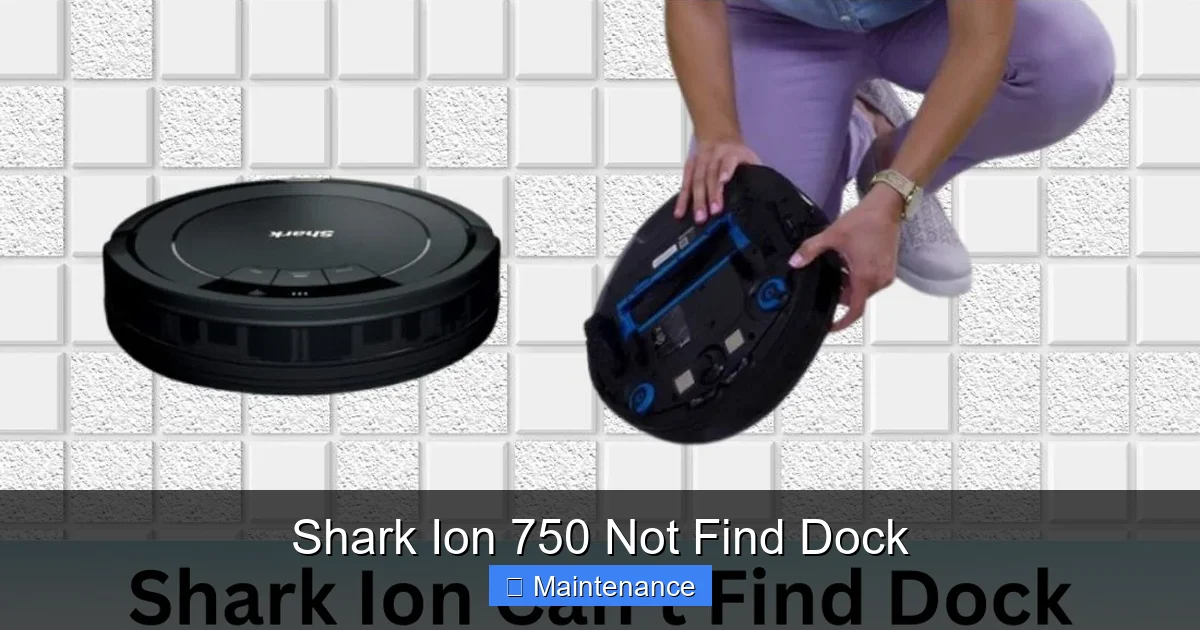
- Cliff/Drop Sensors: These are the black, rectangular sensors on the underside front edge. A layer of dust or a smudge from a sticky floor can make them “think” there’s a cliff, causing the robot to stop or turn away erratically near the dock.
- Bump Sensor: The rubber bumper around the front circumference. If it’s jammed with hair and dust, the robot may not realize it has gently contacted the dock’s guiding walls, failing to complete the final alignment.
- Dock IR Receiver: This is the small, dark sensor window on the robot’s front, typically above the bumper. This is its “ear” for hearing the dock’s beacon. If this is dirty, it literally cannot see the signal.
- Dock IR Emitter: The corresponding light on the dock itself. If this is dusty or physically obstructed (by a pet bed, for example), it’s not broadcasting the homing signal.
Software and Electronic Glitches
Your Shark Ion 750 has a tiny computer inside. Sometimes, it just needs a reboot.
- Navigation Map Corruption: If you use the app’s virtual boundaries or no-go zones, a corrupted map file can confuse the robot’s understanding of where the dock is located relative to its current position.
- Wi-Fi/App Communication Issues: While docking itself is a local, direct IR process, scheduled cleanings and map data come via Wi-Fi. A disrupted connection can cause scheduling errors that affect cycle completion.
- Firmware Bugs: Outdated firmware can have unresolved bugs affecting navigation logic. Shark occasionally releases updates to improve performance and fix known issues.
- Faulty Charging Circuit: If the robot’s internal charging contacts or the dock’s charging pins are dirty or corroded, the robot may physically connect but not establish a charge. It may then abandon the dock, thinking the connection failed.
Hardware and Battery Failure
This is the least common but most serious category. It involves physical component failure.
- Degraded Battery: A battery that no longer holds a full charge may complete a cleaning cycle but have insufficient reserve power to perform the precise, multi-step docking maneuver. It may give up and shut down near the dock.
- Failed Dock IR LED: The tiny light bulb inside the dock that emits the beacon can burn out. The dock will still provide power if a robot is manually placed on it, but it won’t “call” the robot home.
- Damaged Navigation Sensors: A hard impact can physically damage a sensor window or its internal component, rendering it useless.
- Wheel or Motor Issues: If one drive wheel is slipping or a motor is weaker, the robot’s precise turning and alignment during the docking approach can be thrown off, causing it to miss the dock’s guiding ramps.
Step-by-Step Troubleshooting: From Simple to Advanced
Now, let’s put theory into practice. Follow this sequence exactly. Do not jump to step 5 if you haven’t completed steps 1-4. This methodical approach will solve over 90% of “Shark Ion 750 not find dock” problems.
Visual guide about Shark Ion 750 Not Find Dock
Image source: sharkvacuum.blog
Step 1: The 5-Minute Deep Clean & Environment Reset
Grab your microfiber cloth and a can of compressed air (or just blow gently). This is your first and most powerful line of defense.
- Power Down: Turn off the robot using its power button and unplug the charging dock from the wall.
- Clean the Robot: Thoroughly wipe the cliff sensors (underside front), the bump sensor bumper (all the way around), and the IR receiver window (front, above bumper). Use a cotton swab for crevices. Blow out any dust from the wheel wells and main brush housing.
- Clean the Dock: Wipe the IR emitter (the small dark rectangle on the dock’s front face) and the metal charging pins. Ensure they are shiny and free of oxidation or debris. Blow out any dust from inside the dock’s signal cavity.
- Optimize the Environment: Move all chairs, stools, and small furniture at least 3 feet away from the dock’s “landing zone” (the 5-foot space in front). Ensure the dock is on a hard, flat surface, flush against a wall, with nothing blocking its sides. Roll up any rugs or cables in the immediate path. If you have a dark carpet, consider placing a small, contrasting mat (like a light-colored rug) directly in front of the dock to give the robot a visual cue.
- Restore Power: Plug the dock back in, wait 10 seconds, then power on the robot. Place it manually on the dock to ensure it seats and charges. Let it charge to 100%.
Test: Start a cleaning cycle from the app or manually from a different room. Watch it. Does it find the dock? If yes, problem solved! If not, proceed.
Step 2: Reboot and Firmware Update
We’re now addressing the software brain of the operation.
- Full Power Cycle: Remove the robot from the dock. Press and hold the Clean/Power button for 10-15 seconds until you hear a shutdown tone or all lights go off. Wait 30 seconds. Press the button again to restart. This is a hard reset, more thorough than just turning it off and on.
- Dock Reset: Unplug the dock from the wall for 60 seconds. This clears its internal memory. Plug it back in. The LED should blink slowly, indicating it’s ready.
- Update Firmware: Open the SharkClean app. Go to your robot’s settings. Check for any available firmware updates. Install them. This process can take 10-20 minutes with the robot on the dock. Do not interrupt it.
- Re-map if Necessary: If you’ve had major furniture changes or have persistent issues, use the app’s function to delete the current floor map and have the robot create a fresh one. This gives it a clean, accurate mental map of your home with the dock in its correct location.
Test: Run another full cleaning cycle. Observe its path. Does it seem more confident? Does it head purposefully toward the dock’s general area at the end? If it still fails, move on.
Step 3: Manual Docking and Behavior Observation
This step helps you isolate if the issue is with finding the dock or with the physical docking maneuver.
- Manual Placement: With the robot powered on, pick it up and place it exactly on the dock, ensuring the charging contacts align. Does it start charging? The app should show “Charging.” If it doesn’t, the problem is likely with the charging circuit or battery connection.
- The “Follow-Me” Test: Some Shark models have a “Spot Clean” or manual drive mode via the app. If yours does, use it to manually drive the robot from a room directly toward the dock. Watch its behavior from about 6 feet away.
- Does it speed up as it gets closer? (Good sign – it’s detecting the signal).
- Does it slow down, stop, and turn away randomly? (Sign of dirty IR receiver or strong interference).
- Does it bump the dock but not align properly? (Sign of bumper/wheel issue or poor dock alignment).
- Check Battery Indicator: After a full charge, run a short 10-minute cleaning in one room. Stop it and check the battery level in the app. If it’s dropped significantly (e.g., below 70%) for such a short time, your battery is likely failing and needs replacement.
Step 4: Advanced Diagnostics & Reset Procedures
If the basic steps failed, we need to go deeper. These procedures vary slightly by model year.
- Factory Reset (via App): In the SharkClean app, under robot settings, look for “Factory Reset” or “Restore Defaults.” This will erase all maps, schedules, and settings. The robot will need to re-map your home from scratch. This eliminates corrupted map data as the culprit.
- Dock Indicator Light Check: With the dock plugged in and no robot on it, the status light should be a solid blue (or green, depending on model) or a slow, pulsing blue. If it’s off, red, or blinking rapidly, consult the manual—that indicates a dock fault. Try a different wall outlet.
- IR Signal Test (The “Phone Camera” Trick):strong>:> This is a classic IR diagnostic. Point your smartphone’s camera at the dock’s IR emitter (the small dark window). Look at the phone screen. If the emitter is working, you will see a bright purple or white light flickering or glowing steadily on your phone’s screen. If you see nothing, the dock’s IR LED is dead, and the dock needs to be replaced.
Proactive Maintenance to Prevent Future Docking Disasters
Solving the immediate problem is great, but preventing it from happening again is better. Incorporate these habits into your routine.
Visual guide about Shark Ion 750 Not Find Dock
Image source: sharkrobovacuum.com
The Weekly Wipe-Down Ritual
Every time you empty the dustbin, spend 60 seconds wiping down the critical sensors with a dry or slightly damp microfiber cloth. Make it part of your post-cleaning checklist. This is the single most effective maintenance task you can perform.
Quarterly Deep Clean and Inspection
Once every three months, perform a more thorough inspection:
- Use a toothpick or soft brush to gently dislodge any compacted dust from sensor crevices.
- Check the charging pins on both the robot and dock for any green/white corrosion. Clean gently with a pencil eraser or isopropyl alcohol on a cotton swab.
- Spin each wheel by hand. They should rotate freely. Look for tangled hair or string wrapped around the axles.
- Inspect the main brush and side brush for wear. Worn brushes can affect turning precision.
Dock Zone Management
Treat the 5-foot zone in front of your dock as a “clear zone.” Make a habit of not leaving items there. If you have a high-pile rug that the dock sits on, consider a hard plastic mat underneath the dock to create a stable, consistent surface. Ensure the dock is always flush against the wall—even a 1-inch gap can disrupt the robot’s final approach angle.
When to Consider Replacement Parts or Professional Help
After exhausting all troubleshooting, you may be facing a hardware failure. Here’s how to decide your next move.
Common Replacement Parts
Shark sells many parts directly. The most relevant for this issue are:
- Charging Dock: If the IR LED test failed or the dock’s light is dead, you need a new dock. It’s often more cost-effective to buy a new dock (sometimes sold as a “Home Base”) than a whole new robot.
- Battery: If the battery drains too quickly, a replacement battery pack (specific to the Ion 750 model) is the fix. This is a user-replaceable part on most models.
- Sensor Boards: Less common, but if a specific sensor is confirmed dead after cleaning, the motherboard or sensor array may need replacement. This is more complex.
Assessing the Cost-Benefit
Compare the cost of the needed part(s) plus your time to the cost of a new, current-generation robot vacuum. The Shark Ion 750 is an older model. If a new dock and battery will cost $100-$150, it might be time to upgrade to a newer model with better navigation (like the Shark AI Ultra, which uses matrix-based navigation and is less prone to this issue). However, if the part is under $50 and you’re comfortable with basic screwdrivers, repair is very sustainable.
Conclusion: Regaining Your Robotic Harmony
The “Shark Ion 750 not find dock” problem is a nagging interruption to the smart-home convenience you paid for. But as we’ve detailed, it’s almost never a death sentence for your vacuum. The vast majority of these issues stem from a simple, overlooked cause: a dusty sensor or a poorly positioned dock. By adopting a mindset of systematic troubleshooting—starting with the 5-minute clean and environment check, moving through software resets, and finally to hardware diagnostics—you empower yourself to fix the problem quickly and inexpensively. Remember, your robot is a tool that requires a little maintenance. That small investment of time in cleaning its sensors and managing its docking zone pays off in years of reliable, hands-off cleaning. You’ve now got the knowledge to diagnose, fix, and prevent this issue. Put this guide to work, get your Shark Ion 750 reliably docking again, and restore that seamless, automated rhythm to your home cleaning routine.
Frequently Asked Questions
Why does my Shark Ion 750 clean fine but then just stop and not go to the dock?
This typically indicates a failure in the final docking phase. Common causes are dirty IR sensors (on the robot or dock), the dock being placed against a wall or in a corner, or a weak battery that doesn’t have enough power left for the precise docking maneuver. Start by cleaning all sensors and verifying the dock’s placement according to the manual.
I cleaned everything and the dock is positioned perfectly. What else can I try?
Perform a full system reset. Power off the robot, unplug the dock for 60 seconds, and reboot your router. Then, update the robot’s firmware via the SharkClean app. If the problem persists, use your phone’s camera to check if the dock’s IR emitter is actually working. If you see no light on your phone’s screen, the dock’s beacon is dead and needs replacement.
Can a software or map issue cause the “not find dock” problem?
Absolutely. A corrupted navigation map or a bug in the robot’s software can erase its memory of the dock’s location. The solution is to delete the existing map in the app and have the robot perform a fresh, full-home mapping run. Also, always ensure your robot’s firmware is up to date, as updates often fix navigation logic bugs.
How do I know if my Shark Ion 750’s battery is the problem?
A failing battery often shows two symptoms: it doesn’t hold a charge for long (drains in 30-45 minutes of cleaning) and it may have trouble completing the power-intensive docking sequence. Test this by letting the robot charge to 100%, then running a short 10-minute cleaning in one room. If the battery level drops drastically (e.g., to below 50%), the battery is likely at the end of its life and needs replacement.
Is there a way to manually force my Shark Ion 750 to dock?
Yes. On the robot itself, press and hold the “Clean/Power” button for about 3 seconds. This “Return to Dock” command should override the automatic cycle-end return and send the robot directly home. If this manual command also fails, the problem is definitely with the robot’s ability to detect the dock’s signal, pointing strongly to sensor or dock hardware issues.
My dock’s light is on, but the robot still can’t find it. What gives?
The dock’s power light only indicates it has electricity. The crucial IR homing beacon is a separate, often invisible, light. Use the smartphone camera trick to verify the beacon is actually emitting. Also, check for interference: ensure no other IR devices (other robot docks, bright sunlight) are shining on the dock’s emitter. Finally, double-check that the dock is on a hard surface; carpet can absorb and distort the IR signal.