Is your Shark Ion Robot 750 refusing to charge? This is a common but frustrating issue, often caused by dirty charging contacts, a depleted battery, or a simple software glitch. Most problems can be resolved at home with systematic troubleshooting—starting with checking the power source and cleaning the robot’s metal charging pins. If basic steps fail, the issue may involve the battery or internal components, requiring professional support or a part replacement under warranty.
You’ve come home, ready to let your trusty Shark Ion Robot 750 tackle the dust and debris, only to find it sitting dead on its charging base. The blue light isn’t glowing, the app shows it’s not charging, and a wave of frustration hits. Don’t panic yet. A Shark Ion Robot 750 not charging is one of the most frequently reported issues with robotic vacuums, and the good news is that the solution is often something surprisingly simple you can fix yourself in under ten minutes. This guide will walk you through every possible cause, from the obvious to the obscure, and give you a clear, step-by-step action plan to get your little cleaning buddy back in action.
Key Takeaways
- Power Source First: Always verify the outlet, adapter, and charging base are functional before assuming the robot is faulty.
- Clean Contacts are Crucial: Dirty or oxidized charging contacts on both the robot and base are the #1 cause of charging failures.
- Reset and Reboot: A full power cycle (robot and base) resolves many temporary software or sensor errors preventing charge initiation.
- Battery Health Matters: All lithium-ion batteries degrade; a 2-3 year old robot may need a battery replacement if it won’t hold a charge.
- Firmware Can Be the Culprit: Outdated software can cause communication errors between the robot and charging base.
- Physical Damage is a Red Flag: Any impact damage to the robot’s underside or charging pins likely requires professional repair.
- Warranty is Your Friend: The Shark Ion Robot 750 typically has a 1-year warranty; contact Shark Support before attempting complex internal repairs.
📑 Table of Contents
- Understanding the Charging System: How Your Shark Ion Robot 750 is Supposed to Work
- Step-by-Step Diagnostic & Troubleshooting Guide
- When DIY Fixes Fail: Deeper Issues and Repair Pathways
- Maintenance to Prevent Future Charging Problems
- When to Contact Shark Customer Support or a Professional
- The Bottom Line: Don’t Give Up on Your Robot Vacuum
Understanding the Charging System: How Your Shark Ion Robot 750 is Supposed to Work
Before we start poking and prodding, it helps to understand the dance your robot performs every time it needs a recharge. It’s not just a matter of plugging in a phone. The Shark Ion Robot 750 uses an automated charging system with two key components talking to each other: the robot and the charging base.
The Robot’s Role
On the underside of the robot, you’ll find two large, flat metal strips. These are the charging contacts. When the robot navigates onto the base, these contacts must physically touch the corresponding metal probes on the base. But it’s more than a physical connection. The robot’s internal battery management system (BMS) and main control board communicate with the base’s electronics to confirm a proper, safe connection before allowing current to flow for charging.
The Base’s Role
The charging base isn’t just a dumb plug. It has its own small circuit board. Its probes must be clean and springy to make firm contact. It also receives power from the wall adapter and regulates it, sending the correct voltage and current to the robot. A small LED light on the base indicates power. If that light is off, the problem is almost certainly with the power getting to the base.
The Communication Dance
When docked, a brief “handshake” occurs. The robot might emit a tone or the app might show “Docked” or “Charging.” If this handshake fails—due to poor contact, a software bug, or a sensor error—the robot will often back off the base and continue its cleaning cycle until the battery dies, leaving you with a seemingly “not charging” robot. This is why our troubleshooting must address physical connection, power, and software.
Step-by-Step Diagnostic & Troubleshooting Guide
We will move from the simplest, most likely fixes to the more complex. Do not skip steps. A clean contact fixes 60% of these issues.
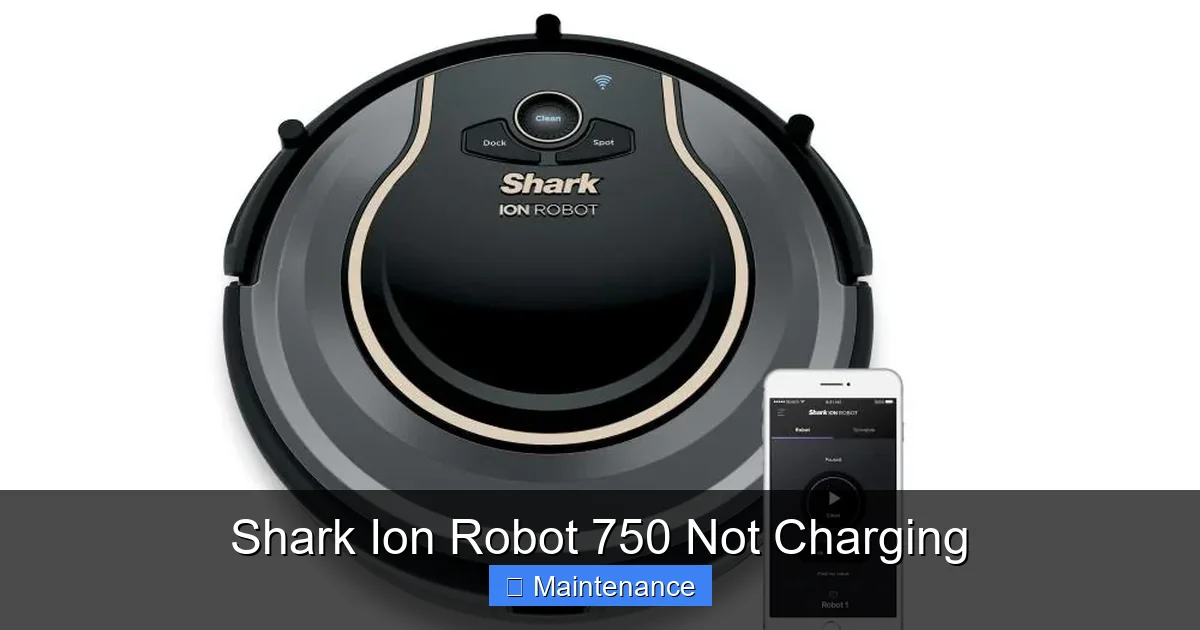
Visual guide about Shark Ion Robot 750 Not Charging
Image source: mobileimages.lowes.com
Step 1: The Absolute Basics – Power and Placement
Action: Confirm the charging base is plugged into a working, non-switched wall outlet. Test the outlet with a lamp or phone charger. Ensure the adapter is firmly plugged into both the wall and the base. Check the base’s power LED—is it on? If not, try a different outlet. Also, ensure the base is placed against a wall on a hard, flat surface, not on carpet, with at least 3 feet of clearance on either side and 5 feet in front, as per the manual.
Why: A loose plug or a tripped GFCI outlet is a classic culprit. The base needs a clear path for the robot to drive straight onto it.
Step 2: The Golden Rule – Deep Clean the Charging Contacts
Action: This is the most important step. Turn the robot over. Locate the two wide metal charging strips on the bottom. Using a dry, lint-free microfiber cloth, gently but firmly wipe each strip 5-6 times. Then, dampen a cotton swab or the corner of your cloth with a tiny amount of isopropyl alcohol (90%+ is best). Wipe the contacts again. The alcohol evaporates quickly and removes oxidation, dust, and conductive grime. Let it dry for 60 seconds. Now, look at the charging base. Clean its two metal probes with the same method—dry cloth first, then alcohol-dampened swab. Ensure the probes are not bent or broken.
Pro Tip: Use a bright flashlight. You should see your reflection clearly on the clean metal. Any film or tarnish will block the connection. Do this cleaning monthly as preventative maintenance.
Step 3: The Manual Dock Test
Action: With the robot powered OFF (hold the CLEAN button for 3+ seconds), manually lift it and place it directly onto the charging base. Align it carefully so the contacts are centered over the base probes. You should feel a slight magnetic pull. Now, press the POWER button on the robot to turn it ON while it’s on the base. Observe. Does a charging light or tone activate? Check the Shark app. Does it immediately show “Charging”?
Why: This bypasses any navigation errors. If it charges manually, the problem is likely with the robot’s docking sensors, navigation, or the base’s location (e.g., too much sun on the base’s front sensor, reflective floor). If it still doesn’t charge when manually placed, the issue is almost certainly with the contacts, power, or the robot’s internal charging circuit.
Step 4: The Full Power Cycle (Reset)
Action: Unplug the charging base from the wall. Remove the robot from the base. Press and hold the CLEAN button on the robot for 10-15 seconds until you hear a beep or see a light pattern (this varies by model year; consult your manual). This performs a soft reset. Place the robot back on the base and plug the base in. Wait 2 minutes. Does charging start?
Advanced Reset: If the soft reset fails, locate the small reset button on the side or bottom of the robot (often a pinhole). With the robot OFF and off the base, use a paperclip to press and hold the reset button for 10 seconds. Then place it on the base. This resets the mainboard to factory defaults (you will need to re-setup Wi-Fi).
Step 5: Check for Obvious Physical Damage
Action: Thoroughly inspect the robot’s underside. Are the charging strips bent, cracked, or pulled away from the plastic housing? Is there any liquid damage, corrosion, or debris caked around the contacts or wheels? Inspect the base probes for bends or breaks. Check the entire length of the power adapter cord for fraying or damage.
Why: Physical trauma is a common cause of failure. A bent contact won’t mate properly. Liquid can short the circuit. A damaged adapter won’t deliver power.
Step 6: Battery Health & Age Assessment
Action: If your robot is 2-3 years old and has been used daily, the lithium-ion battery may be at the end of its life (typical lifespan is 300-500 charge cycles). A dead battery will sometimes accept a tiny trickle of charge (a faint light) but not enough to power on. The app may show 0% indefinitely. The only true test is to try a known-good, compatible replacement battery.
Symptom: The robot runs for 5-10 minutes and dies, even after a night on the base. This is a classic sign of a battery that can no longer hold a charge.
Step 7: Firmware and App Issues
Action: Ensure your Shark app is updated. Go to your phone’s app store. In the app, check for a “Check for Firmware Updates” option in the robot settings. Install any available update. Sometimes, a bug in the firmware can disrupt the charging protocol. An update can fix it. Also, try deleting the robot from the app and re-pairing it from scratch.
Step 8: Isolate the Adapter and Base
Action: If possible, try the charging base and adapter with another compatible Shark Ion Robot (if you know a friend or neighbor with one). Conversely, if you have access to a known-good base/adapter from another model in the same series, try it on your robot. This “swap test” definitively tells you if the fault is with the robot or the base/adapter combo.
When DIY Fixes Fail: Deeper Issues and Repair Pathways
You’ve cleaned, reset, and checked everything. The robot still shows no sign of life on the base. Now we’re looking at potential internal component failures.
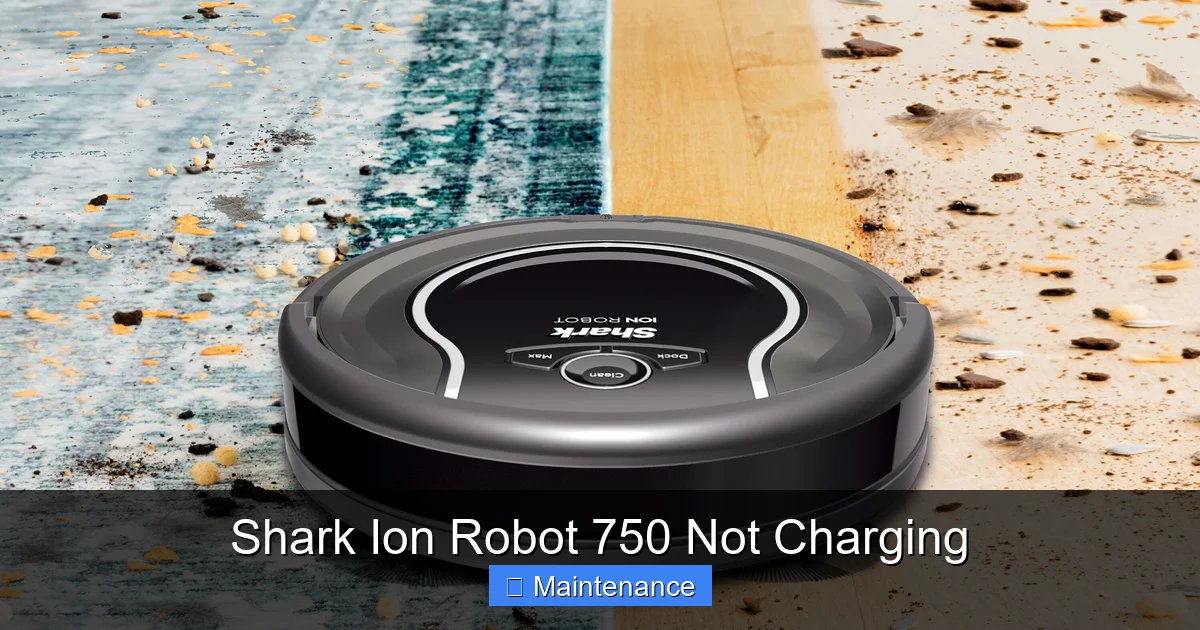
Visual guide about Shark Ion Robot 750 Not Charging
Image source: mobileimages.lowes.com
The Charging Circuit Board
Inside the robot, a small board manages the charging process. A power surge, liquid ingress, or simple component failure can burn out a capacitor or fuse on this board. Symptoms include no lights, no response, and a completely dead robot even when sitting on a confirmed working base. Diagnosis requires a multimeter and electronics skill. Repair involves soldering a new board or component, which is not for the average user.
The Main Control Board
This is the robot’s brain. A fault here can disrupt the communication handshake with the base. Symptoms might include erratic behavior, failure to start charging even with clean contacts, or app connectivity issues alongside charging problems. This is a more complex and expensive repair.
The Battery (The Most Common Replaceable Part)
As mentioned, batteries wear out. If your robot is out of warranty and the battery is the suspected culprit, replacement is the most cost-effective fix. Shark sells official replacement batteries. Third-party options exist but vary in quality. Replacing the battery typically involves removing the bottom cover (several screws), disconnecting the old battery plug, and installing the new one. It’s a moderate DIY task if you’re comfortable with basic electronics.
Maintenance to Prevent Future Charging Problems
An ounce of prevention is worth a pound of cure. Incorporate these habits to keep your Shark Ion Robot 750 charging reliably for years.
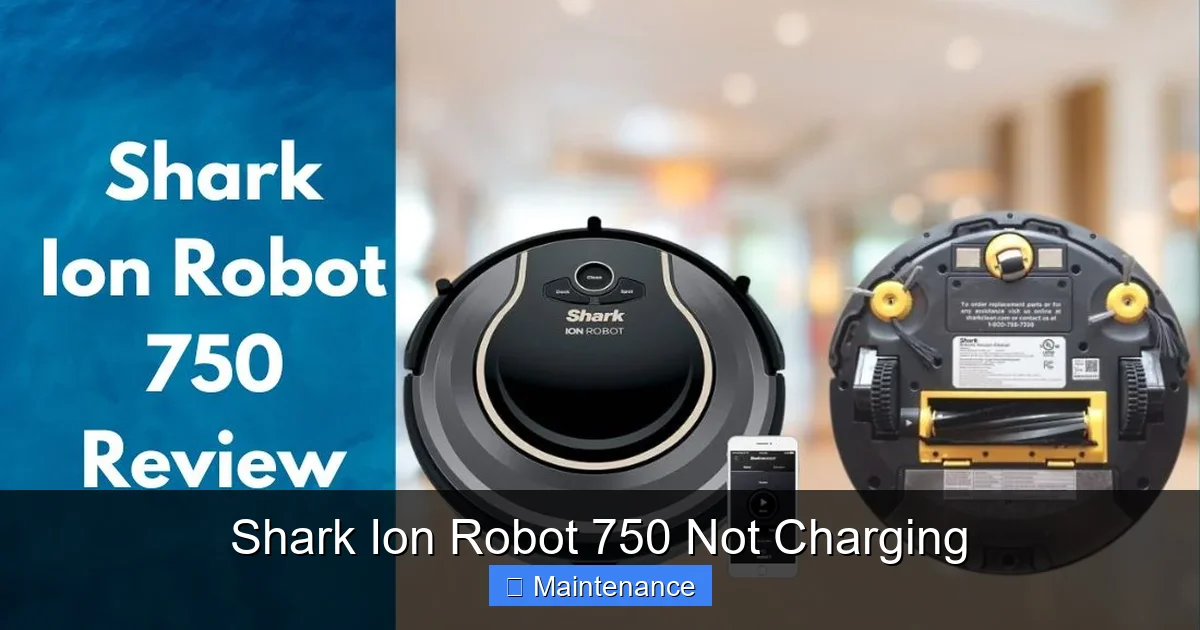
Visual guide about Shark Ion Robot 750 Not Charging
Image source: sharkvacuum.blog
Establish a Cleaning Routine
Once a month, or more often if you have pets, perform the contact cleaning ritual described in Step 2. Use a soft brush (like a clean paintbrush) to sweep debris out of the robot’s wheel wells and around the contact area. A clogged wheel can cause the robot to sit at a slight angle on the base, preventing proper contact.
Optimal Base Placement & Environment
Never place the base on a thick rug or carpet. The base must sit perfectly level. Direct sunlight on the base’s front sensor can confuse the robot. Keep the area around the base clear. Avoid placing the base near large metal objects or other electrical devices that can cause interference.
Battery Care Best Practices
Avoid constantly deep-discharging the battery. It’s better for lithium-ion cells to stay between 20% and 80%. Let the robot return to the base for a top-up during its cycle. If you won’t use the robot for a month or more, store it with a ~50% charge in a cool, dry place. Do not store it on the base constantly; this can stress the battery.
Keep Firmware Current
Enable automatic updates in the Shark app if available. Manufacturers often release updates that improve battery management and docking algorithms.
When to Contact Shark Customer Support or a Professional
You’ve exhausted the steps in Section 2 and the deep dive in Section 3. It’s time to seek help.
Under Warranty? Contact Shark First.
Do not open the robot yourself if it’s under the manufacturer’s warranty (usually 1 year from purchase). Opening it can void the warranty. Contact Shark Support through their website or phone. Be ready with your serial number (on the underside) and a clear description of the troubleshooting you’ve already performed. They may issue an RMA for a repair or replacement.
Out of Warranty? Weigh Your Options.
Get a quote for an official repair from Shark. Compare this to the cost of a new, current-model robot. Sometimes, for an older model, replacement is more economical. If you’re technically skilled, purchasing a replacement battery or charging board from a reputable parts supplier and following a YouTube teardown guide for your specific model number (e.g., RV750, RV751) can save money.
Seek a Local Electronics Repair Shop
Find a shop that specializes in small appliances or IoT devices. They may have the skill to diagnose a faulty charging circuit for less than Shark’s flat-rate repair fee. Call ahead and explain the problem.
The Bottom Line: Don’t Give Up on Your Robot Vacuum
A Shark Ion Robot 750 not charging is a significant inconvenience, but it is rarely an unrecoverable death sentence for your device. The vast majority of cases stem from the simple, fixable problem of dirty charging contacts. By methodically working through the diagnostic flowchart—from power source to contacts to reset to battery health—you empower yourself to solve the problem without cost or delay. Remember to treat your robot’s charging system with the same care you would your smartphone’s port: keep it clean, ensure a solid connection, and don’t let the battery languish at 0%. With a little regular attention, your Shark Ion Robot 750 should provide years of reliable, hands-off cleaning, returning faithfully to its base to recharge and tackle the next mess. If all else fails, know your warranty rights and don’t be afraid to ask for help from the manufacturer.
Frequently Asked Questions
Why is my Shark robot vacuum not charging even when it’s on the dock?
The most common reason is dirty charging contacts on both the robot and the dock. Clean them thoroughly with a dry cloth, then a cotton swab lightly dampened with isopropyl alcohol. Also, ensure the robot is centered and sitting flat on the dock.
Can I replace the battery in my Shark Ion Robot 750 myself?
Yes, you can. It requires removing the bottom cover screws and disconnecting the old battery plug. Shark sells official replacement batteries. If your robot is under warranty, contact Shark first, as opening it may void the warranty.
What does a flashing light on my Shark charging base mean?
Consult your specific model’s manual, as light patterns vary. Generally, a solid blue light on the base means it has power. A flashing light often indicates an error, such as a communication fault with the robot, a full battery, or a base malfunction. A manual reset of both devices is the first step.
How do I know if my Shark Ion Robot 750 battery is bad?
>Key signs include: the robot runs for only 5-10 minutes, it won’t turn on after sitting on the charger for hours, or the app shows 0% indefinitely. A battery that is 2-3 years old and used daily is likely at the end of its life.
My robot was working fine, then suddenly stopped charging. What happened?
A sudden failure often points to a software glitch (try a full reset) or a physical event like a small amount of liquid spillage or a bump that damaged a contact or internal component. Review recent events in the cleaning area.
Is it worth fixing an old Shark Ion Robot 750 that won’t charge?
If the robot is more than 3-4 years old, compare the cost of a battery replacement or repair quote to the price of a new entry-level robot. For a 2-3 year old unit with a known-good battery issue, replacement is often worthwhile. For complex internal board failures, replacement may be more cost-effective.