Is your Shark RV850 robot vacuum failing to dock or return to its base? This frustrating issue is usually caused by something simple like dirty sensors, software glitches, or physical obstructions. You can often fix it yourself with systematic troubleshooting, starting with a full clean of the vacuum and dock. Addressing the “Shark RV850 not going to dock” problem quickly is key to ensuring your vacuum recharges and is ready for its next cleaning cycle.
Key Takeaways
- Cleanliness is Critical: The #1 cause is dirty docking pins, sensors, or floor around the base. A simple clean often resolves the issue.
- Check the Environment: Ensure the dock is on a hard, level surface against a wall with clear space around it. No rugs, clutter, or direct sunlight.
- Software Needs a Refresh: Power cycle both the robot and the dock. A firmware update via the Shark app can fix known docking bugs.
- Physical Obstructions Stop Docking: Check for stuck side brushes, tangled wheels, or debris in the vacuum’s front bumper/contact area.
- Signal Issues Occur: The robot uses infrared signals to find the dock. Ensure the dock’s IR emitters aren’t blocked and the robot’s receiver is clean.
- Battery Health Matters: An old or failing battery may not have enough power to complete the docking maneuver. Check battery health in the app.
- Manual Re-docking Can Re-Calibrate: Physically placing the robot on the dock for 10+ seconds can sometimes reset its internal “home” memory.
📑 Table of Contents
- Understanding the Docking Process: How Your Shark RV850 Finds Home
- Most Common Reasons Your Shark RV850 Won’t Dock
- Step-by-Step Troubleshooting Guide for a Shark RV850 Not Docking
- Preventive Maintenance: Keeping Your Shark RV850 Docking Reliably
- When to Consider Professional Help or Replacement Parts
- Conclusion: Getting Your Clean Home Back on Track
Understanding the Docking Process: How Your Shark RV850 Finds Home
Before we dive into the “why” of a Shark RV850 not going to dock, let’s quickly understand the “how.” Your Shark RV850 isn’t just randomly bumping around hoping to find its base. It uses a sophisticated, multi-step process to navigate home. First, the robot’s navigation system (using its camera and sensors) knows the general layout of your home and the dock’s location. As it finishes cleaning or its battery gets low, it initiates a “return to dock” routine.
As it approaches the general area, it switches to a more precise mode. The dock itself emits infrared (IR) signals, like a lighthouse beacon. The robot’s front bumper has an IR receiver that looks for this specific signal. Once it locks onto the signal, it steers directly toward the dock. Finally, the physical connection happens. The robot’s front charging contacts (two metal pins) must align perfectly with the charging springs on the dock. A small physical bump often helps seat them. If any single step in this chain fails—navigation, signal acquisition, or physical contact—the docking attempt aborts, leaving your Shark RV850 not going to dock and stranded away from its charging station.
The Role of the Navigation System
The RV850 uses Shark’s “Matrix” navigation, which creates a visual map. If the robot’s initial map is incomplete or if it’s cleaning in a new, unfamiliar area without a good “home” reference point, it might struggle to find the dock. This is less common than sensor issues but can happen after a major furniture rearrangement or if the robot has been carried to a different floor level without being manually placed on the dock first to reset its “home” location.
Most Common Reasons Your Shark RV850 Won’t Dock
When faced with a Shark RV850 not going to dock, the culprit is almost always one of a few common, fixable problems. Think of it like a detective story: you start with the most frequent suspects.
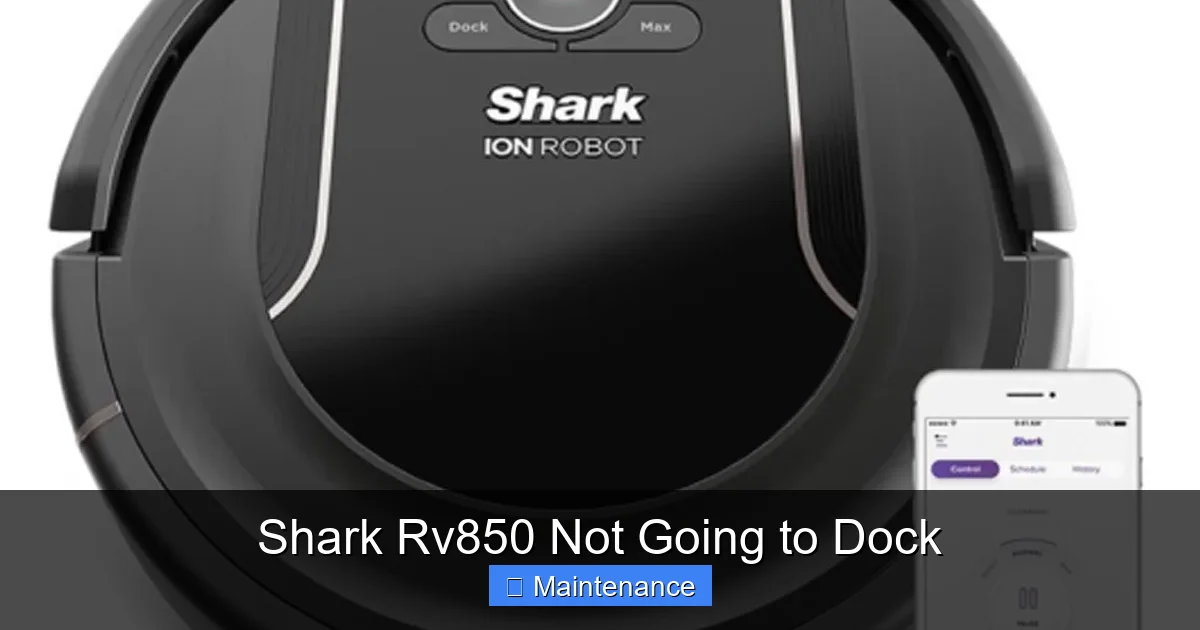
Visual guide about Shark Rv850 Not Going to Dock
Image source: socalrobotrepair.com
1. Dirty Sensors and Charging Contacts
This is the undisputed champion of docking failures. The tiny IR emitter on the dock and the IR receiver on the robot’s front bumper get coated with dust, pet hair, and carpet fibers. Similarly, the metal charging pins on both the robot and the dock develop a thin layer of oxidation or grime. This creates an insulating layer that prevents a solid electrical connection. The robot might physically bump the dock but fail to “see” the signal or establish a charge, so it backs away and tries again, eventually giving up.
Practical Tip: Use a dry, lint-free microfiber cloth. Gently wipe the IR window on the robot’s front (it’s a small, dark plastic rectangle) and the corresponding IR lights on the dock (usually two small red/clear lenses). For the metal charging pins, a cloth moistened with a tiny drop of isopropyl alcohol (90%+) works wonders to cut through oxidation. Dry thoroughly.
2. Environmental and Placement Issues
The dock’s location is non-negotiable for reliable docking. The Shark RV850 needs a clear, hard-surface runway to approach. If the dock is on a thick rug, the robot’s wheels can slip, throwing off its final alignment. If there’s a chair leg, a shoe, or a power cord directly in front of the dock within a 3-foot radius, the robot will collide with it and abort. The dock must be perfectly level and firmly against a wall. Even a slight tilt can cause the robot to slide off during the final contact.
Practical Example: Imagine trying to parallel park with a cone right in front of the spot. Your robot is no different. Clear a 3×3 foot zone in front of and around the dock. Ensure the floor is bare (no bath mats, welcome mats). The dock’s back should be flush with the wall, and the front should point into an open room.
3. Software Glitches and Firmware Bugs
Like your smartphone, your Shark RV850 runs on software. Occasionally, a temporary bug can disrupt the docking routine. The robot’s internal map might get corrupted, or a communication error between the robot and the dock’s internal transmitter can occur. This is a classic “turn it off and on again” scenario. Furthermore, Shark occasionally releases firmware updates through the Shark app that specifically address docking logic and reliability issues. Running an outdated firmware can leave you with a known, unfixed problem.
Actionable Step: Before anything else, perform a full power cycle. Pick up the robot, hold the power button for 10 seconds to force a shutdown. Unplug the dock from the wall for 30 seconds. Plug the dock back in, wait for its indicator light to become solid (usually blue/white), then power the robot back on. Then, open the Shark app and check for any available firmware updates for your specific model (RV850). Install them.
4. Mechanical Obstructions and Wear
If something is physically preventing the robot from getting close to the dock or aligning properly, it will fail. Check the side brushes—are they tangled with hair, causing the robot to pull to one side? Are the main drive wheels gunked up with debris, reducing traction? Is the front caster wheel (the small ball wheel) stuck or covered in fuzz? Most importantly, inspect the entire front bumper. A piece of string or a rubber band can get wrapped around the axle behind the bumper, effectively making the robot wider and causing it to hit the dock askew. Also, check for cracks or damage to the plastic charging contacts on the robot itself.
5. Battery Degradation
This is a more gradual issue. Robot vacuum batteries, like all lithium-ion batteries, lose capacity over time (typically 2-3 years of regular use). A weak battery might have just enough juice to finish a cleaning job but not enough power for the final, precise docking maneuver, which requires a burst of energy for steering and the physical bump. If your robot’s runtime has significantly decreased and it now often dies mid-clean or struggles with docking, the battery is a likely suspect. The Shark app sometimes provides a battery health indicator.
Step-by-Step Troubleshooting Guide for a Shark RV850 Not Docking
Now, let’s get systematic. Follow these steps in order. Most users solve the problem by Step 3.
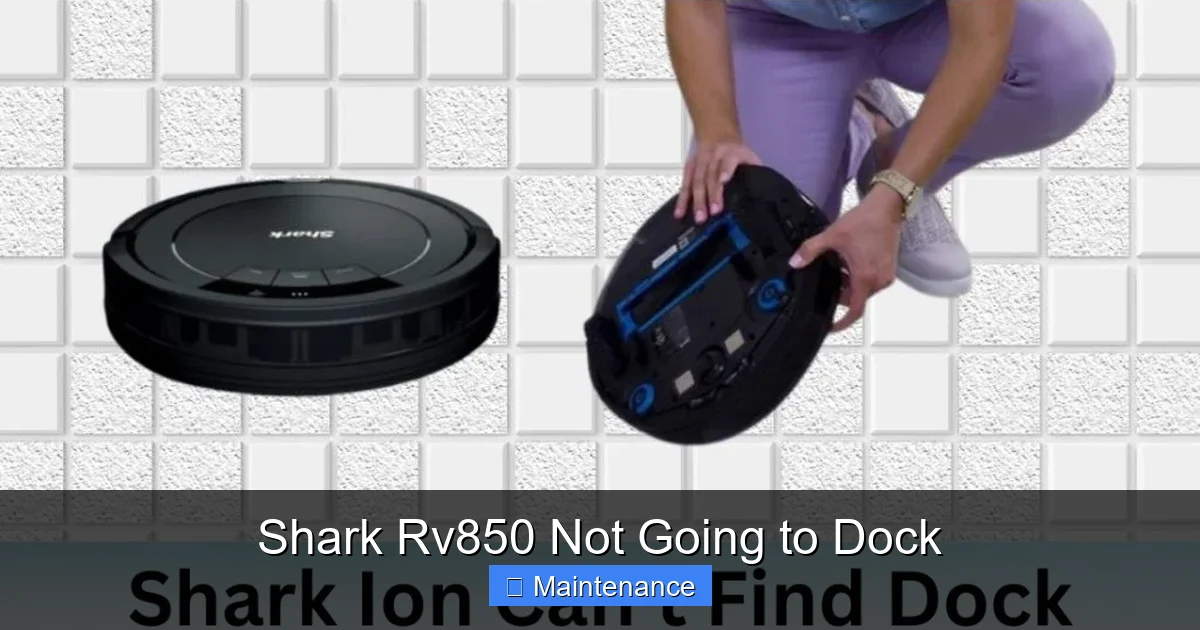
Visual guide about Shark Rv850 Not Going to Dock
Image source: sharkvacuum.blog
Step 1: The Deep Clean (Physical & Environmental)
This is your foundation. You cannot skip this.
- Dock & Robot Contacts: With the dock unplugged, clean its charging springs with a dry cloth, then a cloth with a drop of isopropyl alcohol. Dry. Clean the robot’s two metal charging pins on its underside front the same way.
- Sensors: Clean the IR window on the robot’s front (above the wheels) and the IR lenses on the dock with a dry microfiber cloth. Do not spray liquid directly onto these components.
- Robot Wheels & Brushes: Remove the side brushes and clear all hair from the axles and brushes. Remove the main roller brush and clean its ends. Pick up the robot and spin all three wheels (two drive, one caster) to ensure they move freely. Clear any debris from wheel wells.
- Front Bumper: Push the bumper in on all sides to ensure it clicks and moves freely. Look for any debris trapped behind it. Use compressed air to blow out any dust from the gap between the bumper and the robot body.
- Dock Area: Clear a 3-foot radius in front of and around the dock. Move any rugs, cords, or furniture. Ensure the floor is bare and the dock is level against a solid wall.
Step 2: The Power Cycle & Software Reset
After cleaning, reset the system’s brain.
- Unplug the dock from the wall outlet.
- Pick up the robot. Hold the Power button for 10 seconds until it shuts off completely.
- Wait 60 seconds.
- Plug the dock back in. Wait for its status light to become a solid blue or white (not blinking). This indicates it’s powered and ready.
- Place the robot directly onto the dock, aligning the charging pins. Press the power button to turn it on. Let it sit on the dock for at least 10 seconds. You should see a charging light (often orange/red) on the robot or a solid light on the dock.
- Open the Shark app. Go to Settings > Robot Settings > Check for Updates. Install any firmware update available.
Step 3: Manual Re-Docking & Re-Learning
Sometimes the robot’s internal “home” memory gets confused.
- With the robot powered on and the dock powered and ready, physically pick up the robot and place it directly on the dock, ensuring the pins are seated.
- Press the Clean/Power button on the robot once while it’s on the dock. This often triggers a “dock confirmed” signal.
- In the Shark app, look for an option like “Set Dock Location” or “Re-Locate Base.” Some models require you to manually guide the robot off the dock and back on to re-calibrate. Follow the in-app instructions for your specific RV850 model.
- Start a new, short cleaning cycle (e.g., a single room). Let it run for 5 minutes, then manually send the “Return to Dock” command from the app. Watch it closely.
Step 4: Advanced Checks & Diagnostics
If the problem persists, dig deeper.
- Battery Test: Run a full clean on a medium-sized room without letting it dock. If it dies before finishing or shows very low battery in the app, the battery is likely failing. Shark offers replacement battery kits.
- Check for Error Messages: The robot’s indicator light or the app may show a specific error code (like E1, E2, etc.). Consult your manual’s error code section. A docking-related error might point directly to a sensor or communication fault.
- Test without the App: Use only the physical buttons on the robot. Press the “Home” or “Dock” button (if it has one) to see if it can dock without app interference, ruling out a phone/app connectivity issue.
- Inspect for Physical Damage: Look closely at the plastic housing around the front charging contacts on the robot. Any cracks or warping can prevent proper alignment with the dock’s springs.
Preventive Maintenance: Keeping Your Shark RV850 Docking Reliably
An ounce of prevention is worth a pound of cure. Integrate these quick habits into your monthly maintenance routine to avoid the “Shark RV850 not going to dock” nightmare.
Visual guide about Shark Rv850 Not Going to Dock
Image source: sharkvacuum.blog
Establish a Weekly Wipe-Down Routine
Every week, after emptying the dustbin, take 60 seconds to:
- Wipe the robot’s charging pins and front IR sensor with a dry microfiber cloth.
- Wipe the dock’s charging springs and IR lenses with a dry cloth.
- Use a soft brush (an old toothbrush works) to sweep debris from the wheel wells and around the front bumper cavity.
Monthly Deep Clean & Inspection
Once a month, perform a more thorough maintenance:
- Remove and clean side brushes and the main roller brush thoroughly.
- Check the caster wheel for hair and ensure it spins freely.
- Inspect the entire dock area. Move the dock and clean the floor beneath it. Sometimes a sticky floor residue can prevent the dock from sitting level.
- Check the dock’s power cable. Ensure it’s not frayed and the connection is secure at both the wall and the dock.
Smart Dock Placement Rules
When setting up or moving your dock, follow these golden rules:
- Surface: Always place on a hard, smooth floor (tile, hardwood, laminate). Never on a thick pile rug.
- Orientation: The front of the dock must have at least 3-4 feet of clear, open space. No furniture within this “approach corridor.”
- Wall: Place it against a solid, straight wall. Avoid placing it near baseboard heaters or large furniture that might create a “dead zone” for navigation.
- Lighting: Avoid direct, bright sunlight hitting the dock’s IR sensors, as this can interfere with the signal.
When to Consider Professional Help or Replacement Parts
You’ve cleaned meticulously, power-cycled repeatedly, updated firmware, and checked for obstructions. The Shark RV850 is still not going to dock. Now what?
Diagnosing a Faulty Dock or IR System
The infrared communication system has two parts: the emitter (on the dock) and the receiver (on the robot). To test:
- In a darkened room, look at the front of the dock. You might see faint pulses of light from the IR LEDs when the dock is powered and waiting for a robot. If you see no light, the dock’s IR board may be dead.
- Point your smartphone’s camera at the dock’s IR lens. Some phone cameras can see IR light as a faint purple/white glow. If you see a glow through the phone’s screen, the dock is emitting a signal.
- If the dock is emitting but the robot never responds, the robot’s IR receiver may be faulty. This is a more complex internal repair.
Battery Replacement: A Common Fix for Older Units
If your RV850 is over 2 years old and exhibits poor runtime *and* docking issues, the battery is the prime suspect. Replacing the battery is a straightforward DIY job for most users. Shark sells official replacement battery kits (part number varies by model). You’ll need a Phillips screwdriver. Search for “Shark RV850 battery replacement” for model-specific video guides. A new battery will restore full power for both cleaning and the docking maneuver.
Contacting Shark Support & Warranty
If your robot is still under the limited warranty (typically 1-3 years depending on purchase date), contact Shark Customer Support. Have your serial number (on the underside of the robot) ready. They may offer to replace a faulty dock or robot under warranty. Be prepared to detail all the troubleshooting steps you’ve already taken. If out of warranty, they can still sell you a replacement dock or battery, which is often more cost-effective than a new robot.
Conclusion: Getting Your Clean Home Back on Track
Dealing with a Shark RV850 not going to dock is incredibly frustrating because it breaks the core promise of a “set-and-forget” clean. But as we’ve seen, the solution is almost always within your grasp. The vast majority of cases boil down to dirty sensors, a cluttered dock zone, or a simple software hiccup. By adopting a methodical approach—starting with a thorough physical clean, then a full system reset, and finally checking firmware and battery health—you can diagnose and fix the problem yourself in under 30 minutes.
The key is to treat your robot and its dock like any other precision tool: keep them clean, give them a clear space to work, and keep their software updated. Incorporate those quick weekly wipe-downs into your routine. A well-maintained Shark RV850 will dock reliably for years, faithfully returning to charge after every job. If you’ve exhausted all these steps and the problem persists, a battery replacement or a call to Shark Support is your logical next step. Don’t give up—your spotless floors are waiting to be achieved, and your trusty robot just needs a little help finding its way home.
Frequently Asked Questions
Why does my Shark RV850 keep running but not docking?
This usually means it’s failing the final alignment or signal lock. The most common causes are dirty charging contacts/sensors on the robot or dock, or physical obstructions (like a rug or clutter) in the docking path preventing a solid connection.
How do I force my Shark RV850 to dock manually?
Physically pick up the robot and place it directly onto the dock, aligning the metal pins with the springs. Press the power button once while it’s seated. This manually confirms the dock connection and should start charging. You can also use the “Return to Dock” button in the Shark app.
Can I reset the docking sensor on my Shark RV850?
There’s no single “sensor reset” button. The equivalent is a full system reset: power off the robot, unplug the dock for 60 seconds, then plug it back in and power the robot on. Placing it manually on the dock afterward helps re-calibrate the home position.
Why does my Shark vacuum bump the dock and then back away?
This indicates it found the dock physically but failed to establish an electrical charge. The metal charging pins on either the robot or the dock are likely dirty or oxidized, creating a poor connection. Clean both sets of metal contacts thoroughly with a dry cloth, and optionally a tiny drop of isopropyl alcohol.
Is there a way to recalibrate the dock position?
Yes. The best method is to place the robot manually on the dock for 10+ seconds. Then, in the Shark app, use any “Re-Locate Base” or “Set Dock Location” function if available. You can also start a cleaning job, let it run for a few minutes, and then manually command it to return to dock to help it re-learn the approach path.
Could a firmware update fix my docking problem?
Absolutely. Shark periodically releases updates that improve navigation and docking logic. Always check the Shark app’s Settings > Robot Settings for any available firmware updates when troubleshooting docking issues. Installing an update can resolve known software bugs that cause docking failures.