Resetting your Shark IQ RV1001AE robot vacuum is a powerful troubleshooting step for connectivity errors, cleaning glitches, or mapping problems. This guide covers four essential reset types: a simple soft reset (reboot), a more thorough hard reset (factory reset), a dedicated Wi-Fi module reset, and a map data reset. Always start with the least invasive soft reset before escalating to factory resets, which erase all schedules and maps. Following these precise steps can restore your vacuum’s performance without needing professional service.
Key Takeaways
- Soft Reset First: Always attempt a simple power cycle (soft reset) before any other reset type, as it resolves temporary software hiccups without losing your saved maps or schedules.
- Factory Reset Erases Everything: A hard reset (factory reset) will permanently delete all cleaning schedules, robot preferences, and stored maps, requiring a full setup from scratch.
- Wi-Fi Reset is Targeted: If your only issue is connectivity to the Shark app or smart home systems, perform the specific Wi-Fi reset procedure to clear network credentials without affecting other data.
- Map Reset for Navigation Issues: Use the map reset function within the Shark app if your robot is getting lost, creating messy maps, or misbehaving in specific areas; this clears saved floor plans.
- Physical Buttons are Key: Most reset procedures require interacting with the physical buttons on the robot itself (Power, Dock, Clean/Pause), not just the app.
- Re-setup is Required After Resets: After any reset beyond a soft reboot, you must reconnect the robot to your Wi-Fi network and reconfigure it via the SharkClean app.
- Consult the Manual: Keep your physical user manual handy, as button sequences and indicator light meanings are your primary guides during the reset process.
📑 Table of Contents
- Introduction: Why Your Shark IQ RV1001AE Might Need a Reset
- Understanding the Different Types of Resets for Your Shark IQ RV1001AE
- How to Perform a Soft Reset (Power Cycle) on the Shark IQ RV1001AE
- How to Perform a Hard Reset (Factory Reset) on the Shark IQ RV1001AE
- How to Perform a Wi-Fi Reset on the Shark IQ RV1001AE
- How to Reset the Map Data on the Shark IQ RV1001AE
- When to Contact Shark Support: Beyond Basic Resets
- Conclusion: Mastering Your Shark IQ RV1001AE’s Reset Functions
Introduction: Why Your Shark IQ RV1001AE Might Need a Reset
Let’s be real: your Shark IQ RV1001AE is a marvel of modern cleaning tech. It zips around your home, dodging obstacles, emptying its own dustbin (if you have the base), and mapping your floors with impressive accuracy. But sometimes, even the smartest robots have off days. Maybe it’s refusing to connect to your Wi-Fi, spinning in circles, ignoring its schedule, or the app shows it’s “offline” for no clear reason. Before you panic or call customer support, the most effective first-aid is often a simple reset.
Understanding how to reset your Shark IQ RV1001ae is a fundamental skill for any owner. Think of it like restarting your computer or phone when it’s acting sluggish. A reset clears temporary software glitches, refreshes network connections, and can restore the robot to a responsive state. However, not all resets are created equal. There’s a hierarchy of interventions, from a gentle nudge to a full system wipe. This guide will walk you through every type of reset for the Shark IQ RV1001AE, explaining exactly when to use each one and what data you’ll lose. We’ll break it down into clear, actionable steps so you can confidently troubleshoot and get your robotic helper back on track.
Understanding the Different Types of Resets for Your Shark IQ RV1001AE
Before you start pressing buttons, it’s crucial to understand that “resetting” your Shark IQ RV1001AE isn’t a one-size-fits-all action. Using the wrong reset can mean unnecessary work, like having to remap your entire home. The main reset types fall into four categories, each with a specific purpose and consequence.
Visual guide about How to Reset Shark Iq Rv1001ae
Image source: tffn.net
The Soft Reset (Power Cycle)
The soft reset is your go-to, first-line defense. It’s the equivalent of turning your robot off and back on again. This process simply reboots the robot’s internal computer and motor systems. It does NOT delete your cleaning schedules, saved maps, Wi-Fi credentials, or any personal settings. It’s perfect for minor issues: the robot is unresponsive, it’s not starting a scheduled clean, or it got stuck in a weird loop. Think of it as giving your robot a quick nap.
The Hard Reset (Factory Reset)
This is the nuclear option. A hard reset, or factory reset, returns the Shark IQ RV1001AE to its original “out-of-the-box” state. It will permanently erase all user data: every cleaning schedule you’ve set, every no-go zone or virtual wall you’ve created, and the entire stored map of your home. After a factory reset, the robot forgets everything and must be set up as if it’s brand new, including connecting to your Wi-Fi and running a new mapping run. Use this only when the robot is experiencing persistent, serious software issues that a soft reset didn’t fix, or if you’re planning to sell or give away the device and need to wipe your personal data.
The Wi-Fi Reset
Sometimes, the problem is isolated purely to connectivity. Your robot might clean fine manually but won’t respond to app commands or integrate with Alexa/Google. In this case, you don’t need a full factory reset. The Wi-Fi reset procedure specifically clears the robot’s stored network credentials (your SSID and password) without touching cleaning schedules or maps. After this reset, the robot will broadcast its own Wi-Fi network (like “Shark-XXXX”) for you to connect to and re-enter your home network details. This is a targeted fix for “offline” errors in the app.
The Map Reset (via App)
If your robot’s navigation has gone haywire—creating fragmented maps, repeatedly missing areas, or getting confused about where it is—the map data itself might be corrupted. The SharkClean app includes a function to delete the current stored map. This does not reset the robot’s internal software or schedules; it simply tells the robot to forget the layout it has saved. The next time you send it out to clean, it will create a fresh, new map from scratch. This is a great middle-ground step before resorting to a full factory reset.
How to Perform a Soft Reset (Power Cycle) on the Shark IQ RV1001AE
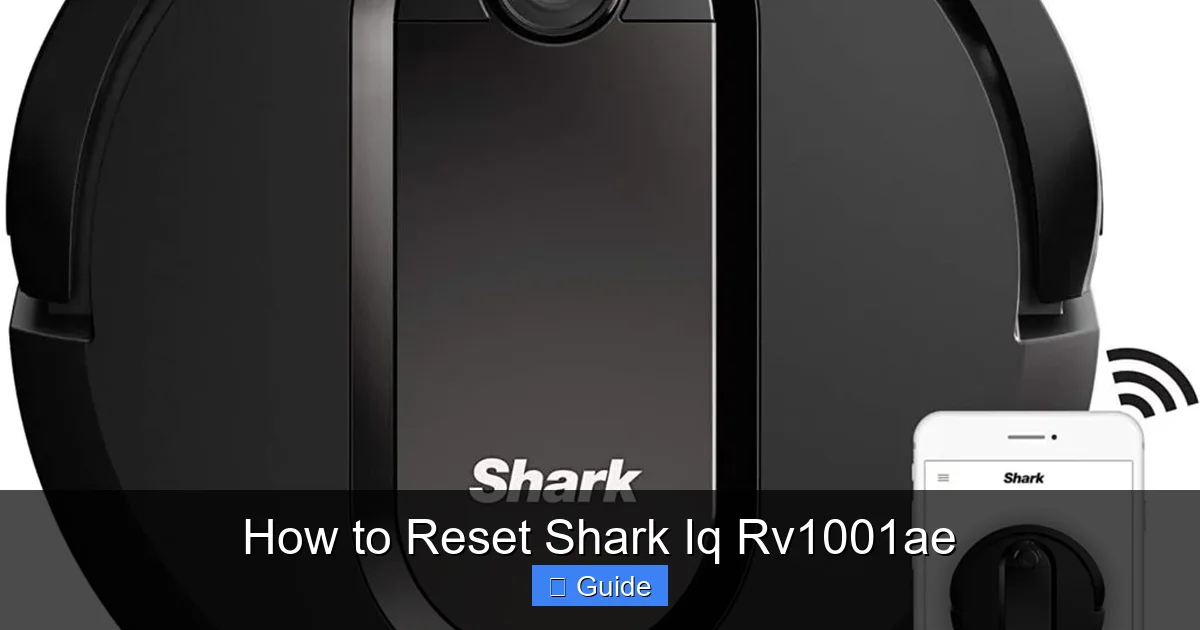
A soft reset is safe, fast, and the first thing you should try for almost any odd behavior. It clears the robot’s temporary memory (RAM) and restarts its operating system, which can iron out minor bugs. Here’s exactly how to do it.
Visual guide about How to Reset Shark Iq Rv1001ae
Image source: socalrobotrepair.com
Step-by-Step Soft Reset Procedure
You will need your Shark IQ RV1001AE robot and its charging dock.
- Ensure the Robot is Powered On: The robot should be on its dock or on the floor with its power button illuminated (white light).
- Locate the Power Button: Find the physical power button on the top of the robot, near the Shark logo. It’s a circular button.
- Press and Hold: Press and hold the Power button for approximately 10 seconds. You will see the indicator light on the robot turn off.
- Release and Wait: Release the button. The robot is now off. Wait about 10-15 seconds.
- Power On: Press the Power button once briefly to turn the robot back on. The indicator light should illuminate (it may be white or breathing blue as it connects).
- Reconnect if Needed: Place the robot on its dock to charge. If the app shows it as offline, you may need to wait a minute or two for it to reconnect to your Wi-Fi automatically after the reboot.
Pro Tip: If the robot is stuck on the dock and unresponsive, first remove it from the dock, place it on the floor, and then perform the soft reset steps above.
When to Use a Soft Reset
- The robot is unresponsive to button presses or app commands.
- Scheduled cleanings are not starting.
- The robot completed a clean but the app doesn’t show the history or map update.
- Minor connectivity drops between the robot and the app.
- After a firmware update (some updates require a reboot to fully install).
How to Perform a Hard Reset (Factory Reset) on the Shark IQ RV1001AE
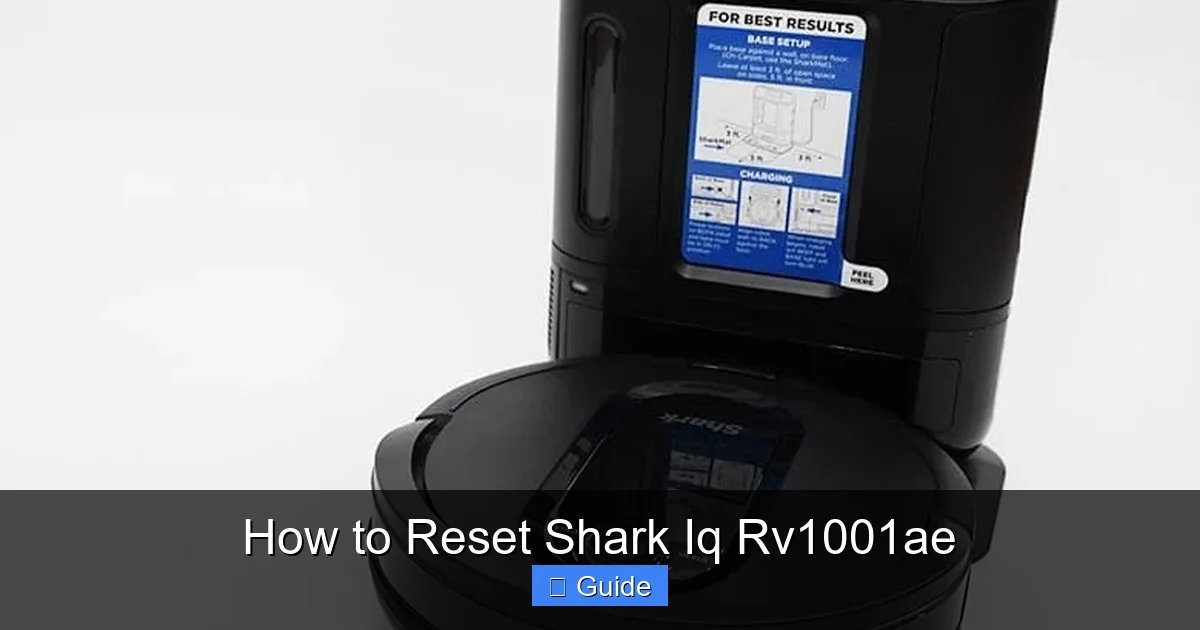
If a soft reset didn’t solve the problem, or if you’re preparing the robot for a new owner, a factory reset is necessary. This is a more involved process that wipes the robot’s internal memory clean. Be absolutely certain you are ready to lose all schedules and maps before proceeding.
Visual guide about How to Reset Shark Iq Rv1001ae
Image source: bestcordlessvacuumguide.com
Step-by-Step Factory Reset Procedure
This process uses a specific button combination on the robot. Ensure your robot is powered on and placed on a flat surface.
- Locate the Buttons: You need to identify two buttons: the Power Button (the circular button on top) and the Dock Button (the square button with a dock icon, also on top). On the RV1001AE, these are separate physical buttons.
- Press and Hold Both: Simultaneously press and hold BOTH the Power button and the Dock button.
- Watch the Indicator Light: Continue holding both buttons. After about 5-8 seconds, you will see the indicator light on the robot begin to blink rapidly (it may blink white or blue). This is your signal that the reset process has started.
- Release the Buttons: Once the light is blinking rapidly, release both buttons.
- Wait for Completion: The robot will now reboot itself. This process can take 1-2 minutes. You will hear the robot’s wheels spin briefly and see various light patterns. Wait until the indicator light returns to a solid, non-blinking state (usually a slow, breathing blue or white), indicating it has fully restarted and is ready for initial setup.
What to Do After a Factory Reset
Once the robot has restarted, it is essentially new. You must:
- Recharge: Place it on the dock and let it charge fully.
- Reconfigure Wi-Fi: Open the SharkClean app. You will need to go through the initial setup process again, which includes putting the robot into Wi-Fi pairing mode (usually by pressing the Dock button until it beeps) and connecting it to your home network.
- Run a New Mapping Clean: Initiate a “Clean All” or “Map” cleaning run from the app. The robot will need to explore and build a new map of your home from scratch. Do not interrupt this process.
- Recreate Schedules & Zones: Once the new map is saved, you will need to recreate all your cleaning schedules, no-go zones, and virtual walls.
How to Perform a Wi-Fi Reset on the Shark IQ RV1001AE
Is your robot cleaning fine when you press the “Clean” button on its top, but the SharkClean app says it’s “Offline” and won’t connect? Or does it drop the connection constantly? The issue is likely with the robot’s Wi-Fi module. A targeted Wi-Fi reset will clear its network memory so you can reconnect it properly.
Step-by-Step Wi-Fi Reset Procedure
This method uses the Dock button to clear network settings.
- Ensure Robot is Powered: Make sure your Shark IQ RV1001AE is turned on and the indicator light is on (solid or breathing).
- Press the Dock Button: Locate the Dock button (the square button with the dock icon).
- Press and Hold: Press and hold the Dock button for 10 seconds.
- Listen for the Tone: After holding for 10 seconds, you will hear a beep from the robot. Continue holding the button for an additional 2 seconds after the beep.
- Release: Release the Dock button. The indicator light will start blinking rapidly (this is a different pattern than the factory reset). This rapid blink means the robot’s Wi-Fi credentials have been cleared, and it is now in pairing mode, broadcasting its own temporary network.
Reconnecting to Your Home Wi-Fi
- Find the Robot’s Network: On your smartphone or tablet, go to your Wi-Fi settings. You should see a new network name (SSID) that starts with “Shark-” followed by a series of letters/numbers (e.g., Shark-4A3B2C). Connect to this network.
- Open the SharkClean App: Once connected to the robot’s network, open the SharkClean app. It should automatically detect a robot in setup mode and prompt you to connect it to your home Wi-Fi.
- Enter Home Network Credentials: Follow the on-screen prompts to select your home Wi-Fi network from the list and enter your password.
- Wait for Connection: The app will guide you through the rest. The robot will switch from its temporary network to your home network. The indicator light on the robot will change from rapid blink to a slower breathing pattern once connected.
Important: Ensure your home Wi-Fi is a 2.4GHz network. The Shark IQ RV1001AE does not support 5GHz-only networks. If you have a dual-band router, make sure the 2.4GHz band is enabled and that you connect to it during setup.
How to Reset the Map Data on the Shark IQ RV1001AE
Your Shark IQ’s navigation is its superpower, but sometimes the saved map data can become corrupted or confusing. Perhaps it’s bumping into furniture it used to avoid, or the map in the app shows two separate floors when you have one open-plan space. Instead of a full factory reset, try clearing just the map data first.
Resetting the Map via the SharkClean App
This is the cleanest way to delete the map without losing your schedules.
- Open the SharkClean App: Ensure your robot is connected to Wi-Fi and the app can communicate with it.
- Select Your Robot: Tap on your Shark IQ RV1001AE from the device list.
- Go to Map Settings: Look for the “Map” tab or icon (it might look like a floor plan). Tap on it to view your current saved map.
- Find the Delete Option: Within the map view, look for a settings gear icon, a trash can icon, or a menu (three dots). Tap it to see map management options.
- Select ‘Delete Map’ or ‘Clear Map Data’: Choose the option to delete the current map. You will likely be asked to confirm this action.
- Confirm: Confirm the deletion. The map will disappear from your app.
Creating a New Map After Deletion
Now that the old map is gone, you need to create a new one:
- Place the robot on the dock and ensure it’s charged.
- In the app, initiate a full-home clean by tapping “Clean All” or the house icon.
- Let the robot run uninterrupted until it returns to the dock and the cleaning is complete. This entire run is dedicated to mapping. Do not manually steer it or interrupt it.
- Once finished, a new, clean map will automatically generate and save in your app. You can then set up your no-go zones and virtual walls on this fresh map.
Note: If the map reset option is greyed out or missing in your app, it may be because the robot is currently cleaning or because your app needs an update. Ensure the robot is idle and docked, and update the SharkClean app to the latest version from your device’s app store.
When to Contact Shark Support: Beyond Basic Resets
You’ve tried the soft reset, the hard reset, the Wi-Fi reset, and the map reset. The robot still won’t charge properly, makes grinding noises, has a persistent error code flashing, or the wheels don’t spin. At this point, the issue is likely physical—a faulty battery, a jammed brush roll, a broken wheel motor, or a failed sensor—rather than a software glitch that a reset can fix.
Signs It’s a Hardware Problem
- Strange, grinding, or clicking noises during operation.
- The robot physically cannot move (wheels locked, brushes not spinning).
- The battery drains from 100% to 0% in minutes.
- A specific error code (like “Error 5” or “E2”) is displayed on the app or via blinking lights that the manual doesn’t associate with a reset.
- The robot consistently fails to dock, even when placed directly on the dock.
- Visible damage or debris jammed deep inside the wheel wells or brush roll housing that you cannot remove.
Preparing for a Support Call
Before you reach out, gather this information to make the process smoother:
- Serial Number: Find it on a sticker on the underside of the robot or on the original box.
- Purchase Date & Proof: Have your receipt or order confirmation ready. The RV1001AE typically comes with a 1-year limited warranty.
- Detailed Problem Description: Note exactly what happens, when it started, and which reset procedures you’ve already attempted.
- App & Firmware Versions: Check the SharkClean app settings for your current app version and the robot’s firmware version.
You can contact Shark Support through their official website (sharkclean.com/support), via phone, or through the “Help” section of the SharkClean app. Be prepared for them to guide you through additional troubleshooting or, if under warranty, arrange for a repair or replacement.
Conclusion: Mastering Your Shark IQ RV1001AE’s Reset Functions
Knowing how to reset your Shark IQ RV1001AE transforms you from a frustrated user into a confident problem-solver. You’ve now learned that a reset isn’t a single action but a toolbox of solutions. Start with the gentle soft reset for most everyday hiccups. If connectivity is the sole villain, use the precise Wi-Fi reset. When navigation goes rogue, employ the map reset from your app. And reserve the powerful, data-erasing factory reset for persistent, serious issues or when you’re passing the robot along.
Remember, the physical buttons on your robot—Power and Dock—are your primary instruments for these procedures. The app is your command center for scheduling and map management, but the hardware buttons hold the keys to recovery. By following the step-by-step guides above, you can diagnose the root cause of your robot’s misbehavior and apply the correct fix, saving you time and avoiding the hassle of a full re-setup when it’s not necessary. Your Shark IQ RV1001AE is a sophisticated machine, and like any sophisticated tool, it occasionally needs a firm but thoughtful reboot to perform at its brilliant best. Keep this guide handy, and you’ll keep your floors clean and your robot happy for years to come.
Frequently Asked Questions
Will a soft reset delete my cleaning schedules and maps?
No. A soft reset (power cycle) only reboots the robot’s software. All your saved maps, cleaning schedules, no-go zones, and Wi-Fi credentials will remain intact after the robot restarts.
How do I factory reset my Shark IQ RV1001AE if it won’t turn on?
If the robot has no power, a reset is impossible. First, ensure it’s properly seated on the charging dock and that the dock’s power light is on. Check for debris on the robot’s charging contacts and clean them with a dry cloth. If it still won’t power on, the issue is likely a dead battery or a hardware fault requiring customer support.
After a factory reset, why won’t my robot connect to Wi-Fi?
After a factory reset, the robot forgets all networks. You must put it into Wi-Fi pairing mode by pressing and holding the Dock button until you hear a beep, then follow the setup prompts in the SharkClean app. Ensure you are connecting to a 2.4GHz Wi-Fi network, as the RV1001AE does not support 5GHz-only networks.
Can I reset just the map without losing my schedules?
Yes. You can delete the stored map data directly from the SharkClean app without performing a factory reset. Go to the Map tab, access the settings, and choose “Delete Map.” Your cleaning schedules and preferences will be preserved, but the robot will need to create a new map on its next full-home cleaning run.
What’s the difference between the Wi-Fi reset and the factory reset?
The Wi-Fi reset (holding the Dock button for 10+ seconds) only clears the robot’s stored Wi-Fi network name and password. All maps, schedules, and preferences remain. The factory reset (holding Power + Dock buttons simultaneously) wipes all user data, including maps, schedules, and Wi-Fi info, returning the robot to its original state.
My robot is stuck in a corner. Should I reset it?
Before resetting, try the simplest fix: pick up the robot and place it in an open area on the floor, then press the Clean button to let it resume. If it repeatedly gets stuck or lost in the same spot, a map reset is often the best solution, as the saved map may have an error for that specific area. Only escalate to a factory reset if map reset fails to resolve the navigation issue.