Watching your Shark Ion R75 robot vacuum circle its charging base without docking is incredibly frustrating. This issue is almost always fixable by you, with the primary culprits being dirty charging contacts, misaligned sensors, or simple navigation errors. A methodical cleaning of the vacuum and dock, followed by a reset and careful placement, resolves the vast majority of “not docking” problems without needing professional help.
There’s a unique kind of domestic despair that sets in when you hear your Shark Ion R75 whirring to life, ready to clean, only to watch it bump mindlessly into its charging base and then back away, failing to connect. It’s right there! It’s so close! Why, oh why, is your Shark Ion R75 not going to dock? You’re not alone. This is one of the most frequently reported issues with this otherwise capable robot vacuum, and the good news is that in 90% of cases, you can solve it yourself with some patience, a cleaning cloth, and a systematic approach. This guide will walk you through every possible reason, from the absurdly simple to the more complex, to get your little cleaning companion reliably back to its home base.
Key Takeaways
- Cleanliness is Critical: The #1 cause is dirty charging pins on both the vacuum and dock. Regular cleaning with a dry, soft cloth prevents most docking failures.
- Perfect Placement Matters: The dock must be against a wall, on a level surface, with at least 1.5 feet of clear space on either side and 3 feet in front. No rugs, wires, or direct sunlight.
- Sensor Alignment is Key: The vacuum’s front bump sensors and the dock’s alignment guides must be unobstructed. Even a small dust bunny can throw off the docking sequence.
- Software Resets Work: Power cycling the vacuum and dock, and performing a full factory reset via the app, clears temporary glitches that confuse the navigation system.
- Battery Health Influences Docking: An aging or faulty battery may not have enough power to complete the final docking maneuver, making it seem like a navigation issue.
- Environment is a Factor: Dark surfaces, thick carpet transitions, or cluttered areas near the dock can disrupt the vacuum’s infrared guidance system.
- Warranty Support is Available: If all troubleshooting fails and the unit is under warranty, Shark’s customer support can guide you or arrange a repair/replacement.
📑 Table of Contents
Understanding the Shark Ion R75 Docking Dance
Before we start fixing, it helps to understand what’s supposed to happen. The docking process isn’t random; it’s a coordinated ballet of sensors, battery power, and physical alignment. The Shark Ion R75 uses infrared (IR) signals to locate its dock. The dock emits a guiding IR beam, like a lighthouse. The vacuum’s front-facing IR receiver scans for this beam. Once detected, it adjusts its approach angle to align its two metal charging pins with the two metal contacts on the dock.
The Perfect Approach Sequence
In an ideal scenario, the Ion R75 will:
- Detect the IR beacon from the dock within a range of about 3-5 feet.
- Slow its speed and make minor steering corrections to center itself.
- Make physical contact with the dock’s plastic bumper or alignment guides.
- Push forward firmly enough that its charging pins make solid metal-to-metal contact with the dock’s contacts.
- Receive a power signal, stop its wheels, and begin charging, indicated by a steady light.
If any single step in this sequence fails—due to dirty contacts, a weak battery, a misaligned dock, or a blocked sensor—the vacuum will either miss entirely, make contact but not connect electrically, or back away after a failed attempt. Your job is to play detective and eliminate each potential point of failure.
First Responder: The Immediate Checklist
When you first notice the problem, don’t panic. Run through this quick, three-minute diagnostic checklist before diving deeper. It solves many “my Shark Ion R75 won’t dock” instances instantly.
Visual guide about Shark Ion R75 Not Going to Dock
Image source: sharkvacuum.blog
1. The Visual Inspection
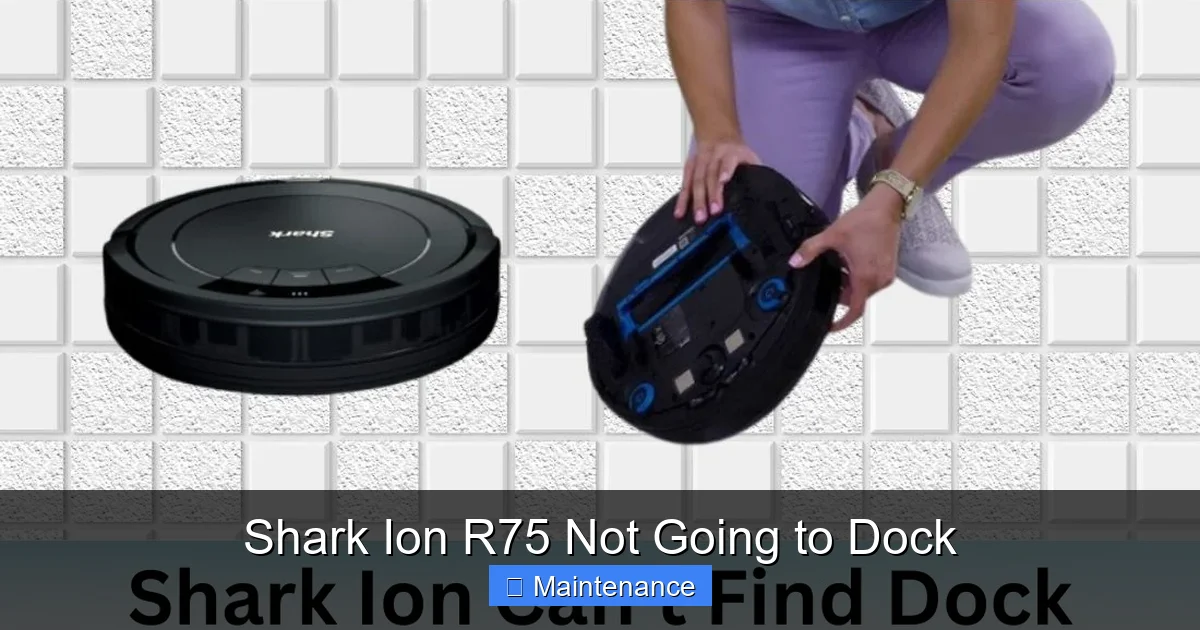
Look at both the vacuum and the dock. Is there visible dust, hair, or grime caked around the charging pins (the two small metal circles on the vacuum’s underside) and the corresponding contacts on the dock (the two metal strips)? This is the prime suspect. Use a dry microfiber cloth to wipe both sets of contacts thoroughly. For stubborn grime, a cotton swab lightly dabbed in rubbing alcohol (isopropyl alcohol) works wonders—just ensure everything is completely dry before attempting to dock again.
2. The Placement Audit
Is the dock flush against a solid wall? Is the floor in front of it clear for at least 3 feet—no socks, shoes, cords, or area rug edges? The Ion R75 needs a clear, unobstructed approach corridor. The dock should also be on a hard, level surface. If it’s on a thick rug or carpet, the dock can wobble, preventing solid contact. Move it to a hardwood or tile floor if necessary.
3. The Power Cycle
Sometimes, the vacuum’s internal software or the dock’s IR emitter gets into a confused state. Unplug the dock from the wall for 30 seconds. Then, remove the vacuum from the dock, press its power button to turn it off, wait 10 seconds, and turn it back on. Place it about 3 feet in front of the dock and let it try again. This simple reset can clear temporary communication errors.
Deep Dive: Common Causes & Advanced Troubleshooting
If the quick checklist didn’t work, it’s time for a more thorough investigation. Let’s systematically break down the most common root causes of a Shark Ion R75 not going to dock.
Visual guide about Shark Ion R75 Not Going to Dock
Image source: guide-images.cdn.ifixit.com
Cause 1: The Phantom “Bump” – Sensor Obstruction
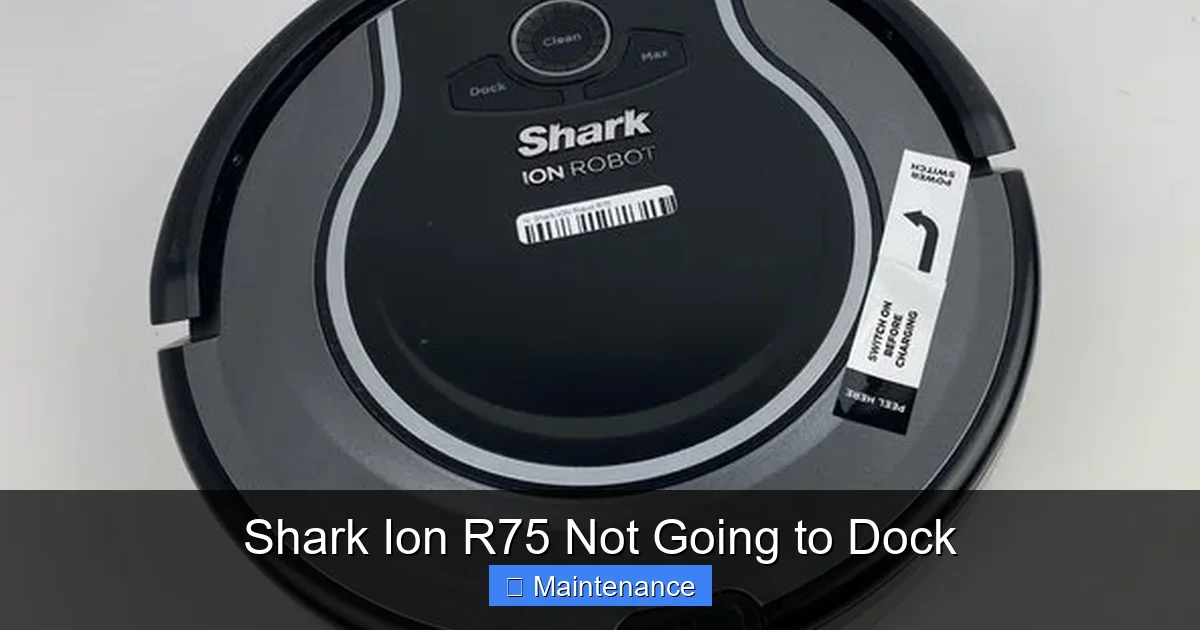
The Ion R75 has multiple sensors: the IR receiver on its front for the dock, and several “bump” sensors around its front bumper. These are tiny holes or dark plastic windows. A single dust mote or pet hair clogging one of these can disrupt its spatial awareness. It might think it’s about to hit something and reverse just before docking, or it might not “see” the dock’s beacon at all.
Solution: Use a can of compressed air to gently blow out all sensor ports and the crevices of the front bumper. Do this for the dock as well—its IR emitter lens is usually a dark plastic circle on the front. A clean lens emits a stronger, clearer signal. A pro tip: use a flashlight to inspect these sensors. You’re looking for anything that isn’t clean, dark plastic or metal.
Cause 2: The Battery Blues
A weak or failing battery can manifest as a docking problem. Why? The final docking maneuver requires a small burst of power to push the vacuum firmly into the dock. If the battery is critically low or degraded, the vacuum might not have the “oomph” to complete the connection. It will make contact, maybe even nudge the dock, but then lose power and roll back, appearing as if it just missed.
Solution: First, let the vacuum charge on the dock (if it can make intermittent contact) for a full 4-6 hours to rule out a simple low-battery issue. If the problem persists, consider the battery’s age. Shark Ion R75 batteries typically last 1-2 years with regular use. If your vacuum is older, a battery replacement might be necessary. You can test this by running the vacuum on a hard floor until it automatically returns to the dock. If it consistently fails on the return trip but works fine at the start of a cycle, the battery is a strong suspect.
Cause 3: The Environmental Interference
The IR signal between the dock and vacuum can be interfered with. Direct, bright sunlight streaming through a window onto the dock can overpower its signal. Similarly, some LED or fluorescent lights can emit IR interference. The vacuum’s sensors might get “confused” by competing signals.
Solution: Relocate the dock away from windows and bright light sources. Try turning off nearby LED lamps for a test cycle. Also, consider the floor type. Very dark, non-reflective carpets can absorb IR signals, reducing effective range. Ensure the dock is on a lighter surface if possible.
The Ultimate Guide to Cleaning Your Dock & Vacuum
We cannot stress this enough. A clean docking system is a reliable docking system. This isn’t just a wipe-down; it’s a targeted cleaning operation.
Visual guide about Shark Ion R75 Not Going to Dock
Image source: sharkvacuum.blog
Step-by-Step Contact Cleaning
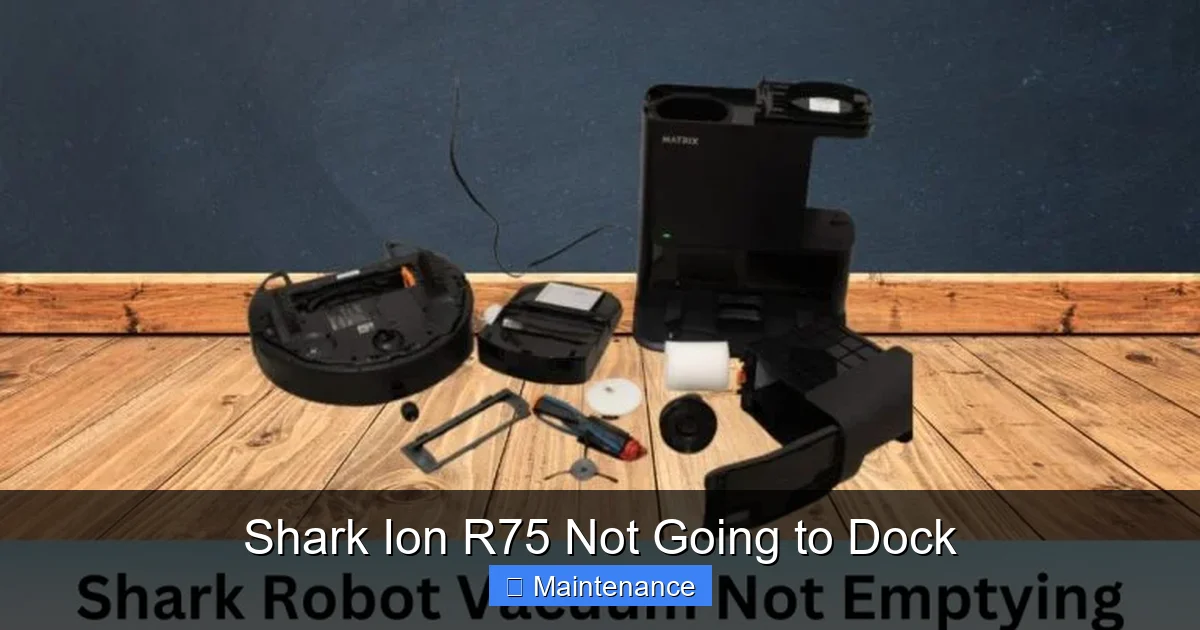
The metal charging contacts are the most critical pieces of hardware in this process. Corrosion, oxidation, or a film of dried cleaning solution can create an insulating layer, preventing an electrical connection even if the pins touch physically.
- Gather Supplies: Dry microfiber cloth, cotton swabs, isopropyl alcohol (90%+ is best), a small soft-bristled brush (like a clean toothbrush).
- Vacuum Prep: Turn the Shark Ion R75 over. Locate the two charging pins on the underside, near the front. Gently brush away any lint or hair wrapped around them. Dip a cotton swab in a *tiny* amount of alcohol and meticulously clean the surface of each metal pin. Rotate the swab to use a clean section. Immediately dry with a dry cotton swab or cloth. Do not let any liquid seep into the vacuum’s body.
- Dock Prep: Unplug the dock. Locate the two metal charging strips on its ramp. Use the dry cloth to scrub these vigorously. Then, use a cotton swab with alcohol on the metal strips, focusing on the areas where the vacuum pins will make contact. Follow immediately with a dry swab. Check the plastic ramp for any sticky residue from dust or debris that could cause the vacuum to slide off-target.
- The “Burnish” Trick: For persistent oxidation, you can very gently rub the metal contacts with the *eraser* end of a pencil. The eraser is a mild abrasive that can remove a thin layer of oxidation without damaging the metal. Wipe away all eraser residue afterward.
Full Vacuum & Dock Exterior Wipe-Down
While you’re down there, clean the entire underside of the vacuum. Remove any debris from the wheels, the brush roll housing, and the bumper. A clogged wheel can cause the vacuum to pull to one side during docking, missing the alignment. Wipe down the dock’s exterior, especially the plastic alignment guides on either side of the charging ramp. These guides are meant to cradle the vacuum’s front bumper. If they’re dirty or dusty, the vacuum might not seat correctly against them.
Software & Sensor Calibration Fixes
Sometimes, the issue isn’t physical dirt but a software glitch or a sensor that needs recalibrating.
Performing a Full Factory Reset
This is the nuclear option for software gremlins. A factory reset will erase all cleaning schedules, no-go zones, and maps (if your model has mapping). It’s a fresh start for the vacuum’s brain.
Process: Open the Shark Clean app. Go to your vacuum’s settings. Look for “Factory Reset” or “Reset Wi-Fi & Settings.” Confirm. The vacuum will reboot. You will need to set up the Wi-Fi connection again from scratch. After setup, manually place the vacuum on the dock to ensure it establishes a charging connection. Then, run a new cleaning cycle and observe the docking behavior. Often, a reset resolves strange navigation quirks that prevent reliable docking.
Re-Learning the Dock
Some Shark models have a specific “Re-Link Dock” or “Set Dock Location” function in the app. This forces the vacuum to rediscover the dock’s IR signal and update its internal map with the dock’s precise coordinates. If your app has this option, use it after cleaning the contacts and resetting the vacuum. Place the vacuum in the center of the room, start the process, and follow the on-screen instructions, which typically involve pressing a button on the vacuum or dock.
When to Wave the White Flag: Seeking Professional Help
You’ve cleaned, reset, relocated, and troubleshooted to no avail. Your Shark Ion R75 still isn’t going to dock. Now what?
Diagnosing a Faulty Charging System
The problem may now be internal. The vacuum has a small spring-loaded charging pin mechanism. If the spring is weak or broken, the pins won’t protrude enough to make contact. On the dock side, the internal wiring or the power adapter could be faulty, delivering insufficient voltage to the contacts. You can sometimes test the dock’s output with a multimeter, but this is advanced.
Signs of a hardware failure: The vacuum physically bumps the dock but never gets a charging light (on either unit). You see sparks or notice a burning smell from the dock (immediately unplug!). The dock’s power adapter is unusually hot. The vacuum’s battery drains rapidly even after what seemed like a successful docking.
Navigating the Warranty & Support
Your Shark Ion R75 should have a 1-2 year limited warranty, depending on purchase date and region. Before giving up, contact Shark Support. Have your model number (on the underside label) and serial number ready. Explain the issue in detail—you’ve done all the standard troubleshooting: “I have cleaned the contacts, reset the vacuum, relocated the dock, and the vacuum still fails to dock. It makes physical contact but does not initiate charging.”
Be prepared for them to walk you through additional steps. If they determine it’s a hardware fault and the unit is under warranty, they may offer to:
- Send replacement parts (like a new charging pin assembly for the vacuum or a new dock).
- Arrange for a repair through an authorized service center.
- Offer a replacement unit, especially if the repair cost is close to the value of a new model.
Document everything. Keep your proof of purchase. Be polite but persistent. For out-of-warranty units, a official repair might cost $80-$150, at which point comparing the cost to a new robot vacuum is a sensible next step.
Conclusion:
The mystery of a Shark Ion R75 not going to dock is almost always solvable. Start with the simplest answer: dirty contacts and poor placement. Invest 10 minutes in a thorough, alcohol-assisted cleaning of both the vacuum’s pins and the dock’s strips. Then, audit your dock’s environment for the golden rules: against a wall, level, hard floor, and a 3-foot clear approach zone. Power cycle everything. If that fails, a factory reset is your next best tool. Only after exhausting this systematic checklist should you consider a hardware failure and reach out to Shark Support. With patience and this guide, you’ll likely hear that beautiful, solid *click* of a successful connection and see the charging light glow once more, restoring harmony to your automated home.
Frequently Asked Questions
Why does my Shark Ion R75 bump the dock but not actually charge?
This is almost always due to dirty charging contacts on either the vacuum or the dock. A film of dust, grime, or oxidation prevents the metal-to-metal electrical connection needed for charging. Clean both sets of contacts thoroughly with a dry cloth and isopropyl alcohol.
My dock is against the wall and clean. What else could be wrong?
>Check the vacuum’s front bumper and sensor ports. A single hair or dust clump stuck in the bumper or blocking the IR sensor can cause it to misjudge its position. Use compressed air to clear all sensors and the bumper crevices. Also, ensure the floor in front of the dock is completely clear for 3 feet.
Could a bad battery cause docking issues?
Yes. A weak battery may not have enough power for the final push to establish a solid connection. The vacuum will make contact but then lose power and roll back. If your vacuum runs fine at the start of a cycle but consistently fails to dock at the end, a degraded battery is a likely culprit.
Is there a way to make the vacuum “re-learn” the dock?
Many Shark models have a “Re-Link Dock” or “Set Dock Location” option in the Shark Clean app. This forces the vacuum to rediscover the dock’s infrared signal. After cleaning the dock and resetting the vacuum, use this function if available to refresh the pairing.
What if I’ve tried everything and it still won’t dock?
If you’ve meticulously cleaned, reset, relocated, and the vacuum still won’t charge after physical contact, a hardware failure is likely. Contact Shark Customer Support with your model/serial number and a list of all troubleshooting steps you’ve completed. If under warranty, they may offer a repair or replacement.
Can I use the vacuum without the dock?
Technically yes, you can run manual cleaning cycles. However, without reliable automatic docking and recharging, the “set-and-forget” convenience of a robot vacuum is lost. You would need to manually place it on the dock after each cleaning session to recharge, defeating the primary purpose of the device.