Is your Shark Ion robot vacuum’s WiFi light stubbornly staying off, leaving your robot disconnected? This is a common but fixable issue, usually stemming from power problems, network glitches, or app errors. Our guide walks you through a logical sequence of checks, from simple power cycles to advanced network configuration and firmware updates, to diagnose and resolve the connectivity failure. We’ll help you interpret what the light *should* be doing and provide clear steps to restore your robot’s smart features.
You’ve unboxed your Shark Ion Robot Vacuum, set up the charging base, and downloaded the app with excitement. You follow the in-app instructions to connect your new cleaning helper to your home WiFi network, only to watch the small LED indicator on the robot—the one that’s supposed to blink and pair—remain stubbornly, frustratingly dark. The message on your phone reads “No Robot Found” or “Connection Failed.” Your smart vacuum now feels like a very expensive dumb vacuum. This, “Shark Ion Robot Wifi Light Not On” problem is one of the most common hurdles owners face, and it’s almost always solvable without needing a repair. This guide will walk you through every possible cause and solution, from the incredibly simple to the more technical, to get your robot back on your network and under app control.
Before we dive into buttons and settings, it’s crucial to understand what that little light actually means. The WiFi light on your Shark Ion robot (usually located on the top or side near the power button) is the direct communication link between your vacuum’s internal computer and your wireless router. When it’s off, it means that communication pathway is not active. This isn’t always a hardware failure. More often, it’s a temporary software hiccup, a network security block, or a simple oversight during setup. Our approach will be methodical, starting with the most common and easiest fixes first, saving you time and preventing unnecessary worry.
Key Takeaways
- The WiFi light status is your primary diagnostic tool: A completely off light typically means no power to the module or a deep sleep state, not necessarily a broken unit.
- Always start with the basics: Ensure the robot is on its charging base, powered, and the base itself is plugged into a working outlet before any complex troubleshooting.
- Your home network is often the culprit: Dual-band routers, firewall settings, and MAC address filtering are frequent, overlooked causes of Shark Ion Robot WiFi light not on issues.
- A robot reset is a powerful first step: Performing a soft reset (power cycle) or a factory reset can clear temporary software glitches that prevent the WiFi module from initializing.
- Outdated firmware can break connectivity: An old robot firmware version may be incompatible with current app or router standards, requiring a manual update via USB.
- The Shark Ion app is part of the ecosystem: App glitches, outdated versions, or incorrect login can make it *seem* like the robot’s WiFi is off when the connection is actually fine.
- Know when to seek professional help: If all troubleshooting fails, the issue may be a faulty WiFi module or internal hardware, requiring Shark Support or a service center.
📑 Table of Contents
- Understanding Your Shark Ion’s WiFi Light: What It’s Trying to Tell You
- Basic Troubleshooting: The “Power Cycle” Protocol
- Advanced Troubleshooting: Diving Into Networks and Settings
- App and Firmware: The Software Side of Connectivity
- Environmental and Interference Issues
- When to Contact Shark Support: Diagnosing Hardware Failure
- Conclusion: Patience and Process Win
Understanding Your Shark Ion’s WiFi Light: What It’s Trying to Tell You
Before troubleshooting, we must become fluent in the “language” of the indicator light. The behavior of this small LED is the robot’s only way of verbally communicating its connectivity status. Knowing the difference between a steady light, a blinking pattern, and complete darkness is the first step in diagnosis.
The Standard Connection Sequence
When you successfully put your Shark Ion robot into WiFi pairing mode (usually by pressing and holding the WiFi button until you hear a tone), the light should begin to blink in a specific pattern—often a slow, alternating blink of blue and white, or a rapid blue blink, depending on the model. This blinking indicates the robot is actively searching for your network’s signal. Once it finds and authenticates with your router, the light should change to a steady, solid blue (or sometimes a solid white), signifying a stable, connected state. If you see this solid color, your robot is online and ready for app commands.
What a Completely Off Light Means
A light that is completely dark, with no illumination whatsoever, points to one of a few specific scenarios. First, and most likely, the robot is in a deep sleep or powered-down state. If the robot is not seated on its charging base or the base has no power, the robot’s internal battery might be depleted or the system is off, and thus the WiFi radio is unpowered. Second, it could mean the robot’s software has crashed or frozen during the boot-up sequence, failing to initialize the WiFi module. Third, and least common, it could indicate a physical failure of the WiFi module itself—a piece of hardware has malfunctioned. Our troubleshooting is designed to rule out the first two, far more common possibilities before we even consider the third.
Basic Troubleshooting: The “Power Cycle” Protocol
In the world of technology, the timeless advice of “turn it off and on again” solves a staggering percentage of problems. For a Shark Ion robot with a dead WiFi light, this is your mandatory first step, and it must be done correctly.
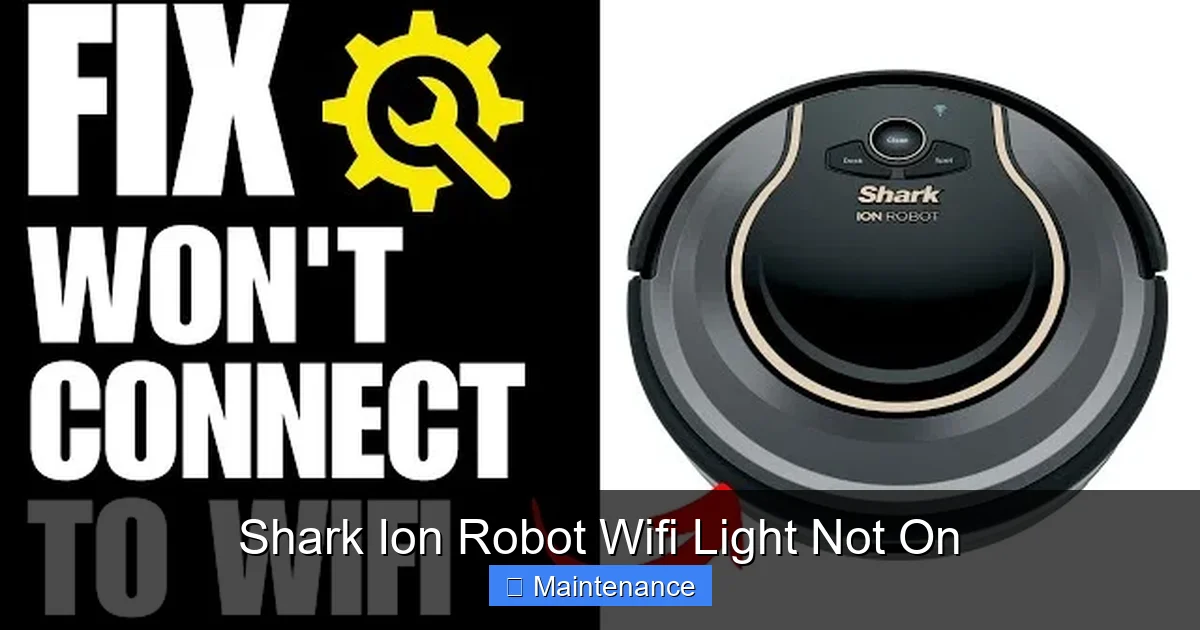
Visual guide about Shark Ion Robot Wifi Light Not On
Image source: i.ytimg.com
Step 1: The Robot and Base Reboot
Do not just tap the power button on the robot. We need a full, deep reset of the power cycle. First, physically remove the robot from its charging base. Press and hold the power button on the robot for 10-15 seconds until you hear a shutdown chime or see all lights go out completely. Wait 30 seconds. Now, place the robot back onto its charging base, ensuring the metal charging contacts on both the robot and base are clean and making firm contact. You should see the robot’s power indicator (usually a separate, often orange or yellow light) illuminate to show it’s charging. Let it charge for at least 5-10 minutes. This full power cycle forces the robot’s mainboard and WiFi module to reboot from a truly powered-off state, clearing any temporary memory glitches that were preventing the WiFi from starting.
Step 2: The Router Reboot
Your router is the other half of the connection equation. Sometimes, the router’s DHCP (the service that assigns IP addresses to devices) gets confused or its internal cache is full. Unplug your WiFi router from the wall outlet. Wait a full 60 seconds. This is critical—it allows the capacitors to fully discharge and clears the memory. Plug the router back in and wait for all its lights to return to their normal, steady state (usually 2-3 minutes). Now, try putting your Shark Ion robot back into WiFi pairing mode. This simple act resolves countless “phantom” connectivity issues across all smart home devices.
Step 3: Verify the Charging Base is Powered
It seems obvious, but it’s a frequent oversight. Ensure the charging base’s power adapter is securely plugged into a working wall outlet. Test the outlet with another device, like a lamp or phone charger. If the base has a power indicator light, confirm it is on. A robot that isn’t charging won’t power its WiFi radio. Also, check that the base isn’t plugged into a power strip with an on/off switch that might be off, or a timer outlet that has cycled off.
Advanced Troubleshooting: Diving Into Networks and Settings
If the basic power cycle didn’t bring the WiFi light to life, it’s time to look deeper. The problem likely lies in the communication protocol between your robot and your router, or within the robot’s stored network settings.
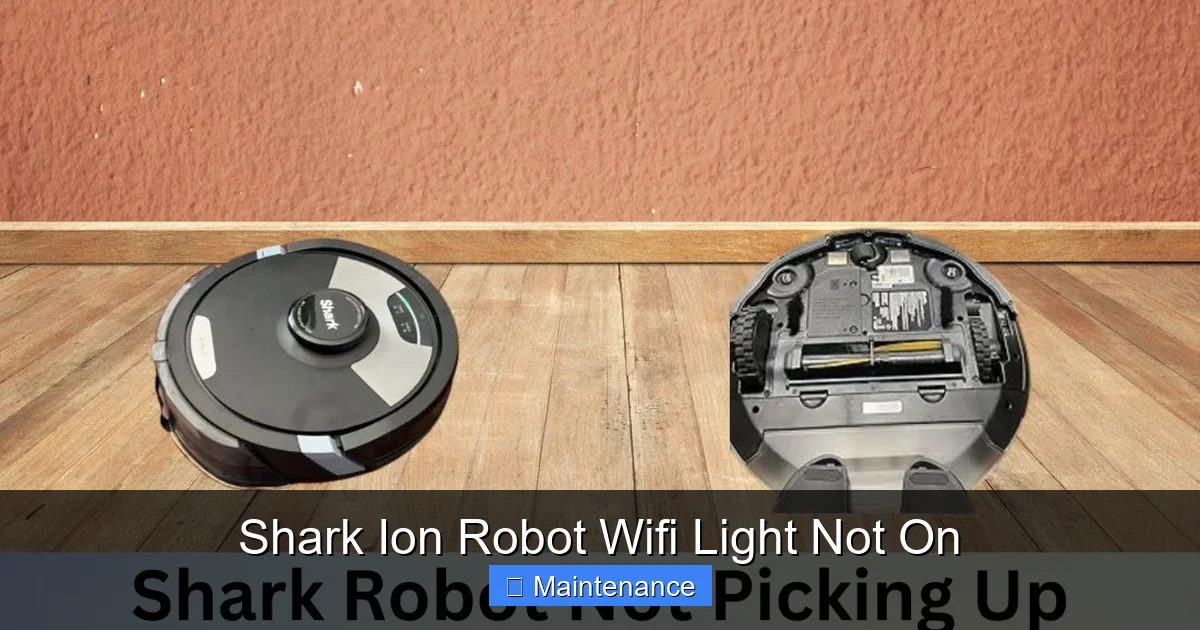
Visual guide about Shark Ion Robot Wifi Light Not On
Image source: sharkvacuum.blog
Resetting the Robot’s Network Settings
Your Shark Ion robot stores the credentials for your WiFi network. If these credentials become corrupted, or if you changed your WiFi password, the robot will fail to connect and may not even attempt to search, leaving the light off. You need to clear this saved information. Locate the WiFi button on your robot (consult your manual for exact location). Press and hold this button for 10 seconds until you hear a series of beeps or see the light flash in a specific pattern (often a rapid blink). This is a network settings reset. The robot will forget all previously saved networks. Now, you must go through the full app pairing process again as if the robot were brand new. This is a crucial step for any persistent “Shark Ion Robot Wifi Light Not On” scenario.
Performing a Factory Reset (The Nuclear Option)
If a network reset fails, a full factory reset is the next step. This returns the robot’s entire software to its original state, wiping all schedules, cleaning maps (if applicable), and preferences. To do this, find the small pinhole reset button, usually on the underside near the brush roll or on the side. With the robot powered on, use a paperclip to press and hold the button for 10-15 seconds until you hear a confirmation tone and all lights may blink. The robot will restart. Important: You will have to set up the robot in the app from scratch, including re-establishing the WiFi connection. This eliminates any software corruption as the cause.
Checking Your WiFi Network Compatibility
Shark Ion robots, especially older models, have specific network requirements. They typically only connect to 2.4GHz WiFi networks, not 5GHz. Many modern routers are “dual-band,” broadcasting both signals with the same network name (SSID). The robot can get confused and fail to connect properly. Log into your router’s admin panel (usually via 192.168.1.1 in a web browser). Check your wireless settings. If you have a single SSID for both bands, consider creating separate, distinct network names—one for 2.4GHz (e.g., “MyWiFi-2.4”) and one for 5GHz (“MyWiFi-5”). Then, during robot setup, explicitly select the “MyWiFi-2.4” network. Also, ensure your WiFi security is set to WPA2-Personal (AES). Some older devices struggle with WPA3 or mixed-mode security.
App and Firmware: The Software Side of Connectivity
Your robot’s brain, and its ability to “speak” WiFi, is governed by firmware. The app is the remote control. Problems in either can manifest as a dead WiFi light on the robot.
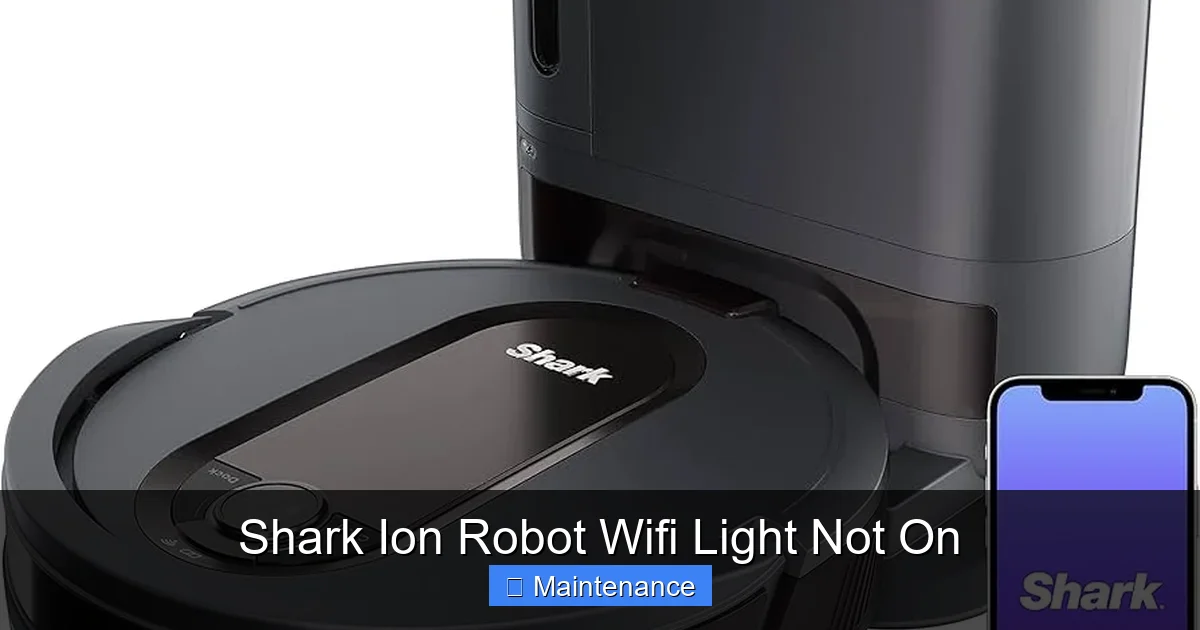
Visual guide about Shark Ion Robot Wifi Light Not On
Image source: m.media-amazon.com
Updating Your Shark Ion Robot Firmware
Firmware updates often include critical bug fixes for connectivity modules. If your robot was working and suddenly the WiFi light went off, a pending or failed firmware update could be the cause. However, you can’t update firmware without a WiFi connection. This creates a chicken-and-egg problem. The solution often involves a manual USB firmware update. You will need to download the correct firmware file for your specific Shark Ion model from the Shark official support website onto a USB flash drive. Then, with the robot powered on and connected to the base, insert the USB drive into the port (usually on the underside). The robot’s lights will blink as it installs the update. This process can revive a robot whose WiFi software is corrupted. This is an advanced step; follow Shark’s official guide precisely for your model.
App Troubleshooting: Delete and Reinstall
The Shark Ion app on your phone might be holding onto old, corrupted connection data. The simplest fix is to delete the app from your phone and reinstall it from the App Store or Google Play. Before reinstalling, restart your phone to clear its network cache. Upon reopening the fresh app, log in and go through the “Add Robot” process. Ensure you are giving the app all requested permissions, especially location and Bluetooth (used for initial discovery). Also, check that your phone is connected to the same 2.4GHz WiFi network you intend for the robot. If your phone is on 5GHz, the initial discovery often fails.
Environmental and Interference Issues
WiFi is a radio signal. Its strength and clarity are affected by physical objects and other signals. Your robot’s placement during setup is not arbitrary.
The Importance of Setup Location
When you first pair the robot, place it on its charging base in the same room as your router, ideally within 10 feet with a clear line of sight. This ensures the strongest possible signal for the initial handshake. If you try to pair it from a distant bedroom with multiple walls in between, the signal may be too weak, and the robot may give up, leaving the light off. Once successfully connected, you can move the base to its permanent location. The robot will remember the network credentials even if the signal is weak in its new spot, though strong signal is always better for reliable communication.
Identifying and Reducing Interference
Many household devices operate on the 2.4GHz band, the same as your robot. Cordless phones, microwave ovens, baby monitors, wireless security cameras, and even some Bluetooth devices can cause severe interference. During pairing, turn off any non-essential devices that use 2.4GHz. If you live in an apartment with many neighboring WiFi networks, your robot might be struggling on a congested channel. Logging into your router and manually setting the 2.4GHz channel to 1, 6, or 11 (the non-overlapping channels) can sometimes help. Use a WiFi analyzer app on your phone to see which channels are least crowded in your area.
When to Contact Shark Support: Diagnosing Hardware Failure
You have methodically performed power cycles, reset network settings, factory reset the robot, verified your 2.4GHz network, updated firmware via USB, and reinstalled the app. The WiFi light remains off, and the app still cannot find the robot. At this point, the probability shifts from a software/config issue to a hardware one. The most likely culprit is a faulty WiFi module on the robot’s mainboard.
How to Describe the Problem to Support
When you contact Shark Customer Support, be prepared with specific information. Have your robot’s serial number (on the underside) and your proof of purchase ready. Clearly state: “My [Model Number, e.g., ION Robot Vacuum RV752] has no WiFi light illumination whatsoever. I have performed a full power cycle on the robot and router, completed a network settings reset, performed a factory reset, confirmed connection to a 2.4GHz WPA2-AES network, and attempted a manual USB firmware update. The robot charges normally and performs manual cleaning cycles, but will not connect to WiFi.” This detailed history shows you’ve done the due diligence and will help them escalate the case appropriately.
Warranty and Repair Options
If your robot is within the warranty period (typically 1-3 years depending on model and region), Shark will likely offer a replacement unit. If out of warranty, they may offer a repair service for a fee, but often the cost approaches that of a new robot. For older models, replacement might be the more economical path. Before sending anything in, ask support if they can walk you through one more obscure diagnostic, like checking for a disabled WiFi module in a hidden service menu, though this is rare for consumer models.
Conclusion: Patience and Process Win
The “Shark Ion Robot Wifi Light Not On” issue is a test of systematic troubleshooting, not a verdict on your robot’s health. The vast majority of the time, the solution lies in the basic steps: a complete, patient power cycle of both robot and router, followed by a network settings reset. Remember, the robot’s software is like a small computer—it can get into a confused state. Our instinct is to skip to the most complicated solutions, but the simple reboot is magic. If that fails, methodically work through the network compatibility checks, as the 2.4GHz requirement trips up countless users with modern dual-band routers. Only after exhausting these software and configuration avenues should you consider the possibility of hardware failure and prepare to engage Shark Support with a clear record of your efforts. By following this guide, you empower yourself to solve the problem yourself, save money, and get back to enjoying the convenience of scheduled, app-controlled cleaning.
Frequently Asked Questions
What does it mean if my Shark Ion’s WiFi light is solid blue?
A solid blue WiFi light is the good sign! It means your robot is successfully connected to your WiFi network and is ready to be controlled via the Shark Ion app. You should be able to see it in your app’s device list and start a cleaning job remotely.
How do I force my Shark Ion robot to forget my WiFi network?
Locate the dedicated WiFi button on your robot. Press and hold it for approximately 10 seconds until you hear a series of beeps or see the light flash rapidly. This clears the saved network credentials. You will then need to go through the full pairing process in the Shark Ion app to connect it to your WiFi again.
My robot is on the charging base and powered, but the WiFi light won’t turn on at all. Is it broken?
Not necessarily. First, ensure the base is plugged into a live outlet. Next, perform a full power cycle: remove the robot, hold its power button for 15 seconds to force a shutdown, wait 30 seconds, then place it back on the base. If the light remains dark after 5 minutes of charging, try a factory reset using the pinhole button on the robot’s underside.
Can a firmware update fix a non-working WiFi light?
Yes, a corrupted or outdated firmware can cause the WiFi module to fail. However, you need a working WiFi connection to do a standard over-the-air update. If the robot won’t connect, you must perform a manual firmware update by downloading the correct file from Shark’s website to a USB drive and plugging it into the robot’s USB port while it’s powered on.
Why does my Shark Ion show as “Offline” in the app even when the light is on?
This is a different issue. A solid light means it’s connected to WiFi, but “Offline” in the app means it lost connection to Shark’s cloud servers. This is often due to an internet outage on your end, a temporary server issue with Shark, or a router firewall blocking the robot’s outbound communication. Reboot your router to resolve this.
My router is dual-band. Could that be why the Shark Ion WiFi light won’t come on?
Absolutely. Most Shark Ion models only connect to 2.4GHz networks. If your router broadcasts both bands under one name (SSID), the robot may fail to connect properly. Log into your router settings and create separate, distinct network names for your 2.4GHz and 5GHz bands. Then, in the Shark app, select the 2.4GHz network name (e.g., “MyHome-2.4”) during setup.