Connecting your Shark Robot vacuum to Alexa is a straightforward process that unlocks powerful voice-controlled cleaning. First, ensure your Shark Robot is a Wi-Fi-enabled model and fully set up in the Shark Clean app. Then, enable the Shark Clean skill in your Alexa app, link your accounts, and discover devices. Once connected, you can use simple voice commands like “Alexa, ask Shark to start cleaning” to control your robot. This integration allows you to start, stop, dock, and schedule cleanings without touching your phone or the robot itself. If issues arise, common fixes include checking Wi-Fi connectivity, restarting devices, and ensuring both the Shark app and Alexa skill are updated.
Key Takeaways
- Compatibility is Key: Only Wi-Fi-enabled Shark Robot models (like ION, AI, Ultra series) can connect to Alexa. Check your model’s specifications first.
- App Setup Precedes Everything: Your Shark Robot must be fully configured, online, and controllable via the Shark Clean app *before* attempting the Alexa link.
- Skill Linking is the Bridge: You connect the two ecosystems by enabling the official “Shark Clean” skill in the Alexa app and linking your Shark Clean account credentials.
- Discovery is a Crucial Step: After linking, you must ask Alexa to “discover devices” or manually trigger discovery in the Alexa app for your robot to appear as a smart home device.
- Voice Commands are Simple but Specific: Use phrases like “Alexa, tell Shark to start cleaning” or “Alexa, ask Shark to go home.” The robot responds to “Shark” as the device name.
- Troubleshooting Starts with Basics: Most connection failures stem from Wi-Fi issues (2.4GHz band), outdated apps, or the robot being in an error state. Reboot your router and robot first.
- Routines & Groups Expand Control: Once connected, add your Shark to Alexa Routines (e.g., “Goodbye” routine to start cleaning) or groups (e.g., “Clean the whole house” with multiple robots).
📑 Table of Contents
- Introduction: Welcome to the Future of Effortless Cleaning
- Chapter 1: The Prerequisites—Laying the Groundwork for Success
- Chapter 2: The Core Process—Linking Shark Clean to Alexa
- Chapter 3: Mastering Voice Commands—Your Shark at Your Command
- Chapter 4: Troubleshooting—When Voice Control Goes Silent
- Chapter 5: Best Practices for a Flawless Smart Cleaning Experience
- Conclusion: Your Home, Smarter and Cleaner
Introduction: Welcome to the Future of Effortless Cleaning
Imagine this: You’re heading out the door, hands full of groceries. Instead of fumbling for your phone to start the vacuum, you simply say, “Alexa, ask Shark to clean the living room.” Poof! Your trusty Shark Robot whirs to life, tackling dust bunnies and pet hair while you’re away. This seamless fusion of smart home convenience and powerful cleaning isn’t science fiction—it’s absolutely achievable, and it’s easier than you think.
Connecting your Shark Robot vacuum to Amazon Alexa transforms it from a simple app-controlled gadget into a true hands-free cleaning companion. This integration sits at the heart of the modern smart home, allowing you to orchestrate your cleaning schedule with just your voice. Whether you have a Shark ION Robot, a Shark AI Ultra, or another Wi-Fi-enabled model, the path to voice control follows a clear, repeatable process. This guide will walk you through every single step, from pre-flight checks to advanced voice commands and troubleshooting. We’ll break down the technical bits into plain English, ensuring you can spend less time configuring and more time enjoying your spotless home.
Chapter 1: The Prerequisites—Laying the Groundwork for Success
Before you dive into the Alexa app, it’s essential to confirm your setup is ready for integration. Skipping this foundational step is the most common reason for connection headaches later. Think of it as making sure your robot has its “passport” and “visa” before attempting international travel.
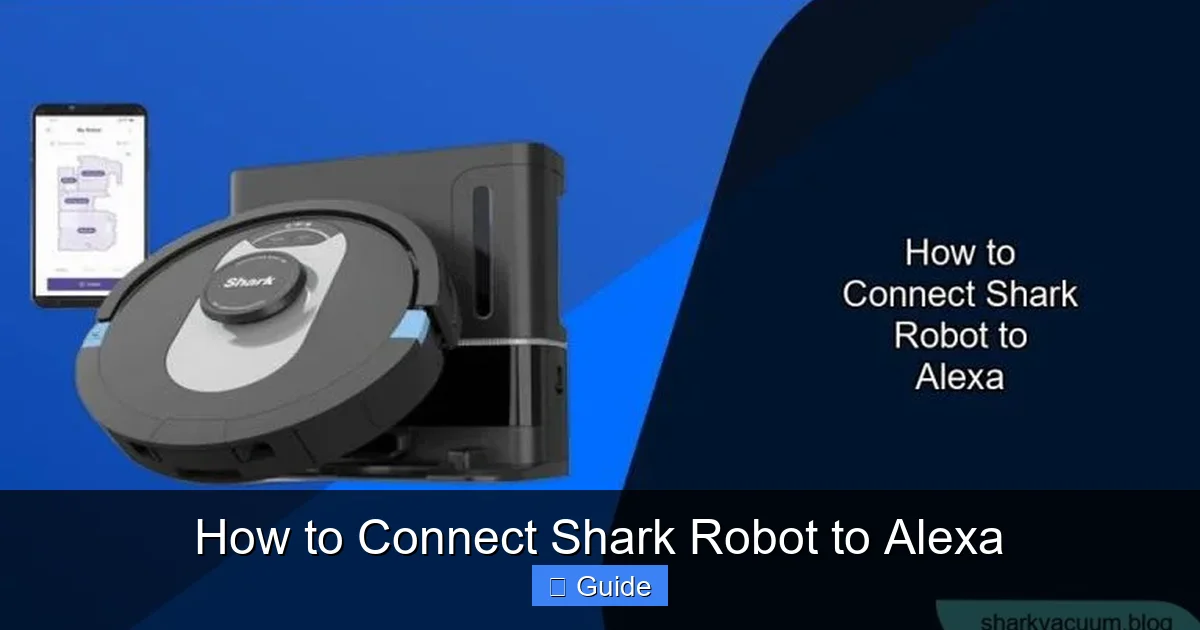
Visual guide about How to Connect Shark Robot to Alexa
Image source: sharkvacuum.blog
1.1. Is Your Shark Robot Alexa-Compatible?
Not all Shark Robot vacuums are created equal in the smart home world. The ability to connect to Alexa is reserved for models with built-in Wi-Fi connectivity. These typically include:
- Shark ION Robot Series: Most models from the RV, RV, and RV lines (e.g., RV1001AE, RV912).
- Shark AI Ultra Series: Models like the AV2501S, AV2501AE.
- Shark IQ Series: Earlier self-emptying models with Wi-Fi (e.g., RV1001AE).
- Select Shark Vertex Series: Certain variants with Wi-Fi.
How to Check: Look for a Wi-Fi symbol on the robot itself or in the product specifications on Shark’s website. The safest bet is to have your robot’s exact model number (found on the underside) handy and search “Shark [Your Model] Alexa compatibility.” If your robot connects to the Shark Clean app over Wi-Fi, it’s almost certainly compatible.
1.2. The Non-Negotiable Shark Clean App Setup
Your Shark Robot must be 100% set up and operational within the Shark Clean mobile app (iOS or Android) before Alexa can ever find it. This is the single most critical prerequisite. Here’s what that means:
- Account Created: You have a registered Shark Clean account.
- Robot Paired: The robot is successfully connected to your home Wi-Fi network through the app. You can see its status, battery level, and start a cleaning from the app interface.
- Robot Online & Responsive: The robot shows as “Online” in the app and responds to commands like “Clean” or “Dock” instantly.
- No Active Errors: The robot is not stuck, reporting a jam, or in any error state. Clear any current issues first.
Pro Tip: Place your robot on its charging base and ensure the base is powered and connected to Wi-Fi (if it’s a self-emptying base with Wi-Fi). A fully charged, docked robot is the ideal starting state.
1.3. Your Smart Home Environment: Wi-Fi and Alexa
Your home network is the invisible highway connecting everything. For a stable connection:
- Dual-Band Router: Most Shark Robots connect only to the 2.4GHz Wi-Fi band. Ensure your router’s 2.4GHz network is active and broadcasting. (You can often have both 2.4GHz and 5GHz with the same network name, or they may be separate—your Shark app will guide you).
- Signal Strength: The robot’s location on its base should have a strong Wi-Fi signal. If your router is far away, consider a mesh system or extender.
- Alexa Device Ready: You have an Amazon Echo, Echo Dot, Echo Show, or other Alexa-enabled device set up and connected to the same Wi-Fi network as your Shark Robot. This device will be your voice controller.
- Alexa App Updated: Ensure your Alexa smartphone app is updated to the latest version from the App Store or Google Play.
Chapter 2: The Core Process—Linking Shark Clean to Alexa
With the prerequisites met, we move to the main event. This is a two-part dance: enabling the skill in Alexa and then discovering your devices. Follow these steps in order.
Visual guide about How to Connect Shark Robot to Alexa
Image source: cleanerstalk.com
Step 1: Open the Alexa App and Find the Skill
Grab your smartphone and open the Amazon Alexa app. Tap the “More” tab in the bottom right corner. From the menu, select “Skills & Games.” This is Alexa’s massive marketplace of capabilities. In the search bar, type “Shark Clean”. You’re looking for the official skill published by SharkNinja. Tap on it to open its detail page.
Step 2: Enable the Skill and Link Your Account
On the Shark Clean skill page, tap the “Enable to Use” button. Alexa will prompt you to sign in. This is where you link your two accounts. You will be redirected to a login page (hosted by Shark). Enter the exact same email address and password you use for the Shark Clean app. Do not use your Amazon credentials here. After successful authentication, you’ll see a confirmation screen in the Alexa app that the skill has been linked. Tap “Done” or “Close.”
What Just Happened? You gave Alexa permission to communicate with Shark’s cloud services using your account. Now, Alexa knows which Shark robots are associated with your Shark Clean login.
Step 3: Discover Your Devices
This is the magic moment where your Shark Robot appears in Alexa’s device list. There are two ways to do this:
- Automatic Discovery (Recommended): Simply say aloud to any nearby Alexa device, “Alexa, discover devices.” Alexa will scan your network and the linked skills for new smart home gadgets. This process takes about 45 seconds.
- Manual Discovery: In the Alexa app, go to “Devices” (the house icon in the bottom bar). Tap the “+” (Add) button in the top right, then select “Add Device.” Scroll down and tap “Other.” Then tap “Discover Devices.” Alexa will begin scanning.
Once discovery is complete, navigate to “Devices” in the Alexa app. You should see a new device listed, typically named something like “Shark Robot” or the name you gave it in the Shark Clean app (e.g., “Living Room Shark”).
Step 4: Rename and Organize (Optional but Highly Recommended)
If you have multiple Shark Robots (e.g., one for upstairs, one for downstairs), or if you want an easier voice name, now is the time to rename them.
- In the Alexa app, go to “Devices” and find your Shark Robot.
- Tap on it, then tap the gear icon (Settings) in the top right.
- Select “Name” and change it to something simple and distinct, like “Upstairs Vacuum” or “Kitchen Shark.”
- You can also add it to a room (e.g., “Kitchen”) or a group (e.g., “First Floor”) for more natural commands like “Alexa, clean the first floor.”
Voice Command Note: The name you set here is what you’ll use in your voice commands. If you rename it “Basement Bot,” you’ll say “Alexa, ask Basement Bot to start cleaning.”
Chapter 3: Mastering Voice Commands—Your Shark at Your Command
With everything connected, it’s time to talk to your robot. Alexa acts as the intermediary, translating your natural speech into commands Shark’s cloud understands. The basic command structure is: “Alexa, ask [Robot Name] to [Action].”
Visual guide about How to Connect Shark Robot to Alexa
Image source: cleanerstalk.com
Essential Cleaning Commands
These are the everyday commands that cover 90% of your needs:
- Start a Clean: “Alexa, ask [Robot Name] to start cleaning.” or “Alexa, tell [Robot Name] to clean.”
- Stop/Pause: “Alexa, ask [Robot Name] to stop.” or “Alexa, tell [Robot Name] to pause.”
- Return to Base: “Alexa, ask [Robot Name] to go home.” or “Alexa, tell [Robot Name] to dock.”
- Check Status: “Alexa, ask [Robot Name] for its status.” (Alexa will report battery level, cleaning state, etc.).
- Spot Clean: “Alexa, ask [Robot Name] to spot clean.” (This may depend on your specific model’s capabilities via Alexa).
Advanced Control with Routines and Groups
This is where the real smart home magic happens. You can create customized sequences in the Alexa app.
- Routines: Create a routine triggered by a voice command, schedule, or another device. Example: A “Good Morning” routine that turns on lights, starts your coffee maker, and tells your Shark Robot to start cleaning the kitchen.
- Groups: If you have two Shark Robots in different rooms, create a group called “Whole House.” Then you can say, “Alexa, ask Whole House to start cleaning,” and both robots will begin their tasks (provided they are on their bases and ready).
- Mode-Specific Cleaning: Some Shark models with specific modes (like “Max” or “Zone Clean”) may have corresponding Alexa commands, but this is less common. Check your Shark Clean app for “Alexa Commands” or “Voice Control” sections for model-specific phrases.
Understanding Limitations and What Alexa Can’t Do
It’s important to set realistic expectations. The Alexa integration is primarily for start/stop/dock/status. You cannot use Alexa to:
- Create or edit cleaning maps or no-go zones.
- Select specific rooms to clean (unless you use groups as a workaround).
- Change suction power or other detailed settings.
- Initiate a full bin empty on a self-emptying base (this is usually automatic).
- Schedule cleanings (scheduling is done in the Shark Clean app).
For these granular controls, you’ll still need to open the Shark Clean app on your phone. Alexa provides fantastic launch-and-stop control, but the detailed mission planning remains in Shark’s domain.
Chapter 4: Troubleshooting—When Voice Control Goes Silent
Even with perfect setup, things can go wrong. Don’t panic. Here is a systematic, from-simple-to-complex troubleshooting guide.
Problem: “Alexa, I can’t find that device.” Or the robot doesn’t appear in the Alexa app.
Solution Path:
- Re-Do Device Discovery: Say “Alexa, discover devices” again. Sometimes it just needs a second try.
- Check the Link: Go to Alexa App > More > Skills & Games > Your Skills. Find “Shark Clean” and tap “Manage.” Ensure it says “Linked.” If not, tap “Disable Skill,” then re-enable it from scratch and re-link your account.
- App & Skill Updates: Update both the Shark Clean app and the Alexa app from your app store. Outdated software is a frequent culprit.
- Robot Reboot: Power cycle your Shark Robot. Turn it off (if possible), unplug the charging base for 30 seconds, plug it back in, and place the robot on the base. Wait for it to boot fully and connect to Wi-Fi (check the Shark app). Then rediscover.
Problem: “Alexa says the device is offline or unresponsive.”
Solution Path:
- Shark App First: Open the Shark Clean app. Is your robot showing as “Online” and responsive? If it’s offline in the Shark app, the problem is with the robot’s Wi-Fi connection, not Alexa. Fix the robot’s Wi-Fi connection first.
- Wi-Fi Band: Double-check your robot is connected to a 2.4GHz network. Some routers have a “Smart Connect” feature that merges bands; try temporarily disabling it and creating a separate 2.4GHz network name to connect the robot to.
- Router Reboot: Power cycle your Wi-Fi router. Unplug it for 60 seconds, plug it back in, wait for full internet restoration, then check the Shark app.
- Skill Re-Link: As above, disable and re-enable the Shark Clean skill to refresh the connection token between Shark’s cloud and Amazon’s cloud.
Problem: Voice command does nothing, or Alexa says “Sorry, I couldn’t find a device named…”
Solution Path:
- Name Confirmation: In the Alexa app, go to Devices, find your Shark Robot, and check its exact name. Are you using that exact name in your command? “Alexa, ask Kitchen Shark to start” won’t work if the device is named “Kitchen Vacuum.”
- Pronunciation: Try a slightly different pronunciation of the robot’s name. Alexa can be finicky with uncommon words.
- Rename to Simplicity: Temporarily rename the device to something very simple and phonetic, like “Sharky.” Test the command. If it works, your original name was too complex for Alexa’s voice recognition.
- Check for Duplicate Devices: If you rediscovered multiple times, you might have duplicate “Shark Robot” entries in your Alexa device list. Delete the extras.
Problem: The robot starts but then immediately stops or returns to base.
Solution Path: This is almost always a Shark Robot-specific issue, not an Alexa one. The voice command worked; the robot received it. However, it aborted the clean because of:
- Low Battery: The robot may have started with insufficient charge. Ensure it’s on a powered base.
- Dustbin Full (Non-Self-Emptying): Some models pause if the bin is full. Empty it.
- Wheel or Brush Jam: The robot detected an obstruction mid-start. physically inspect and clean it.
- Error State in Shark App: Check the Shark Clean app for any active alerts or error messages that would prevent cleaning.
Always diagnose in the Shark Clean app first when the robot itself misbehaves.
Chapter 5: Best Practices for a Flawless Smart Cleaning Experience
Getting connected is one thing; maintaining a reliable, seamless experience is another. Incorporate these habits into your smart home routine.
Keep Your Digital Ecosystem Updated
This cannot be stressed enough. Enable automatic updates for both the Shark Clean and Alexa apps on your phone. SharkNinja and Amazon frequently release updates that improve connectivity, fix bugs, and add features. An outdated app is the #1 suspect in mysterious connection failures.
Maintain a Strong, Dedicated 2.4GHz Network
Your Shark Robot lives on the 2.4GHz band. If your home has a complex mesh network or multiple SSIDs, consider giving the 2.4GHz network a simple, memorable name (e.g., “MyHome-2.4G”) and connect your robot, smart home devices, and Alexa Echo directly to it. This isolates them from the faster but less compatible 5GHz band and can reduce interference.
Use Descriptive, Voice-Friendly Names
When renaming your robot in Alexa, choose names that are easy to say and unlikely to be confused with other device names. “Upstairs Vacuum” is better than “SharkNavigator-AV2501S.” Avoid names that sound like common Alexa wake words (“Computer,” “Echo”) or other device names (“Light,” “Fan”).
Leverage Groups for Multi-Robot Homes
If you own more than one Shark Robot (a common scenario for multi-story homes), do not try to control them individually with generic names. Create a group for each robot’s primary area (e.g., “Downstairs Cleaning” containing “Basement Bot” and “Living Room Shark”). Then you can issue broad commands like “Alexa, start Downstairs Cleaning.” It’s cleaner and more reliable.
Integrate with Alexa Routines for Ultimate Automation
Go beyond single commands. Set up routines that trigger your Shark based on other events:
- “I’m Leaving” Routine: Triggered by a voice command or your phone’s geofence. Actions: Arm security system, turn off lights, and start all Shark Robots.
- “Good Night” Routine: Triggered at bedtime. Actions: Lock doors, lower thermostat, and send all Sharks to their bases.
- Sensor-Based: If you have Alexa-compatible motion sensors, create a routine: “If motion is detected in the hallway after 10 PM, start the Hallway Shark.” (Use with caution to avoid middle-of-night noise!).
Conclusion: Your Home, Smarter and Cleaner
Connecting your Shark Robot to Alexa is more than just a technical checkbox; it’s about embedding powerful, effortless cleaning into the fabric of your daily life. The process—confirming compatibility, mastering the app setup, linking the skill, and discovering devices—is a one-time investment that pays dividends every single day in saved time and reduced mental load.
Remember the golden rule: the Shark Clean app is your robot’s command center, while Alexa is your remote control. Use the app for setup, scheduling, and detailed map management. Use your voice for the immediate, satisfying commands that fit seamlessly into your movement through the home. When things go wrong, troubleshoot logically: start with the robot’s status in its own app, then check the skill link, then examine your network.
By following this guide, you’ve moved beyond pointing a phone or pressing a button. You’ve joined the ranks of the truly smart homeowners who command their domain with a simple phrase. Now, go ahead—say those magic words—and enjoy the pristine, hands-free results.
Frequently Asked Questions
My Shark Robot isn’t showing up in Alexa after discovery. What’s wrong?
First, confirm the robot is online and responsive in the Shark Clean app. Then, ensure the Shark Clean skill is properly linked in your Alexa app (check “Your Skills”). A simple reboot of your robot, its charging base, and your Wi-Fi router often resolves connectivity glitches. Finally, try disabling and re-enabling the skill to force a fresh link.
Can I connect multiple Shark Robots to the same Alexa account?
Yes, absolutely. All Wi-Fi-enabled Shark Robots associated with your single Shark Clean account will be available to Alexa after discovery. You can then rename each one distinctly (e.g., “Upstairs Shark,” “Basement Shark”) and even group them for collective commands like “Alexa, start all Sharks.”
Why does Alexa say my Shark Robot is offline even though the Shark app shows it’s online?
This is usually a temporary cloud-to-cloud communication hiccup between Shark’s servers and Amazon’s servers. First, try rediscovering the device. If that fails, disable the Shark Clean skill in the Alexa app, re-enable it, and re-link your Shark account. This refreshes the connection token.
Can I use Alexa to schedule cleanings or create no-go zones?
No. The Alexa integration is designed for real-time, on-demand control (start, stop, dock). Scheduling, map editing, no-go lines, and room-specific cleaning must be done within the Shark Clean mobile app. Use Alexa for immediate commands and the app for advanced planning.
Is my cleaning data shared with Amazon when I use Alexa?
When you use the skill, basic command and status information (e.g., “start cleaning,” “battery at 50%”) is transmitted between Shark’s and Amazon’s cloud services to fulfill your request. For specific details on data privacy, review the privacy policies for both the Shark Clean app and Amazon Alexa. You can disable the skill at any time to revoke this access.
My Shark Robot works with Alexa, but voice commands are sometimes slow to respond. Is this normal?
A slight delay (2-5 seconds) is normal as your voice command travels to Amazon’s servers, then to Shark’s servers, and finally to your robot over Wi-Fi. If delays are excessive (over 10 seconds), check your home Wi-Fi signal strength at the robot’s base. A weak or congested network will slow down all smart device responses.