Changing the WiFi on your Shark Robot vacuum is a straightforward process completed entirely through the SharkClean app. You’ll need your new network’s name and password ready before starting. The process varies slightly between models with a Home Base (like the ION series) and those without (like the AI Ultra), but the core steps in the app remain consistent. If connection fails, common fixes include ensuring you’re on a 2.4GHz network, double-checking your password, and power cycling both your robot and router.
So, you’ve finally upgraded your internet, moved to a new home, or maybe your router decided to give up the ghost. You’ve got your shiny new network all set up, but now your trusty Shark Robot vacuum is just… sitting there. It’s connected to the old, dead WiFi. Don’t worry, this is a super common situation, and fixing it is easier than you think. Changing the WiFi network your Shark Robot connects to isn’t about fiddling with buttons on the robot itself; it’s all about using the SharkClean app on your phone. Think of the app as the remote control for your robot’s brain. This guide will walk you through every single step, for every major Shark Robot model, so you can get back to automated cleaning in no time.
First, let’s clear up a crucial point: when we say “change WiFi,” we mean telling your Shark Robot to forget the old network and connect to a new one. This process is the same whether you’re setting it up for the first time, you changed your WiFi password, or you have a brand new router. The steps are designed to be user-friendly, but they do require your attention to detail—especially when typing that all-important password. We’ll cover the absolute essentials you need before you start, the exact button sequence for your specific model, and what to do when things inevitably go wrong. By the end of this guide, you’ll be a Shark WiFi connection wizard.
Key Takeaways
- Use the SharkClean App: All WiFi changes for Shark Robots are managed through the official SharkClean mobile app, not directly on the robot or its Home Base.
- Have Your Credentials Ready: Before you start, ensure you have the exact new WiFi network name (SSID) and password. Accuracy is critical for a successful connection.
- Check Network Compatibility: Your Shark Robot requires a 2.4GHz WiFi network. It will not connect to a 5GHz-only network. Ensure your router broadcasts a 2.4GHz signal or is set to dual-band mode.
- Place Robot Near Router Initially: For the most reliable connection during setup, place your Shark Robot within 10-15 feet of your WiFi router.
- Model Matters: The steps are nearly identical for models with a Home Base (ION, IQ) and those without (AI Ultra, Vertex). The main difference is the physical button you press on the robot to initiate pairing mode.
- Troubleshooting is Key: If it fails, first verify your network is 2.4GHz, the password is correct, and the robot is in pairing mode. A simple power cycle of the robot, Home Base, and router solves most issues.
- Reconnecting After a Router Change: If you simply changed your WiFi password or got a new router, follow these same steps to “change” the network—it’s a fresh connection process for the robot.
📑 Table of Contents
Why Would You Need to Change Your Shark Robot’s WiFi?
It might seem like a nuisance, but there are several perfectly normal reasons your Shark Robot needs a WiFi reconnection. Understanding these can help you prevent future headaches.
Common Scenarios Requiring a WiFi Change
The most frequent trigger is a change in your home’s internet service. This could be:
- Getting a New Router/Modem: This is the #1 reason. A new router comes with a new network name (SSID) and password. Your robot has no idea this change happened and will keep trying to connect to a network that no longer exists.
- Changing Your WiFi Password: For security, you might update your WiFi password. Your robot is still trying to log in with the old, now-incorrect credentials.
- Switching Internet Service Providers (ISP):strong> Moving to a new ISP means a complete overhaul of your home network. The old network is gone.
- Moving to a New Home: This is essentially a combination of all the above. You’re setting up in a completely new location with a new ISP and router.
- Router Firmware Update/Reset: Sometimes, updating your router’s software or performing a factory reset on it can change network settings or broadcast names, breaking the robot’s connection.
Another, less obvious reason is optimizing your home network. If your robot keeps dropping the connection, it might be because it’s on a congested channel or a weak signal. Changing it to a dedicated 2.4GHz network (which we’ll discuss) can solve this.
The Importance of a Stable Connection
Why does this matter so much? A stable WiFi connection unlocks the full potential of your Shark Robot. Without it:
- No App Control: You can’t start, stop, or schedule cleanings from your phone. You’re limited to the physical buttons on the robot.
- No Mapping & Navigation: For mapping models (Shark ION, Shark AI Ultra, etc.), WiFi is essential for creating and saving your home’s map. No map means no room-specific cleaning, no no-go zones, and no understanding of where it’s been.
- No Firmware Updates: Shark releases updates to improve cleaning algorithms, battery life, and add features. These updates are delivered over WiFi. An unconnected robot is an outdated robot.
- No Voice Assistant Integration: You can’t use Alexa or Google Assistant to tell your robot to clean if it’s not online.
- No Notifications: You won’t get alerts if the robot gets stuck, the bin is full, or it needs maintenance.
In short, WiFi is what transforms your Shark from a simple, bump-and-go machine into a smart, responsive member of your home ecosystem. Keeping it connected to the right network is non-negotiable for the best experience.
Essential Prerequisites Before You Begin
Before you even open the SharkClean app, there’s a short checklist. Rushing through this prep work is the #1 cause of failed connection attempts. Take five minutes to verify these items.
Visual guide about How to Change Wifi for Shark Robot
Image source: tffn.net
1. Gather Your New WiFi Credentials
This seems obvious, but it’s critical. You need the exact:
- Network Name (SSID): This is case-sensitive. “MyWiFi” is different from “mywifi.” If your network name has spaces or special characters, write it down exactly as it appears in your router’s settings or on a sticker.
- Password (Passphrase): Again, case-sensitive. Double-check for numbers that look like letters (0 vs O, 1 vs I, 5 vs S).
Pro Tip: If you have a dual-band router (which most do today), it might be broadcasting two networks: one for 2.4GHz and one for 5GHz, often with names like “MyWiFi” and “MyWiFi_5G”. You must connect to the 2.4GHz network name. We’ll explain why in the next section.
2. Verify 2.4GHz Network Availability
This is the single most important technical requirement. Shark Robot vacuums only connect to 2.4GHz WiFi networks. They do not support 5GHz. The reasons are range and compatibility: 2.4GHz travels farther through walls and is the universal standard for IoT (Internet of Things) devices.
How to check:
- Look at your router’s admin panel (usually accessed via a web browser at an IP like 192.168.1.1). Under Wireless Settings, you should see separate sections for 2.4GHz and 5GHz.
- Check the list of available networks on your phone. If you see two similar names (e.g., “HomeNetwork” and “HomeNetwork_5G”), the one without the “5G” suffix is almost certainly the 2.4GHz band.
- If you only see one network name, your router is likely in “Smart Connect” or “Dual-Band Merge” mode, where it automatically decides which band to use. This can sometimes cause issues with IoT devices. The best practice is to temporarily disable this feature in your router settings and give the 2.4GHz and 5GHz networks distinct names (e.g., “MyHome-2.4G” and “MyHome-5G”). Then, connect your Shark to the “-2.4G” network.
3. Prepare Your Shark Robot & Environment
- Charge the Robot: Ensure your Shark Robot is fully charged or, at minimum, has at least 50% battery. The connection process uses power.
- Place it Near the Router: For the initial pairing, place the robot on its Home Base (if it has one) or on the floor within 10-15 feet of your WiFi router. This ensures a strong, direct signal for the handshake.
- Power Cycle Everything: As a fresh start, unplug your WiFi router and modem (if separate) for 30 seconds, then plug them back in. Wait for all lights to stabilize. Also, power off your Shark Robot by pressing the power button, and unplug its Home Base for 10 seconds if it has one.
4. Update the SharkClean App
Go to your phone’s app store (Google Play or Apple App Store) and search for “SharkClean.” If an update is available, install it. An outdated app can have bugs or lack support for newer robot models or router protocols.
Step-by-Step: Changing WiFi via the SharkClean App
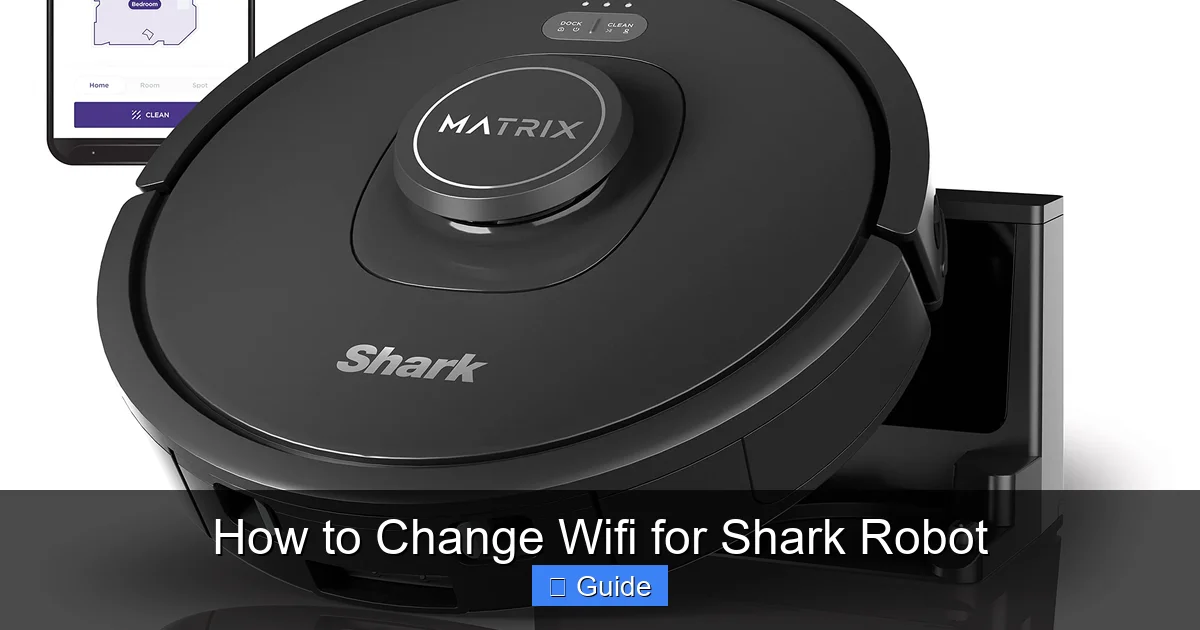
Now for the main event. The process is 90% the same across all Shark Robot models, with one key difference: the button you press to put the robot into “pairing mode.” We’ll cover both major categories.
Visual guide about How to Change Wifi for Shark Robot
Image source: m.media-amazon.com
Universal App Steps (For All Models)
These are the steps you will perform on your smartphone:
- Open the SharkClean App: Log in to your account if prompted.
- Select Your Robot: On the main dashboard, tap the tile for the specific Shark Robot you want to reconfigure. If you have multiple robots, be sure you select the correct one.
- Navigate to Settings: Look for a gear icon ⚙️ or a “Settings” button within your robot’s control screen. Tap it.
- Find WiFi/Network Settings: Scroll through the settings menu. You’re looking for an option called “WiFi Settings,” “Network,” “Connection,” or “Change Network.” Tap it.
- Initiate the Change: The app will now guide you. It will typically say something like “Let’s connect your robot to WiFi” or “Select a network.” Tap “Next” or “Continue.”
- Select Your New Network: The app will scan for available WiFi networks. From the list, select your new 2.4GHz network name (SSID).
- Enter the Password: Carefully type in the password. There is often a “show password” toggle (an eye icon) to verify what you’ve typed. Use this! Tap “Connect” or “Join.”
At this point, the app will tell you to put your robot into pairing mode. This is where the steps diverge based on your model. The app will usually show you an illustration or text description of which button to press. Follow the instructions for your specific model below.
For Shark Robots WITH a Home Base (Shark ION, Shark IQ Series)
These models (e.g., ION R75, R80, IQ, IQ R1) have a circular Home Base docking station. The pairing button is on the robot itself.
- Put the Robot on its Home Base: Ensure it’s seated correctly on the charging contacts.
- Locate the WiFi Button: On the top of the robot, near the front, there is a small, recessed button. It’s usually marked with a WiFi symbol 📶 or two arrows forming a circle. You’ll need a paperclip or a similar thin object to press it.
- Press and Hold the WiFi Button: Press and hold this button for about 3-5 seconds. You’ll hear a tone, and the WiFi indicator light (often a small LED near the button) will start blinking rapidly (or alternating colors). This means the robot is in pairing mode and broadcasting its own temporary WiFi signal.
- Confirm in the App: Go back to the SharkClean app on your phone. It should detect the robot’s signal. It might say “Connecting…” or show a progress bar.
- Wait for Success: The process takes 30-90 seconds. You’ll see a success message on your phone (“Your robot is now connected!”) and the robot’s WiFi light will become a steady, slow blink or turn off, depending on the model. The robot may also play a chime.
For Shark Robots WITHOUT a Home Base (Shark AI Ultra, Shark Vertex, Some Shark ION Models)
These models (e.g., AI Ultra, Vertex, some newer IONs that are “base-less”) do not have a separate Home Base. The pairing button is on the robot’s top surface, often a dedicated, larger button.
- Place the Robot on the Floor: Put it on a flat surface in the same room as your router.
- Locate the Power/WiFi Button: Find the main circular button on the top of the robot. On these models, this button serves multiple functions, including WiFi pairing.
- Press and Hold the Button: Press and hold this top button for approximately 7-10 seconds. You will hear a series of beeps. Listen for a specific sound (often a double beep or a longer chime) that indicates it has entered WiFi pairing mode. The LED ring around the button (if it has one) will start blinking in a specific pattern (often blue).
- Confirm in the App: Your phone should now detect the robot’s signal. The SharkClean app will proceed with the connection.
- Wait for Success: Again, this takes less than two minutes. A success message will appear. The robot’s LED will change from a rapid blink to a slow, steady pulse or turn off.
Finalizing the Connection
Once the app confirms success:
- Do NOT move the robot yet. Let it sit for a minute to fully register the new network.
- Place it back on its Home Base (if it has one) or in its usual charging spot.
- In the app, you can now test the connection. Try starting a cleaning job from your phone. If it works, you’re done!
- You can now move the robot to its normal location in your home.
Troubleshooting: What to Do When It Fails
It’s rare, but sometimes the handshake doesn’t happen. Don’t panic. 95% of connection failures are due to one of a few common, fixable issues. Go through this checklist systematically.
Visual guide about How to Change Wifi for Shark Robot
Image source: surveillanceguides.com
1. “Network Not Found” or “No Signal”
Symptom: The app scans but your new network name doesn’t appear in the list.
- Solution: Your robot is too far from the router. Move it physically closer (within 10 feet). Ensure the robot is in pairing mode (LED blinking rapidly). Restart the scan in the app. Also, confirm your router is powered on and broadcasting the 2.4GHz network.
2. “Incorrect Password” Error
Symptom: You select the network, enter the password, and it fails.
- Solution: This is almost always a human error. Use the “show password” toggle on your phone to verify every character. Check for:
- Capitalization (Caps Lock on?)
- Numbers vs. Letters (0/O, 1/I, 5/S)
- Spaces at the beginning or end of the password field.
- Try typing the password into a notepad app first to see it clearly, then copy-paste it into the SharkClean app if possible.
3. “Connection Failed” or “Timed Out”
Symptom: It finds the network, accepts the password, but then hangs and eventually fails.
- Solution: This is the classic 2.4GHz/5GHz mismatch or interference issue.
- First, confirm 100% you are connecting to a 2.4GHz network. Go to your phone’s WiFi settings. If your phone is connected to the 5GHz network, your robot might be trying to connect to that same SSID, which it cannot do. Disconnect your phone from the 5GHz network and connect it to the 2.4GHz network. Then, restart the whole process in the SharkClean app.
- Power Cycle: Unplug your router and modem for 60 seconds. Power off your Shark Robot (hold the power button). Unplug the Home Base. Wait one minute. Plug the router/modem back in and wait for full internet connectivity (all lights stable). Then power on the robot and Home Base and try again.
- Router Settings: Temporarily disable any advanced security features like “AP Isolation,” “Client Isolation,” or “MAC Address Filtering” on your router. These can block device-to-device communication needed for setup. Re-enable them after setup if needed.
4. Robot Won’t Enter Pairing Mode (LED Not Blinking)
Symptom: You’re holding the button, but the light doesn’t do anything special.
- Solution: The robot may need a hard reset.
- For models with a Home Base: Press and hold the WiFi button for 10-15 seconds until you hear a series of beeps. The light will blink differently. Release the button. This resets the robot’s network settings.
- For base-less models: Press and hold the main power button for 10-15 seconds until you hear multiple beeps. This performs a factory reset of the robot’s WiFi.
- After a reset, place it on the Home Base or near the router and try the pairing steps again from the beginning.
5. App Says “Connected” But Robot is Offline
Symptom: The app shows a green checkmark, but the robot status says “Offline” or you can’t control it.
- Solution: The robot connected to your router, but your router isn’t giving it full internet access.
- Check for IP Conflict: Your router’s DHCP server (which gives out IP addresses) might have assigned the robot an address that’s already in use. Reboot your router to refresh the DHCP table.
- Firewall/Blocklist: Check your router’s security settings. Ensure the robot’s MAC address (you can find it in the robot’s settings *if* it was previously connected, or sometimes on a sticker on the underside) isn’t accidentally blocked.
- Signal Strength: The robot might be connected but on the edge of the signal. Move its Home Base closer to the router temporarily to see if it comes online. If it does, you may need a WiFi extender for that area of your home.
Best Practices for a Stable Shark Robot WiFi Connection
You’ve successfully changed the WiFi. Let’s keep it that way. A stable connection prevents future frustration.
Router Placement and Network Health
Your robot’s connection is only as good as your home’s WiFi infrastructure.
- Centralize Your Router: Place your router in a central, open location. Avoid closets, basements, or behind large metal appliances.
- Consider a Mesh System or Extender: If your robot’s charging station is far from the router and in a dead zone, invest in a WiFi mesh system (like Eero, Google Nest WiFi, or Orbi) or a simple 2.4GHz extender. Place the extender halfway between the router and the robot’s base.
- Dedicate the 2.4GHz Band: As mentioned, name your 2.4GHz and 5GHz networks differently. Connect all your smart home devices (Shark, lights, plugs) to the 2.4GHz network. Reserve the 5GHz for streaming devices and laptops that need high speed.
Maintain Your Shark Robot’s Connection
- Don’t Change Your WiFi SSID or Password: If you must change it, you’ll have to go through this entire process again. Write down the new credentials and be prepared.
- Keep the App Updated: Enable automatic updates for the SharkClean app. Updates often include connectivity fixes.
- Reboot Periodically: Once a month, power cycle your router and your Shark Robot (turn it off, unplug the Home Base for a minute). This clears temporary glitches.
- Check for Firmware Updates: In the SharkClean app, go to Settings > About > Check for Firmware Updates. Install them. Shark occasionally releases updates that improve WiFi stability.
Conclusion: You’ve Got This!
Changing the WiFi on your Shark Robot might feel like a daunting task, but as you’ve seen, it’s a predictable, linear process. The golden rule is this: everything happens in the SharkClean app. The physical buttons on the robot are only for initiating the pairing mode; all the actual network selection and password entry happens on your phone. Remember the holy trinity of success: correct 2.4GHz network name, exact password, and robot in pairing mode with a strong signal.
If you follow the preparation steps, use the correct button for your model, and methodically work through the troubleshooting checklist, you will succeed. A connected Shark Robot is a useful Shark Robot. It’s the difference between a dumb appliance and a smart cleaning assistant that maps your home, obeys your schedule from anywhere, and keeps itself updated. So next time your internet changes, don’t fear it. Open the SharkClean app, find that WiFi button, and take back control of your automated home. Your floors—and your sanity—will thank you.
Frequently Asked Questions
What if I can’t find my Shark Robot in the SharkClean app after trying to change WiFi?
First, ensure your phone is connected to the same 2.4GHz network you’re trying to give the robot. Force-close and restart the SharkClean app. If the robot still doesn’t appear, perform a factory reset on the robot (hold the WiFi or power button for 10-15 seconds until you hear multiple beeps). Then, go through the entire “Add New Robot” setup process in the app as if it’s brand new.
My Shark Robot’s WiFi light is blinking blue, but the app won’t connect. What’s wrong?
A rapidly blinking blue light usually means the robot is in pairing mode but hasn’t successfully connected to your router yet. Double-check that you selected the correct 2.4GHz network and typed the password perfectly. Move the robot much closer to your router (within 5 feet). If it still fails, power cycle your router and robot, then try again.
Can I use a WiFi extender for my Shark Robot?
Yes, absolutely. If your robot’s Home Base is in a location with poor signal, a WiFi extender is an excellent solution. Set up the extender to broadcast a network with a different name (e.g., “MyHome-2.4G_EXT”). Then, when changing your Shark’s WiFi, connect it to this extender’s network name. This gives the robot a strong, dedicated signal in its charging area.
My router has a “Smart Connect” feature that combines 2.4GHz and 5GHz into one network name. Will this work?
It might work, but it often causes problems with IoT devices like Shark Robots. The robot may get confused and try to connect to the 5GHz band, which it doesn’t support. The best practice is to log into your router’s admin panel and disable “Smart Connect” or “Dual-Band Merge.” Then, give the 2.4GHz and 5GHz networks distinct names. Connect your Shark to the 2.4GHz name.
I changed my WiFi password. Do I have to do the whole pairing process again?
Yes. Your Shark Robot stores the old password and will not automatically update. Changing the password on your router makes the old credentials invalid. You must go through the full “Change WiFi” process in the SharkClean app, re-enter the new password, and put the robot into pairing mode to establish a new, valid connection.
Why does my Shark Robot keep disconnecting from WiFi even after I changed it?
Intermittent disconnections are usually a signal strength issue, not a password problem. The robot’s Home Base is likely too far from your router or has too many walls/obstructions in between. Try moving the Home Base closer to the router temporarily to test. If the disconnections stop, you need to improve your WiFi coverage in that area—a mesh system or extender is the permanent fix. Also, ensure your router’s firmware is up to date and that you’re not using an overly complex password with special characters that some older IoT chips struggle with (though this is rare).